
Custom Domain for QR Codes: Use Your Own Short Link
How to connect your own domain or subdomain in WebQR: add it on My domains, create the CNAME and TXT records, check DNS and choose the domain for a QR code.
By default, the short links behind your dynamic QR codes use a WebQR domain. You can connect your own domain or subdomain instead — for example, qr.yourbrand.com — so that people see your brand in the link after scanning. Here is how to set it up in WebQR.
Add your domain
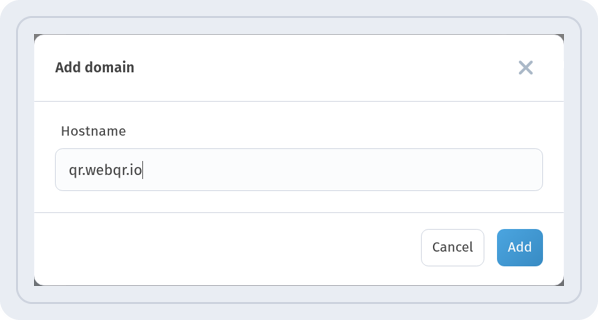
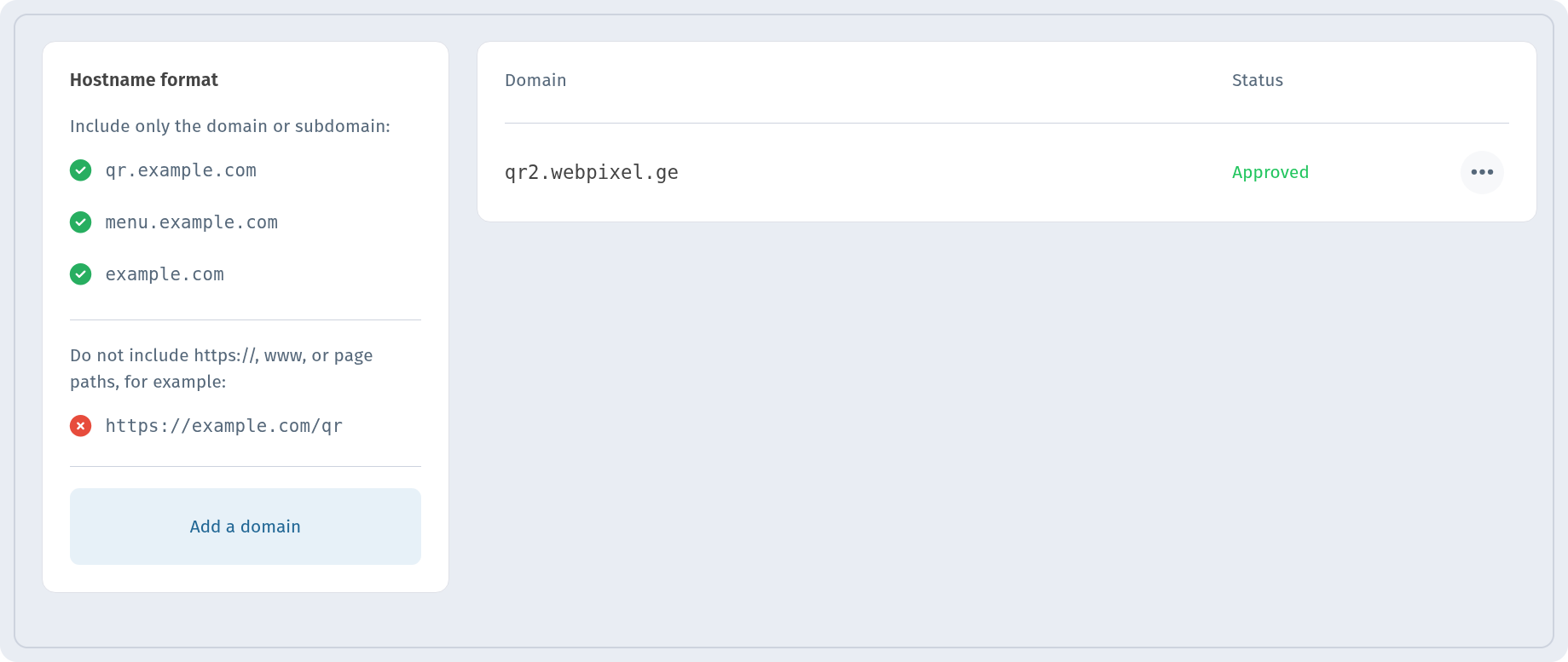
Open My domains in the sidebar and click Add a domain. Enter only the domain or subdomain, without https://, www or page paths: qr.yourbrand.com is fine, https://yourbrand.com/qr is not. Click Add.
Create the DNS records
The domain appears in the list, and the DNS setup section shows two records to create at your DNS provider. Copy each value with the button next to it:
- CNAME: Name / Host — your subdomain (for qr.yourbrand.com that is qr), Target / Points to — webqr.ge.
- TXT: the same Name / Host and the Value / Content shown on your page. This is a verification record unique to your domain — paste it exactly.
If your DNS panel asks for the full hostname, use the full name shown under the field (for example, qr.yourbrand.com).
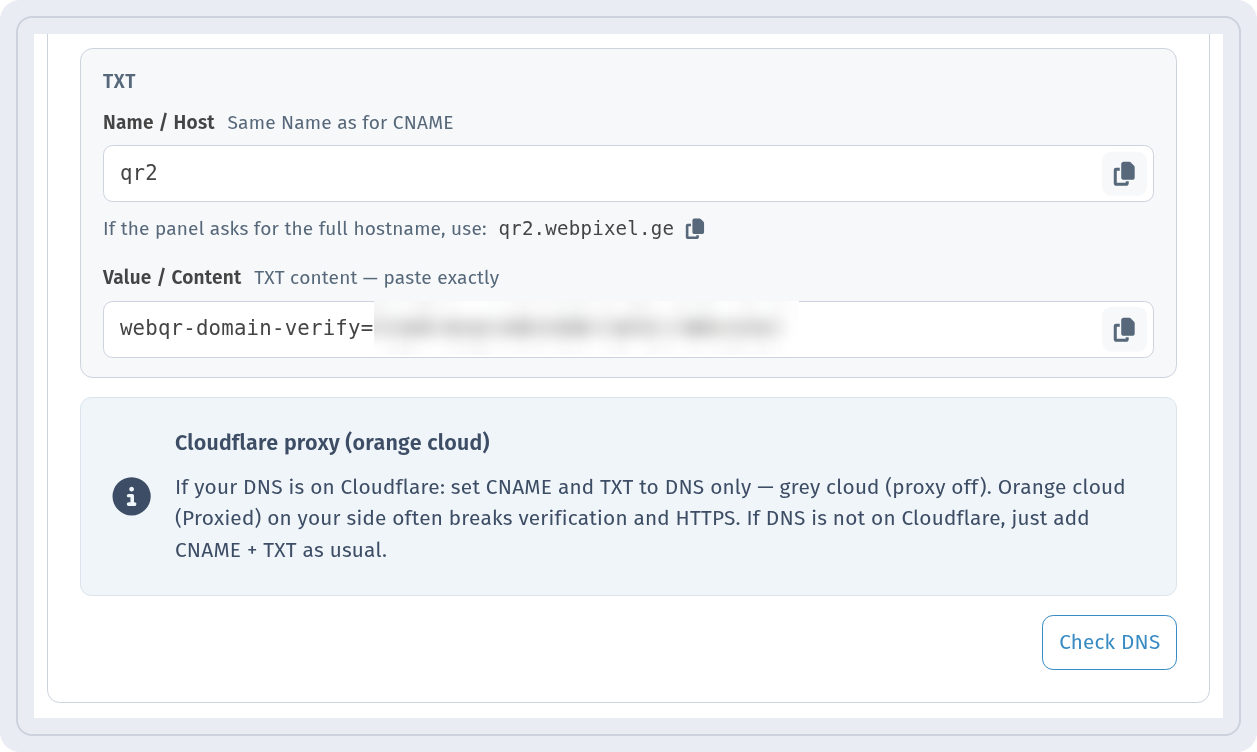 If your DNS is on Cloudflare, set both records to DNS only (grey cloud). With the orange cloud (Proxied), verification may not go through.
Check DNS
After saving the records, click Check DNS. DNS checks take time: WebQR re-checks several times, and full DNS propagation can take up to 24 hours. You can leave the page — you will get an email and a notification with the result. In our test, the status changed in a few minutes.
When the records are found, the domain status becomes Approved.
Use the domain for a QR code
Open a dynamic QR code for editing, go to the Settings step and expand Configuration. In the Short link block, open the Domain list and choose your domain, then click Save.
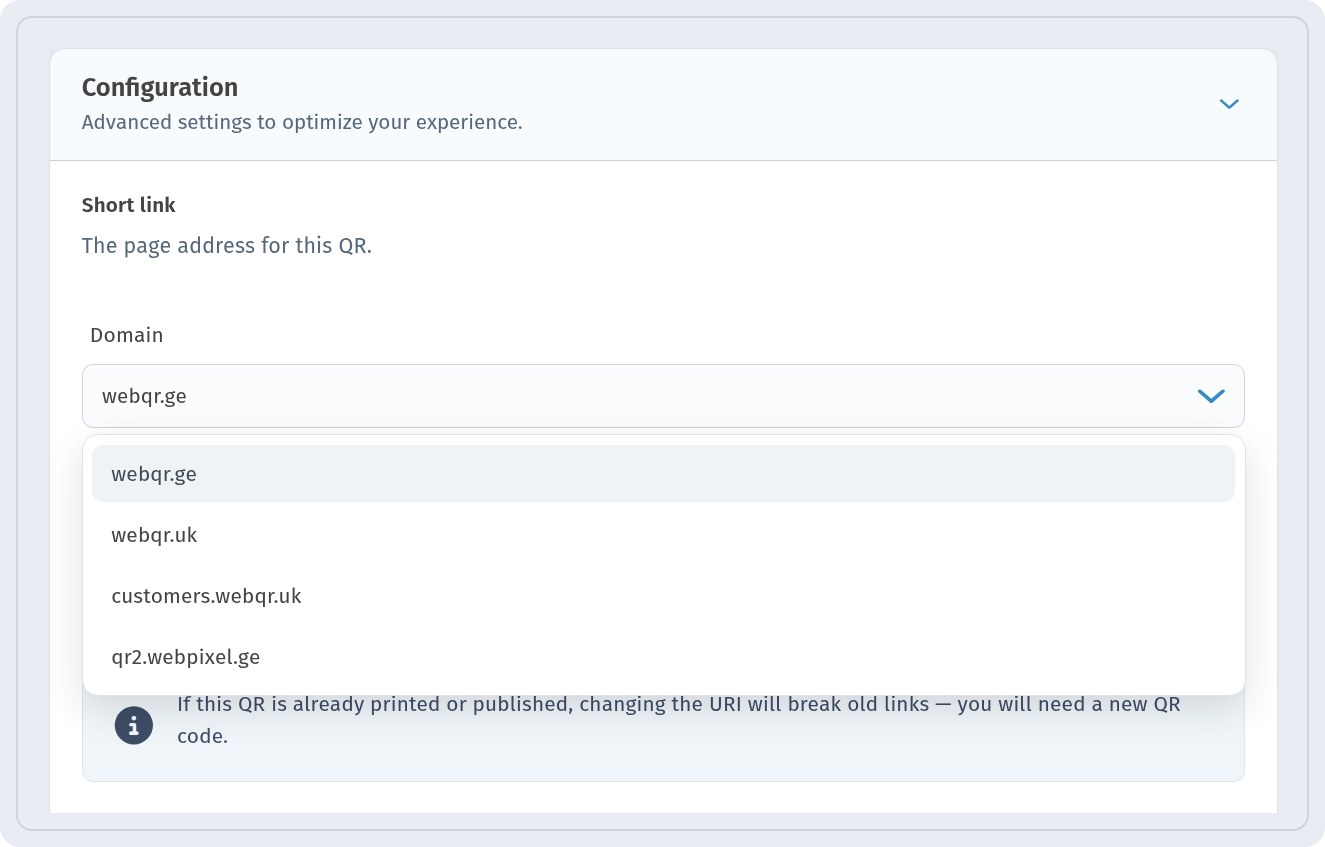 Keep in mind: if a QR code is already printed or published, changing its short link breaks the old link, and you will need a new QR code. It is best to pick your domain before you print.