
GPS location tracking
On Business plans and above, WebQR lets you enable GPS tracking for dynamic QR codes: users can voluntarily share their location when scanning, and you see map points and accurate stats in your dashboard.

Benefits
-
Accurate location detection: When users agree to share their location, the city and country you see for their scan are much more likely to be accurate than when using default scan location estimates.
-
User consent: When GPS tracking is enabled for a dynamic QR code, people who scan it land on a page asking if they're happy to share their location data with you. Once they make their choice, they are redirected to the scan destination.
-
Enable and disable: You can enable and disable GPS tracking for a dynamic QR code after it's been created and printed. This gives you full control over tracking functionality.
-
Business feature: GPS tracking is available on business plans. If you're on such a plan, set your organization name in the workspace menu (Edit) and the feature will become available.
Enable GPS Tracking
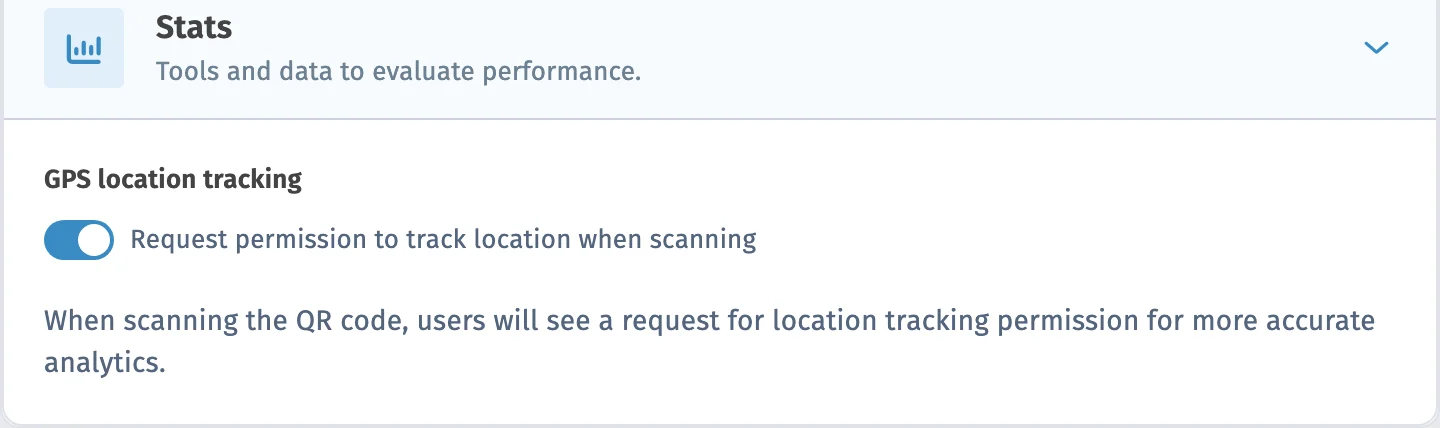
When creating or editing a dynamic QR code, enable GPS tracking in the settings.
User Scans QR Code
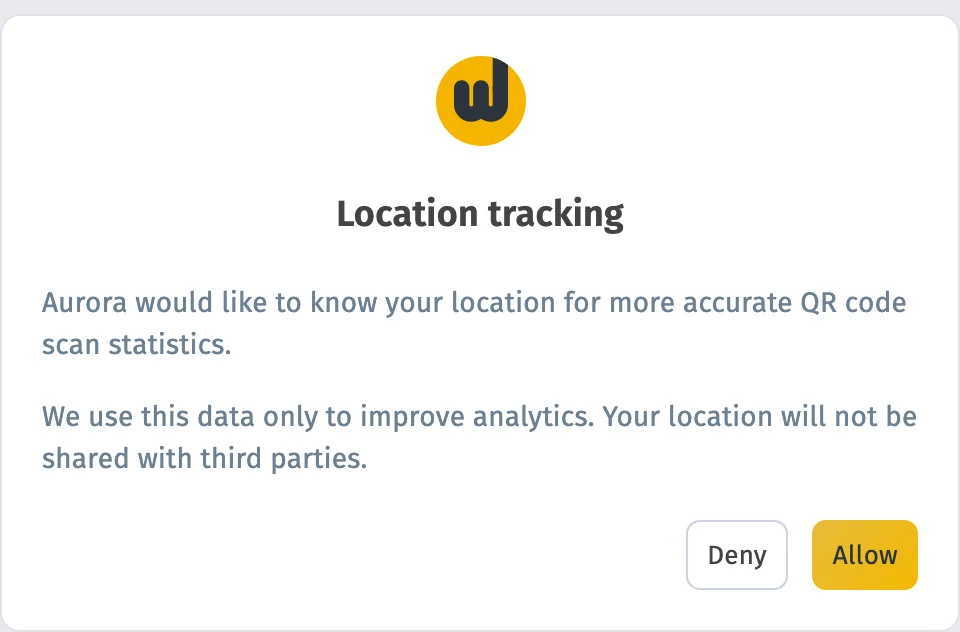
When a user scans a QR code with GPS tracking enabled, they land on a consent page asking if they're happy to share their location data with you.
User Makes Choice
The user can agree or decline to share their location. After making their choice, they are redirected to the scanning destination.
Get Accurate Data
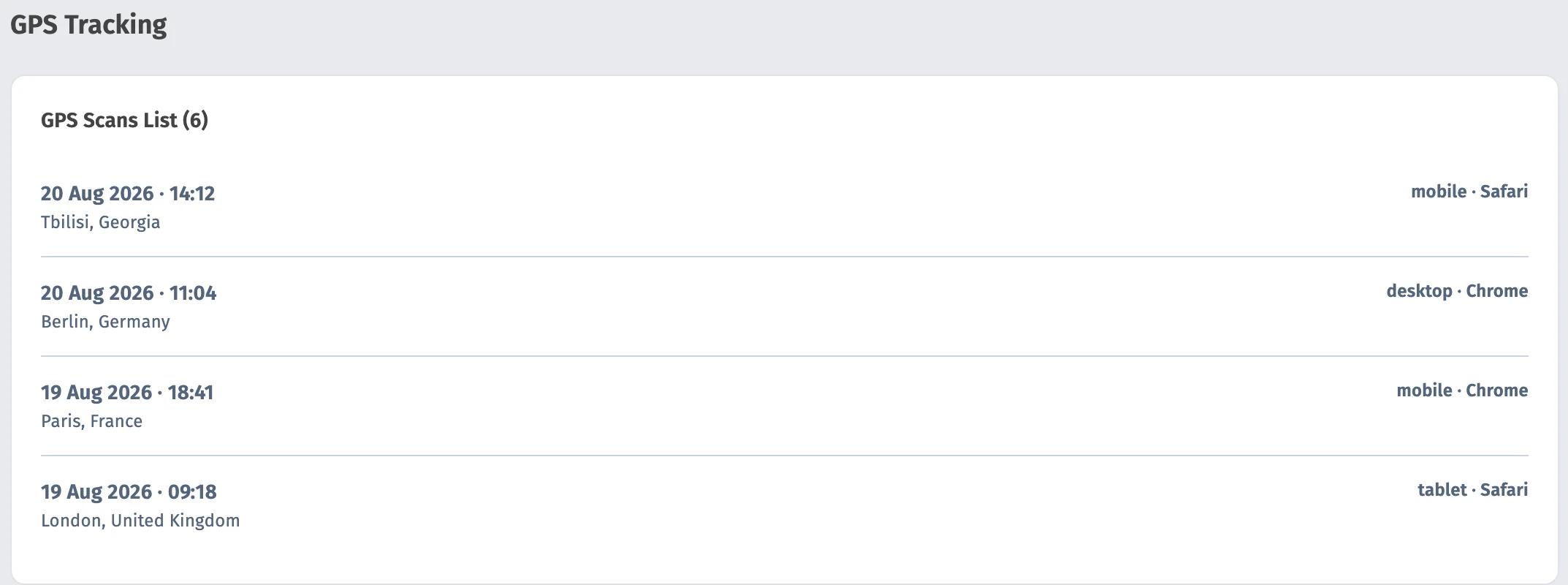
If the user agreed to share their location, the city and country you see for their scan will be much more accurate than using default scan location estimates that don't require consent.
Perfect for Corporate QR Codes
Using this feature makes sense for certain use cases. For example, if you want to use QR codes so employees can check in, they will generally be happy to share their location data with you.
Not Recommended for Public Advertising
If someone scans a flyer or poster, they probably don't want to share their location with you and may not proceed to the scan destination if prompted to share their location.
Requirements
Dynamic QR Code Business plan or above that supports GPS tracking Organization name set (in workspace menu — Edit) Enable the feature when creating or editing the QR code
Setting Up Organization Name
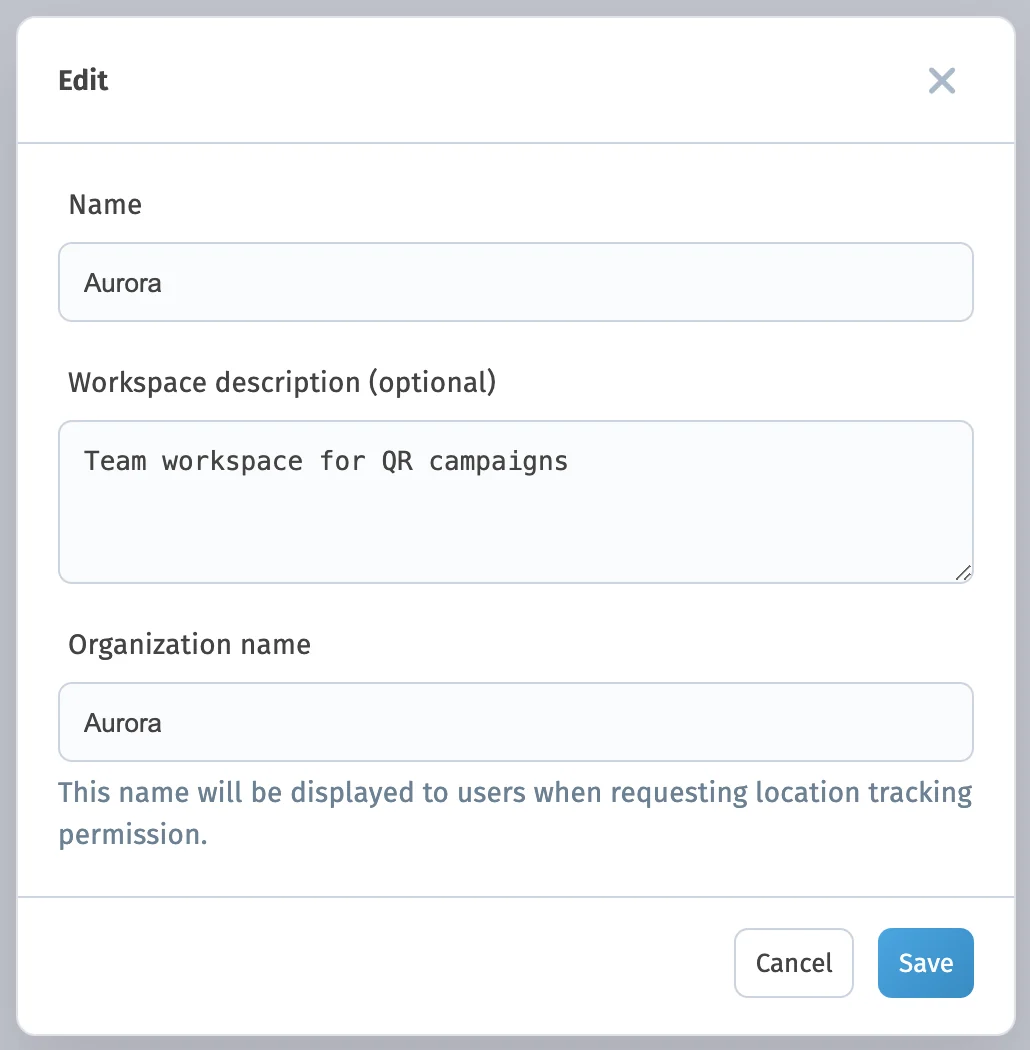
If you're on a plan that supports GPS tracking, set your organization name for the workspace and the feature will become available. Open the workspaces page, tap the menu in the corner and select «Edit» In the modal that opens, enter your organization name in the field This name will be shown on the consent page when people scan codes with GPS tracking enabled The organization name must be set before GPS tracking can be enabled for any QR code.
Frequently Asked Questions
Yes, you can enable and disable GPS tracking for a dynamic QR code after it's been created and printed. This doesn't require reprinting the QR code.
The user is still redirected to the scan destination, but their location will be determined using default estimates, which may be less accurate.
Yes, you can enable and disable GPS tracking at any time through the QR code settings in your dashboard.
No, you don't need to reprint the QR code. GPS tracking can be enabled or disabled at any time without changing the QR code itself.
Learn more about other features
Choose a section and find out more
Ready to Get Started?
Upgrade to Business or above and start using GPS tracking for your QR codes today!
Starter — free forever No credit card Cancel anytime