
Organize QR Codes: Folders and Saved Designs
How to sort QR codes into folders in WebQR, filter the list by folder, and save a design to apply it to new codes in one click.
Once you have lots of QR codes, it helps to sort them into folders and to save a good design so you can apply it to new codes in one click. Here is how to do both in WebQR.
Create a folder
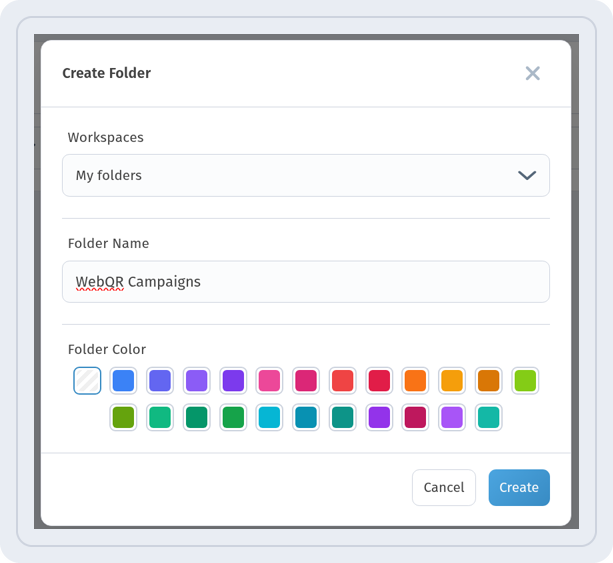
Open the QR Code Folders page (the Folders link in your code list) and click Create folder. In the dialog, enter a Folder Name, pick a Folder Color and click Create.
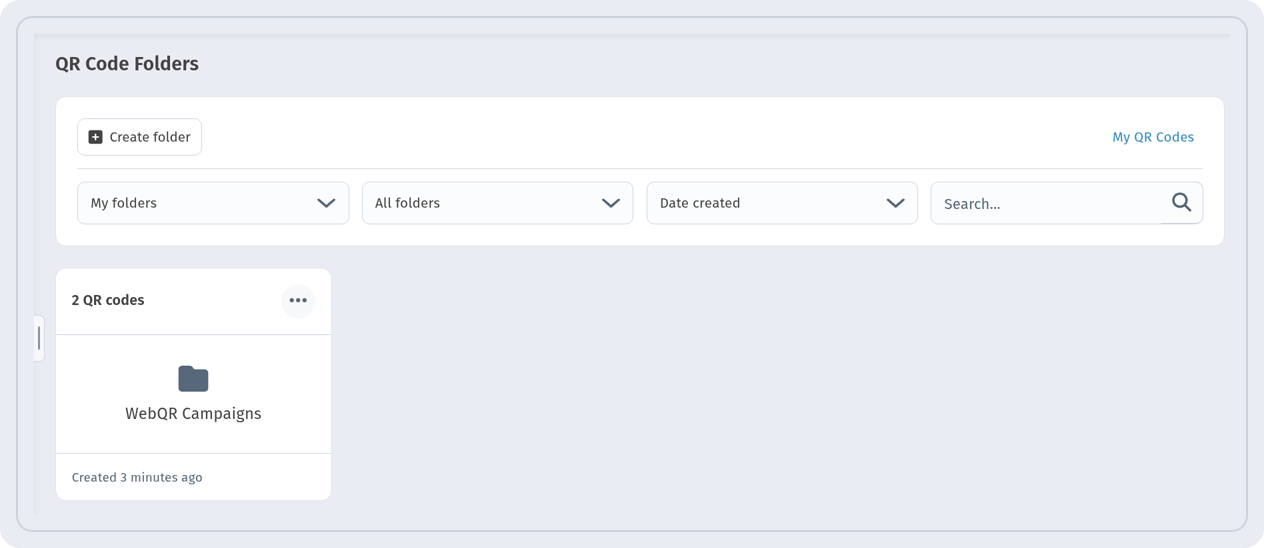
The new folder appears on the page with the number of codes inside and its creation date.
Add a code to a folder
Open the code for editing and go to the Settings step. In the Folder field, click Select folder — there is also a Create folder button if the folder you need doesn’t exist yet.
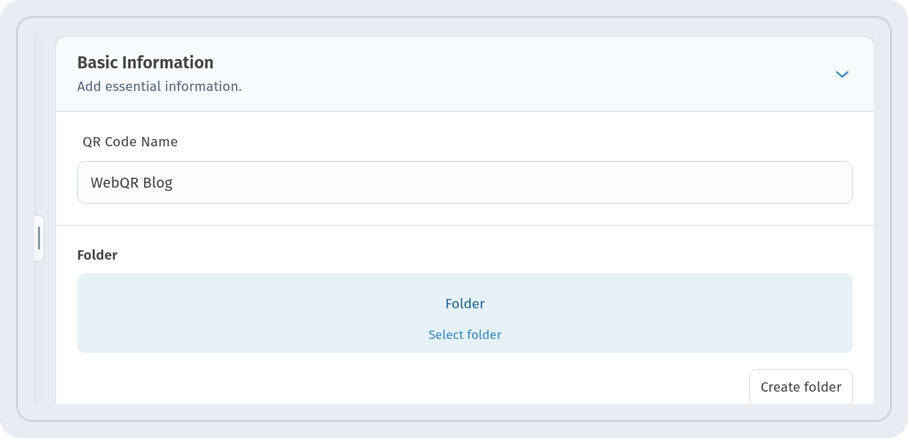
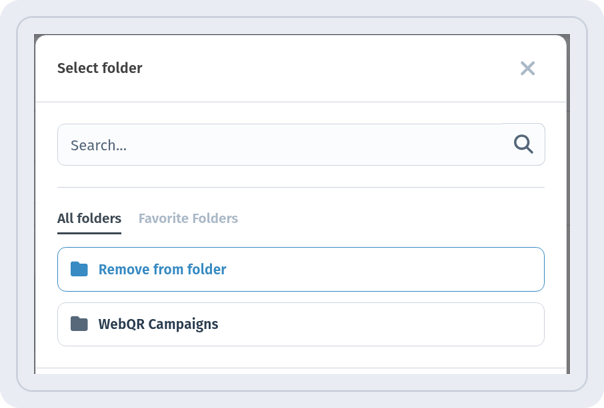
In the Select folder dialog, pick the folder and save the code. To take a code out of a folder, choose Remove from folder.
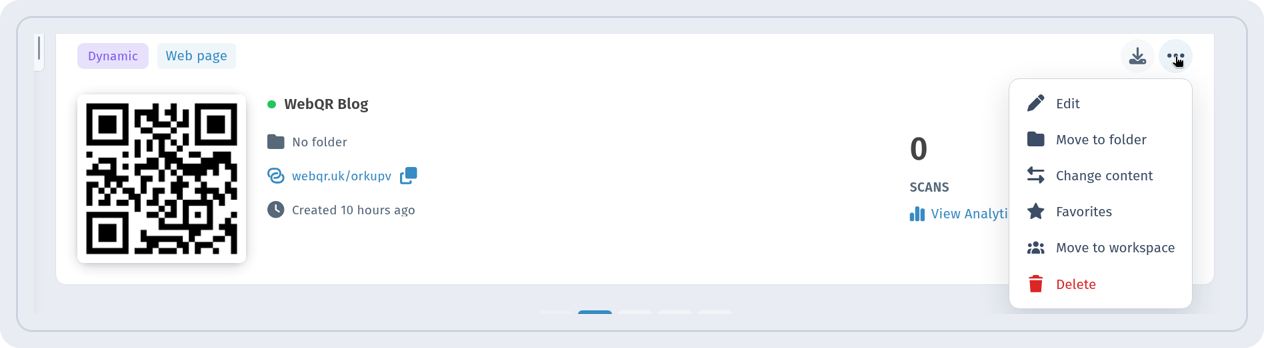
The «…» menu on a code card also has a Move to folder item.
Find the codes in a folder
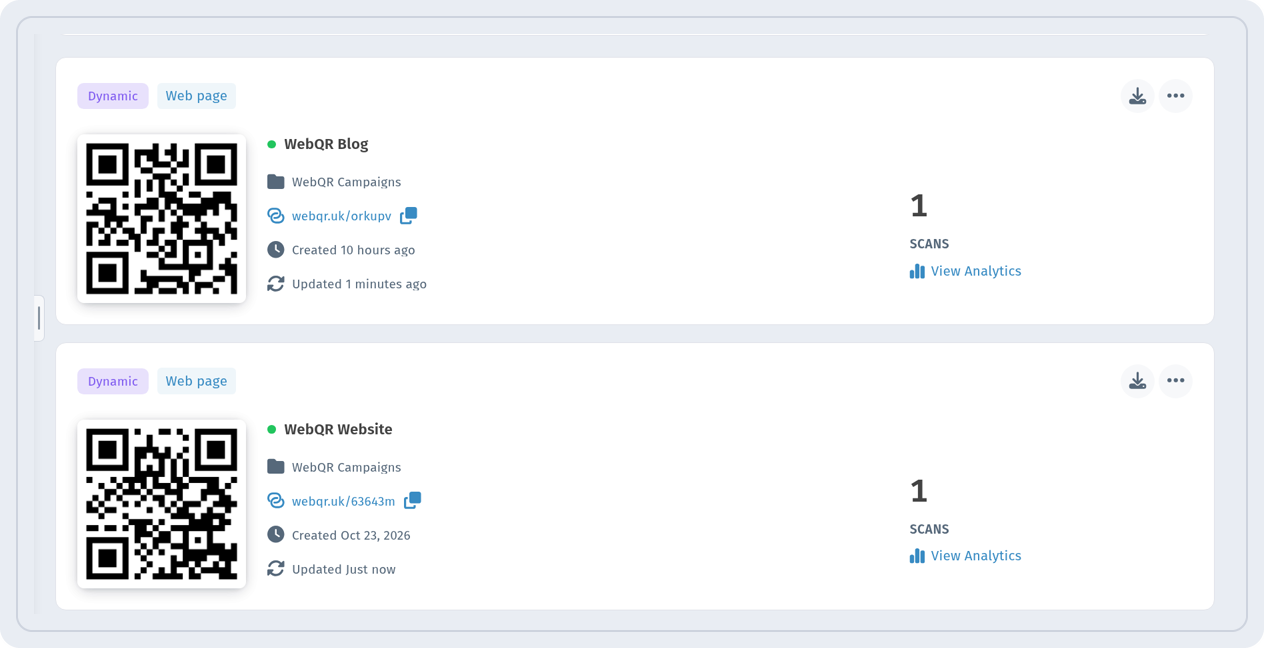
In the code list, open Filters and choose By folder.
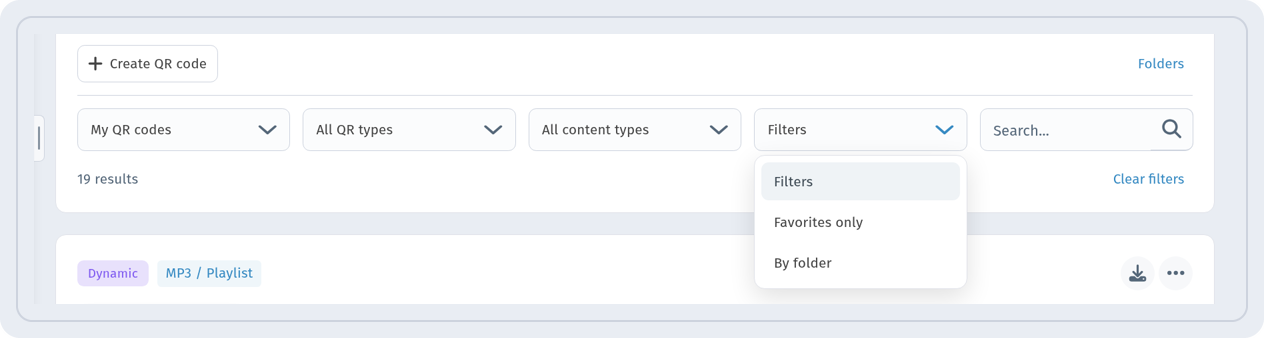
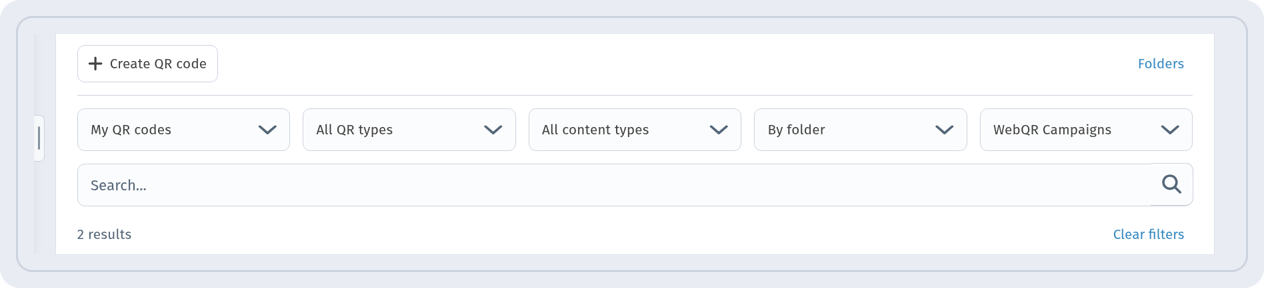
A folder picker appears next to it, and the list then shows only the codes from that folder. Clear filters brings back the full list.
Save a design
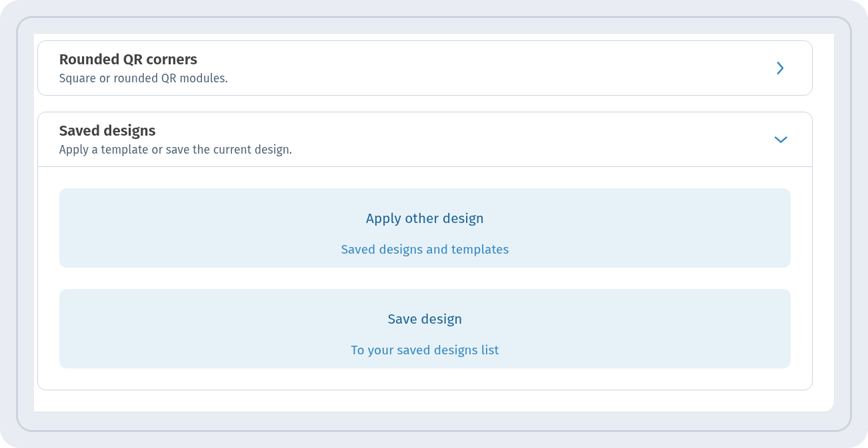
On the QR design step, open Saved designs. It has two buttons: Apply other design and Save design.
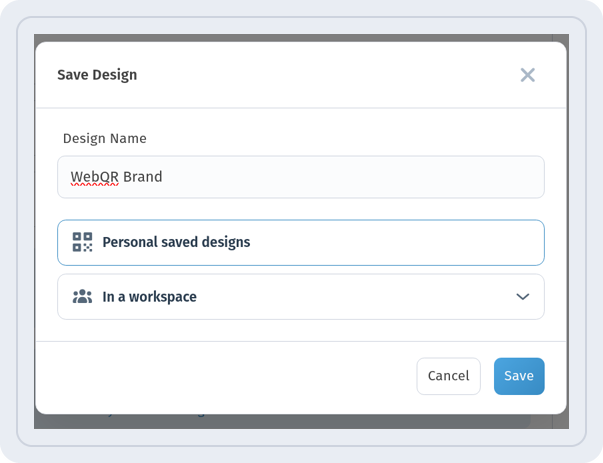
Click Save design, enter a Design Name and choose where to keep it: Personal saved designs or In a workspace.
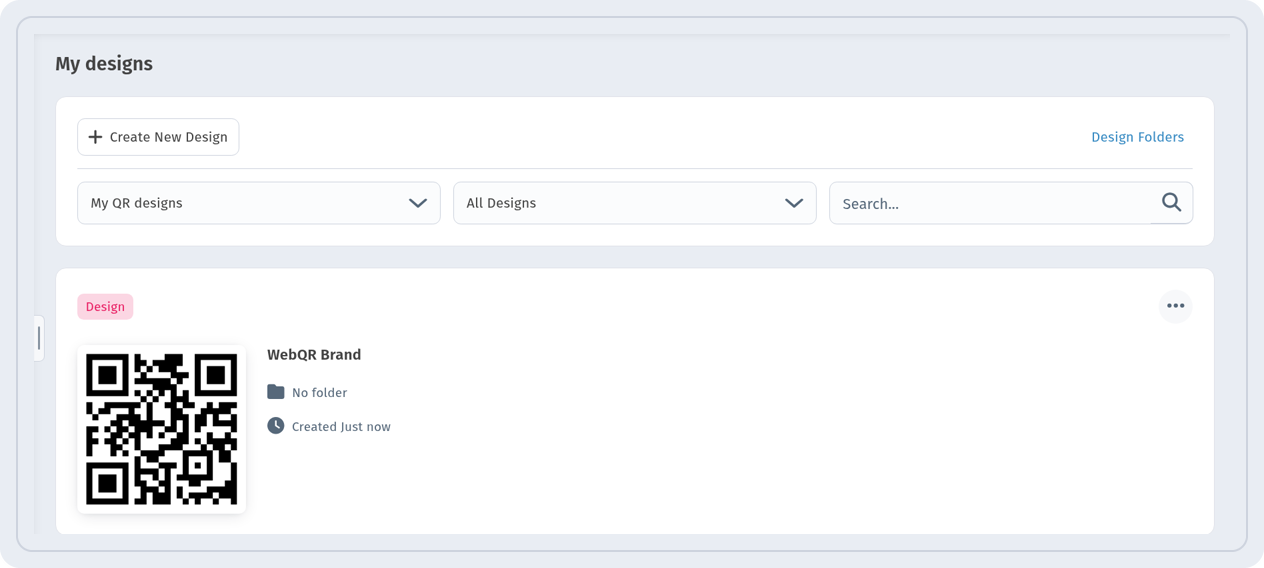
All saved designs are collected on the My designs page.
Apply a design to a new code
When creating a new code, on the QR design step click Apply other design and choose a design in the My Designs dialog.
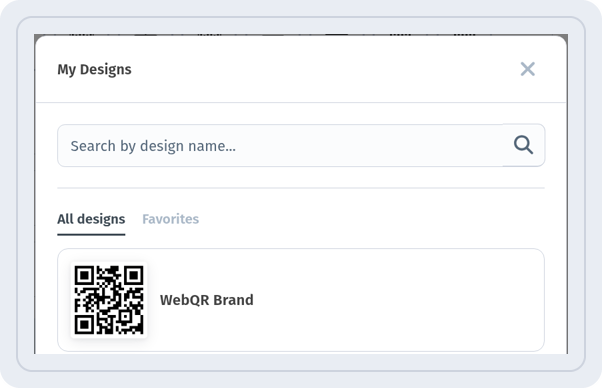
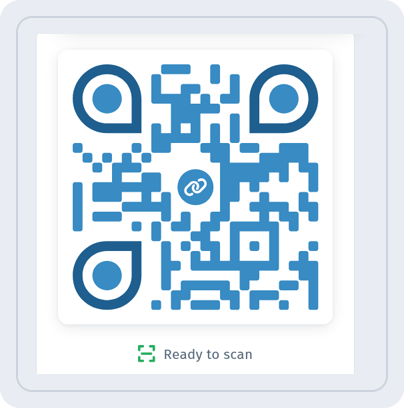
The design is applied to the code right away — you can see it in the preview on the right.
Tips
- Give folders clear names: by campaign, client or placement.
- A folder color helps you spot it in the list quickly.
- Save your brand design once and every new code will match.
- Give designs distinct names so they don’t get mixed up in the list.