QR code design
Create unique and stylish QR codes with full design customization
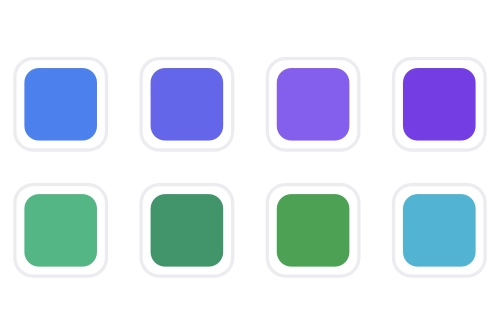
Color palette
Choose any colors for your QR code. Customize module colors, background, finder patterns and center elements. Create QR codes that fit your brand perfectly.
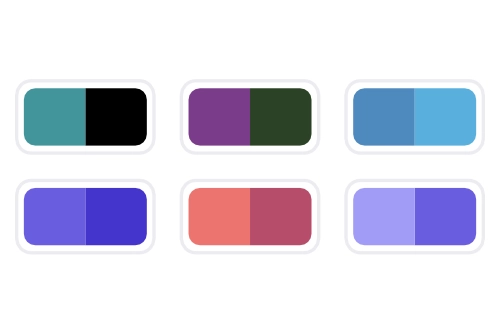
Gradients
Add beautiful gradients to your QR codes. Choose gradient direction and create modern, attractive designs.
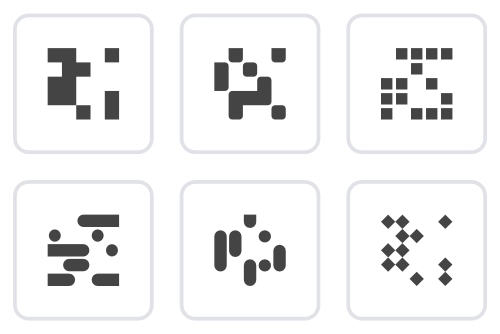
Module styles
Choose from various module styles: square, rounded, dots. Each style gives your QR code a unique look.
Logo
Add your logo to the center of the QR code. Customize the logo background and create branded QR codes that are easy to recognize.
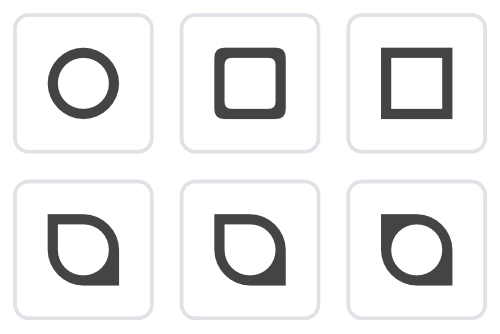
Outer finder patterns
Customize the outer shape of QR finder patterns: square, rounded, floral. Set the style of the three corner patterns for a recognizable design.
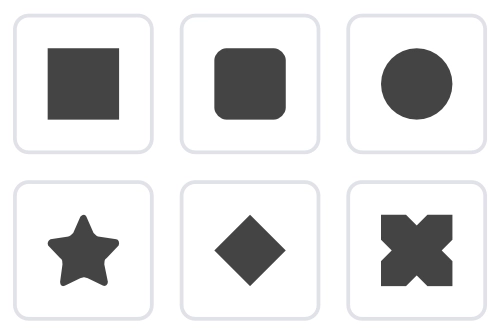
Inner finder patterns
Adjust the inner elements of finder patterns: center module shape (square, circle). Create unique combinations of outer and inner styles.
Frames
Frame your QR codes with stylish borders. Add text below the QR code and create complete design solutions.
How to create a QR code design
Choose base colors
Start by choosing colors for the QR code modules and background. You can use the color palette or enter a HEX code manually.
Set the style
Choose module style (square, rounded, dots) and finder pattern style. Experiment with different combinations.
Add gradient (optional)
Enable gradient for modules or finder patterns. Choose two colors and gradient direction for a modern look.
Upload logo
Upload your logo and place it in the center of the QR code. Adjust the logo background for better visibility.
Add frame and text
Choose a frame type and add text below the QR code. This creates a finished design and improves recognition.
Save and use
Save the design for reuse. Download the QR code in the format you need (SVG, PNG, JPG, PDF, EPS, Print) and size.
Design guidelines
Contrast
Ensure sufficient contrast between module and background colors. This is essential for correct QR code scanning.
Testing
Always test your QR code on different devices and scanning apps before publishing.
Branding
Use your brand colors and elements to create recognizable QR codes that match your style.
Export formats
SVG
Vector format, ideal for print and scaling without quality loss.
PNG
Raster format with transparency. Suitable for web use.
JPG
Compressed raster image. Ideal for photos and web use.
Universal format for print and documents. Preserves high quality.
EPS
Vector format for professional print. Used in publishing and design.
Print-ready A4 document with QR code. Optimized for printing.
Frequently asked questions
When used correctly, design does not affect scannability. It is important to maintain sufficient contrast between modules and background, and not make the logo too large.
Yes! You can use gradients to create smooth color transitions. You can also set different colors for modules and finder patterns.
For printing, SVG or PDF formats are recommended as they provide high quality at any size.
Yes, you can save designs and apply them to other QR codes. This is especially useful for maintaining a consistent brand style.
Yes, all design features are available on the free plan. You can use all QR code customization options without limits.
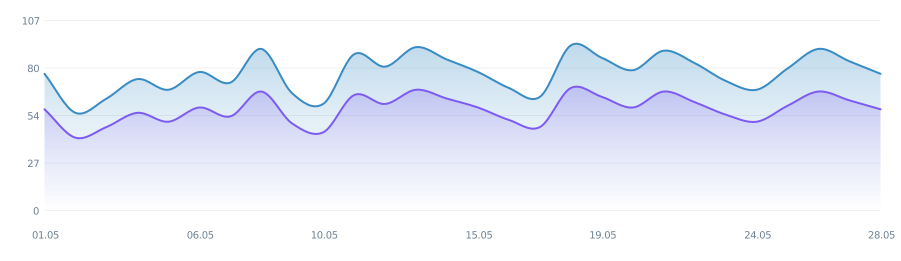
View analytics demo
Not enough scans yet? View our demo page with full analytics: charts, geography, devices, browsers. No registration required.
Learn more about other features
Choose a section and find out more
Ready to create your design?
Start creating unique QR codes with full design customization today!