

Static QR Code API: Generate QR Codes from Your Backend
How to create a WebQR API key, read the docs and generate an SVG QR code with one POST request — with a real curl example and common errors.
The WebQR Static QR API lets your backend generate QR codes on the fly: you send the content and design, and get back a ready SVG. Here is where to find your keys, how to create one, and how to make your first request.
Where to find the API
In the dashboard, open the API page at dash.webqr.io/api. From there, API keys leads to your keys, and the Documentation block has Open API docs and API Builder — the builder lets you preview the SVG before writing any code.

Create a key
Go to API keys (dash.webqr.io/api/keys) and click Create API key.
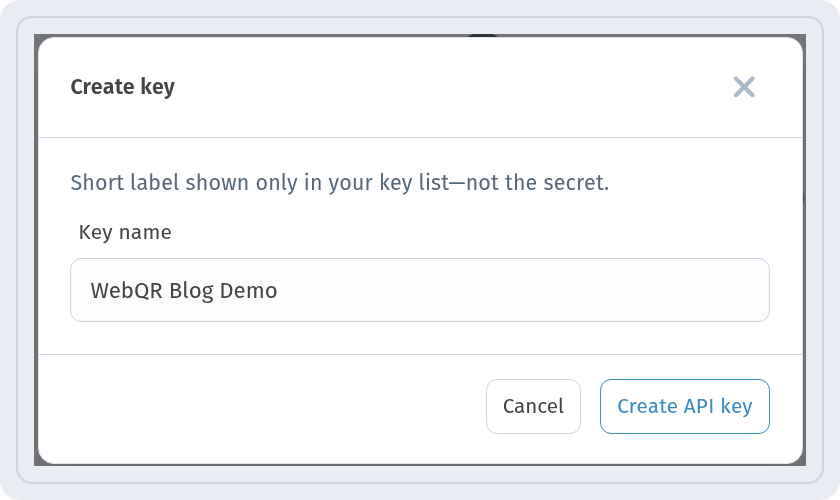
In the Create key dialog, enter a Key name — a short label shown only in your list — and click Create API key.
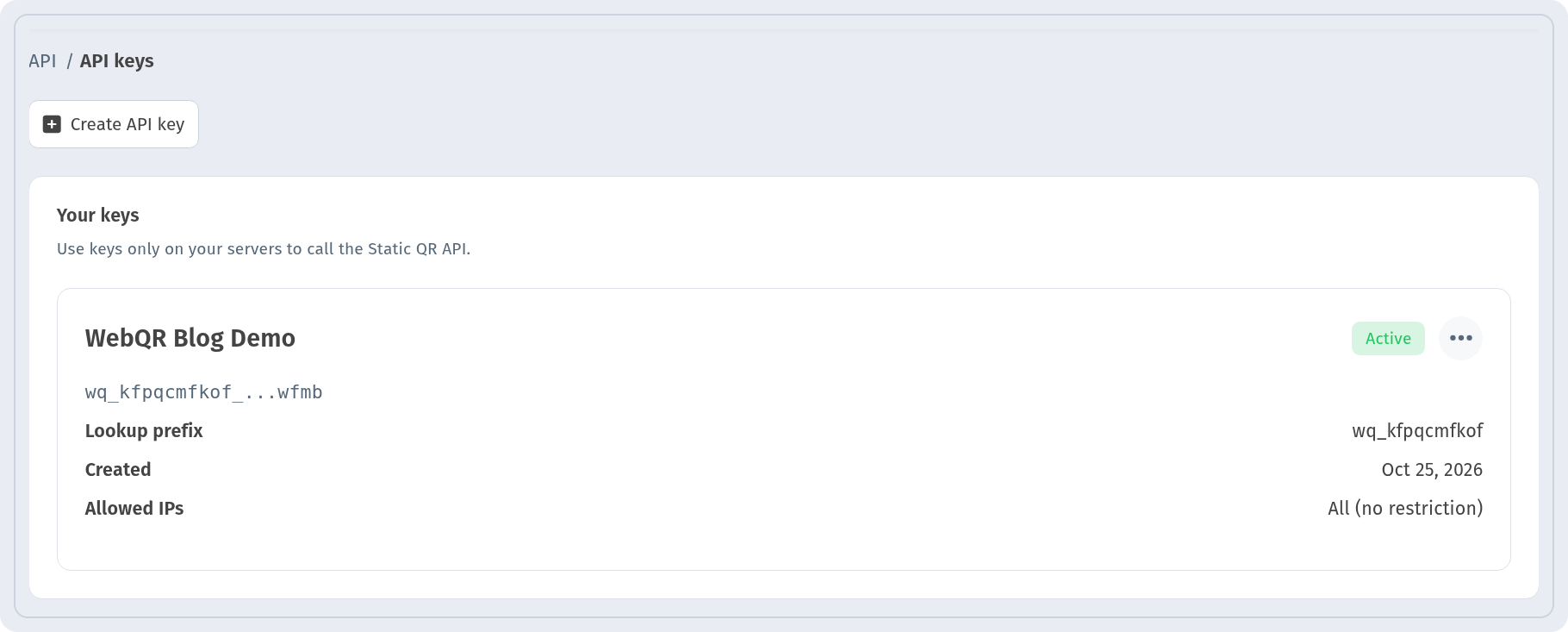
The full secret is shown only once, right after creation — copy it and store it somewhere safe, such as an environment variable on your server. In the list the key then appears masked, with its lookup prefix, creation date and Allowed IPs.
Read the documentation
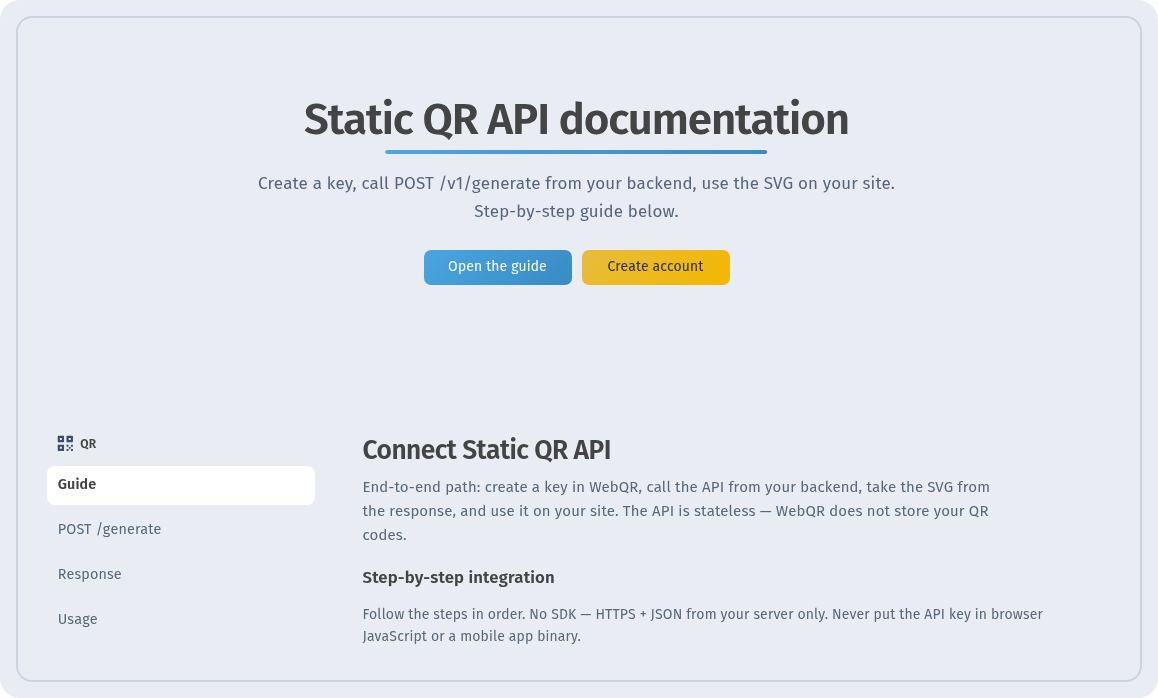
The full reference lives at webqr.io/api-documentation: a step-by-step guide, request and response format, design parameters and errors. The OpenAPI (YAML) spec and a Postman collection can be downloaded there too.
Generate a QR code
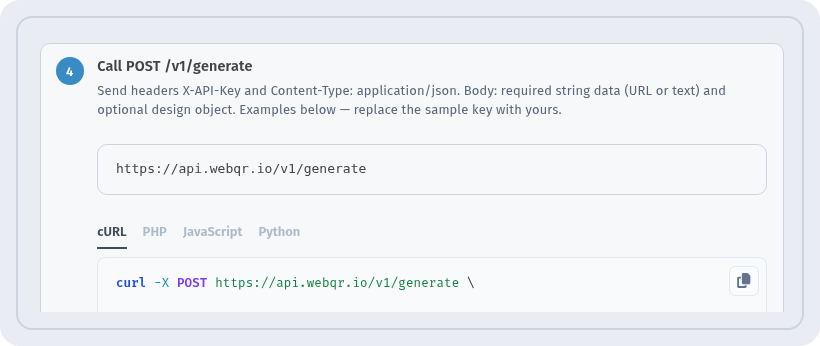
Send POST https://api.webqr.io/v1/generate with the X-API-Key header and a JSON body. The data field (up to 1000 characters) holds the content — a link, text, Wi-Fi details and so on. The design object is optional: size, colors, module and eye shapes, frame, logo and more. Call the API only from your backend, never from browser code or a mobile app.
Here is a real request:
curl -X POST https://api.webqr.io/v1/generate \
  -H "Content-Type: application/json" \
  -H "X-API-Key: YOUR_API_KEY" \
  -d '{
    "data": "https://webqr.io",
    "design": {
        "size": 512,
        "color": "#000000",
        "backgroundColor": "#FFFFFF",
        "styleType": "a7k2m9",
        "eyeType": "r2s4t6",
        "showColorGradient": false
    }
}'
The response is JSON. The SVG markup of the code is in data.qr_code — you can save it as a file or insert it into a page as is:
{
    "success": true,
    "data": {
        "qr_code": "<svg xmlns=\"http://www.w3.org/2000/svg\" viewBox=\"0 0 512 512\" width=\"512\" height=\"512\" ...>...</svg>",
        "format": "svg",
        "content": "https://webqr.io",
        "design": { "size": 512, "color": "#000000", ... }
    },
    ...
}
WebQR does not store codes generated through the API: each response is self-contained.
Check your usage
GET /v1/usage returns your usage counters. It only reads data and does not create codes.
curl https://api.webqr.io/v1/usage \
  -H "X-API-Key: YOUR_API_KEY"
Extra protection
Two optional settings per key make it safer:
- IP allowlist — the key works only from the addresses you specify. By default all addresses are allowed.
- HMAC signing — each request carries
X-WebQR-TimestampandX-WebQR-Signatureheaders, an HMAC-SHA256 signature computed with your secret. The exact signing string is described in the docs.
Common errors
- 401 — the key is missing, invalid or revoked, or the signature does not match.
- 403 — the request came from an IP that is not allowed for this key.
- 422 — the request body did not pass validation, for example
datais empty or too long. The response lists the problem fields. - 429 — too many requests in a short time. Wait for the time given in the
Retry-Afterheader and repeat.
Tips
- Create a separate key for each project or server — it is easier to revoke just one.
- Never commit the key to a repository or put it in frontend code.
- Try your design in the API Builder first, then copy the parameters into your request.