

Poll QR Code: Collect Votes with a Single Scan
How to create a Poll QR code in WebQR: add a question and answer options, set button texts and a thank-you message, and see votes and shares on the results page.
Want quick feedback from guests, customers or colleagues? A Poll QR code opens a short poll with answer options on the phone, and the votes are collected on a results page in WebQR.
Choose the Poll type
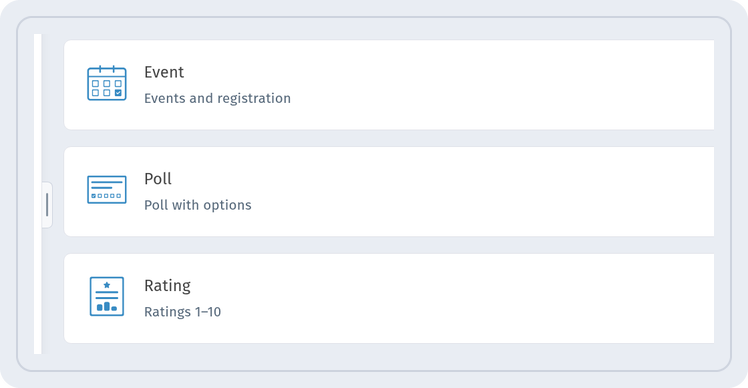
On the Content type step, pick the Poll card — "Poll with options". The wizard then takes you through Information, Settings and QR design.
Title and description
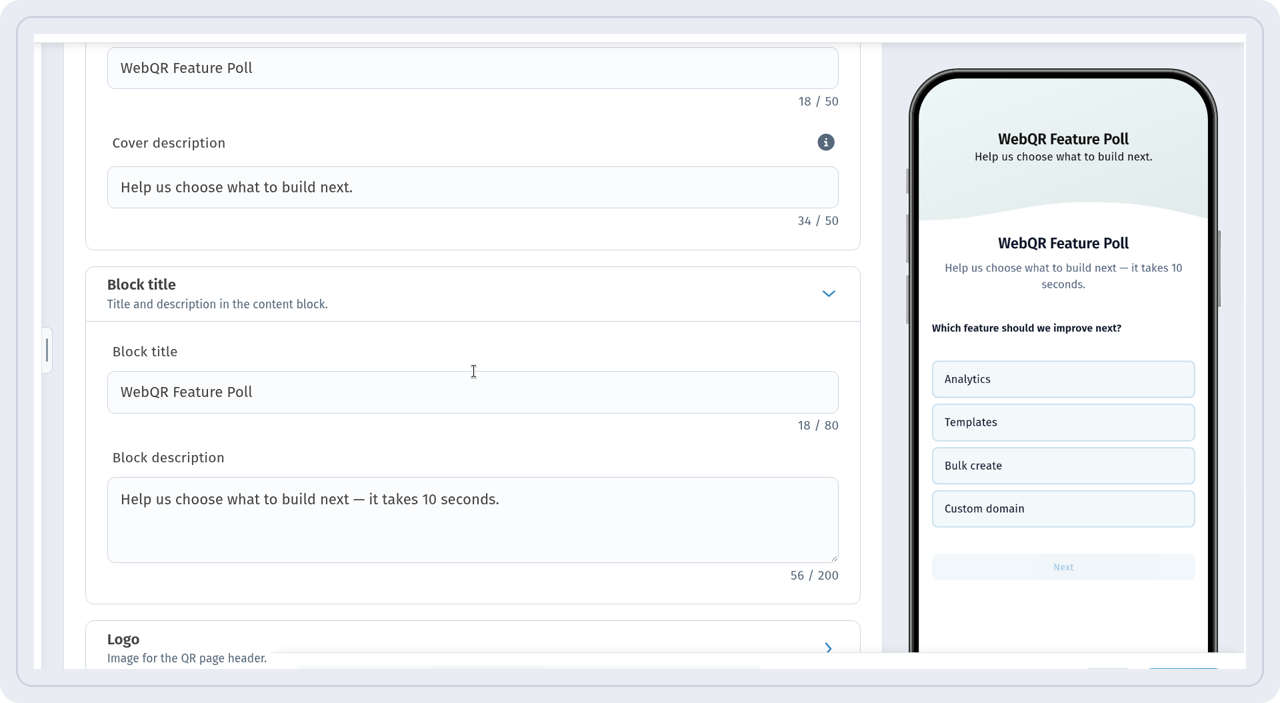
On the Information step, in Basic information, fill in the Cover title and Cover description (up to 50 characters), plus the Block title and Block description (up to 200 characters) — a good place to say how long the poll takes. The preview on the right shows how the page will look on a phone.
Question and answer options
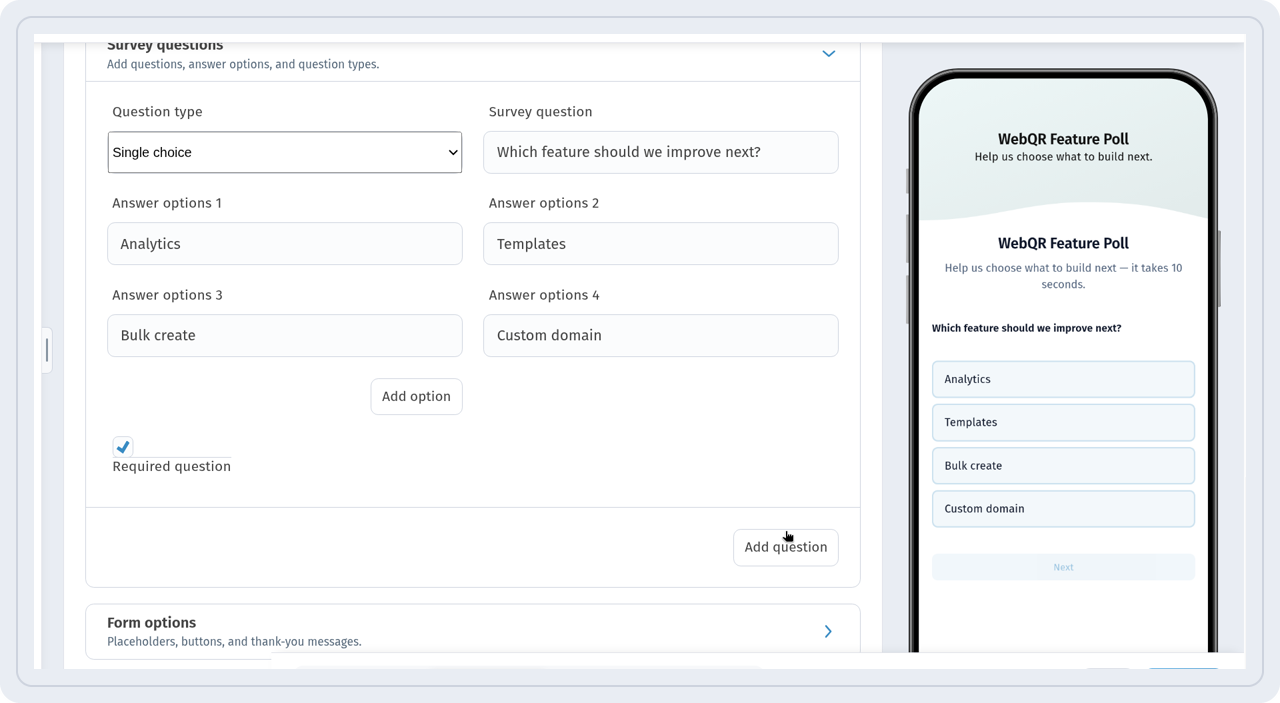
In Survey questions, choose the Question type — for example Single choice — enter the Survey question and fill in the Answer options. Add more options with Add option and another question with Add question. Required question is on by default.
Buttons and thank-you message
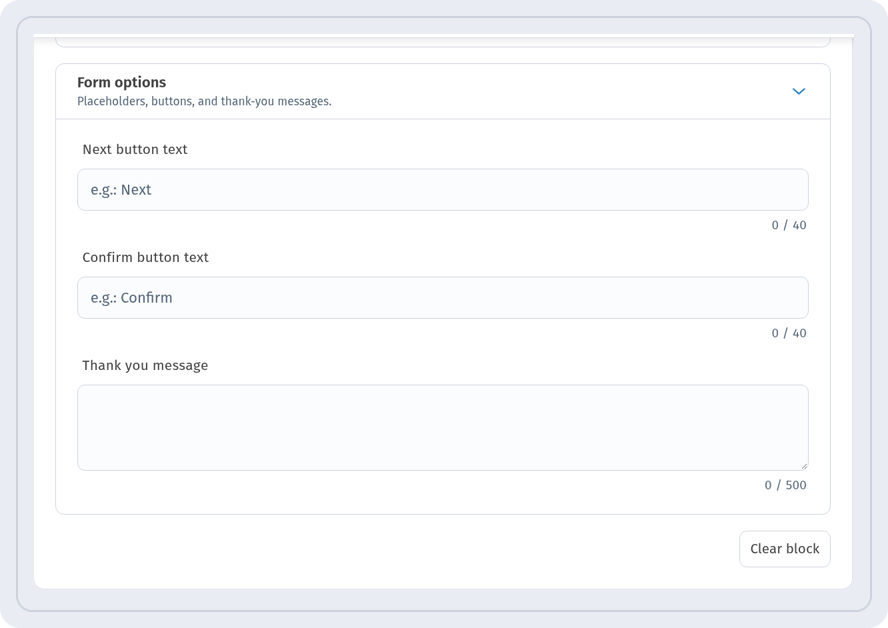
In Form options you can change the Next button text and Confirm button text and write a Thank you message shown after answering. Clear block resets these fields.
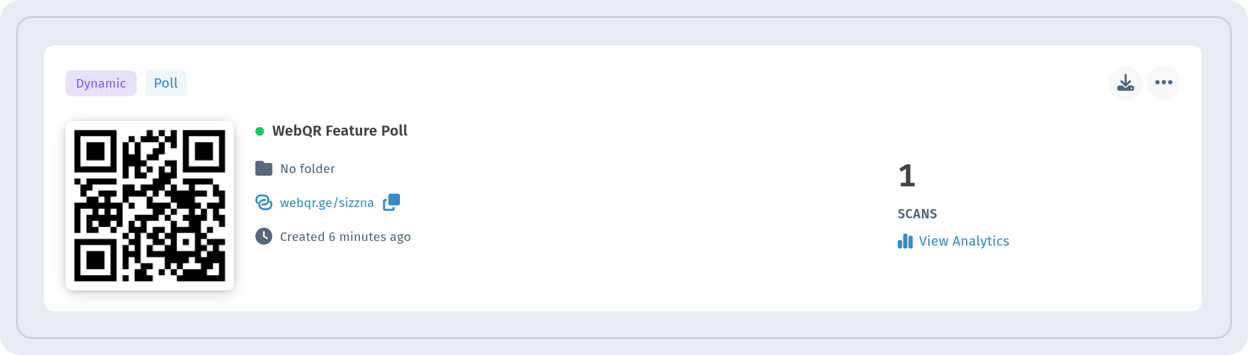
On the Settings step, set the code name and folder, then style the code on the QR design step. The finished code appears in your list as a Poll code.
How the poll works
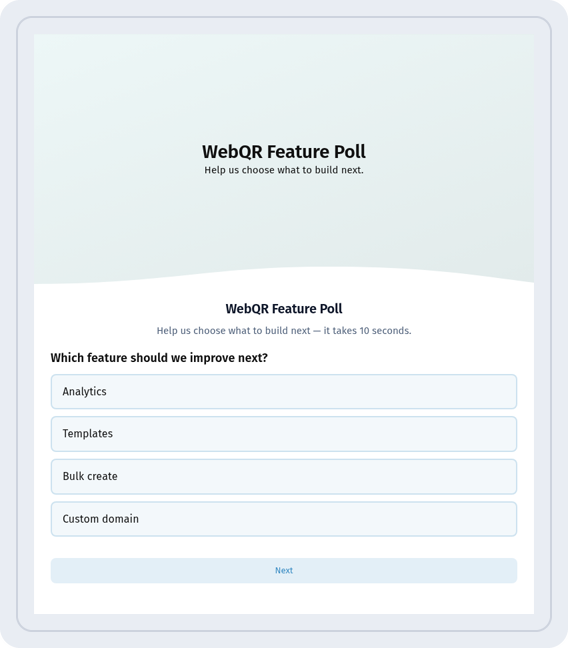
After scanning, people see the question and options, pick an answer and tap Next.
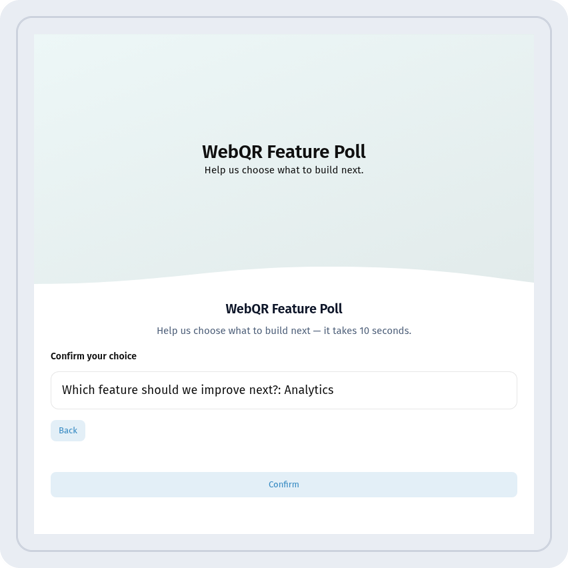
WebQR then shows the chosen answer once more: people can Confirm it or go Back.
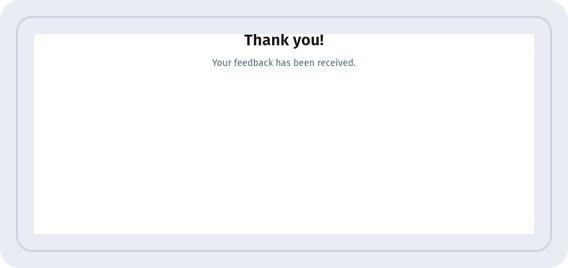
After confirming, a "Thank you!" screen confirms that the answer was received.
Poll results
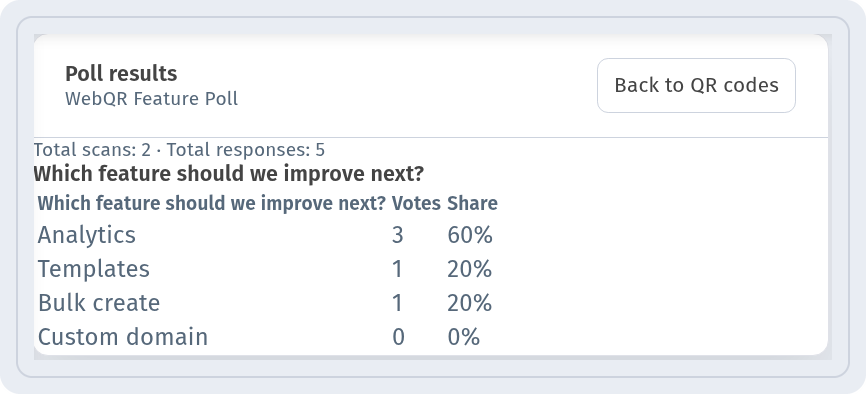
The Poll results page opens from the link on the code card. Each option shows its Votes and Share, and the top line shows total scans and total responses.
Tips
- One short question with 3–5 options gets more answers.
- Say in the description how long the poll takes.
- Check the poll on your own phone before printing.