

QR Code Workspaces: Organize Team QR Codes in WebQR
Create workspaces in WebQR to keep a team's QR codes apart, invite members as Admin, Editor or Viewer, create codes inside a workspace and move existing codes between workspaces.
When several projects or teams share one WebQR account, the list of QR codes quickly gets crowded. Workspaces solve this: each workspace has its own QR codes, statistics and members. In this guide we create a workspace called WebQR Marketing, invite a colleague, create a code inside it and move an existing code there.
Where workspaces help
- Separate teams – marketing and events keep their codes apart.
- Agencies and clients – one workspace per client or project.
- Shared work – colleagues get access to the codes of one workspace only.
Step 1: open Workspaces
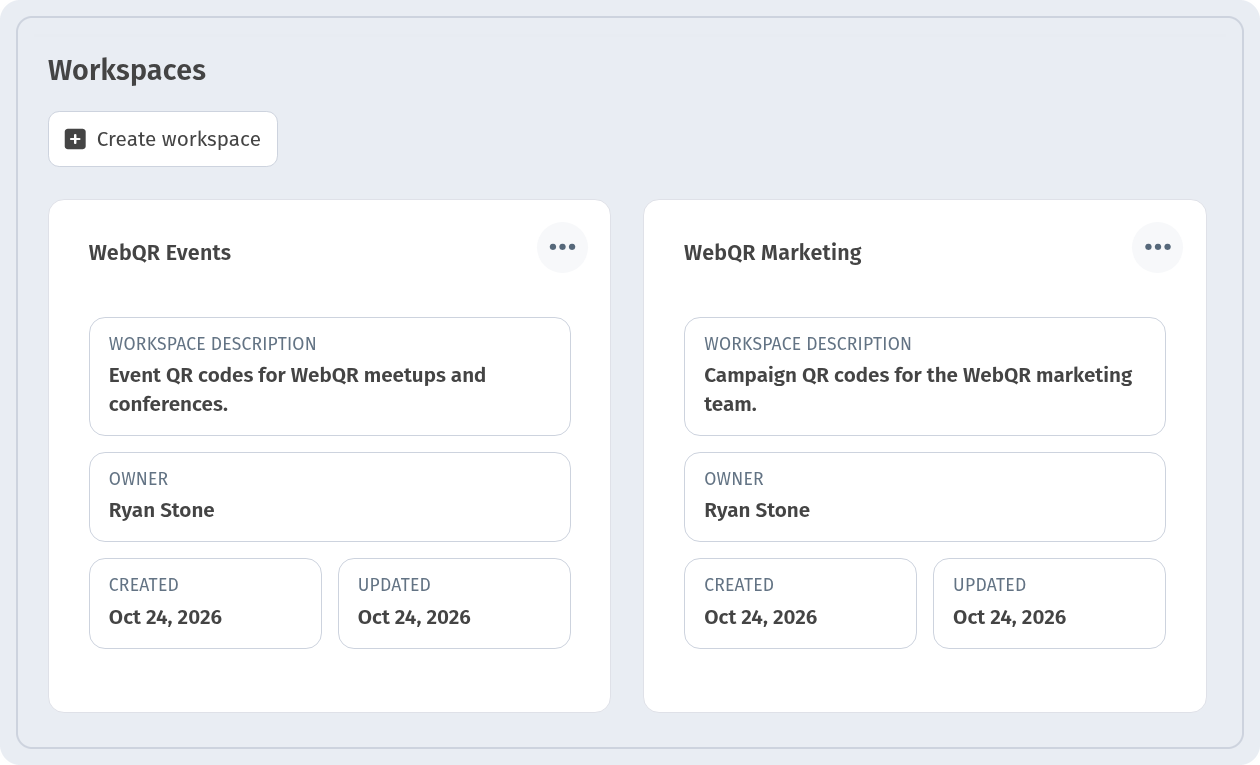
The Workspaces page lists every workspace as a card with Workspace description, Owner, Created and Updated. In our account there are already two: WebQR Events and WebQR Marketing.
Step 2: create a workspace
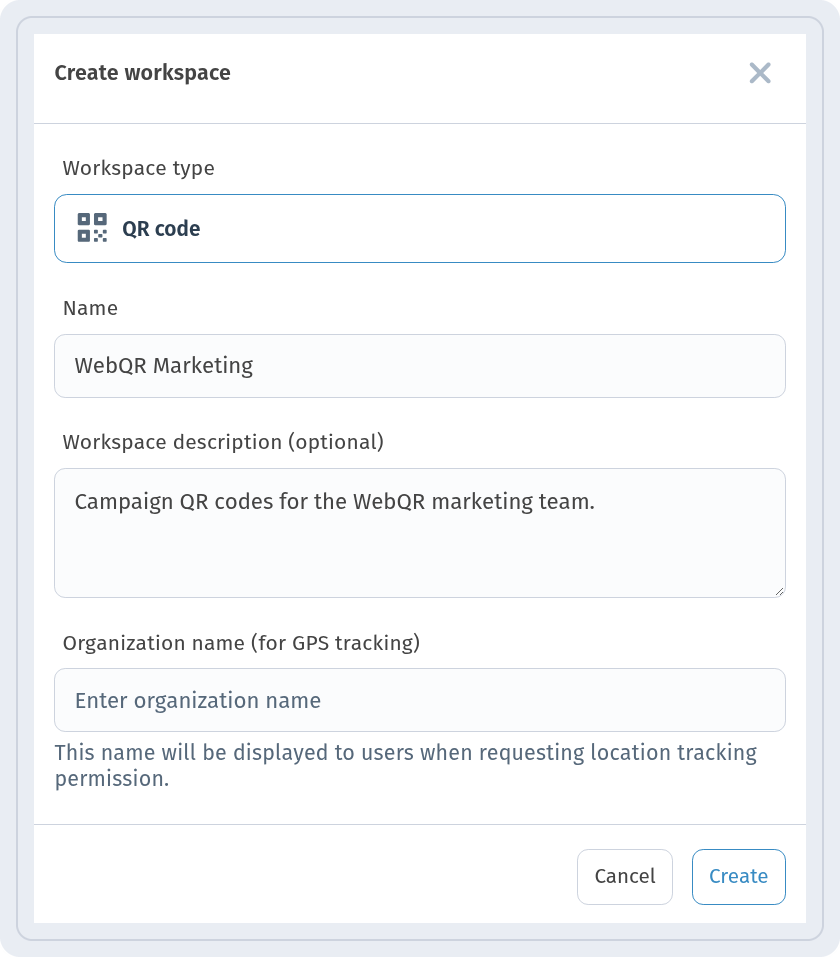
Click Create workspace. In the window, Workspace type is QR code. Enter a Name and, if you like, a Workspace description (optional). The Organization name (for GPS tracking) field is also optional: this name will be displayed to users when requesting location tracking permission. Click Create.
Step 3: invite members
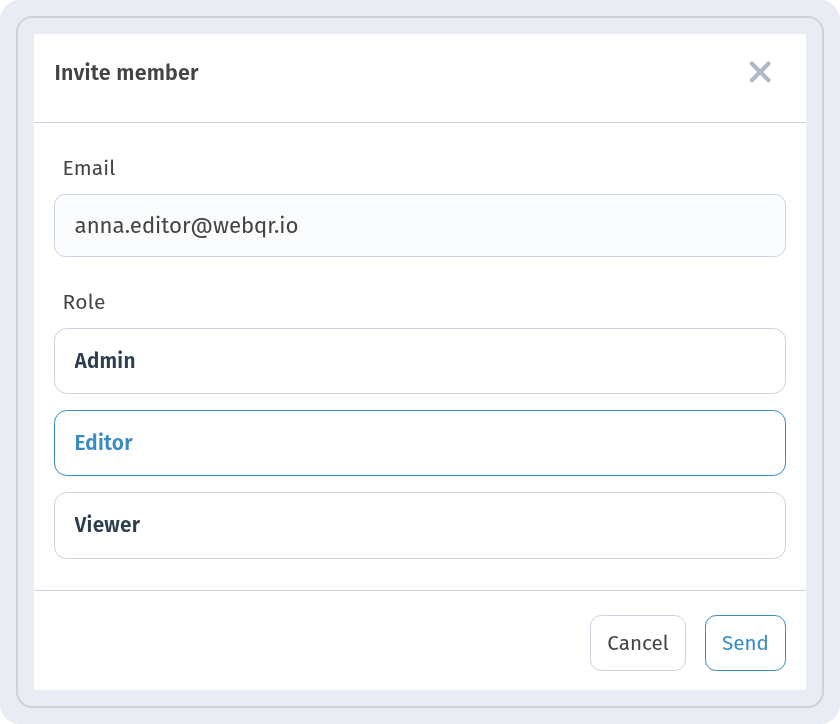
Open the workspace's Members section and click Invite member. Enter the colleague's Email, choose a Role – Admin, Editor or Viewer – and click Send. The person who created the workspace is shown in the list with the Owner label.
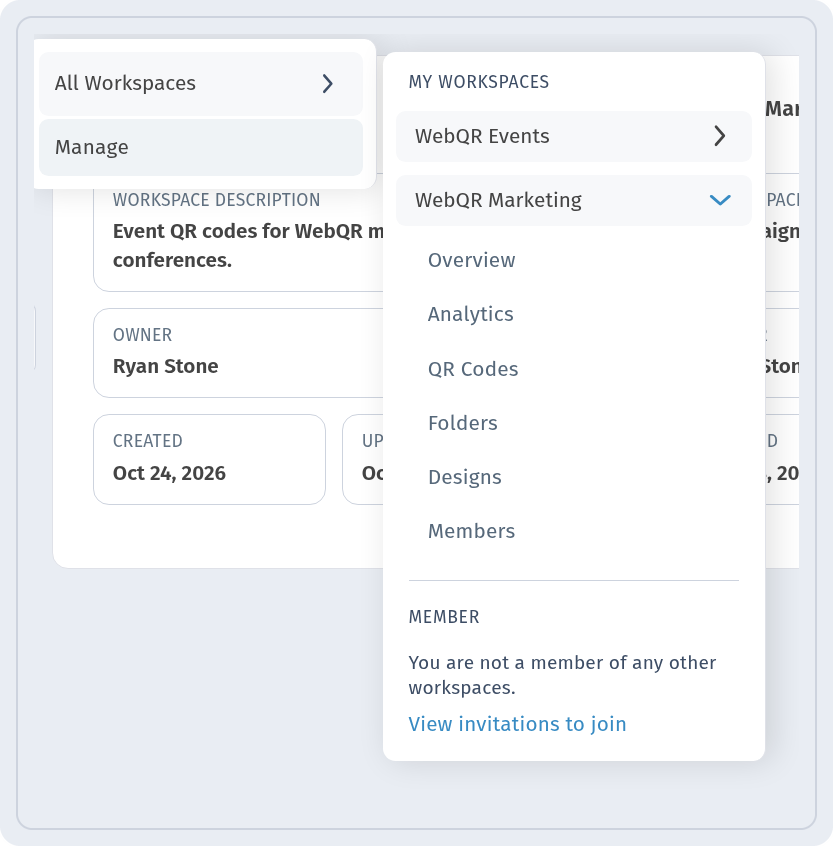
 An invited colleague sees open invitations in the workspace menu under View invitations to join.
Step 4: the workspace overview
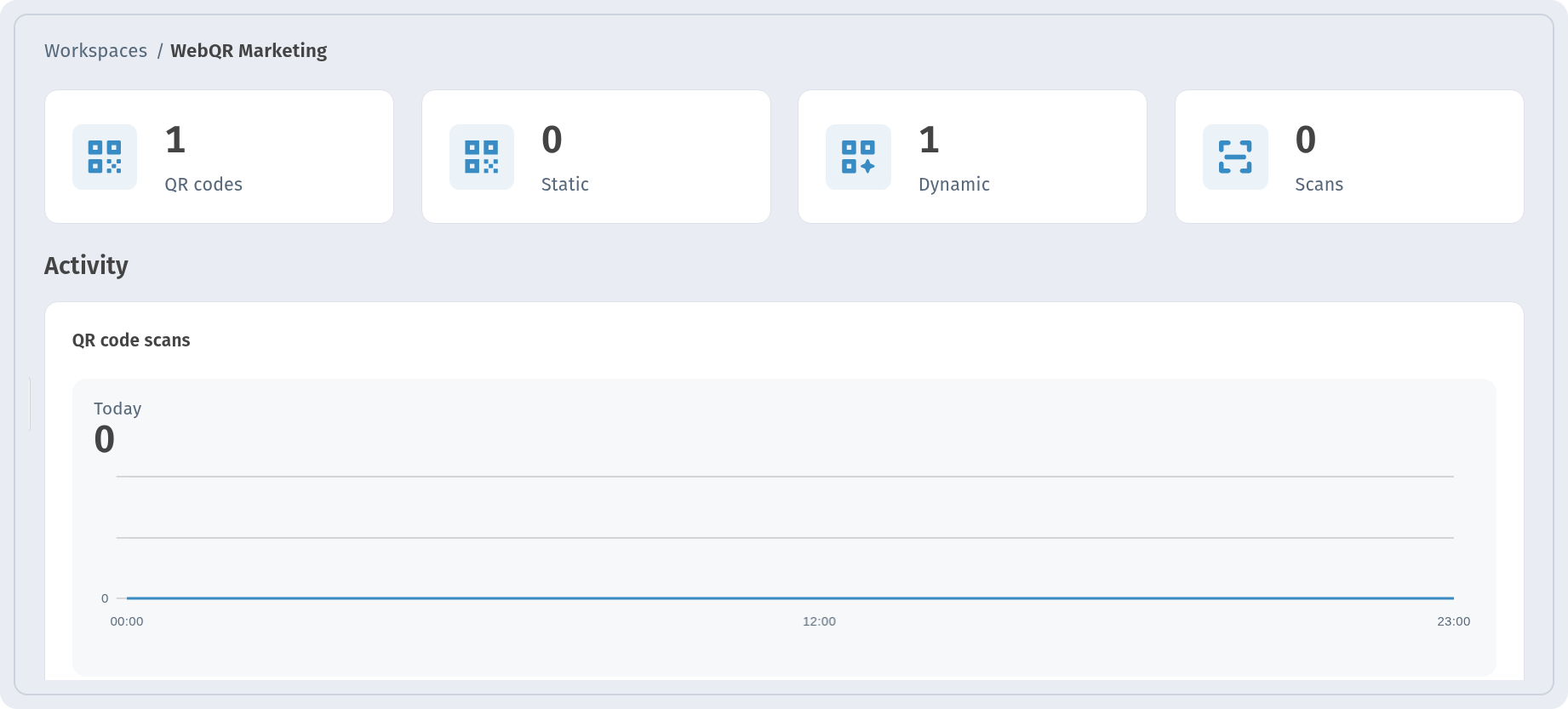
Each workspace has its own Overview: counters for QR codes, Static, Dynamic and Scans, and an Activity block with QR code scans for Today, Yesterday, 7 days and 30 days.
Step 5: switch between workspaces
The workspace menu in the sidebar has All Workspaces and Manage. Under My workspaces you open a workspace and go to its Overview, Analytics, QR Codes, Folders, Designs or Members. The Member section lists workspaces you were invited to.
Step 6: create a QR code inside the workspace
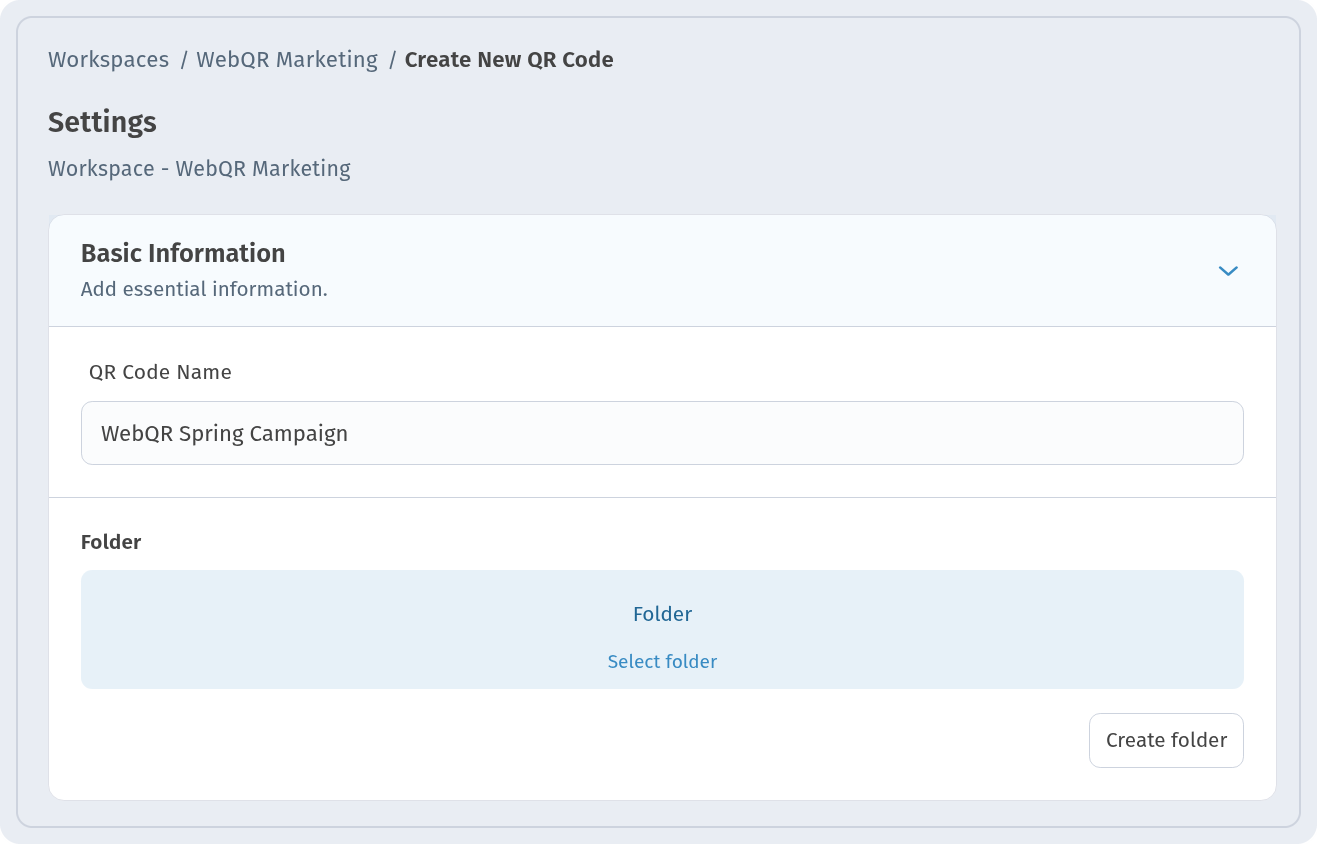
Create a code from inside the workspace as usual. In step 3, Settings, the page shows which workspace the code goes to – in our case Workspace - WebQR Marketing. Fill in the QR Code Name and, if needed, pick a Folder.
Step 7: find the workspace's codes
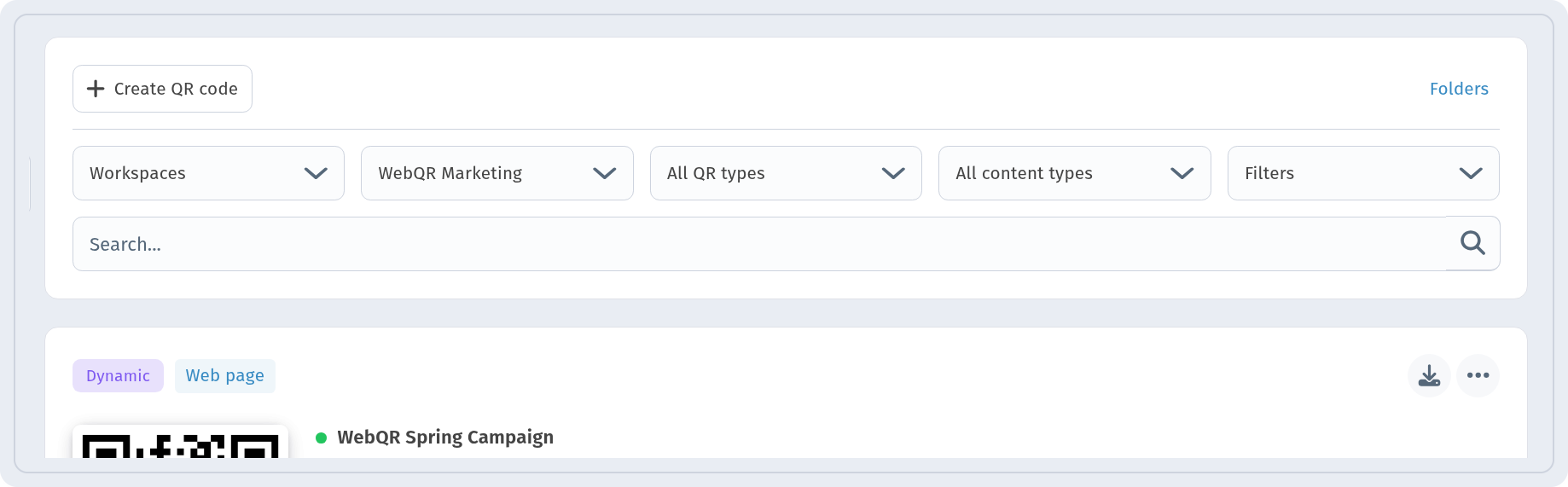
On the QR codes page, choose Workspaces in the first filter and then the workspace itself. The list shows only its codes, in our case WebQR Spring Campaign.
Step 8: move an existing code
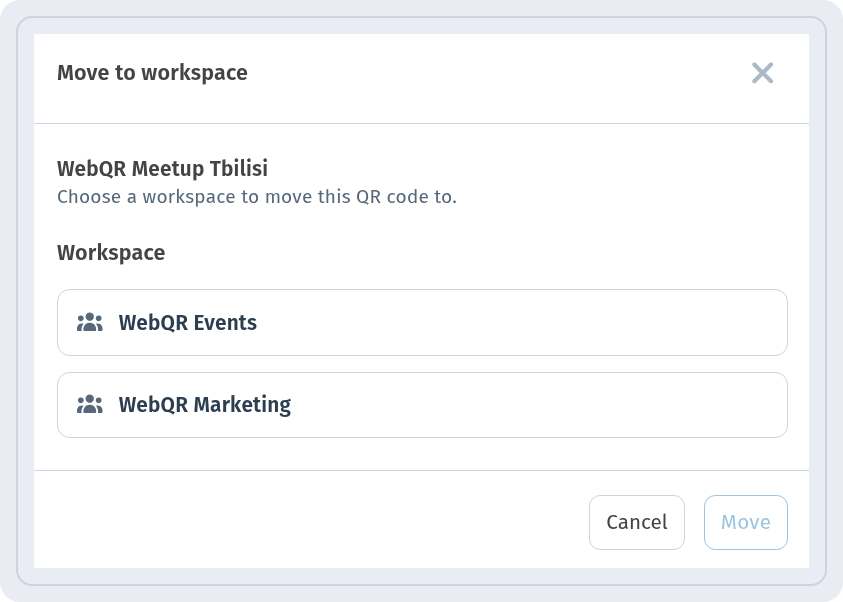
A code created earlier can be moved to a workspace. Open the menu with three dots on the code card and choose Move to workspace.
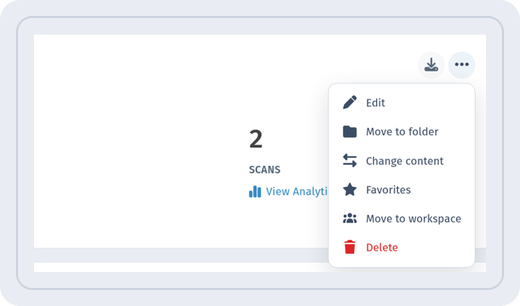 In the Move to workspace window, select a workspace under Workspace and click Move.
Tips
- Give workspaces clear names, such as a team or client name.
- Add a short description so colleagues know what each workspace is for.
- Inside a workspace, use folders for further order.