
QR Code with a Logo: Brand Style Without Losing Scannability
Add your logo, brand colours and a frame to a QR code in WebQR and keep it scannable. Step-by-step design guide plus best practices for contrast and size.
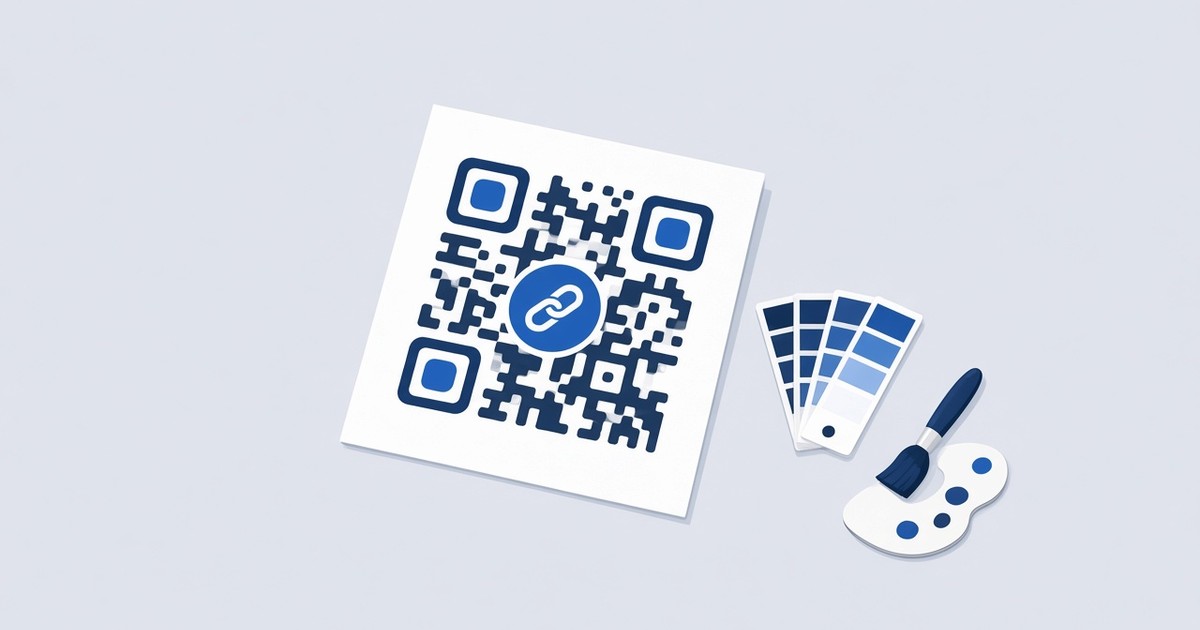
A plain black-and-white QR code works, but it rarely looks like it belongs to your brand. Add your colours, a logo in the centre and a matching frame, and the same code feels like part of your packaging, menu or business card instead of a technical afterthought. The catch: every design change can make a code harder to scan. This guide walks through the design options in WebQR one by one and shows how to style a code without losing scannability.
Where the design settings live
Design is a separate step in the WebQR builder, whichever QR type you create. After you fill in the content and settings, step 4, QR design, opens with the subtitle “Customize your QR code appearance” and a QR Code Design card. On the right, a live preview updates with every change, and under it a Ready to scan indicator helps you keep an eye on the result.
The options apply to static and dynamic codes alike. If you are still deciding which type you need, read Static vs dynamic QR codes first.
In this guide we style a demo code in WebQR’s own blue: dots in #388BC3 with a rounded style, custom eyes in a darker blue, a white chain-link logo on a blue background and rounded corners.
Shape style: dots and colours
The Shape style section (“Module shape, background and dot colors.”) controls the main body of the code.
- Pick one of 15 dot styles, shown as icons: from classic squares to rounded and dotted modules.
- Dots Color sets the colour of the modules, and Background color sets the colour behind them.
- Transparent Background removes the background, which is handy when the code sits on a coloured design.
- Gradient lets the dots blend from one colour to another.
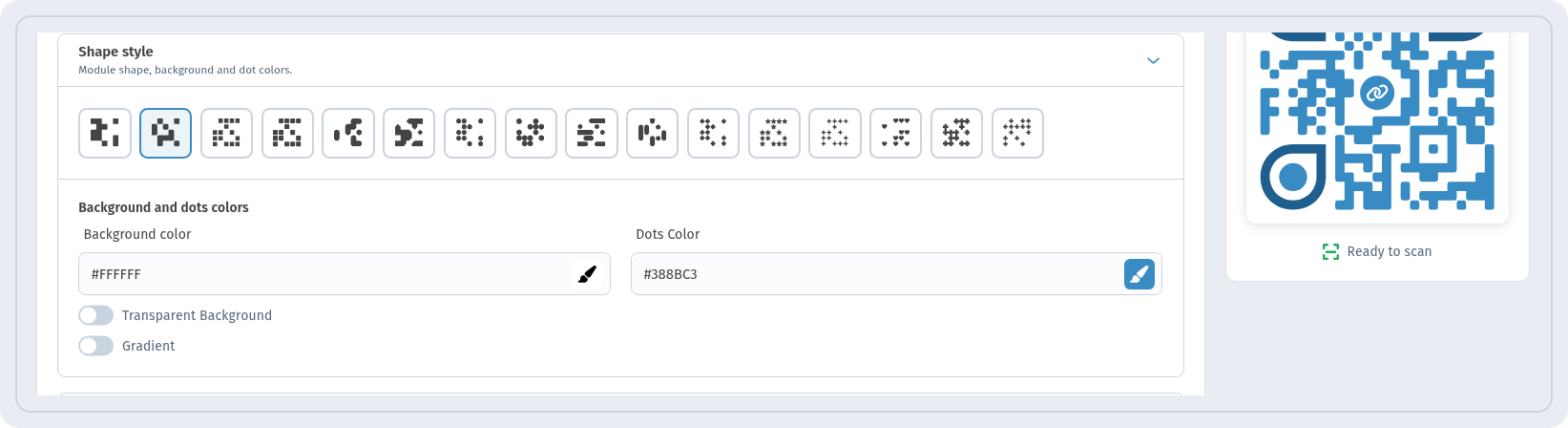
For the demo, we chose a rounded dot style and set Dots Color to #388BC3 on a white background. A mid-to-dark brand colour on a light background keeps the contrast high, and that matters more for scanning than the dot shape.
Eyes: the three corner squares
The three large squares in the corners are the eyes. Scanners use them to find the code and work out its angle, so they deserve special care. The Eyes section (“Corner styles and eye colors.”) gives you:
- Outer Eye Style: 14 shapes for the outer frame of each eye.
- Inner eye style: 14 shapes for the centre, including a star, a diamond and a heart.
- Outer Eye Color and Inner Eye Color, so the eyes can stand out from the dots.
- Eye Gradient for a colour blend inside the eyes.
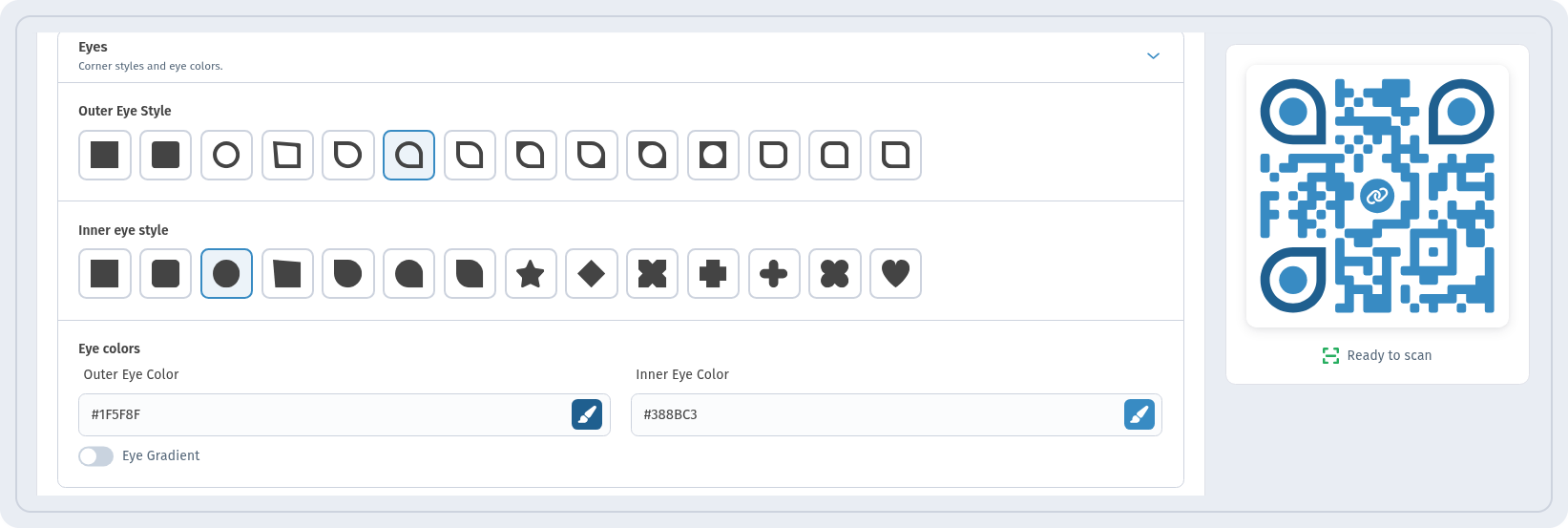
In the demo, the eyes are a darker blue than the dots. This adds depth and draws attention to the corners while keeping them clearly darker than the background. Decorative inner shapes like a heart or a star work well, as long as the eye still reads as a solid, high-contrast mark.
Logo: your brand in the centre
The Logo section (“Logo in the center of the QR code.”) is where the code starts to look like yours. You have two options:
- Upload your own file: SVG, PNG, JPG or JPEG, up to 2 MB.
- Choose from Ready logos: icons for social networks, phone, Telegram, SMS, email, Wi-Fi, restaurant, location, photo, contact, WhatsApp, link, discount and lock. They are a quick way to hint at what the code does.
For ready logos, you can set Logo background and Logo color. The Remove logo background toggle is on by default, so the logo sits cleanly on the code without an extra plate behind it.
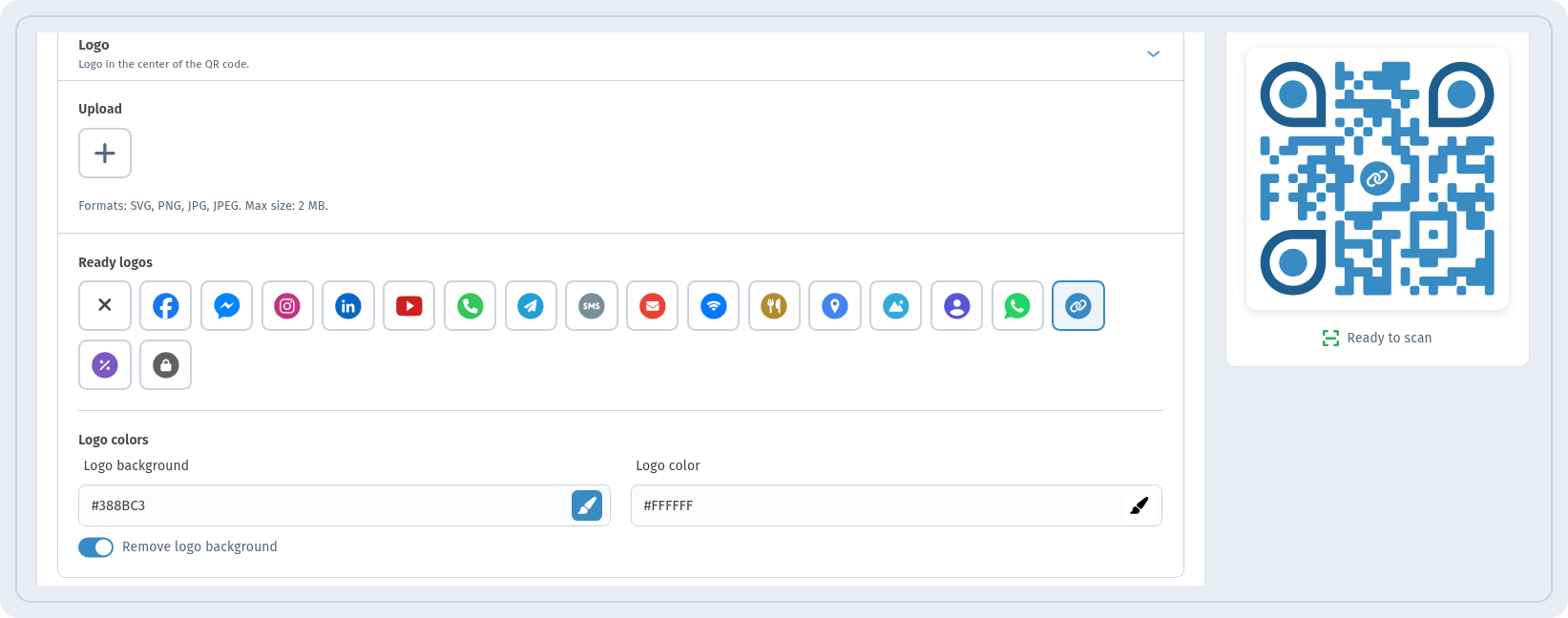
For the demo, we picked the chain-link icon from Ready logos, white on blue. Even with the logo in place, the Ready to scan indicator under the preview stayed green.
Why can a code with a logo still scan? QR codes carry built-in error correction: part of the pattern can be hidden or damaged, and the scanner can still rebuild the data. A logo uses up some of that safety margin, so the smaller the logo, the more margin is left for real-world problems like glare, creases or a dirty surface.
Frame and rounded corners
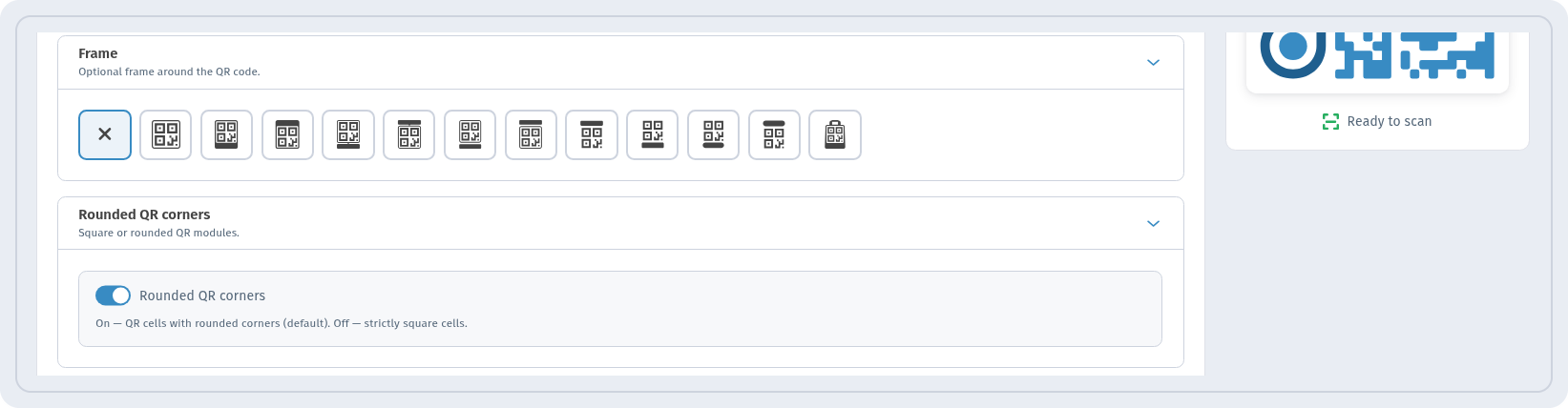
A frame turns a bare code into a clear call to action. The Frame section (“Optional frame around the QR code.”) offers No Frame plus 11 frame styles: labels, banners, badges, bars, pills and a shopping bag. In Text Under QR Code you write the message, such as “Scan for the menu” or “Get 10% off”. A short, specific text tells people what they get, and that makes them more likely to scan.
The Rounded QR corners toggle rounds the corners of the code. It’s on by default, and turning it off gives straight corners. Both variants scan the same, so pick whichever suits your design.
Save the design and reuse it
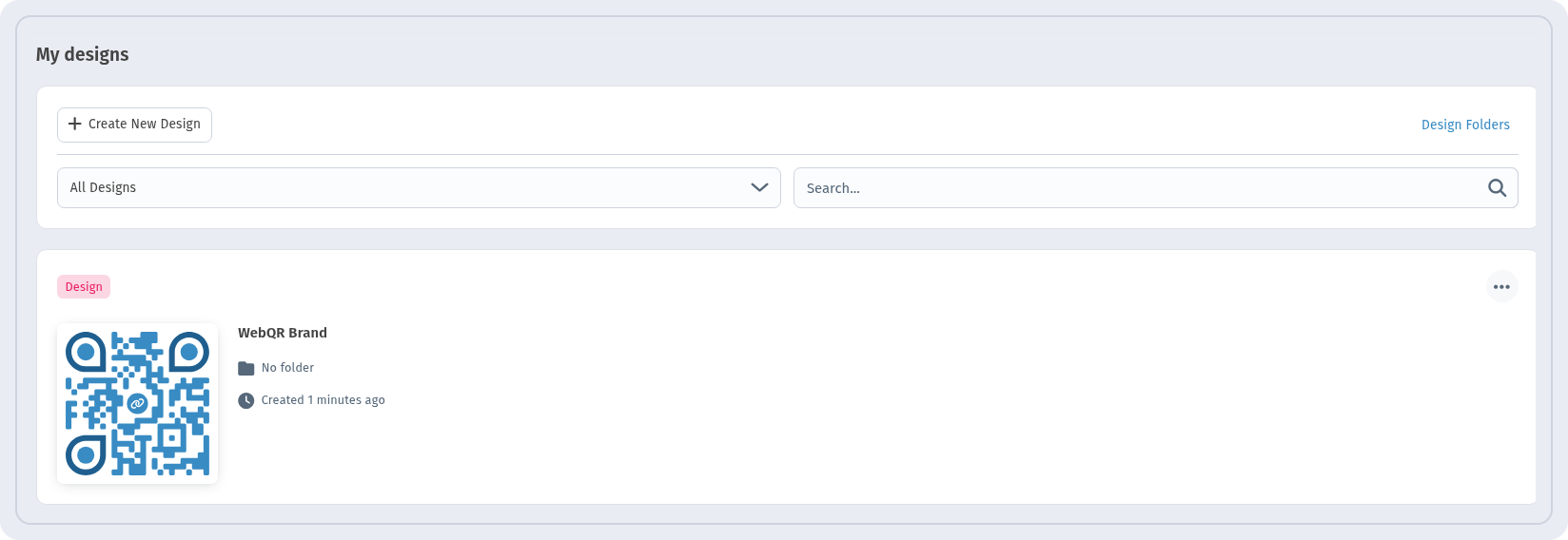
Once the code looks right, save the style so you don’t have to rebuild it every time. Click Save design, enter a Design Name in the Save Design window (we used “WebQR Brand”) and click Save. To use a style you saved earlier, click Apply other design.
All saved styles are collected in QR designs → My Designs. From there you can apply the same look to other codes. For example, the menu, Wi-Fi and review codes for one cafe can all share one set of colours, eyes, logo and frame.
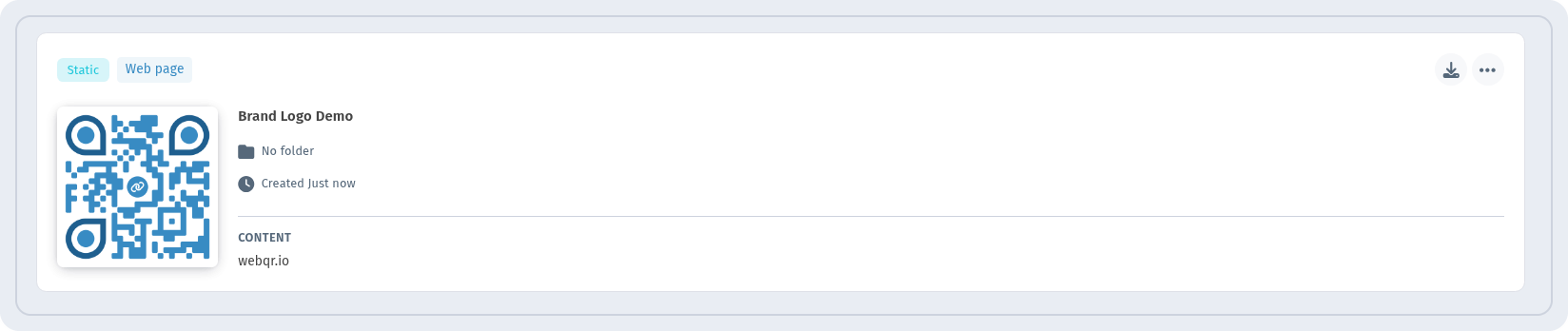
After you click Create, the styled code appears in My QR Codes, ready to download.
Best practices: style without losing scannability
These are general recommendations that apply to any designed QR code, not WebQR-specific rules:
- Keep strong contrast. Dark dots on a light background scan most reliably. Pastel dots on white, or grey on grey, often fail.
- Don’t invert the colours. Light dots on a dark background look stylish, but some scanner apps can’t read them.
- Keep the logo modest. A logo that covers a small central area leaves enough error correction for real-life wear and glare.
- Leave a quiet zone. Keep a clear, empty margin around the code, and don’t let text or graphics touch it.
- Be careful with gradients. A gradient between two dark colours is fine. A gradient that fades into a light tone lowers contrast in part of the code.
- Keep the eyes clear. Decorative shapes are fine, but the eyes should stay solid and darker than the background.
- Print it big enough. As a rough guide, keep the code at least 2–3 cm wide for close-range use, and larger for posters seen from a distance.
- Test before you print. Scan the final code with several phones, both iPhone and Android, and in the lighting where it will be used.
For an example of these tips on a real printed item, see How to make a Wi-Fi QR code, where we design a table tent for a cafe.
FAQ
Does a logo make a QR code harder to scan?
A small logo usually doesn’t, thanks to built-in error correction. A large logo, or one with poor contrast, can. Keep an eye on the Ready to scan indicator and test with real phones.
Which file formats can I upload as a logo?
SVG, PNG, JPG and JPEG, up to 2 MB. If you don’t have a file at hand, choose an icon from Ready logos.
Can I change the design of a dynamic code later?
A dynamic code points to a short link, so you can change where it leads without reprinting. Any change to how the code looks only shows up on new prints, though.
How do I keep all my codes in the same style?
Save the style with Save design and apply it to new codes from My Designs or with Apply other design.
Conclusion
A branded QR code takes a few minutes in the WebQR design step: pick a dot shape and colour, style the eyes, add a logo, frame the code with a clear call to action and save the result as a reusable design. Keep contrast high, keep the logo modest and test on several phones, and your code will look like your brand and still scan the first time.