
Video and MP3 QR Codes: How to Share a Clip or a Track
How to create a video or MP3 QR code in WebQR: add a YouTube or Vimeo link or upload a file, add audio tracks with covers, and see what the page looks like after scanning.
A how-to video, a promo clip, a podcast or a music track can all open from a single scan. WebQR has two QR code types for this: Video and MP3. The code leads to a mobile page with a player, and you can change the content even after printing.
Choose the type: Video or MP3
On the Content type step, pick the Video card for clips or MP3 for audio. The wizard then takes you through Information, Settings and QR design.
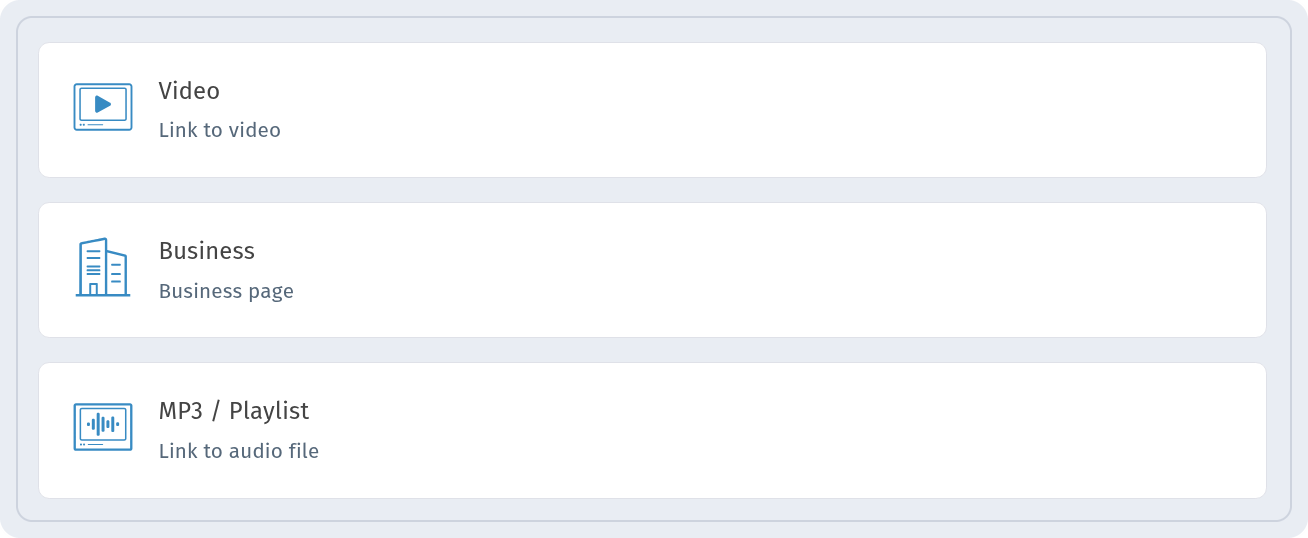
Video QR code
Add your clip
On the Information step, open the Video section. You can upload a video file or paste a link — YouTube, Vimeo and other platforms. A YouTube link gets an embedded player on the page. To add another clip, click Add video.
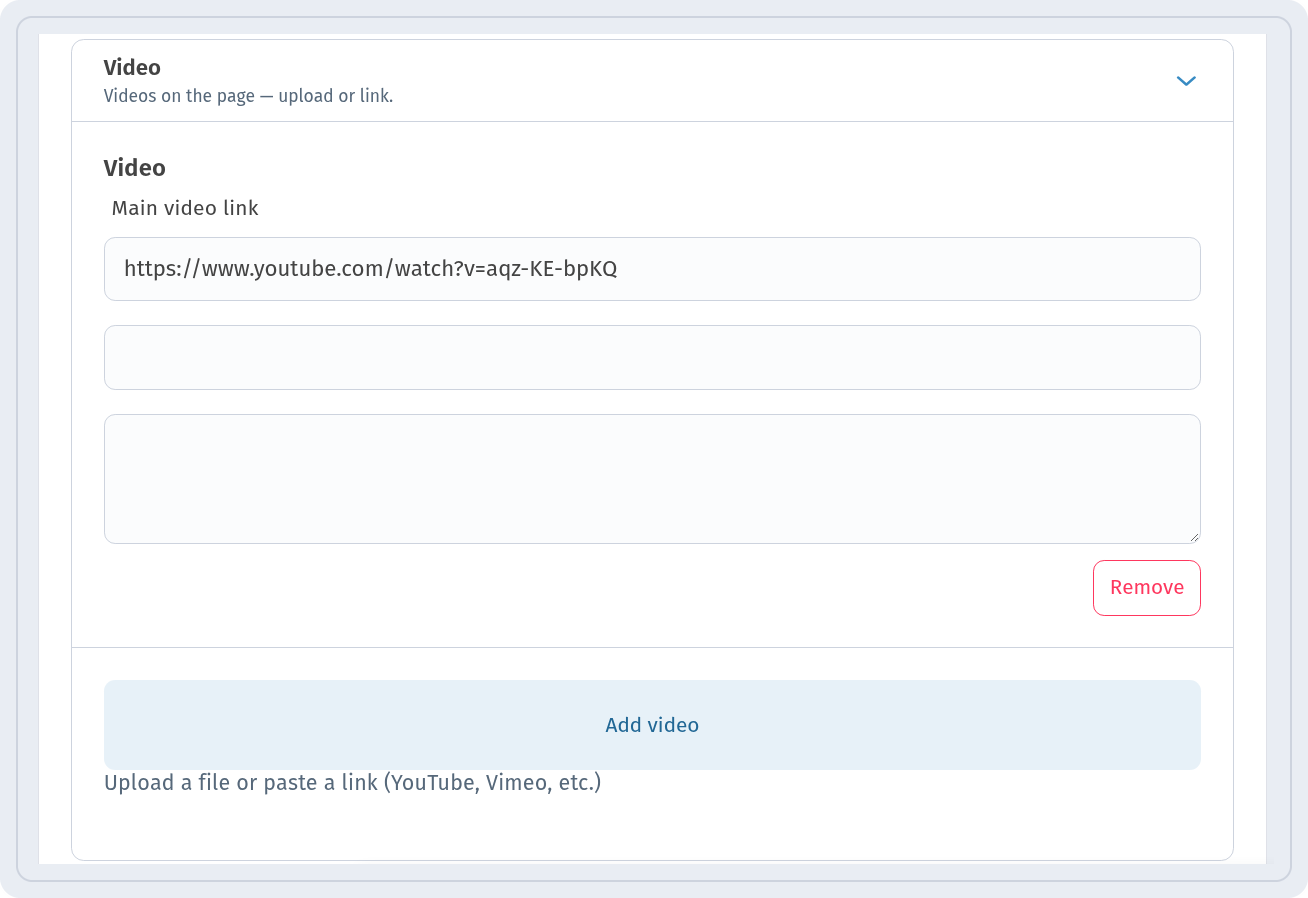 You can show a title and a short description above the player — set them in Basic information → Block title. The same step also has a logo, a button, social links and a page template.
Name and folder
On the Settings step, enter the QR Code Name — only you see it in your list of codes — and optionally choose a Folder.
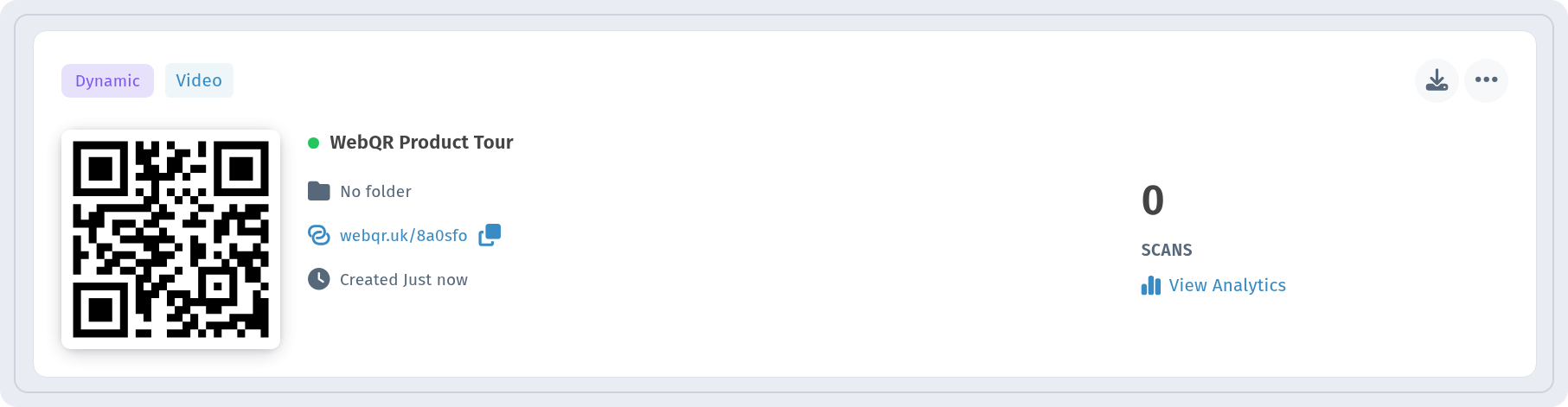
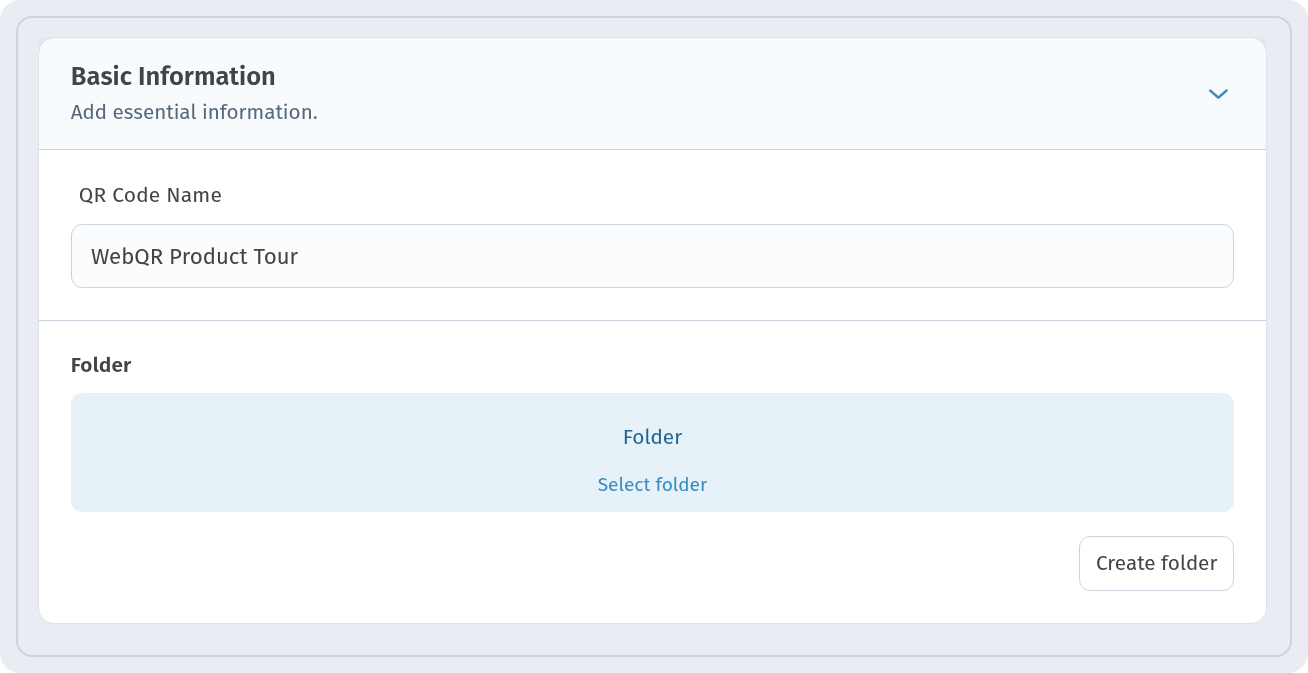 After the QR design step, the code appears in your list as a Video code.
What people see after scanning
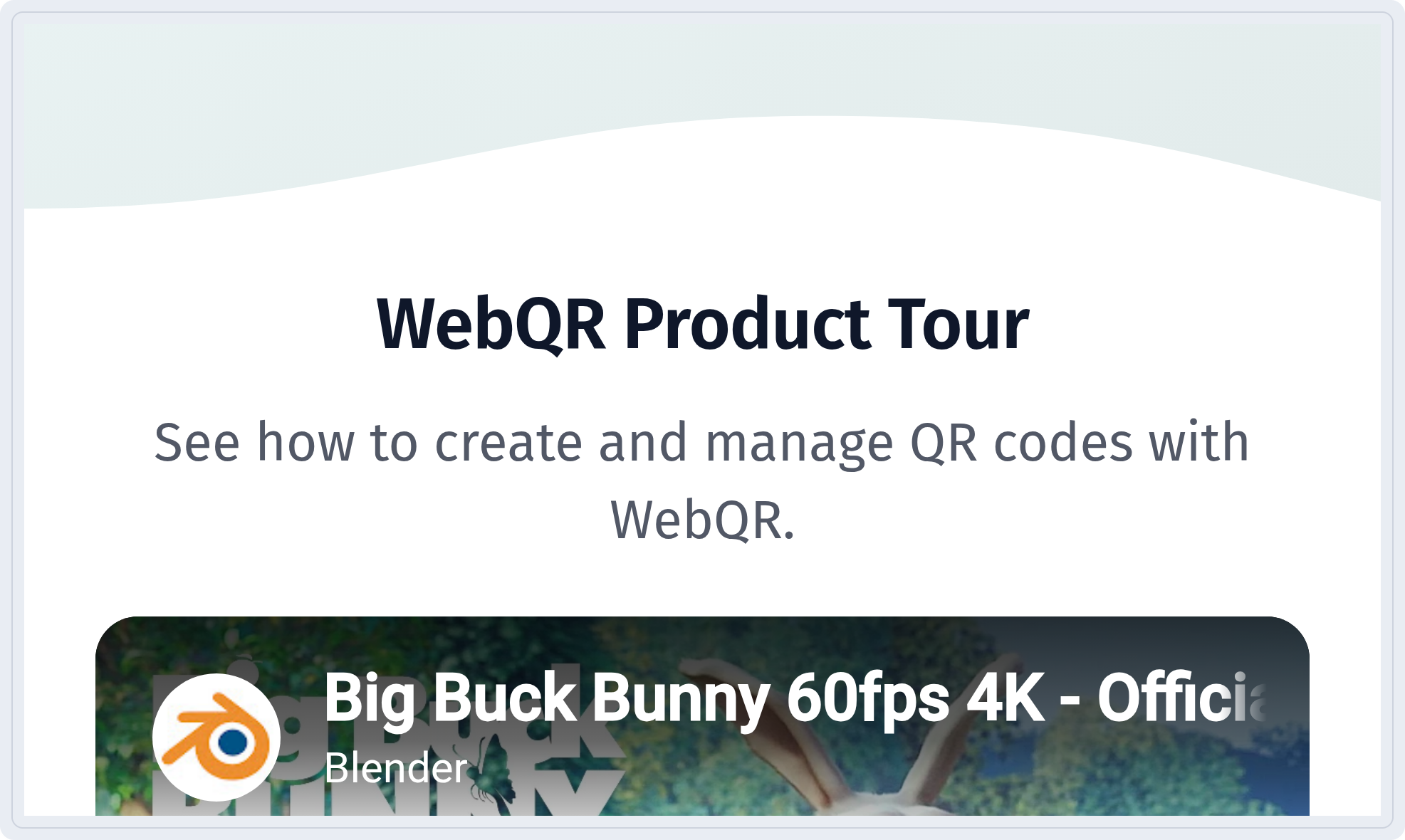
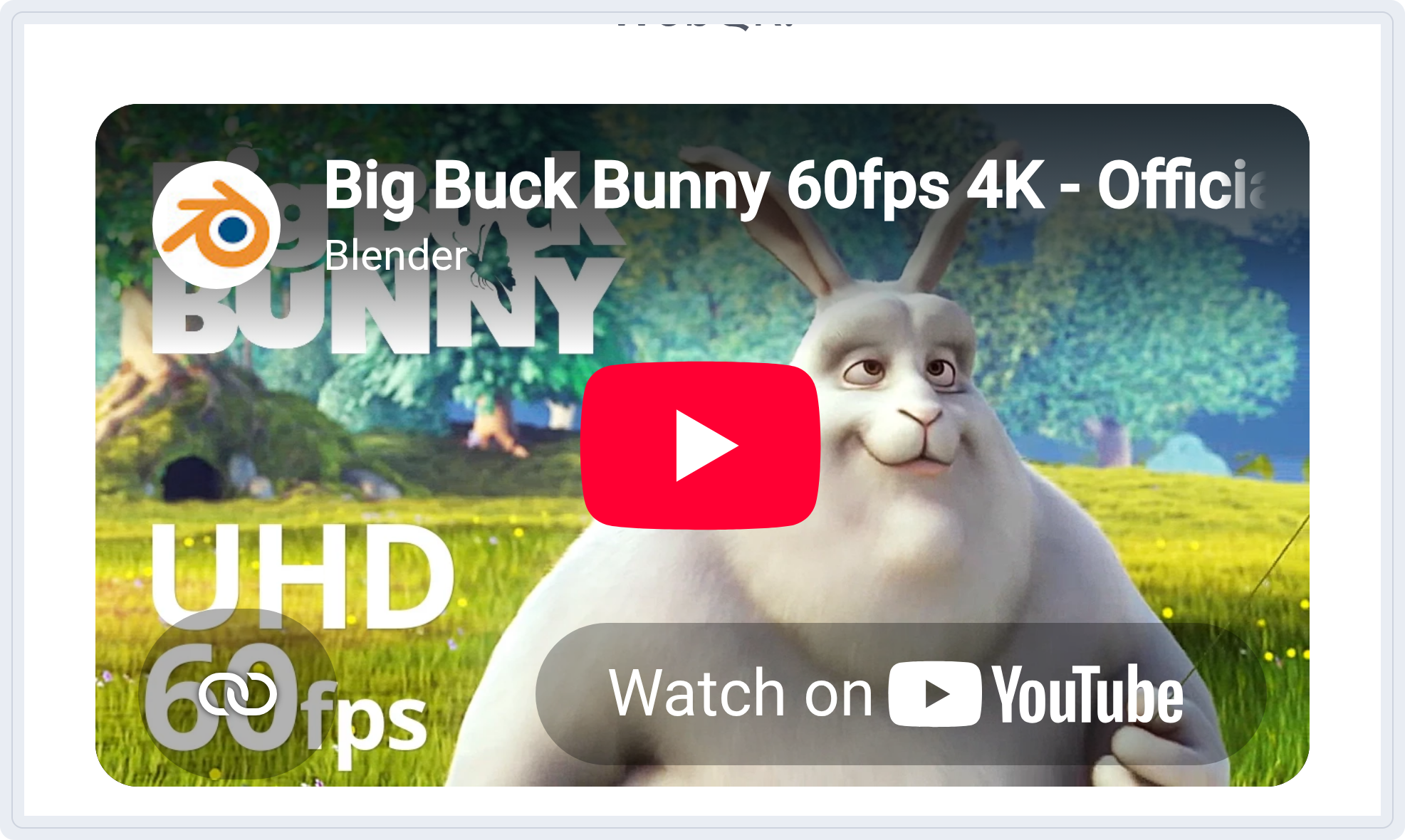
A mobile page opens: the title and description at the top, and below them a player that plays right on the page. The example uses Blender's open movie Big Buck Bunny.
MP3 QR code
Upload a track
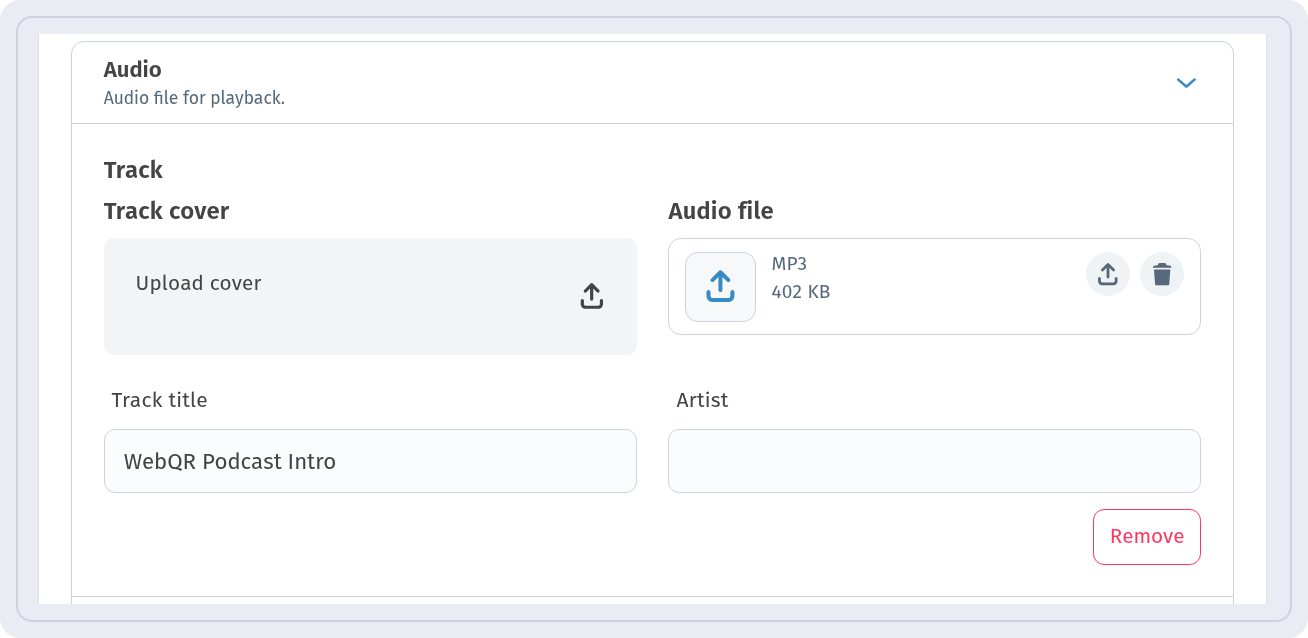
On the Information step, open the Audio section in Basic information.
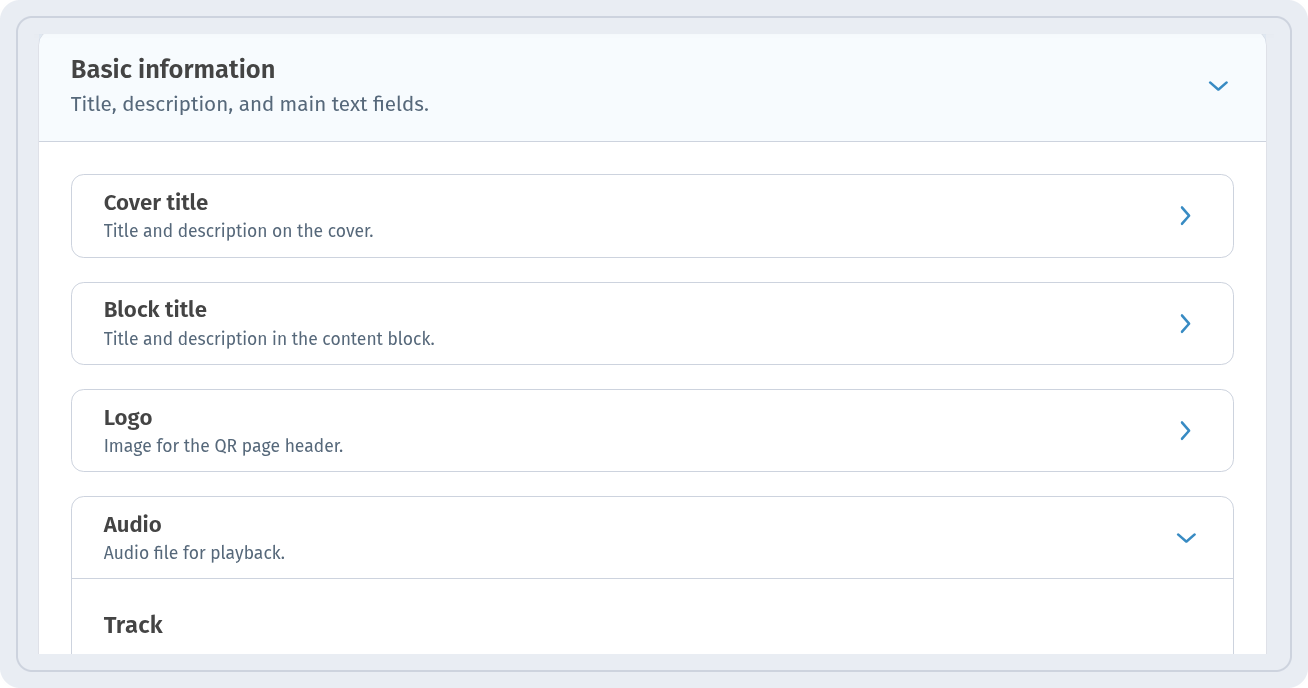 Each track has an Audio file, a Track cover, a Track title and an Artist. MP3, WAV, OGG, M4A, AAC and FLAC files up to 100 MB are accepted, or you can use a link to the audio. The cover can be PNG, JPG, WEBP, SVG or GIF up to 5 MB. One code can hold several tracks, plus a button and links to streaming services and social networks.
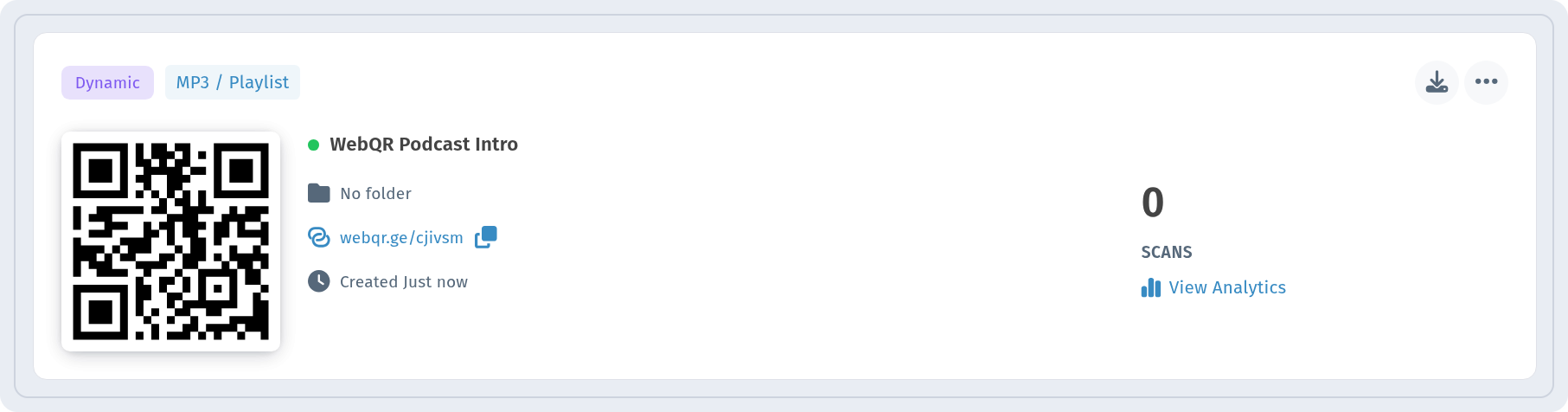
 Name and folder are set on the Settings step, just like for video. The finished code appears in your list as an MP3 code.
What listeners see
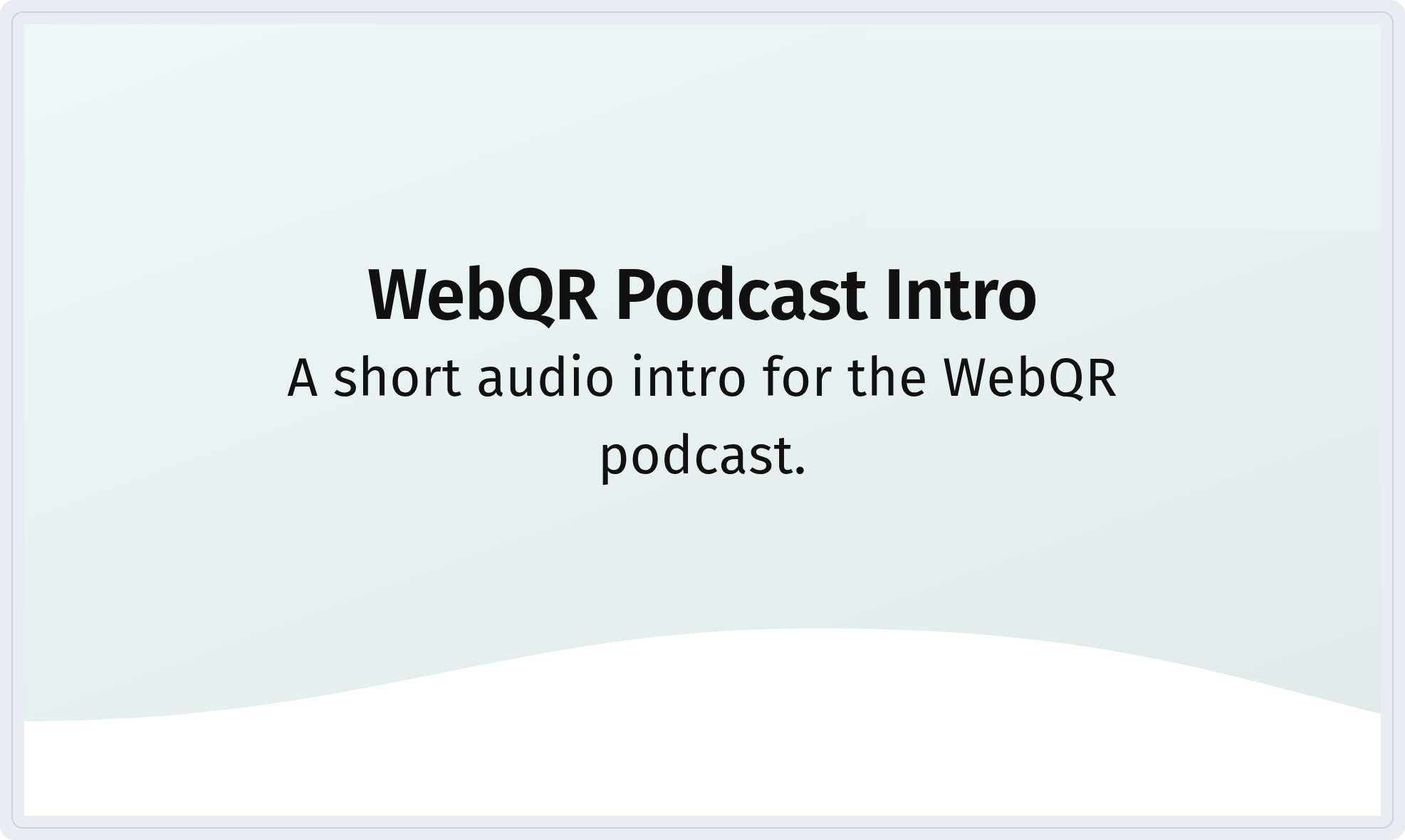
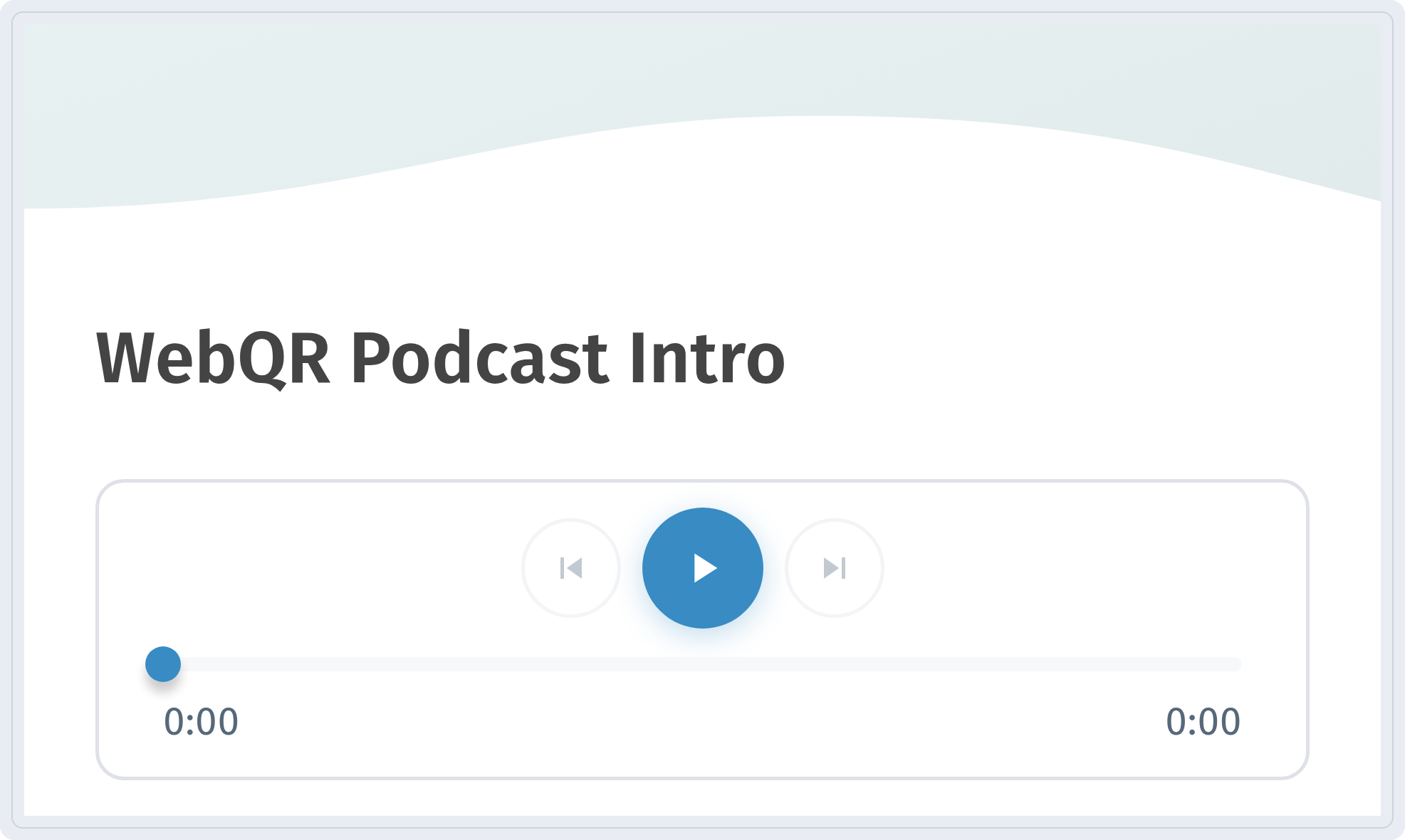
After scanning, a page opens with the title, the description and an audio player with the track.
Tips
- Add a block title so people know right away what the video is.
- Check the page on your own phone before printing.
- The code is dynamic: you can replace the clip or track without reprinting the QR code.