
How to Password-Protect a QR Code
Lock the page behind a dynamic QR code with a password in WebQR: turn on Page password, see what visitors get, change or remove the password later, and tips for sharing it safely.
Not every QR code is meant for everyone who happens to scan it. A code on an internal noticeboard, a handout for event participants or a sheet in the staff room can be seen by anyone passing by. In WebQR you can put a password on the page behind a dynamic QR code: anyone can scan it, but only people who know the password will see the content.
How a password-protected QR code works
The password does not live in the QR code itself. A dynamic code only contains a short link, such as webqr.ge/3dk0pz. When someone scans it, WebQR opens a password prompt first and shows the page only after the correct password is entered. Because the check happens on the page, you can set, change or remove the password at any time without reprinting the code. That is also why this works for dynamic codes: a static code stores its content directly in the pattern, so there is no page to protect. More on the difference in Static vs dynamic QR codes.
In this guide we use a dynamic Links code called WebQR Links with three links.
Step 1: turn on Page password
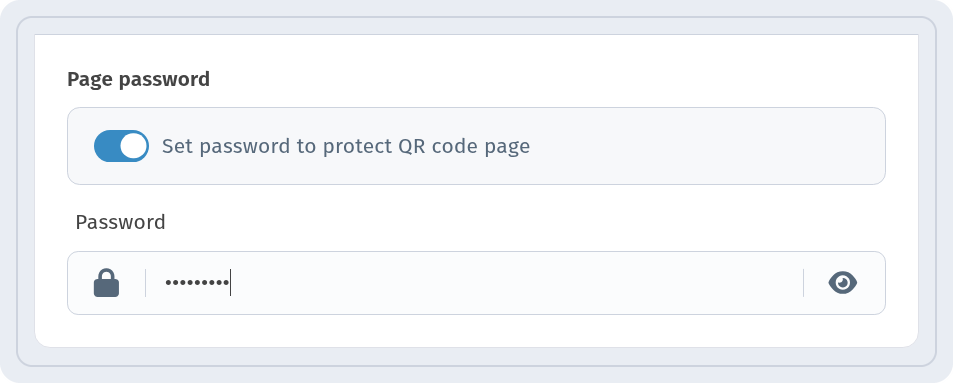
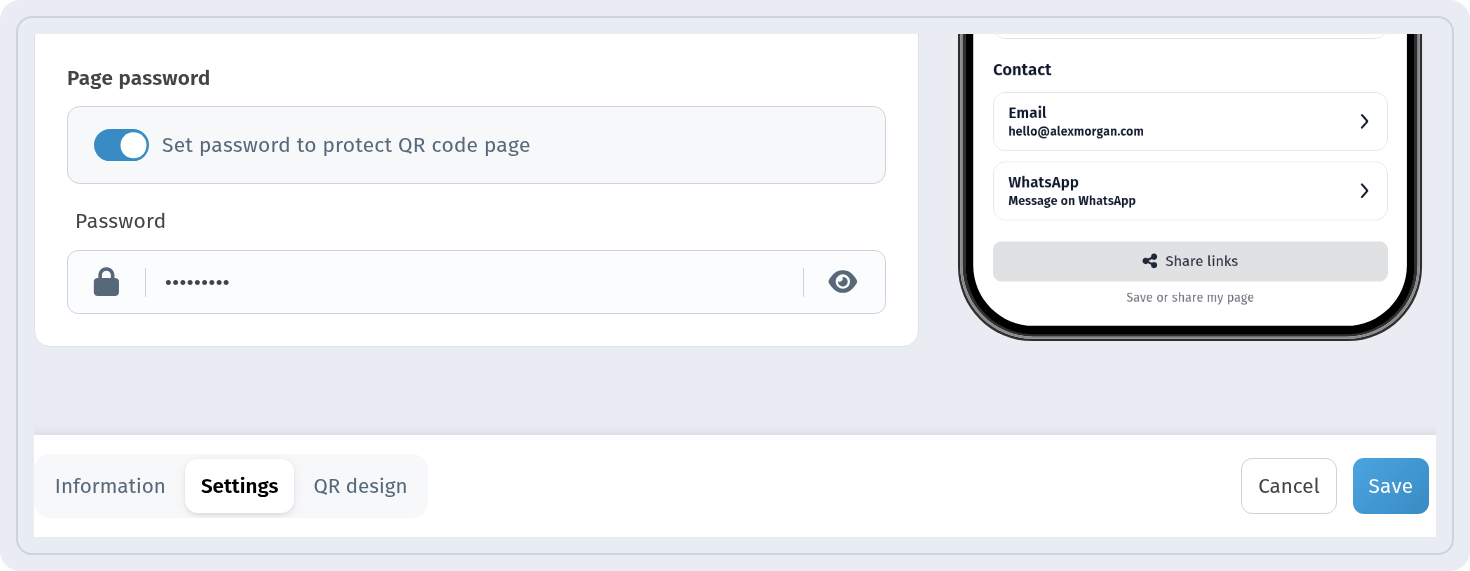
Create a dynamic code as usual. In step 3, Settings, open the Configuration section and find Page password. Turn on Set password to protect QR code page. A Password field appears with the placeholder Enter password to protect page. Type your password; the eye icon on the right shows or hides what you have typed, so you can check it for typos.
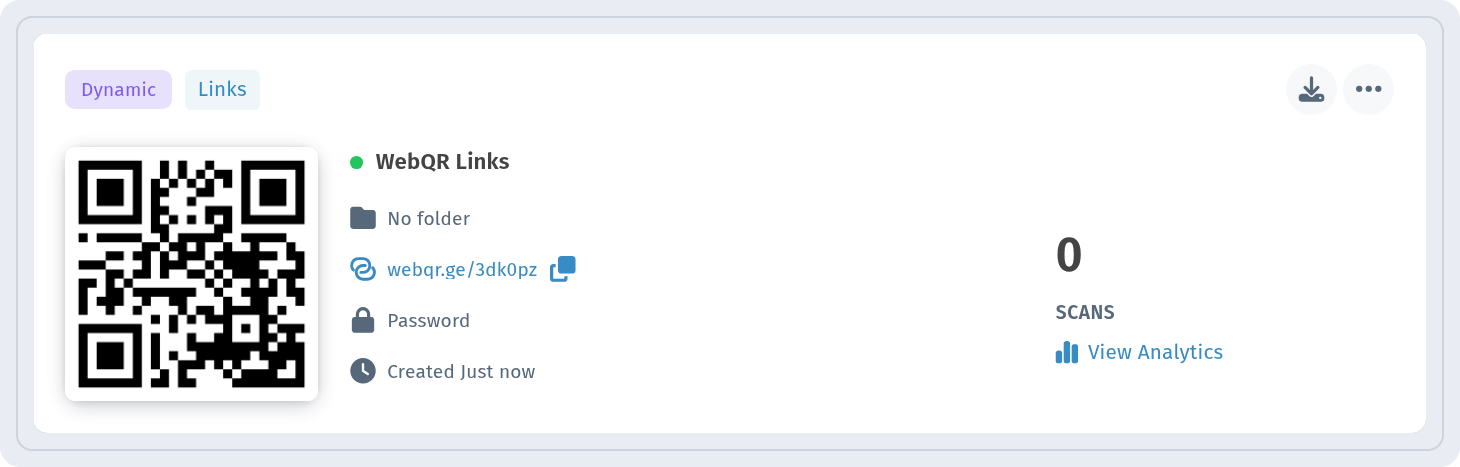
 Save the code. In My QR codes its card now shows a lock with the word Password, so you can tell at a glance which codes are protected.
Step 2: what the visitor sees
After scanning, the visitor sees Protected page with the text Enter password to access., an Enter password field and the Show button. The eye icon in the field lets them check what they typed.
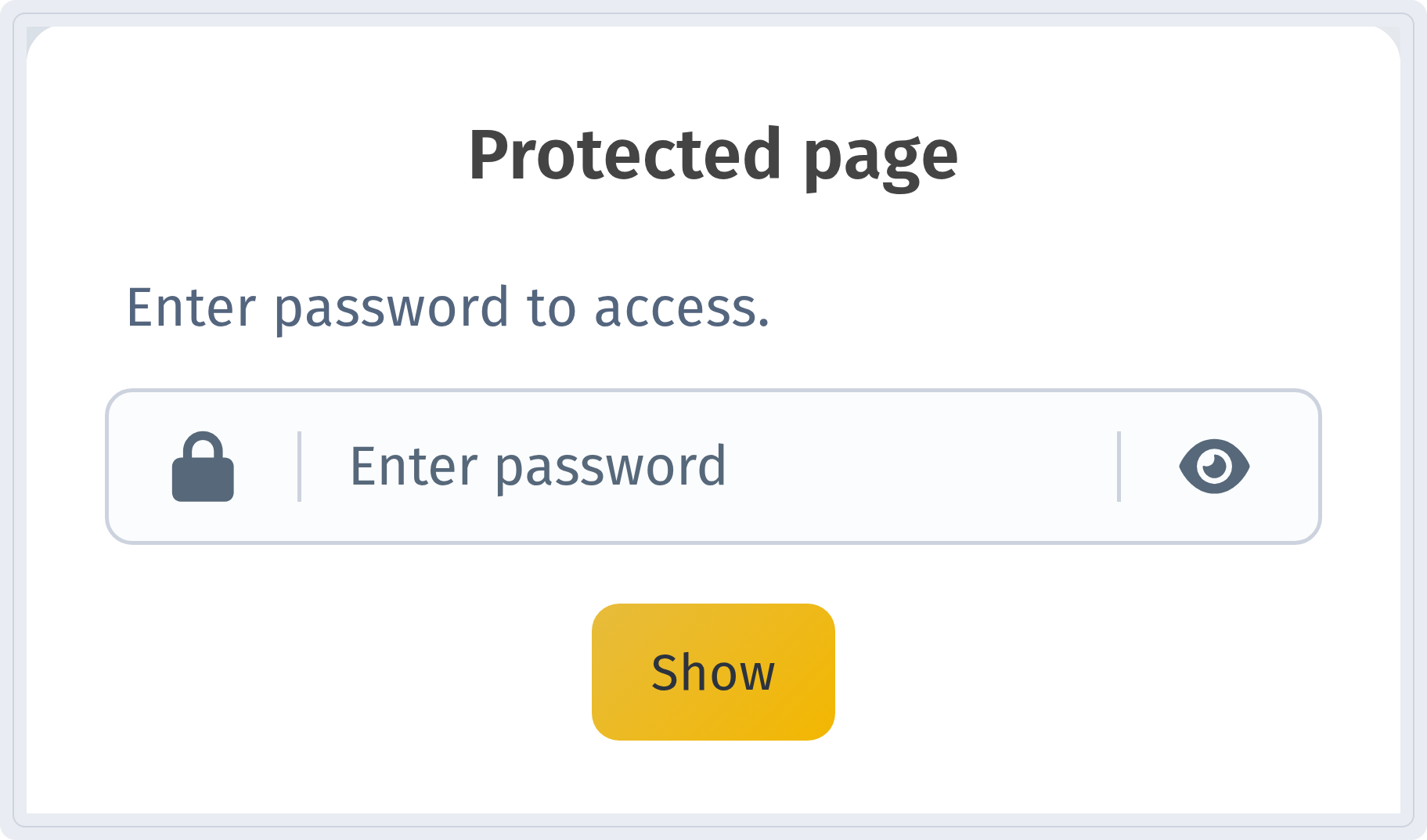
After the correct password is entered and Show is tapped, the content opens, in our case the list of links.
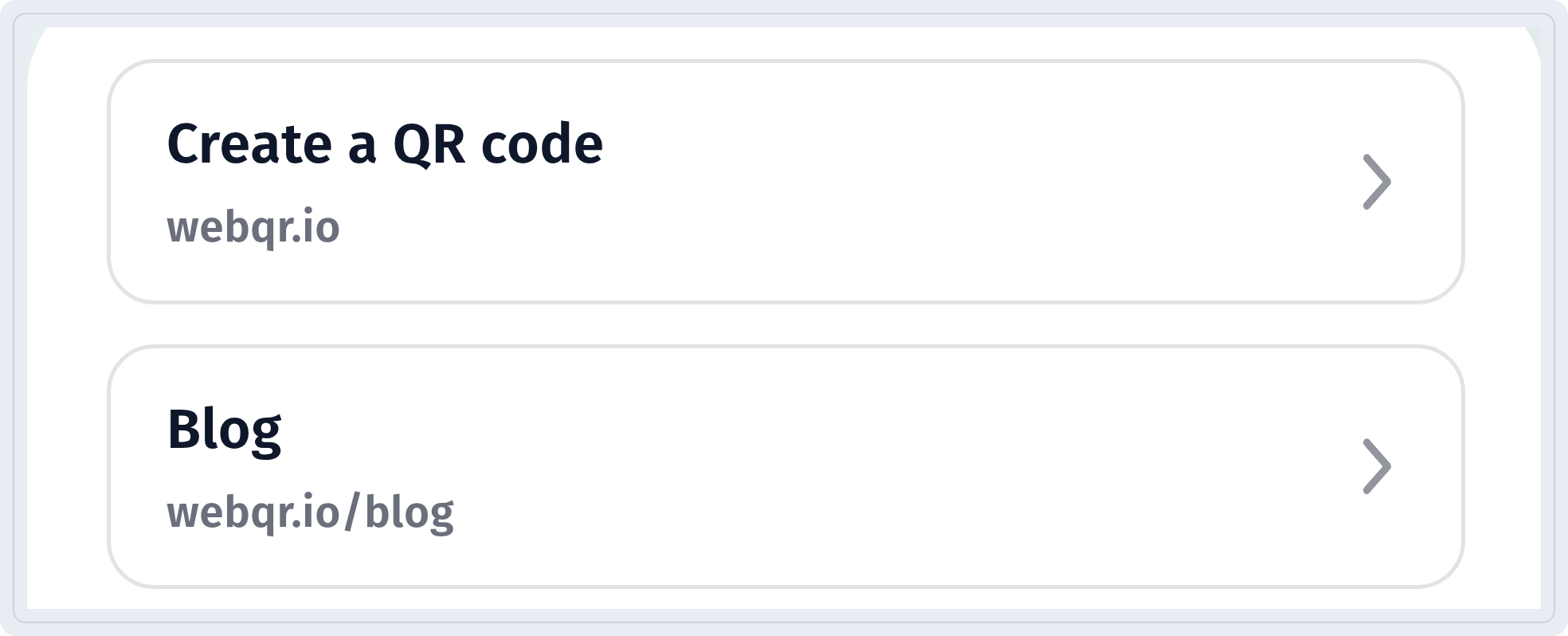
The language of the visitor page is set per code, not by your dashboard language. You'll find it in Information > Template > Page language, which sets the language for the buttons and labels on the page. With the Translations toggle on, visitors can also switch the page to Русский or ქართული themselves. That is why the screenshots of the public page above are in English in every language version of this article.
Step 3: change or turn off the password
The password is not fixed. Open the code's menu in My QR codes, choose Edit and go to the Settings tab. In Page password you can type a new password or turn the toggle off to make the page public again. Click Save to apply the change. The printed code stays the same: the next scan simply asks for the new password, or no password at all.
When to use a password
- Internal documents. Instructions, checklists or contact lists for the team, on a poster in the office or warehouse.
- Event materials. Slides, schedules or recordings for participants only, with the password announced on site.
- Staff Wi-Fi and service information. Details that guests shouldn't see, posted in the staff area.
- Previews and drafts. A page you want to show a client or partner before it goes public.
- Class or course materials. Handouts for a specific group.
Tips for sharing the password
- Share the password separately from the code: in a message, an email or in person. If the password is printed right next to the QR code, it protects nothing.
- Choose a password that is easy to type on a phone but hard to guess. Avoid the name of the event or the company.
- Change the password when a group changes, for example after an event or when someone leaves the team. The printed code keeps working.
- Test the code with a real scan after every change, using a phone that isn't signed in to your dashboard.
- Remember that a password limits who can see the page, but anyone who knows it can pass it on. Don't use it for truly confidential data.
Summary
A page password turns any dynamic QR code into a private one. Turn on Page password in Settings, share the password separately, and change or remove it later in Edit without reprinting anything.