
How to Create an App Download QR Code with Google Play and App Store Buttons
Create a dynamic app QR code in WebQR: add a cover, app description, Google Play and App Store links, then update them later without reprinting.
An app download QR code turns a poster, flyer, package or shop window into a small landing page for your mobile app. People scan it and see the app name, a short description and store buttons for Google Play and the App Store. The code is dynamic, so you can change the store links or text later — the printed QR code keeps working and nothing needs to be reprinted.
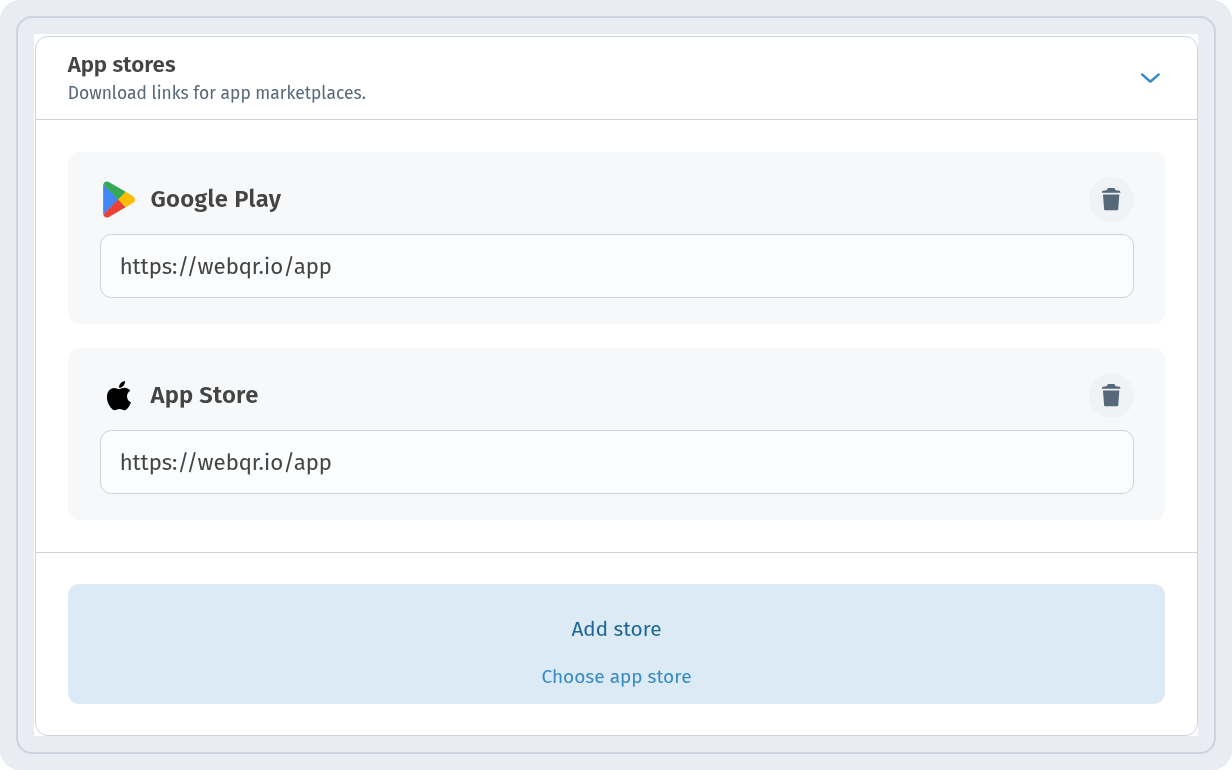
In this example we create a page for the WebQR app itself. Both store buttons lead to https://webqr.io/app.
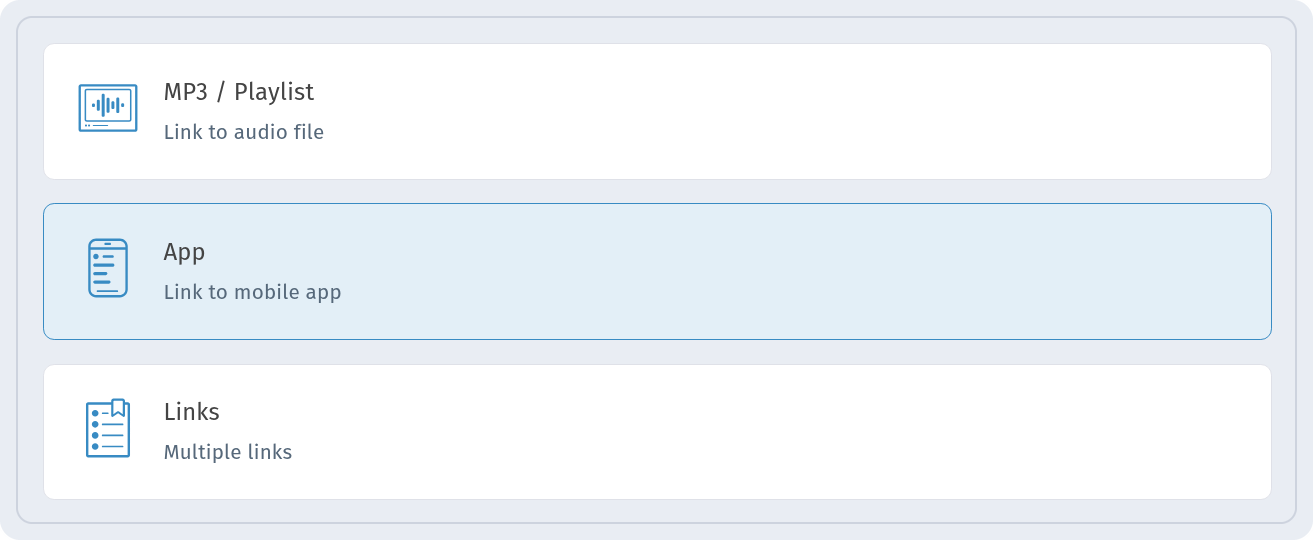
Step 1: Choose the App type
Among the dynamic content types, select App with the caption Link to mobile app.
Step 2: Fill in the basic information
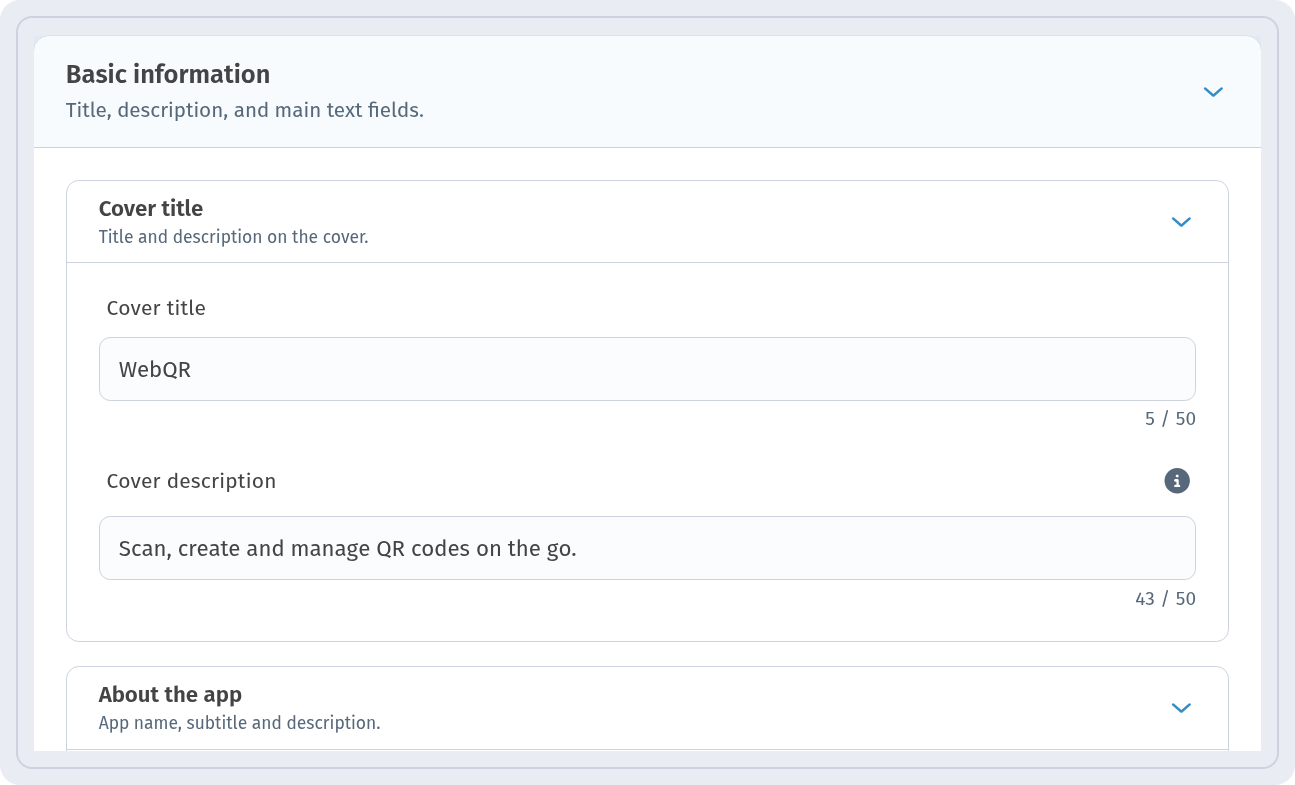
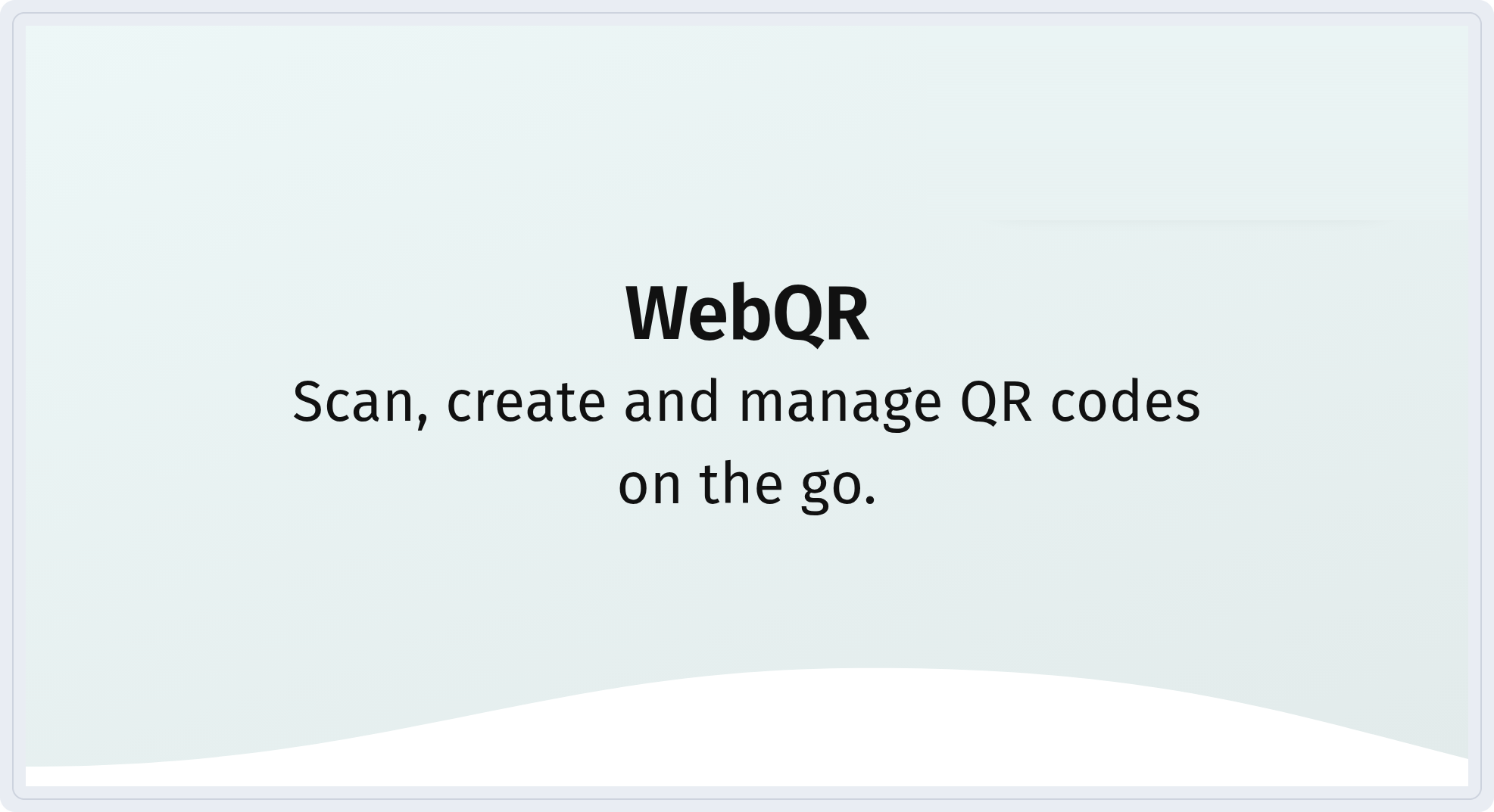
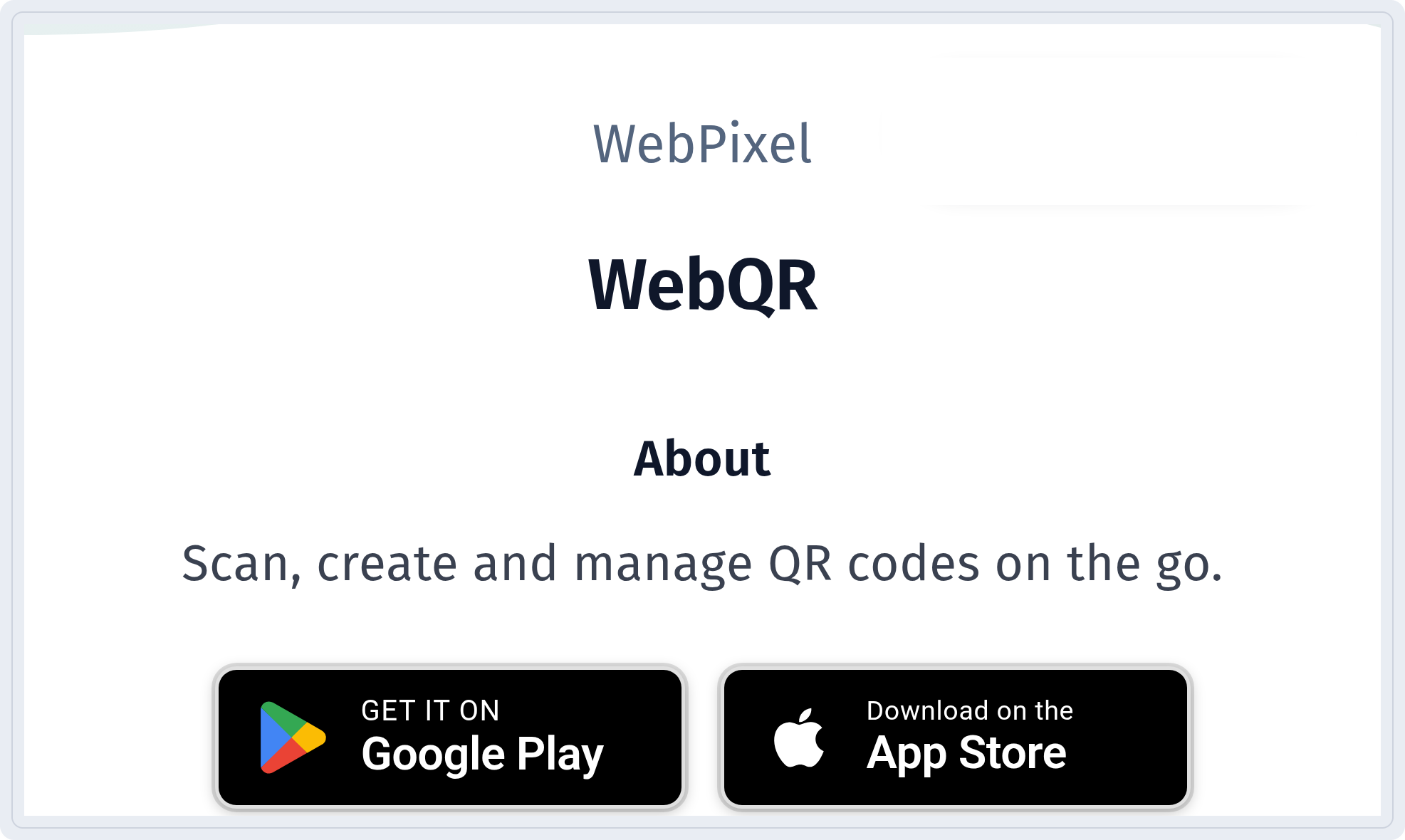
Open Basic information. In the Cover title block, enter the Cover title (WebQR) and the Cover description (Scan, create and manage QR codes on the go.). Below it, the About the app block holds the company name and the app description shown on the page.
Step 3: Add the store links
In App stores, click Add store and Choose app store. Add Google Play and App Store and paste the link for each one. Here both point to https://webqr.io/app.
Step 4: Add social links (optional)
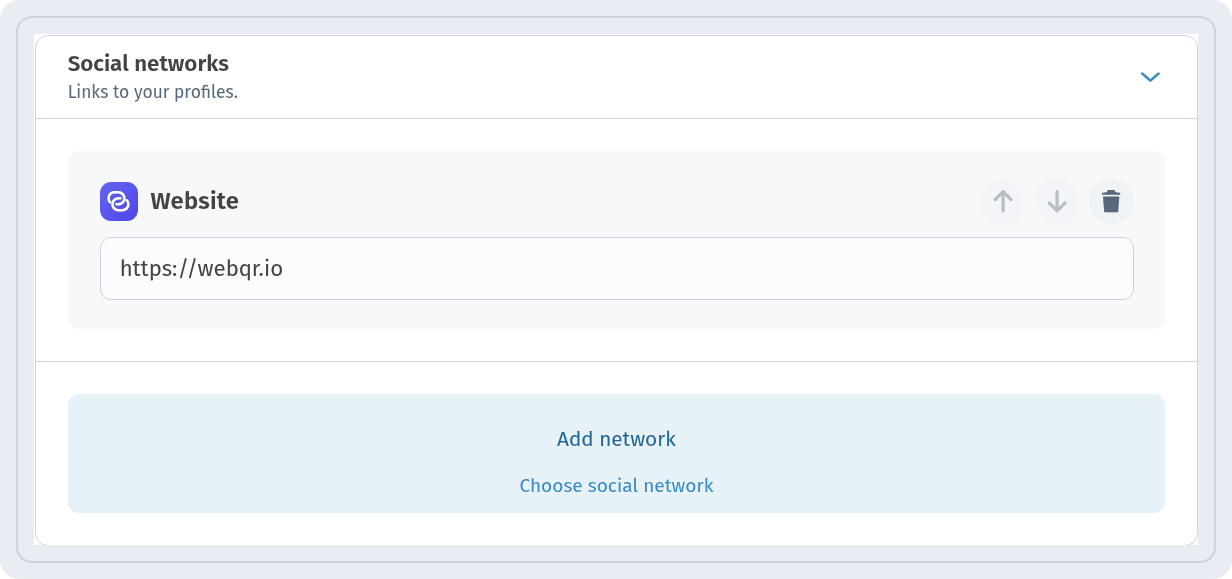
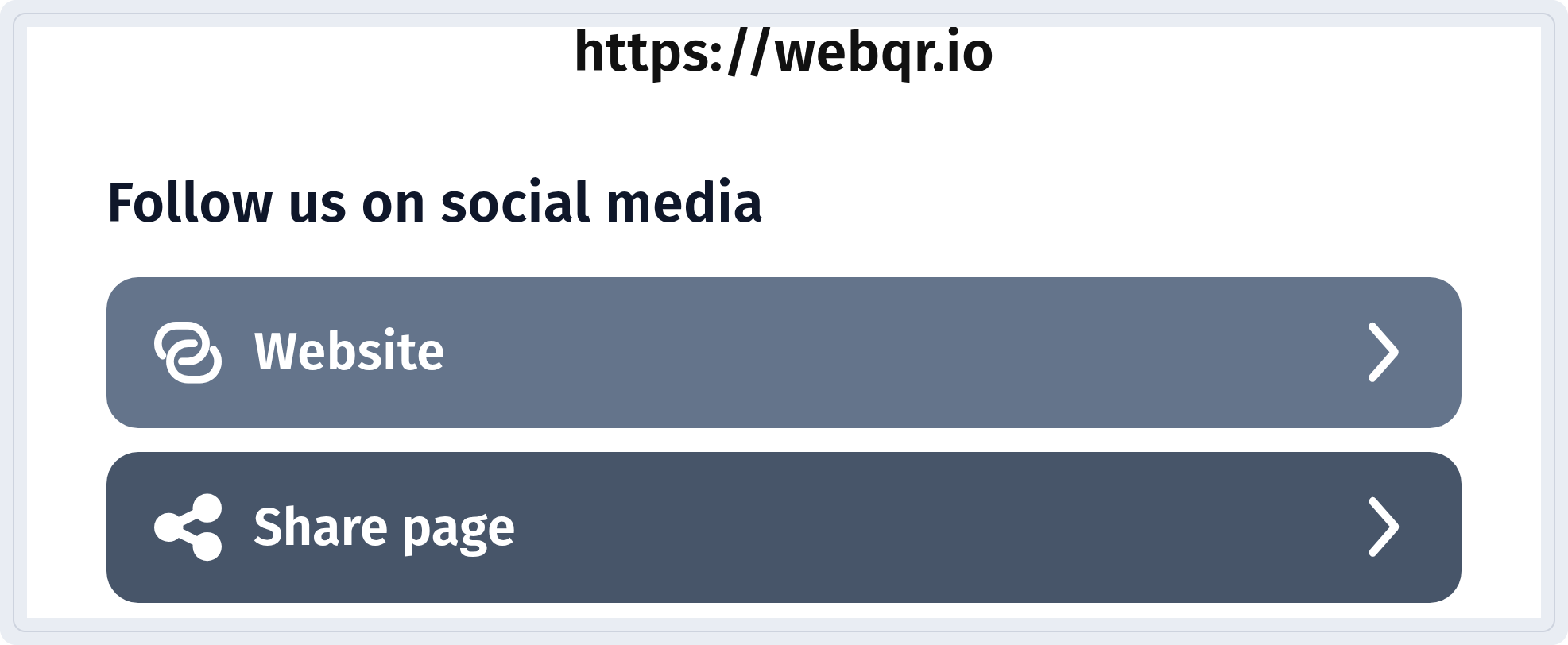
In Social networks, click Add network and Choose social network. In the example we added a Website link to https://webqr.io. Clear block removes all entries in this block.
Step 5: Name the QR code and pick a folder
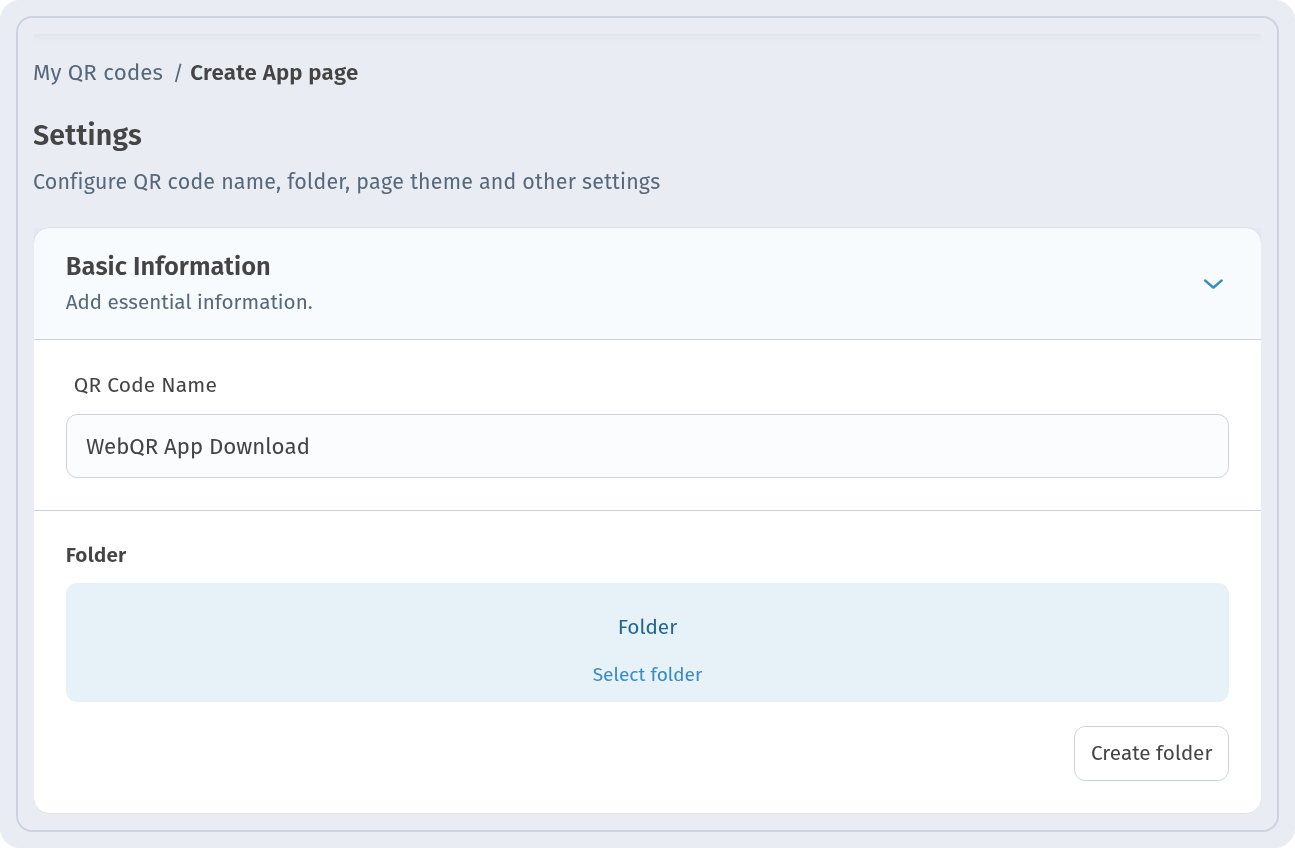
At the Settings step, enter the QR Code Name — here WebQR App Download. It is only visible to you. In Folder, use Select folder or Create folder to keep your codes organized.
Step 6: Find the code in your list
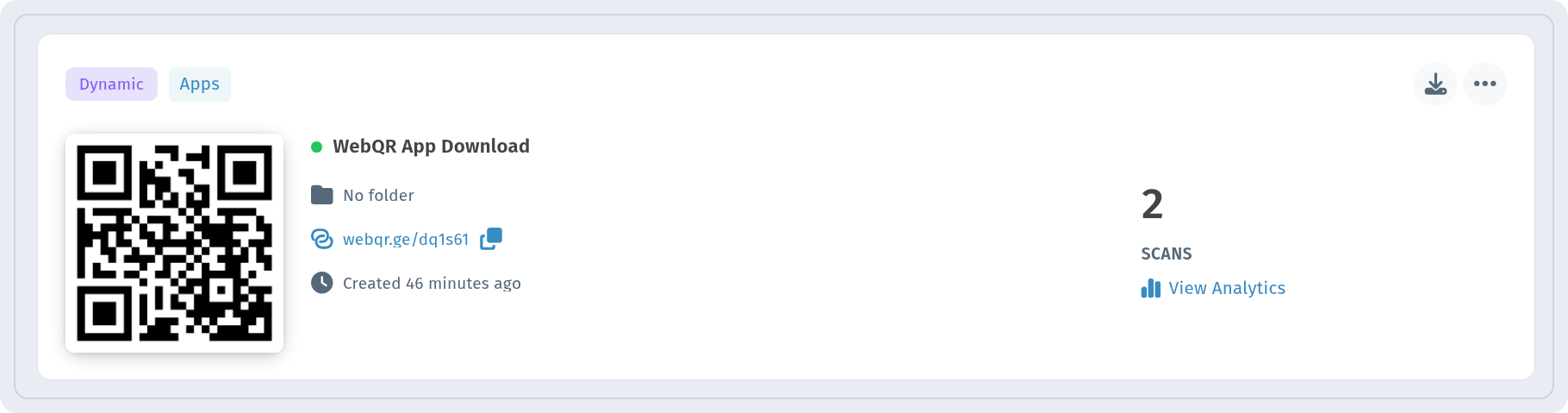
After you save, the code appears in your list with the Dynamic and Apps tags, its short link (webqr.ge/dq1s61), the number of SCANS and a View Analytics link.
What people see after scanning
The page opens with the cover: the title and description you entered.
Below are the About block and the store buttons GET IT ON Google Play and Download on the App Store.
At the bottom are the website link, the Follow us on social media section and the Share page button.
Tips
- Add both stores so that every visitor finds the right button.
- Keep the cover description short — one line about what the app does.
- Test the code with your phone before printing.
- Since the code is dynamic, update the links later instead of reprinting.