
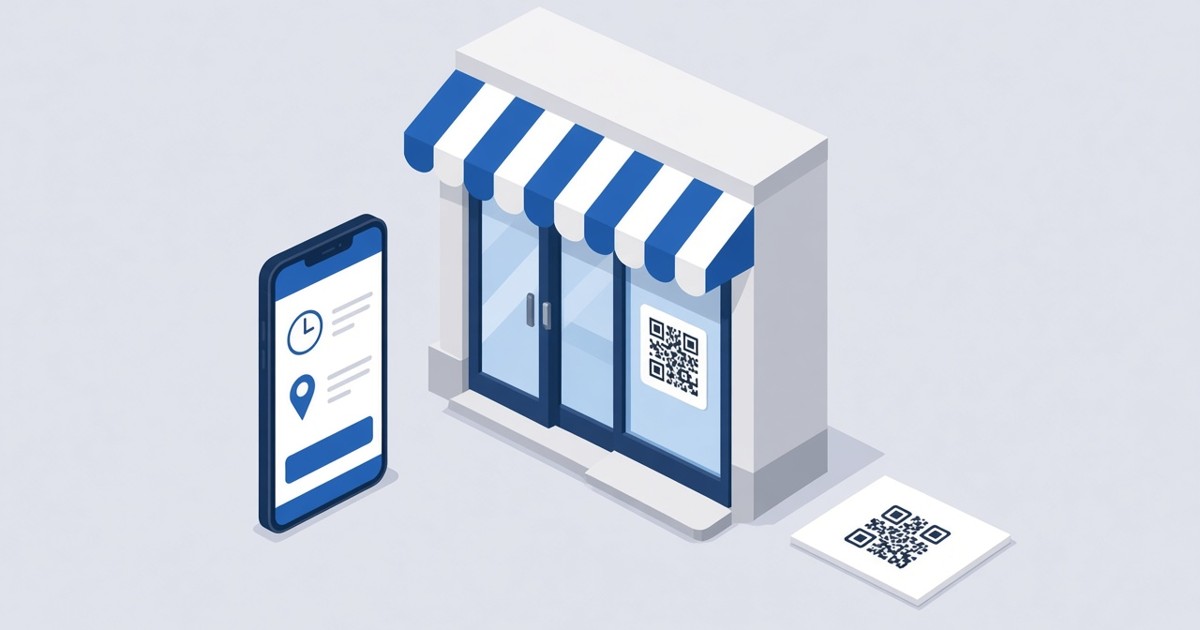
How to Create a Business QR Code
Make a dynamic Business QR code in WebQR with your name, opening hours, address with a map, a website button and social links – and update it anytime without reprinting.
A door, a counter, a business card or a sign has room for only a few lines of text. A Business QR code puts everything else one scan away: a page with your name, a short description, opening hours, address with a map, a button to your website and your social links. In this guide we build a dynamic Business code called WebQR Office.
Where a Business QR code helps
- Office entrance – visitors check the hours and find the website without asking.
- Shop or cafe door – passers-by see when you are open, even after closing time.
- Business cards – one small code instead of a crowded card.
- Signage – posters, stands and window stickers lead to the same up-to-date page.
Step 1: choose Business
Click Create QR code. In step 1, Content type, pick the Business card (Business page) and click Continue.
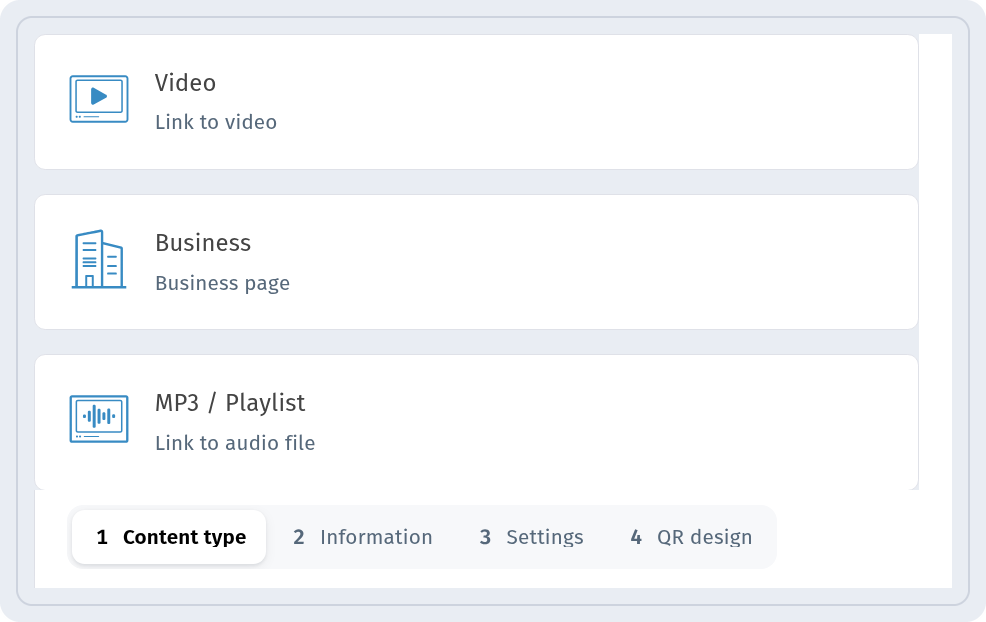
Step 2: fill in the basic information
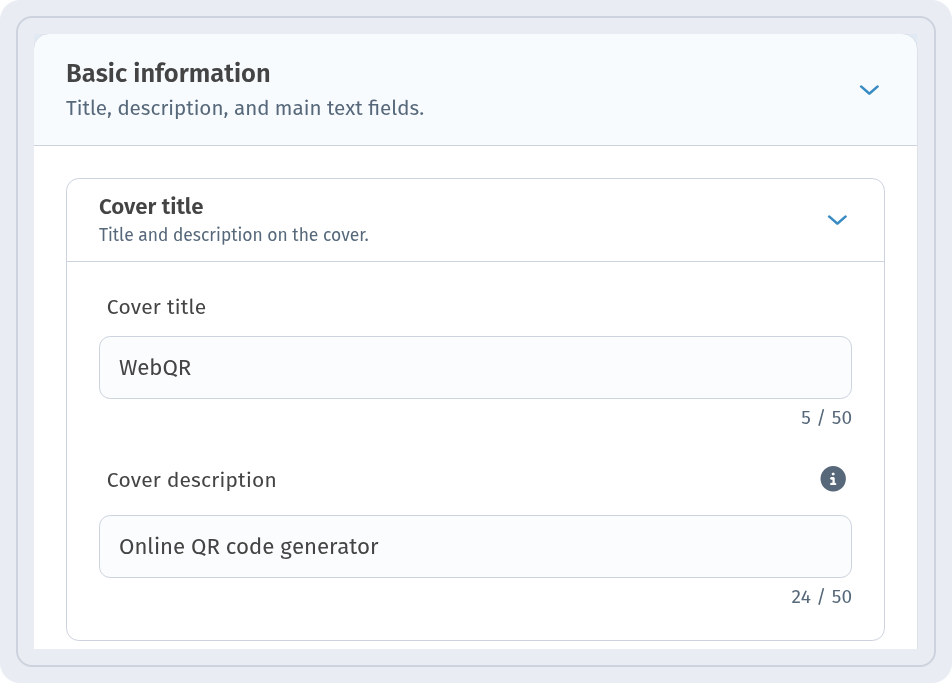
Step 2, Information, starts with Basic information. In Cover title we entered WebQR, and in Cover description – Online QR code generator. This is the first thing visitors see at the top of the page.
Step 3: add a button and opening hours
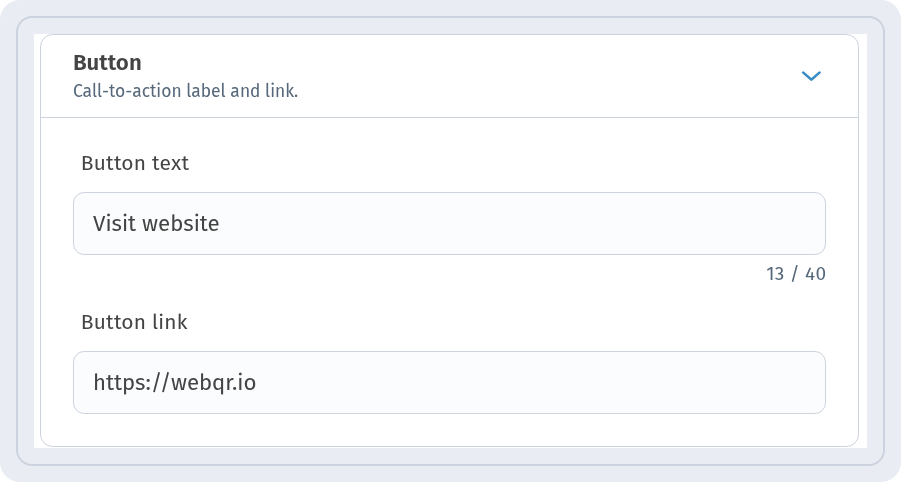
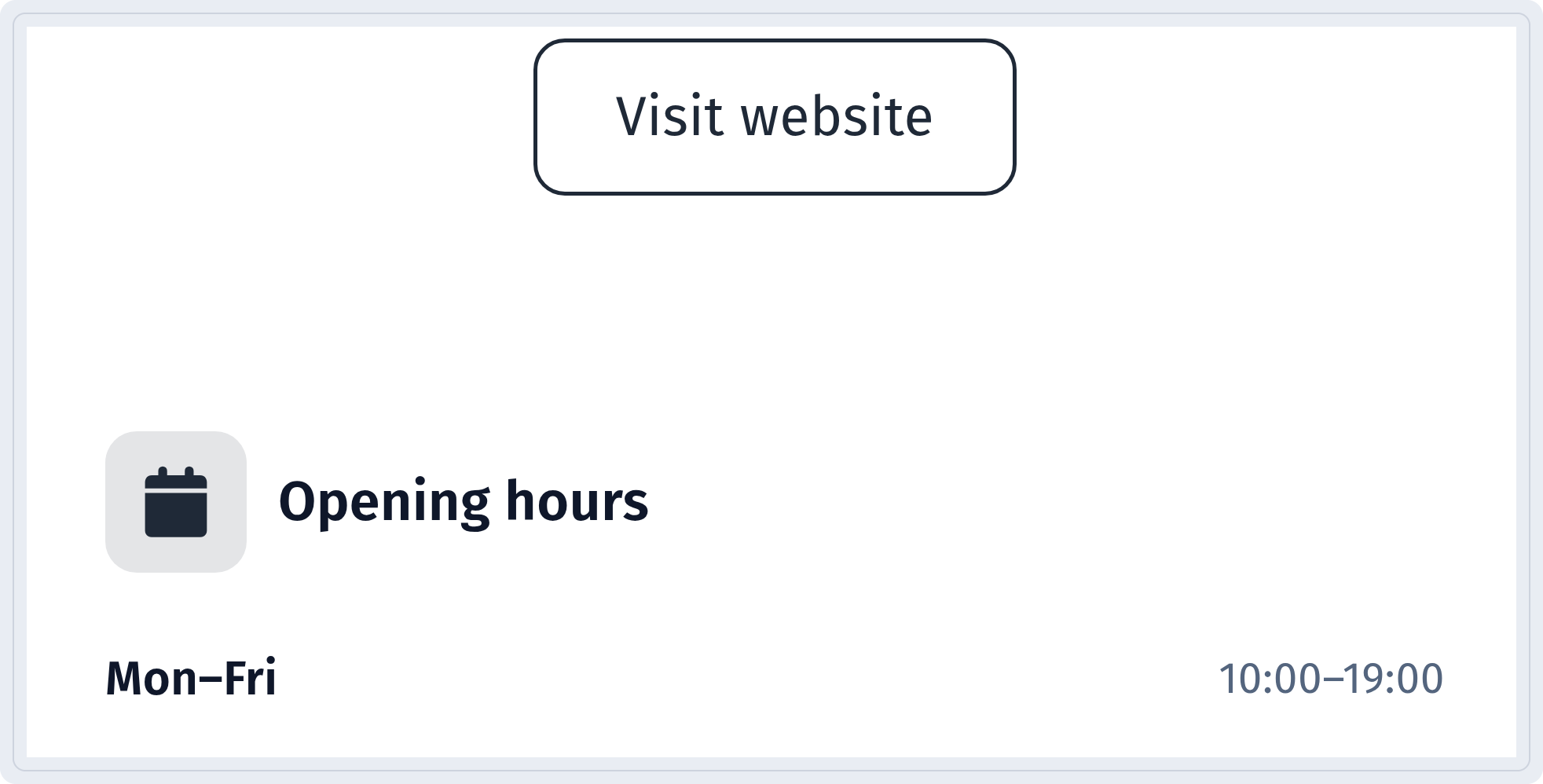
Further down, the Button block adds a call to action. Enter the label in the Button text field – we used Visit website – and the address in Button link: https://webqr.io.
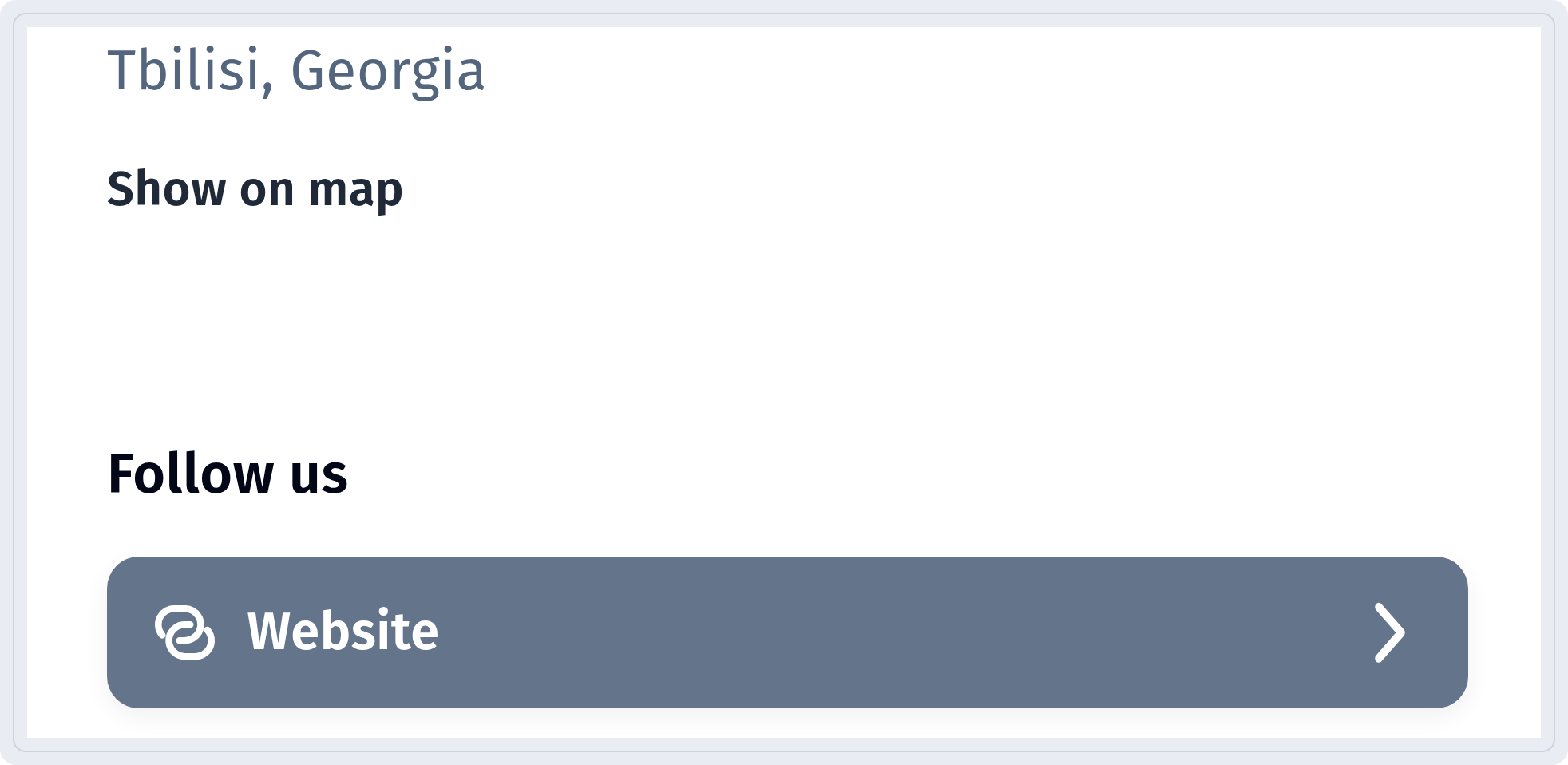
In the Location & hours section, type your schedule in the hours field, for example Mon-Fri: 10:00-19:00, and add the address – we entered Tbilisi, Georgia. On the page, the address comes with a link that opens it on a map.
Under Social networks you can add links to your profiles; we added a single website link.
Step 4: layout and language
In Page layout we kept Flow. The page has its own language, set for each code under Page language and Translations – so visitors see the page in the language you chose, whatever language your dashboard is in. Then go through Settings and QR design and save the code.
What visitors see
After scanning, visitors get a mobile page with the Visit website button and the opening hours:
Below are the address with a link to the map and the social links section:
Keep the page up to date
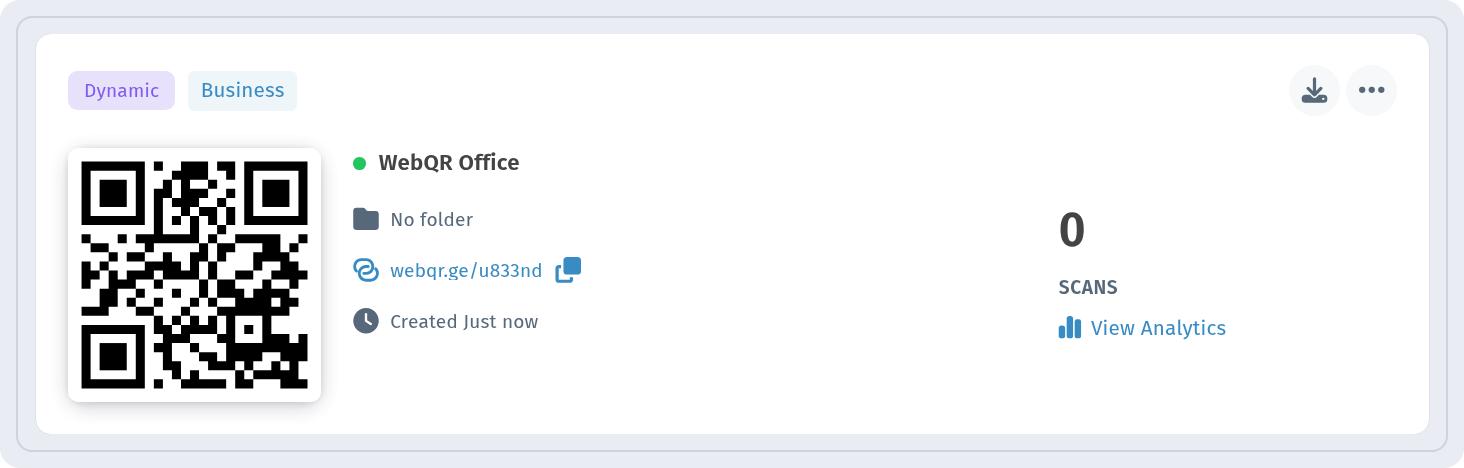
The code appears in My QR codes as Dynamic and Business. Because it is dynamic, you can change the hours, address, button or links at any time and the printed code keeps working – see how to edit a QR code after printing. To see how many people scan it, click View Analytics; more in QR code analytics.
Tips
- Keep the description short – one line that says what you do.
- Update the hours before holidays so the page matches the door.
- Print the code large enough to scan from a step back on doors and signs.