
QR Code Analytics: How to Track Scans in WebQR
Learn how to track QR code scans in WebQR: overview activity, scan charts, detailed statistics, geography and devices, per-code analytics and data export.
A printed QR code does its job silently: people scan it, and unless you measure, you never learn how many did, when, or where. WebQR collects that data for you. This guide walks through every analytics screen in the dashboard, from the quick activity charts on the overview to detailed statistics for a single code, and explains what each number means.
Which QR codes are tracked
Scan analytics works for dynamic QR codes only. A dynamic code points to a short WebQR link, so every scan passes through WebQR and can be counted before the visitor is sent on to your content. A static code stores the content directly in its pattern, so the phone opens it without contacting any server, and there is nothing to record. If you are not sure which type you need, read Static vs dynamic QR codes first.
Quick view: Activity on the overview
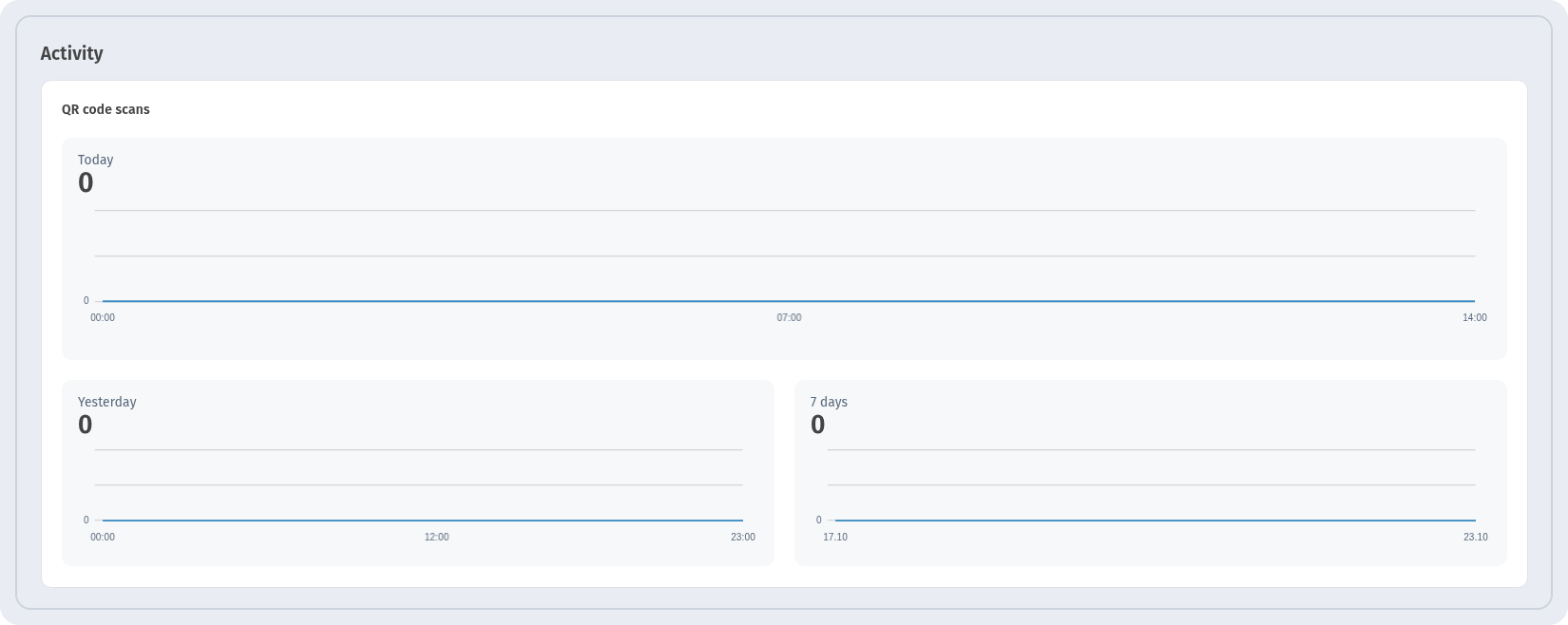
The fastest check is right on the dashboard overview. The Activity block contains a QR code scans card with three small charts:
- Today – scans since midnight, by hour;
- Yesterday – the previous day for comparison;
- 7 days – the trend over the last week.
Each chart shows the total in large type above the line, so you can see at a glance whether your codes are being used. For a new account all three read 0 until the first scans arrive.
The Analytics page
For the full picture, open Analytics from the menu. At the top, three cards summarise the selected period:
- QR codes – how many codes are included;
- Scans – the total number of scans;
- Unique – scans from distinct visitors, so repeat scans by the same person are counted once.
Below the cards are two filters. Section chooses which codes the statistics cover: My QR codes or Workspaces. Date Range sets the period, shown as a pair of dates, for example the last seven days.

Set your timezone first
Scans are grouped by day and hour, so the timezone matters. When you open Analytics, WebQR may show a banner: “You can set a timezone.” together with your current timezone. Click Accept to keep it, or Change to pick another one in Settings. With the right timezone, a scan at 11 p.m. is counted on the correct day.
The Scans chart
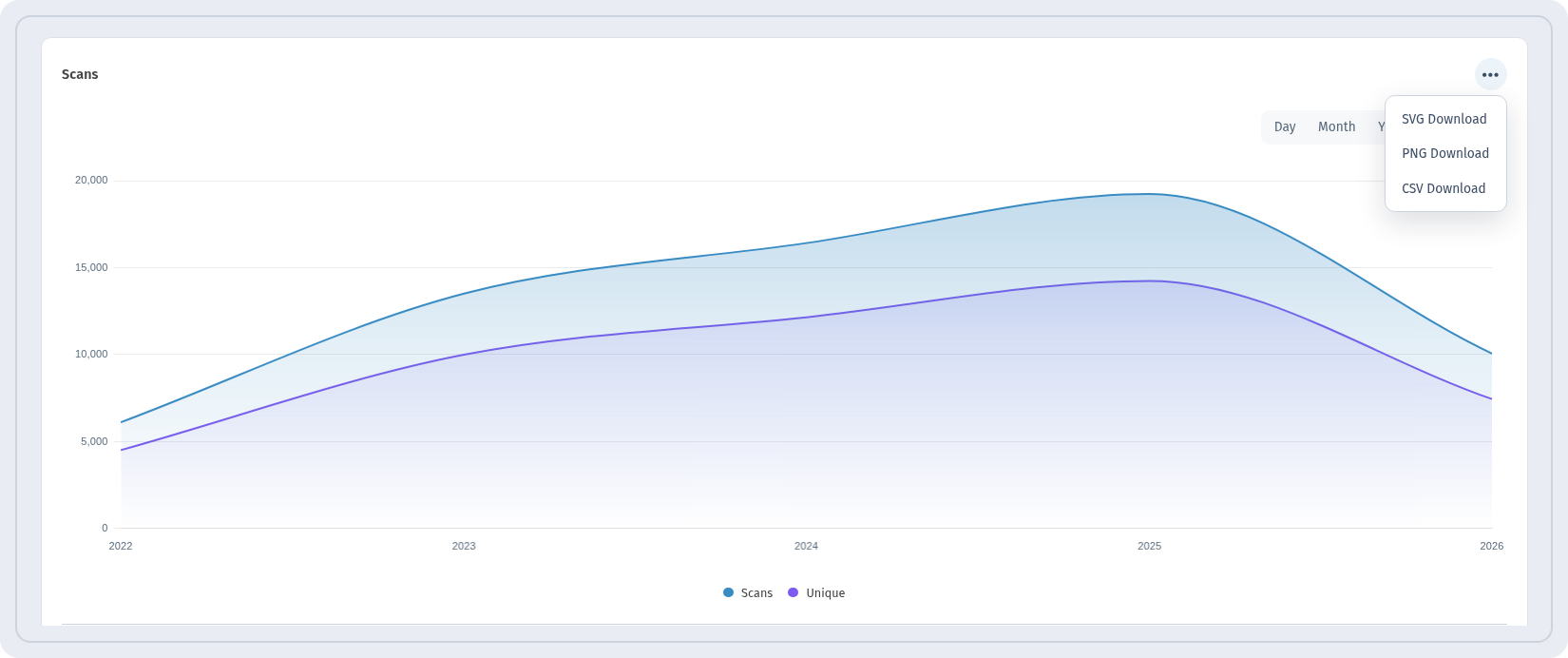
The Scans chart shows how scans develop over time. Use the buttons above it to group the data by Day, Month or Year, switch the view between Lines and Bars, and use the legend to show or hide the Scans and Unique series. Hover over a point to see the exact values for that period.
The screenshot below is taken from the built-in sample demo, which is filled with example data so you can see how a busy chart looks. The ... menu in the corner of the chart offers SVG Download, PNG Download and CSV Download: images for reports and presentations, CSV for spreadsheets.
Detailed Statistics
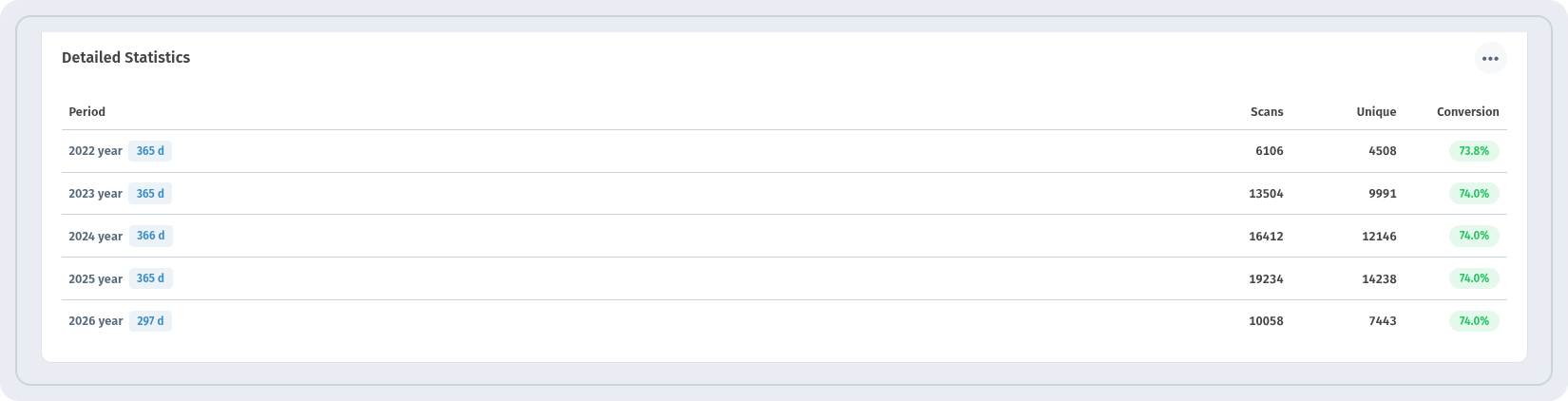
Under the chart, Detailed Statistics shows the same data as a table with four columns:
- Period – the day, month or year, following the chart grouping;
- Scans – all scans in that period;
- Unique – unique visitors in that period;
- Conversion – the share of unique visitors among all scans.
A low conversion means many people scan the code more than once, for example a menu on a table that guests reopen during a visit. A high one means most scans come from new people. This table also has a ... menu for exporting the data. The screenshot again shows the sample demo.
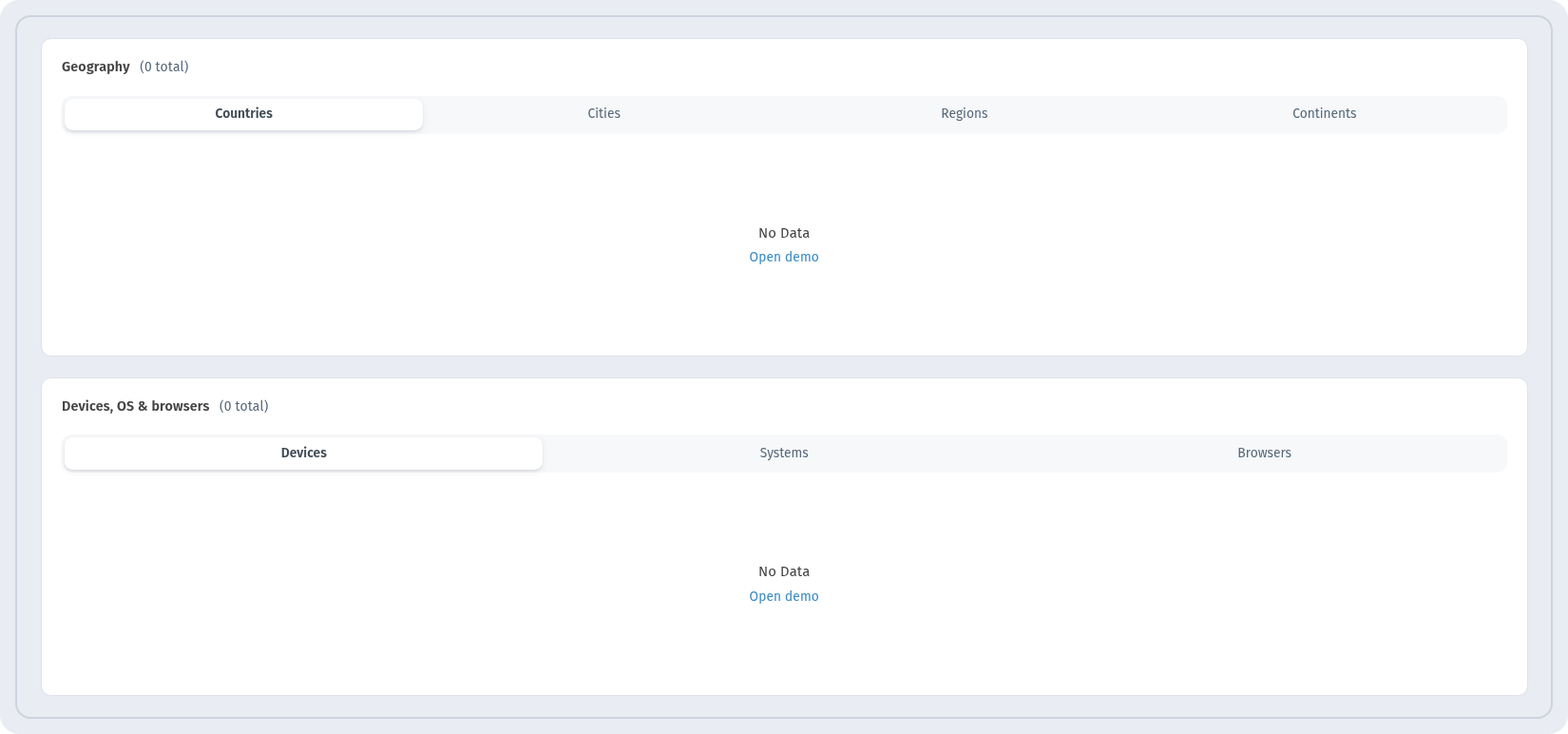
Geography and devices
Two more blocks tell you who is scanning:
- Geography with the tabs Countries, Cities, Regions and Continents – useful when the same code is printed for several locations or markets;
- Devices, OS & browsers with the tabs Devices, Systems and Browsers – shows whether your audience is mostly on phones or tablets, iOS or Android, and which browsers they use. This helps you check that your landing page works well where it matters.
The block headers show the total in brackets, for example “(0 total)”.
No data yet? Open the demo
Until your codes are scanned, the blocks show No Data with an Open demo link. The demo opens the same page with sample data, so you can explore every chart, table and tab before your first campaign goes live. The figures in the demo are sample data, not your own statistics.
Analytics for a single QR code
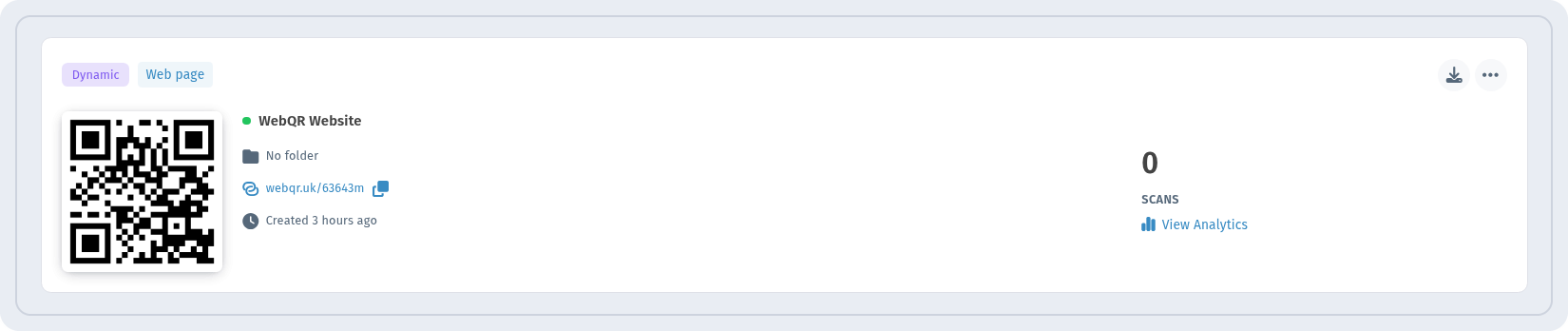
The Analytics page covers all codes in the selected section. To look at one code, go to My QR codes and find a dynamic code. Its card shows the number of SCANS and a View Analytics link.
The per-code page shows the code itself with its short link, the Scans and Unique cards, a Date Range filter and the same chart, table, geography and device blocks as the main Analytics page, but only for this code. Its ... menu also contains Reset statistics, which clears the counted scans for this code, for example after you have tested it yourself before printing. Use it with care: the reset applies to the history of the code.
Tips for useful analytics
- Use one code per placement. Create separate dynamic codes for the poster, the flyer and the package, and you will see which placement works best.
- Name codes clearly. A name like “Spring flyer – Tbilisi” is easier to read in the list than “QR 3”.
- Reset after testing. Scan the code a few times to check it, then reset its statistics so your tests don’t distort the real numbers.
- Compare Scans and Unique. Together they show both reach and repeat interest.
- Export regularly. Download CSV for reports or to combine scan data with sales and other marketing numbers.
Summary
WebQR analytics answers the main questions about any campaign: how many people scanned, when, where and on which devices. Start with the Activity charts on the overview, open Analytics for totals, charts and detailed statistics, and use View Analytics on a dynamic code to study it on its own. Remember that only dynamic codes are tracked, so choose the dynamic type whenever you want to measure results.