
How to Edit a QR Code After Printing
Change the link or content of a printed QR code in WebQR without reprinting it. Step-by-step guide to editing dynamic QR codes, settings, content type and statistics.
You printed a thousand flyers, and then the link changed: a new landing page, a new menu, a typo in the URL. With an ordinary QR code that means printing everything again. With a dynamic QR code in WebQR you simply edit the code in your dashboard, and every printed copy starts opening the new content. This guide shows how.
Why a printed dynamic QR code can be edited
A dynamic code does not store your website address in its pattern. It stores a short link such as webqr.uk/63643m, and WebQR redirects every scan from that link to the content you have set. When you edit the code, only the destination changes. The short link, and therefore the pattern on paper, stays the same, so the printed QR code keeps working.
A static code is different: the content is encoded directly in the pattern, so changing it means a new code. If you are not sure which type you have, read Static vs dynamic QR codes.
Step 1: open the code's menu
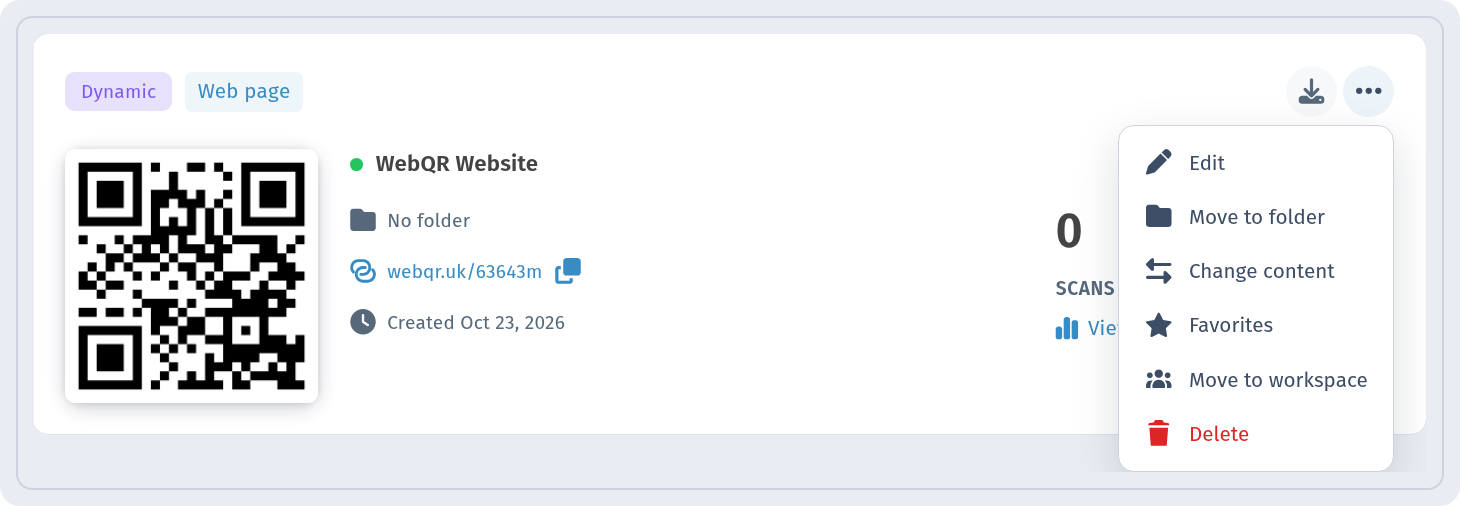
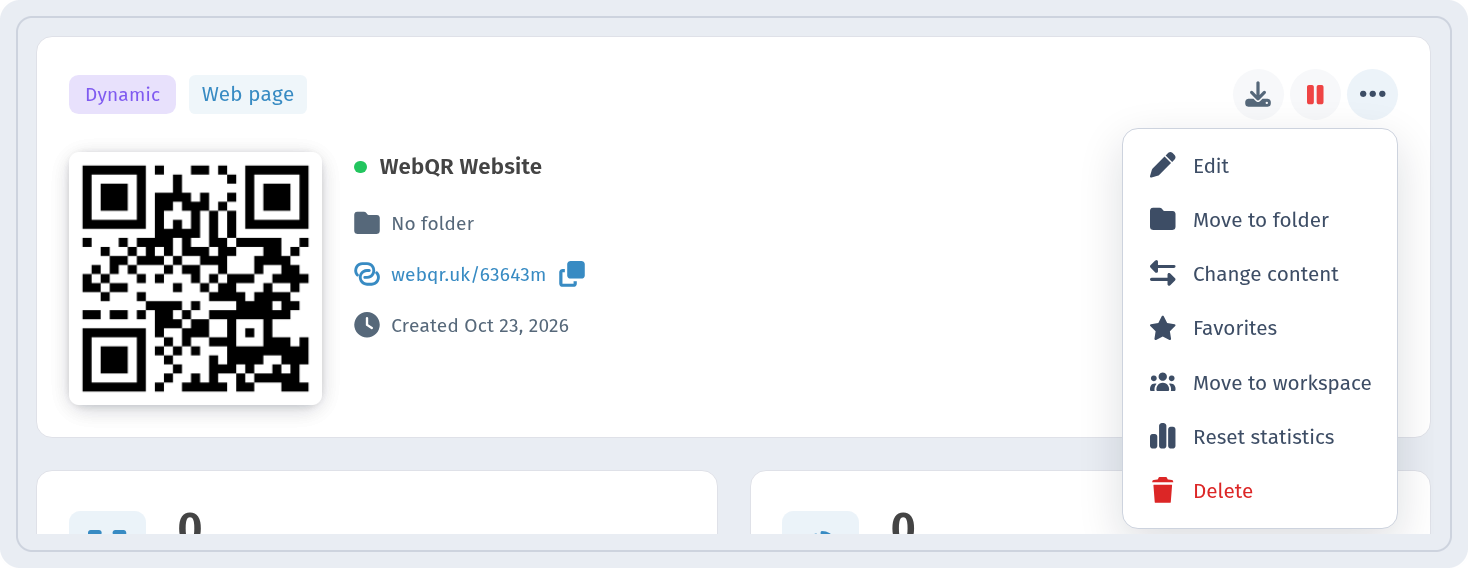
Go to My QR codes and find your dynamic code. Its card shows the short link. Click ... in the top-right corner of the card to open the menu:
- Edit – change the content, settings and design;
- Move to folder – keep your codes organised;
- Change content – switch the code to a different content type;
- Favorites – add the code to your favourites;
- Move to workspace – move the code to another workspace;
- Delete – remove the code.
Step 2: change the link
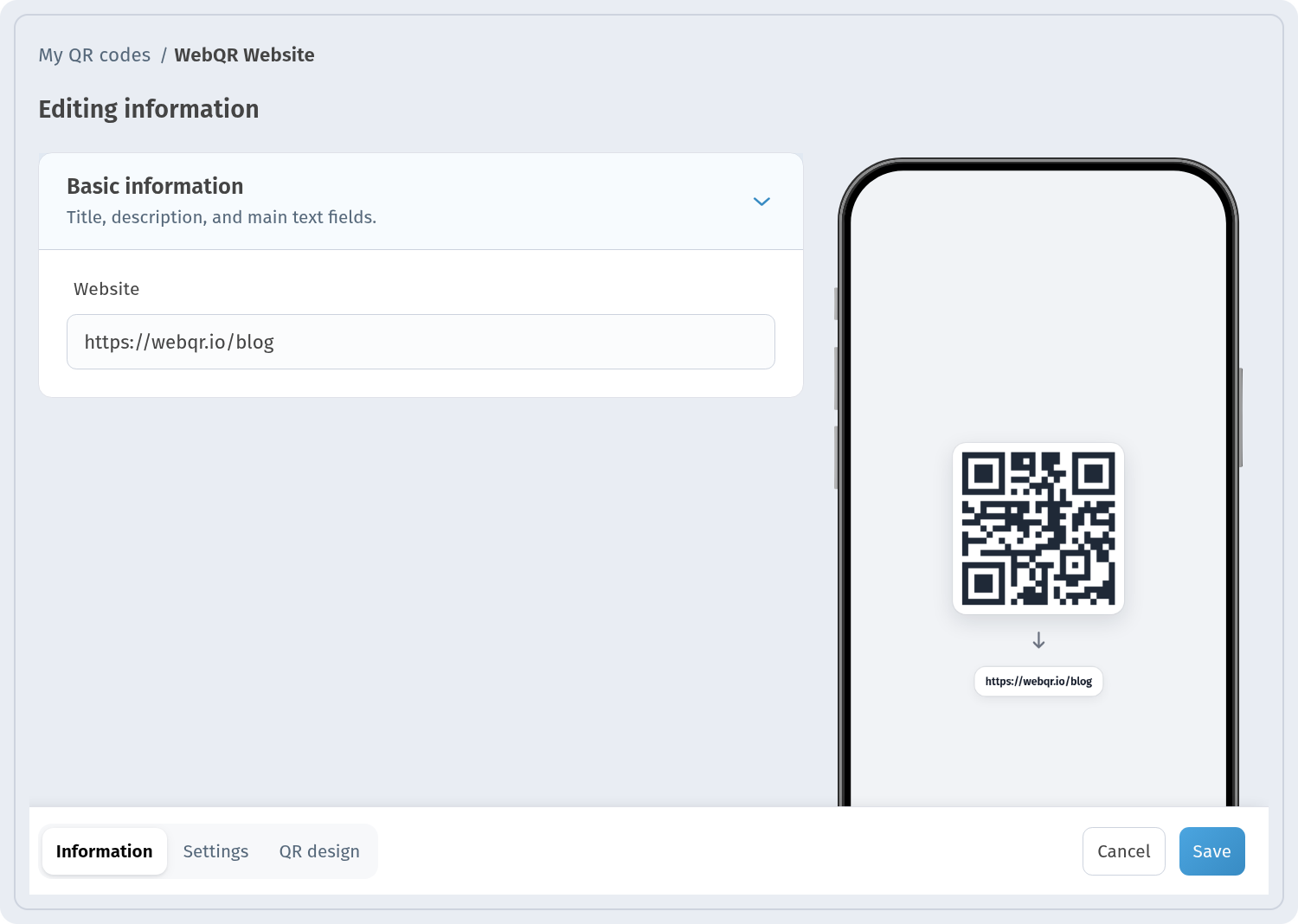
Choose Edit. The Editing information page opens with three tabs at the bottom – Information, Settings and QR design – and the Cancel and Save buttons.
On the Information tab, under Basic information, you will find the Website field. Replace the old address with the new one, for example change https://webqr.io to https://webqr.io/blog. The preview on the right updates right away and shows the new destination under the code. Nothing is applied until you click Save; in the screenshot the new URL is typed but not saved yet.
Click Save, and the next scan of any printed copy opens the new page. Want to check? Scan the printed code with your phone.
Step 3: review the settings
The Settings tab holds everything about the code itself rather than its content:
- QR Code Name – the name you see in the list.
- Folder – the folder where the code is stored.
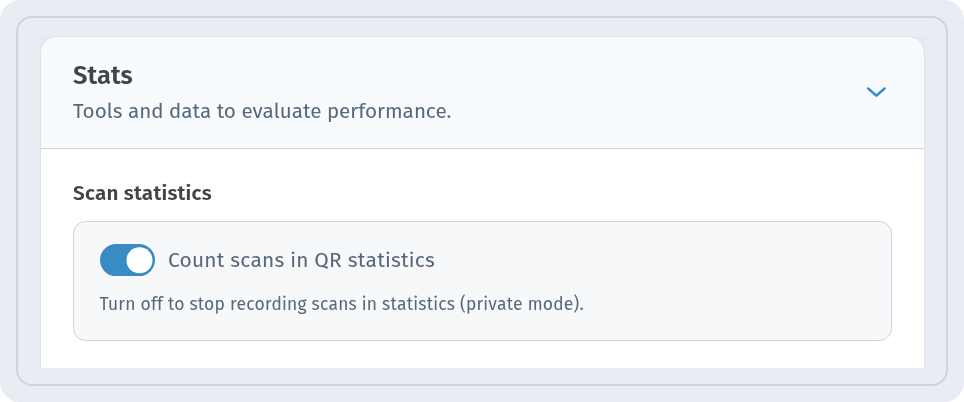
- Stats – the Count scans in QR statistics toggle. As the help text says, “Turn off to stop recording scans in statistics (private mode).” The code keeps working, but scans are no longer counted.
Don’t change the short link of a printed code
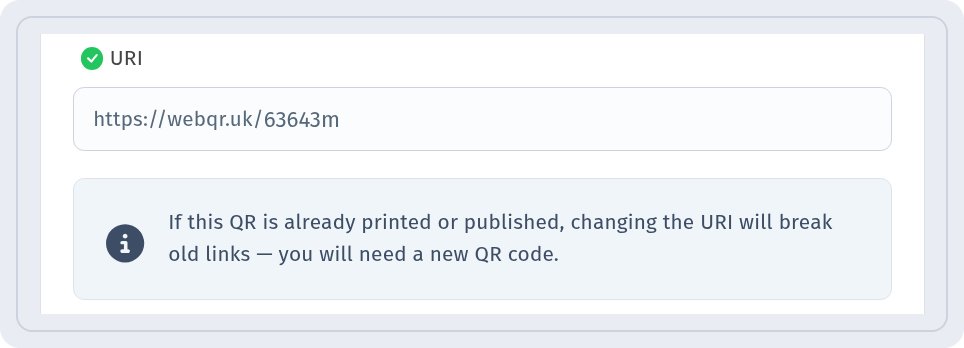
Further down, the short link section shows the Domain and URI of the code. This is the one thing you should leave alone after printing. WebQR warns: “If this QR is already printed or published, changing the URI will break old links — you will need a new QR code.” Change the destination, not the address.
Change the content type
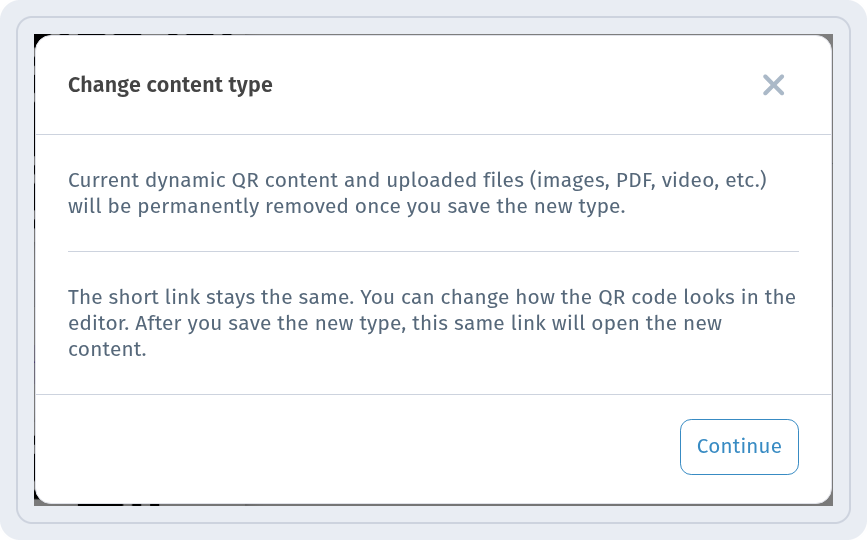
Sometimes a new link is not enough: a code that led to a website should now open a PDF, a menu or a video. For that, choose Change content in the card menu. The Change content type window explains what happens:
- the current content and uploaded files (images, PDF, video, etc.) are permanently removed once you save the new type;
- the short link stays the same, so after saving, the same printed code opens the new content. You can also adjust how the code looks in the editor.
Click Continue, choose the new type and fill it in. Save copies of any files you still need before you switch.
Pause a code or reset its statistics
On the code’s analytics page, next to the download button, there is a pause icon with the tooltip Pause. It lets you pause the code, for example between campaigns, without deleting it.
The ... menu on this page contains the same actions as in the list, plus Reset statistics. It is useful after you have edited and tested a code yourself: reset it so your test scans don’t mix with real ones. Read more about the numbers in QR code analytics.
Checklist before you edit a printed code
- Make sure the code is dynamic – only then can the content change after printing.
- Change the destination in Website (or the content), never the URI.
- Check the preview, then click Save.
- Scan a printed copy to confirm the new destination.
- Reset the statistics if your own test scans would distort the numbers.
Summary
A printed QR code doesn’t have to be final. As long as it is dynamic, you can change its link, settings and even its content type in WebQR, and the short link on paper keeps sending people to the right place. Just keep the URI unchanged, save your edits and test with a real scan.