

How to Create an Event QR Code with Registration and Add to Calendar
Create a dynamic event QR code in WebQR: add the date, time, venue and organizer, link a registration form and map, and let guests add the event to Google, Apple, Outlook or Yahoo Calendar.
An event QR code turns a poster, a ticket or an invitation into a small event page. Guests scan it and see the date, time, venue and organizer, open the registration form, find the place on a map and add the event to their calendar in one tap. Because the code is dynamic, you can update the content later without reprinting it.
Step 1: choose the Event type
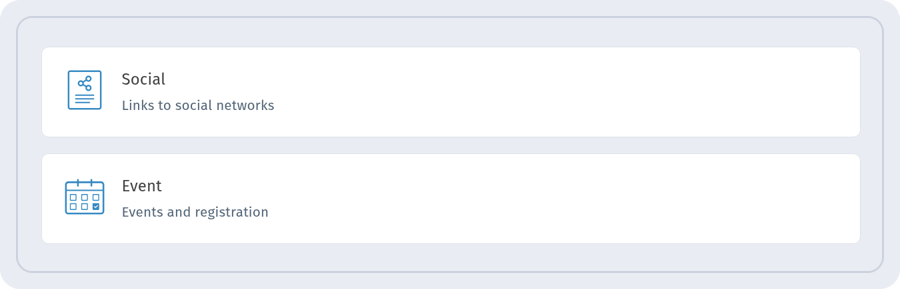
Click Create in the dashboard and pick Event with the caption Events and registration among the dynamic QR codes. The wizard has four steps: Content type, Information, Settings and QR design.
There is also a static Event card with the caption Add event to calendar. It is good when you only need a calendar entry. For a page with registration, a map and scan statistics, use the dynamic one.
Step 2: fill in the cover and the title
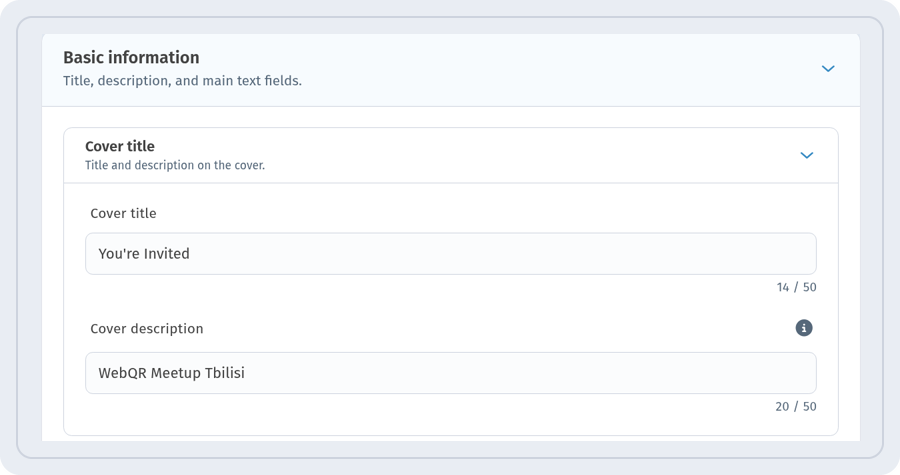
On the Information step, open Basic information. In Cover title, enter the Cover title (for example, an invitation line) and the Cover description. Both fields take up to 50 characters, and the cover description is shown only when the cover title is filled. In Block title, enter the event name and a short Block description. The preview on the right updates as you type.
Step 3: set the schedule
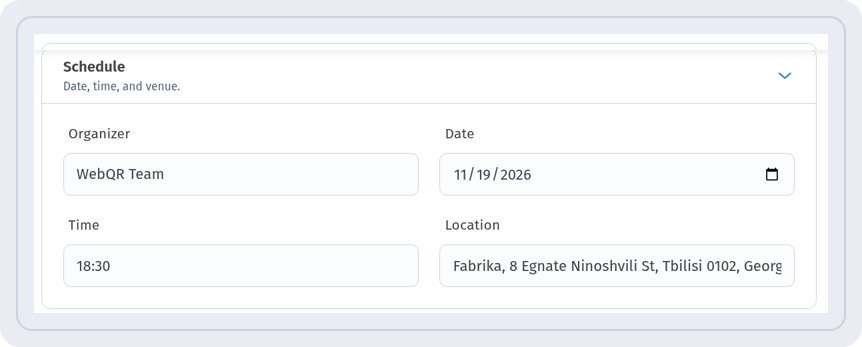
Open Schedule and fill in Organizer, Date, Time and Location.
- Time takes one start time in the HH:MM format, for example 18:30. A range like 18:30 – 21:00 is not accepted, so mention the end time in the description if it matters.
- There is no time zone field. If guests come from other countries, add the time zone to the description.
Step 4: add links
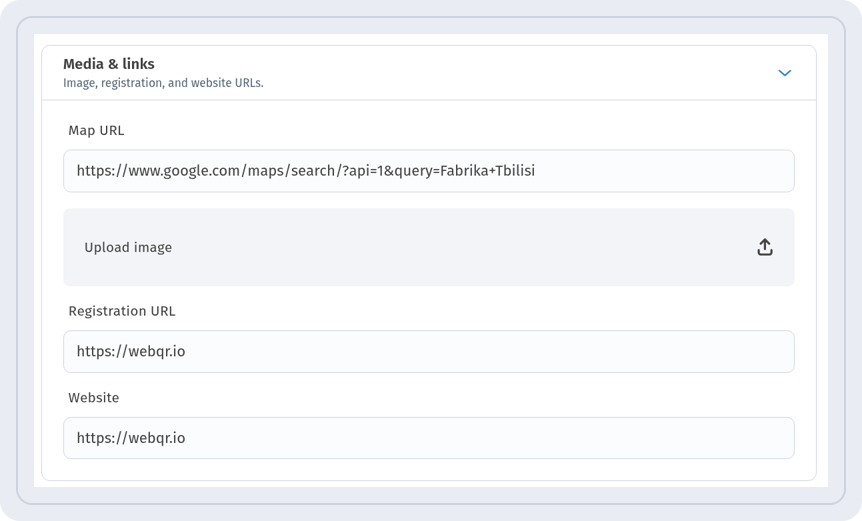
In Media & links, add a Map URL, upload an image with Upload image if you like, and fill in Registration URL and Website. There are no separate switches for the buttons: Show on map, Register and Website appear on the page only when the matching link is filled. Clear block empties the whole section.
Step 5: name the code and create it
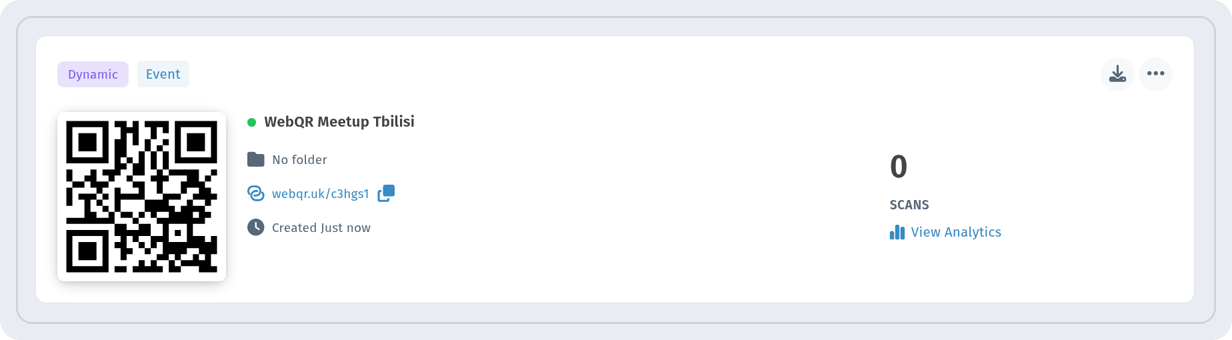
Click Continue. On the Settings step, enter the QR Code Name and choose a folder if you need one. Then adjust the look on the QR design step and click Create. The code appears in My QR codes marked Dynamic and Event, with a short link, the scan count and View Analytics.
What guests see
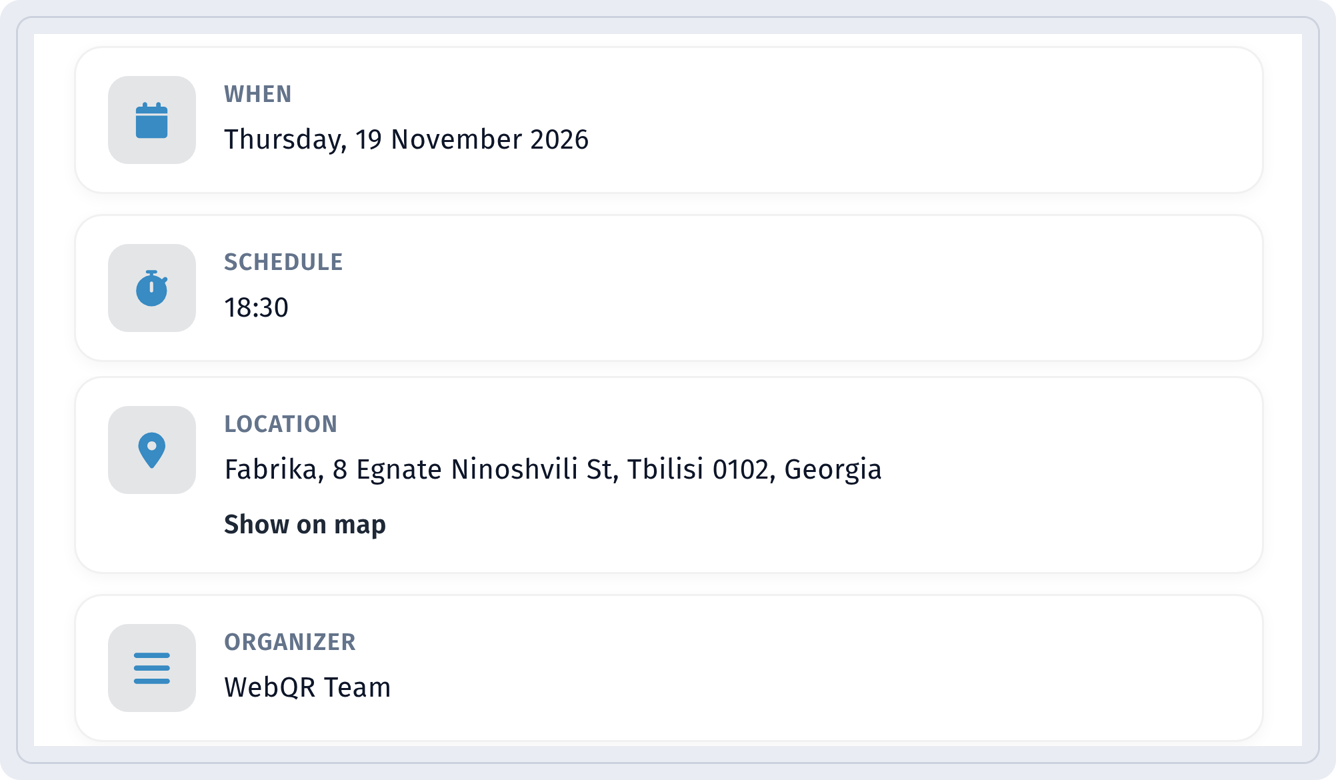
The event page opens in the browser, with no app to install. The phone screenshots below show the English version of the page. Under the title and description there is a Register button, followed by the When, Schedule, Location (with Show on map) and Organizer blocks.
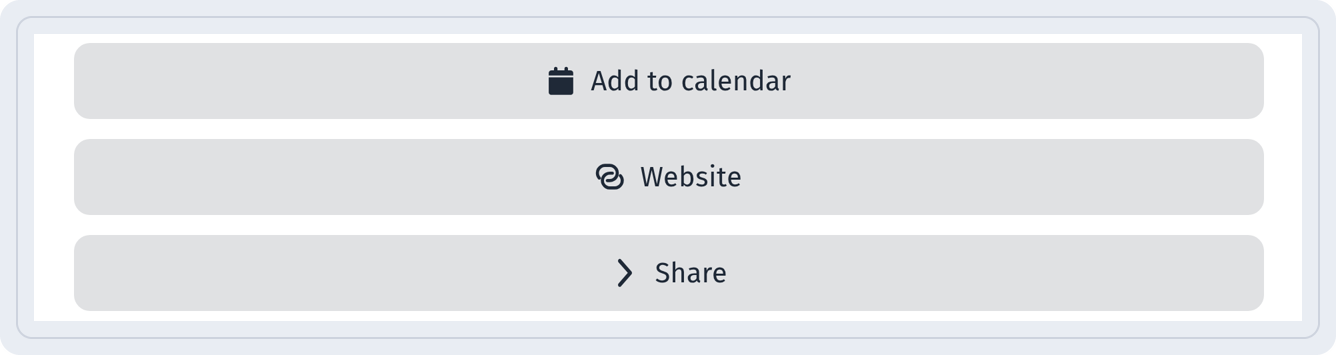
At the bottom there are the Add to calendar, Website and Share buttons.
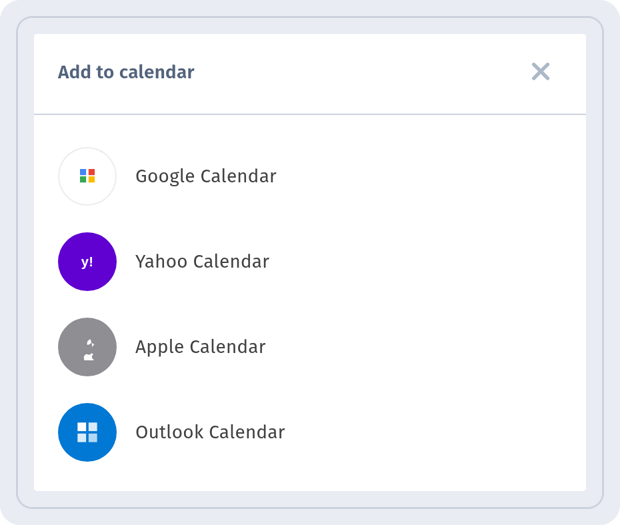
Add to calendar opens a choice of Google Calendar, Yahoo Calendar, Apple Calendar and Outlook Calendar.
Tips
- Put the QR code on posters, tickets, badges and printed invitations, and add a short call to action such as “Scan to register”.
- Check the page on your own phone before printing: date, time, address and all links.
- Use View Analytics to see how many people scanned the code.