
How to Print QR Codes Correctly: Size, Contrast and File Format
What to check before printing a QR code: the right file format, minimum size, contrast, the quiet zone around the code and a test scan.
A QR code that scans perfectly on screen can fail on a poster, a menu or a sticker. Most problems come down to five things: the file, the size, the contrast, the empty margin around the code and testing. Here is what to check before you send a code to print.
Choose the right file
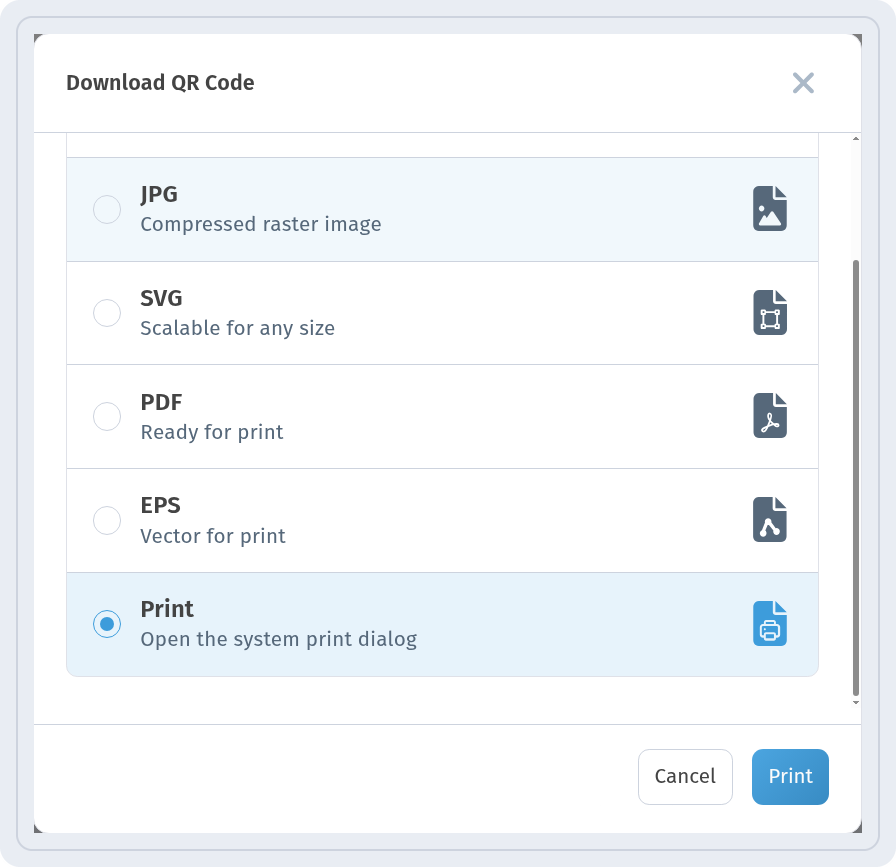
In My QR codes, click the download icon on the code card. The Download QR Code dialog opens with the File format list:
- SVG — scalable for any size. The best choice to send to a designer or a print shop.
- PDF — ready for print. The code comes on an A4 page.
- EPS — vector for print, for professional layout software.
- PNG and JPG — raster images, good for the web and documents.
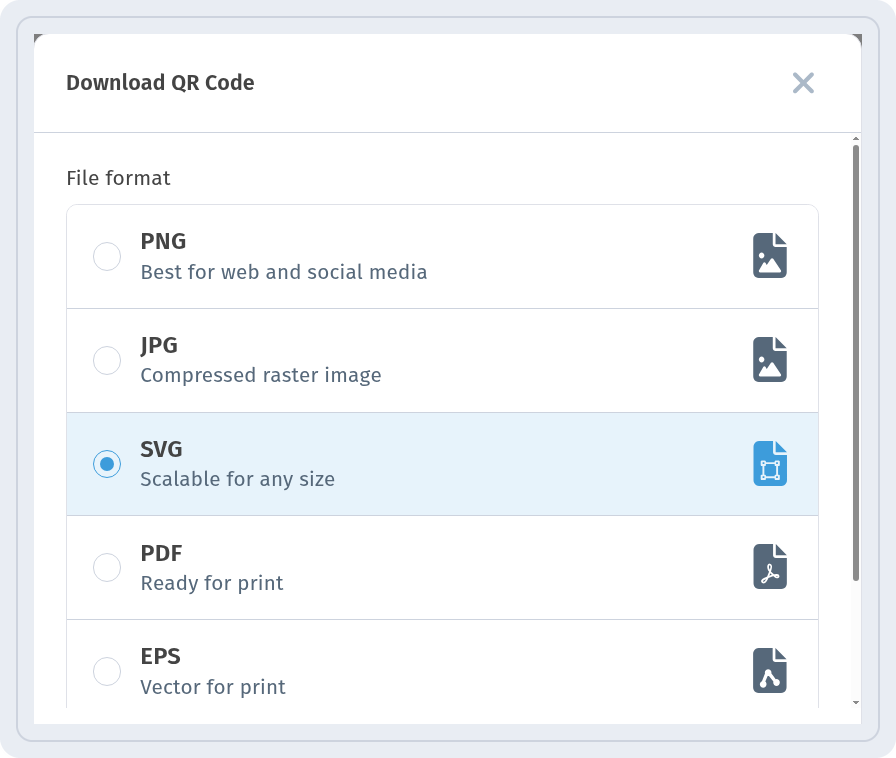
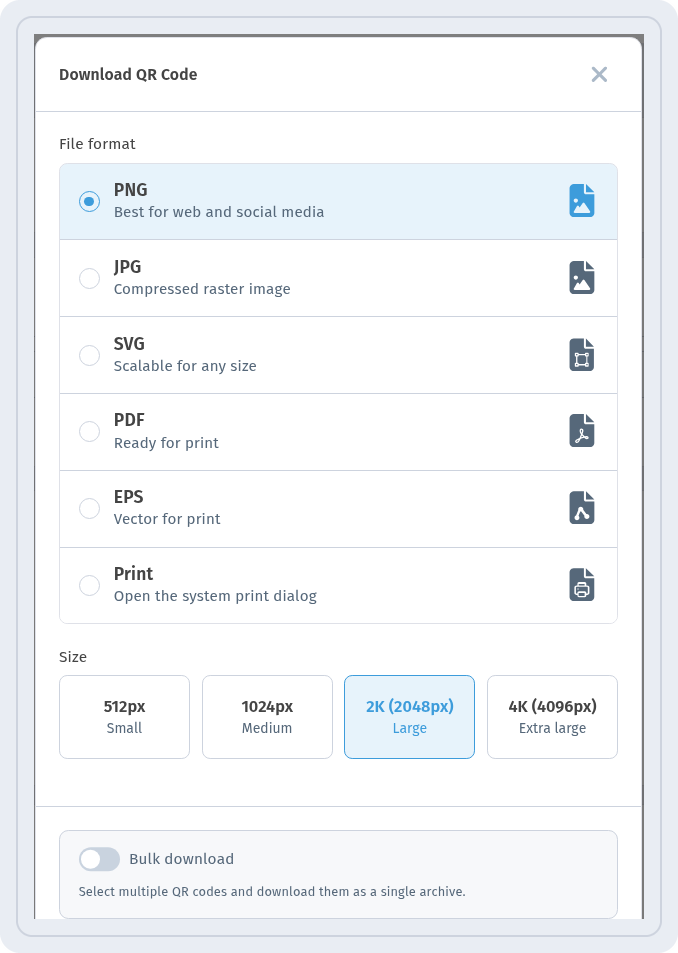
Vector formats (SVG, PDF, EPS) stay sharp at any size, so they have no size setting. For PNG and JPG you choose a Size; for print, take the largest one — 2K (2048px) Large or 4K (4096px) Extra large — so the code isn’t blurry when enlarged.
More about each format: QR code download formats.
Pick the right size
A general rule of thumb:
- At least 2 × 2 cm for anything held in the hand (business cards, labels, packaging).
- Scanning distance ÷ 10: if people scan from 1 m, make the code about 10 cm wide; from 3 m — about 30 cm.
- The more data the code holds, the denser the pattern and the bigger it needs to be. Dynamic codes contain only a short link, so the pattern stays simple.
Keep the contrast high
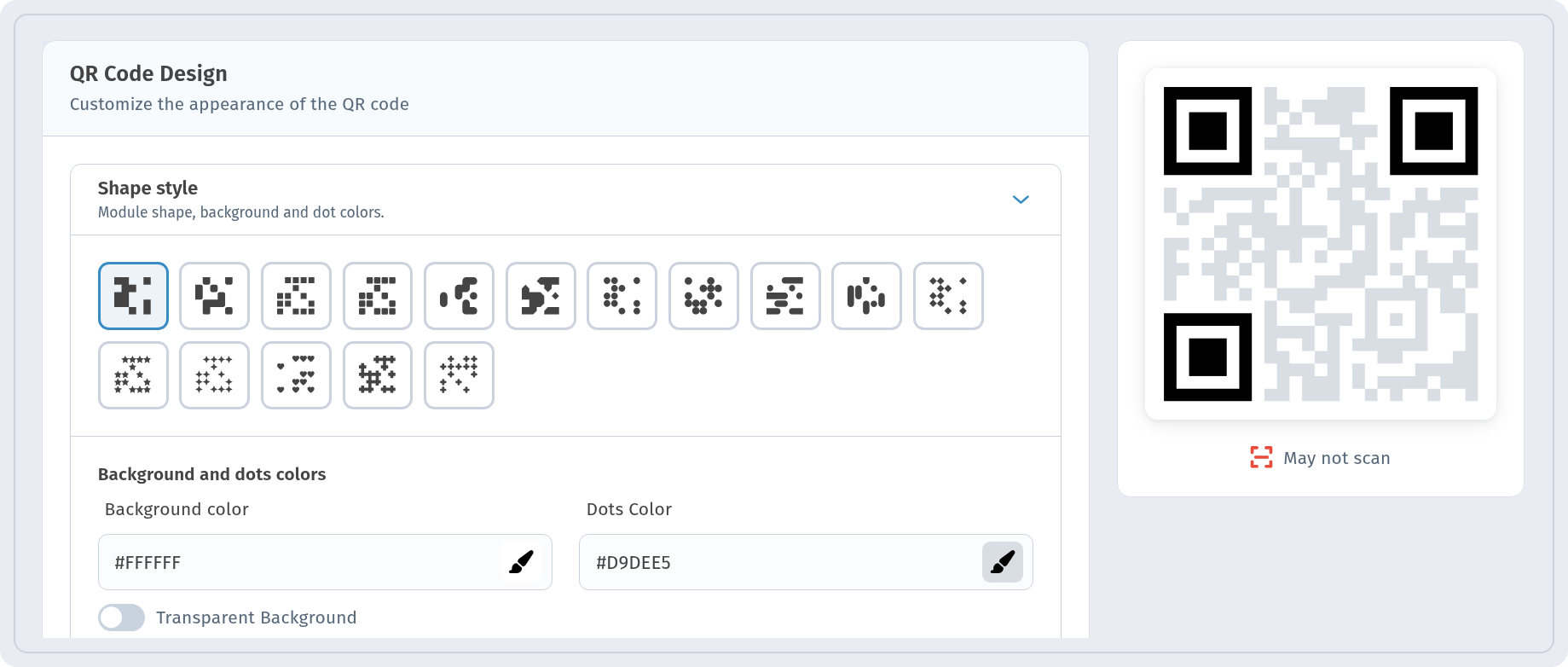
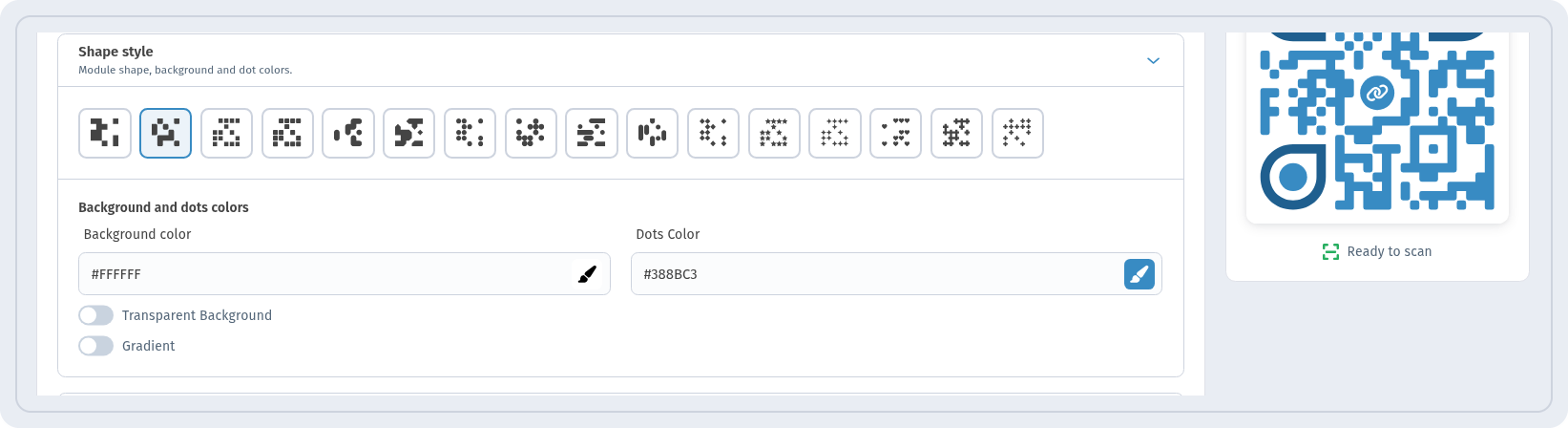
Scanners need a clear difference between the dots and the background. The safest choice is dark dots on a light background. In the QR design step, the Shape style section has Background color and Dots Color, and the preview shows Ready to scan when the code is easy to read.
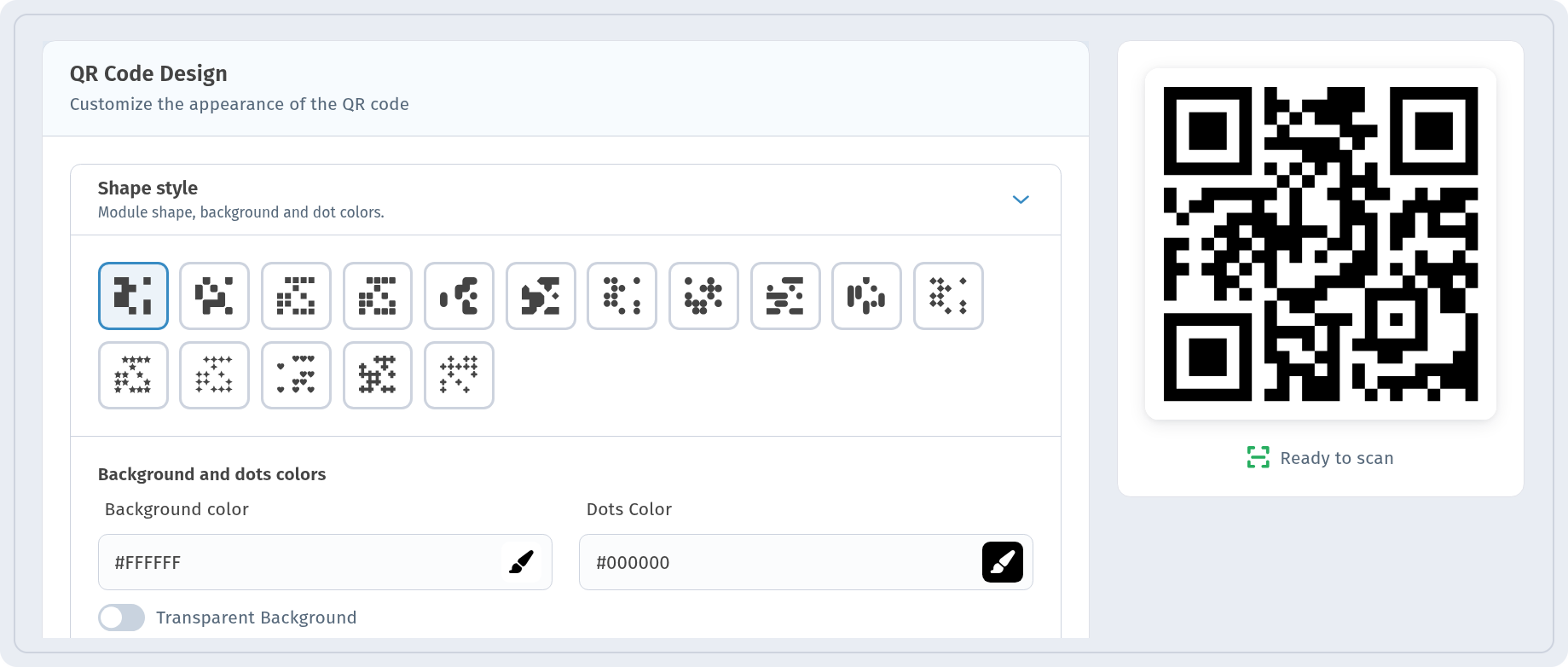
If the colors are too close — for example, light grey dots on white — the indicator switches to May not scan. The same happens with inverted colors (light dots on a dark background) and with a Gradient that fades to a light color. After each change, wait a couple of seconds: the preview refreshes.
You can use your brand colors — just keep the dots clearly darker than the background.
Leave a quiet zone
Around every QR code there should be an empty margin — the “quiet zone”. A common recommendation is at least four modules (four of the small squares) on each side. Don’t place text, photos, the edge of a frame or the cut line right next to the code, and keep in mind trimming and bleed at the print shop. If the background behind the code is busy, put the code on a light plain area.
Think about the material and placement
- Glossy paper and laminate can glare under lamps; matte surfaces scan more reliably.
- On curved surfaces (bottles, cups) make the code smaller relative to the curve or place it on a flat part.
- Put the code where people can comfortably point a phone at it: at hand or eye level, with enough light.
- Add a short call to action next to the code, for example “Scan to see the menu”.
Test before printing
For a quick test copy, choose Print in the download dialog — it opens the system print dialog.
Print the code at its real size, on the same material if possible, and scan it with several phones (iPhone and Android, with the regular camera app) from the real distance and in real light. Check that the link opens the right page. Only then send the file to print.
After printing, don’t change the code’s short link — old prints would stop working. You can still change what the code opens if it is dynamic: how to edit a QR code after printing.
Checklist
- Vector file (SVG, PDF or EPS) or PNG/JPG in 2K/4K.
- At least 2 × 2 cm, and about 1/10 of the scanning distance.
- Dark dots on a light background, Ready to scan in the preview.
- An empty margin around the code.
- A test print scanned with several phones.