
How to Create a Coupon QR Code for a Sale and Update the Offer Without Reprinting
Create a dynamic coupon QR code in WebQR: add a discount, promo code, expiry date, terms and a button to your shop, then change the offer later while the printed QR code stays the same.
A coupon QR code turns a poster, flyer, receipt or shop-window sticker into a small promo page. Customers scan it and see the offer, the promo code with a Copy code button, the expiry date, the terms and a button to your website. Because the code is dynamic, you can change the discount or the text later and the printed QR code keeps working — no reprint needed.
In this guide we use a demo shop, Aurora Store, with an Autumn Sale: 30% off with the promo code AURORA30. The discount here is just an example of a shop's offer.
Step 1: choose the Coupon type
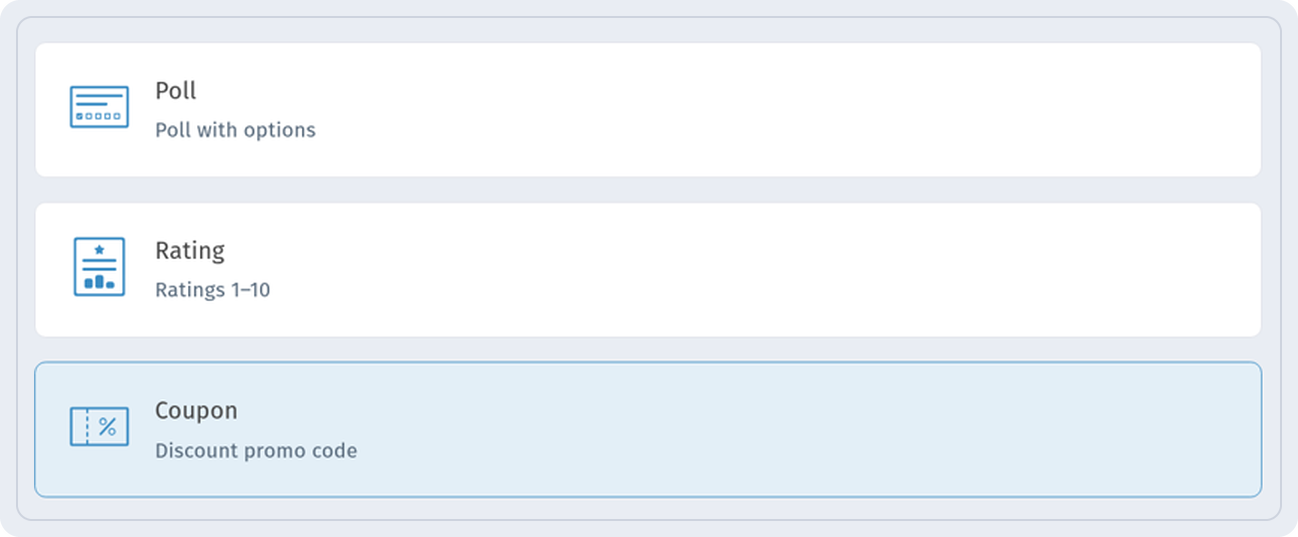
Click Create New QR Code and, under Dynamic QR Codes, pick Coupon. The wizard has four steps: Content type, Information, Settings and QR design. Click Continue.
Step 2: add the shop name and the offer headline
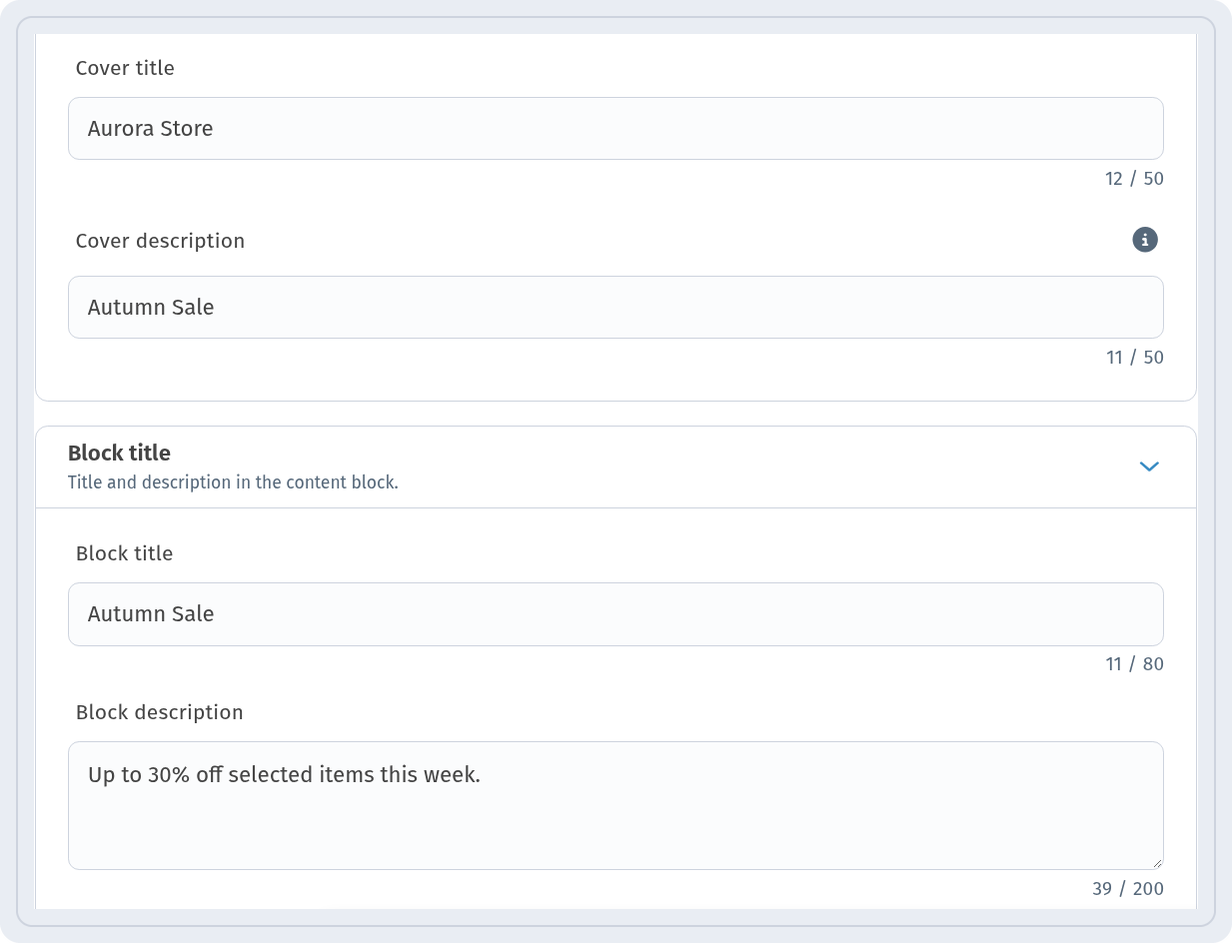
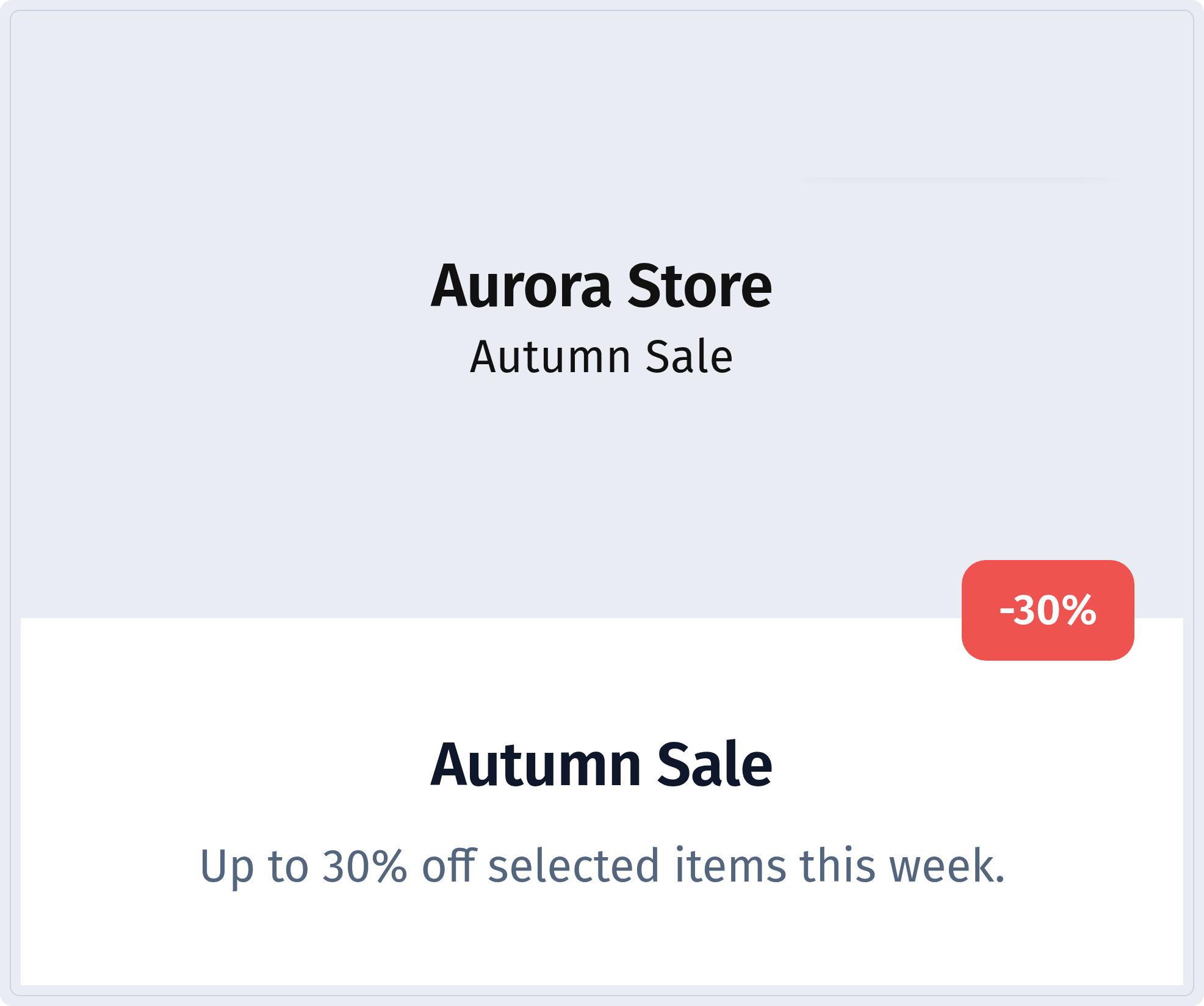
On the Information step, fill in Cover title and Cover description (up to 50 characters each) — for example, Aurora Store and Autumn Sale. Under Block title, enter the Block title and a short Block description such as “Up to 30% off selected items this week.”
Step 3: set the discount, promo code and expiry date
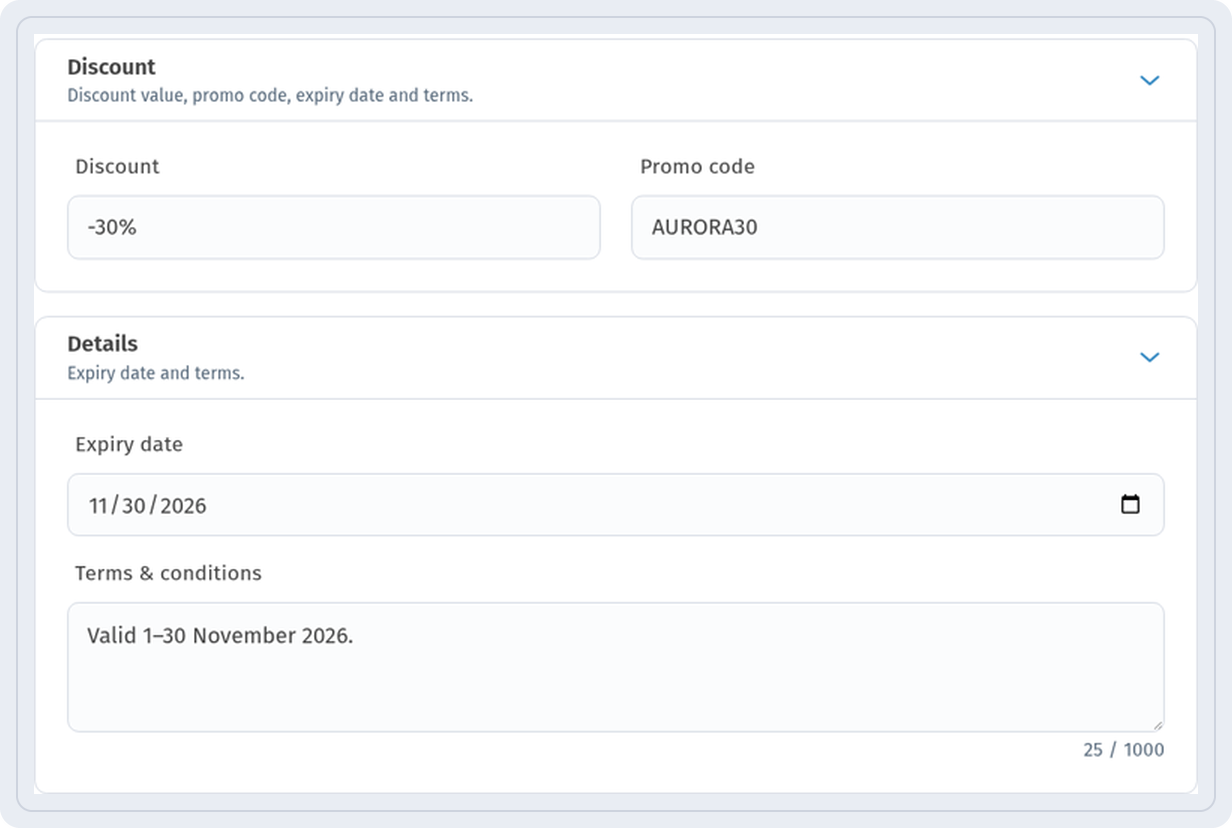
Open Discount and enter the Discount value (-30%) and the Promo code (AURORA30). In Details, choose the Expiry date and add your Terms & conditions, for example “Valid 1–30 November 2026.” You can also add a Logo and a coupon Image.
Step 4: link the button to your shop
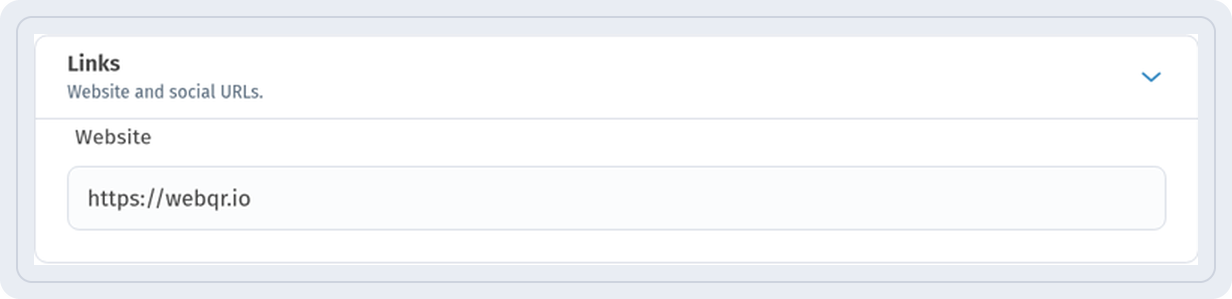
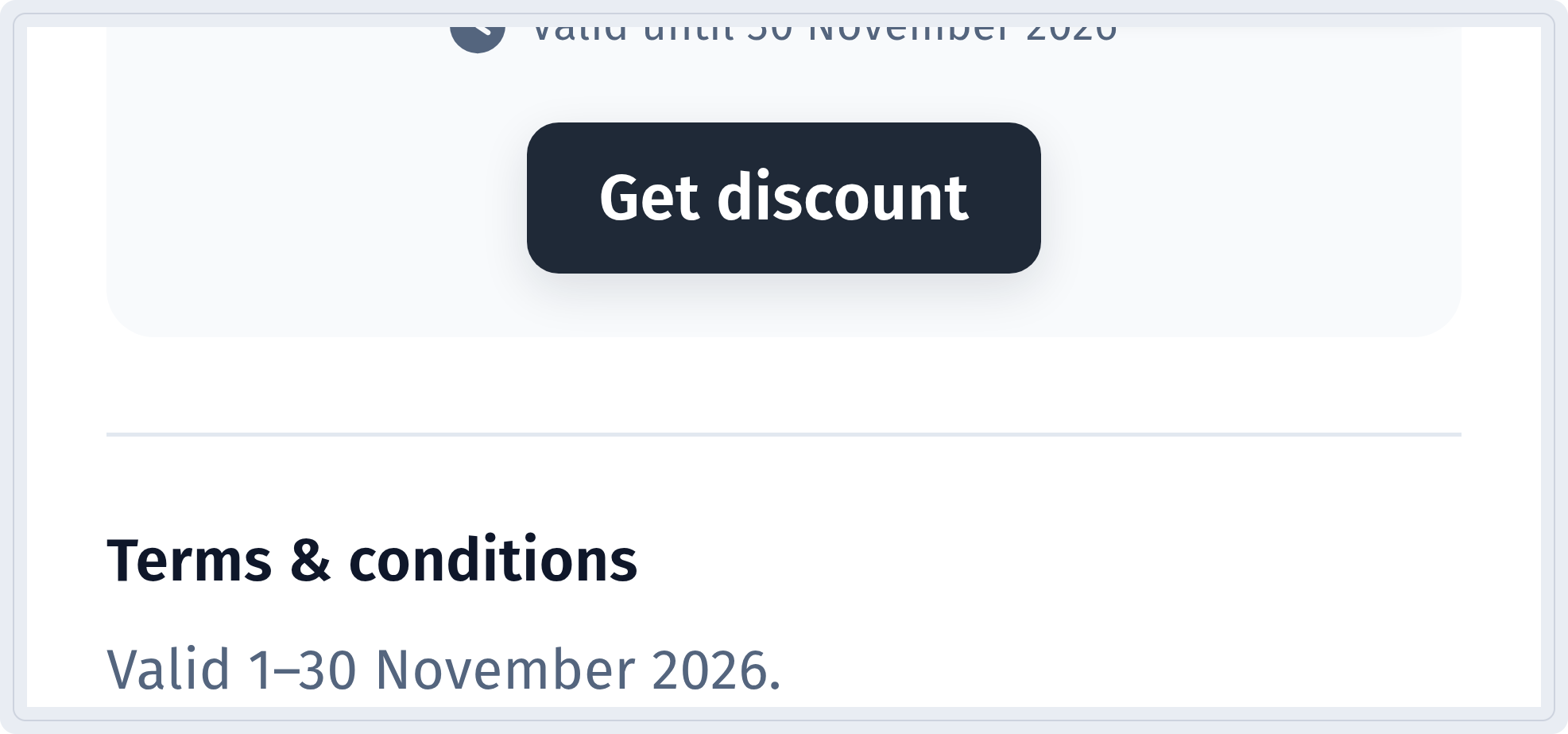
In Links, enter your Website. The Get discount button on the coupon page opens this address, so customers can go straight to the shop. Social links appear in the Follow us block.
Step 5: name the QR code
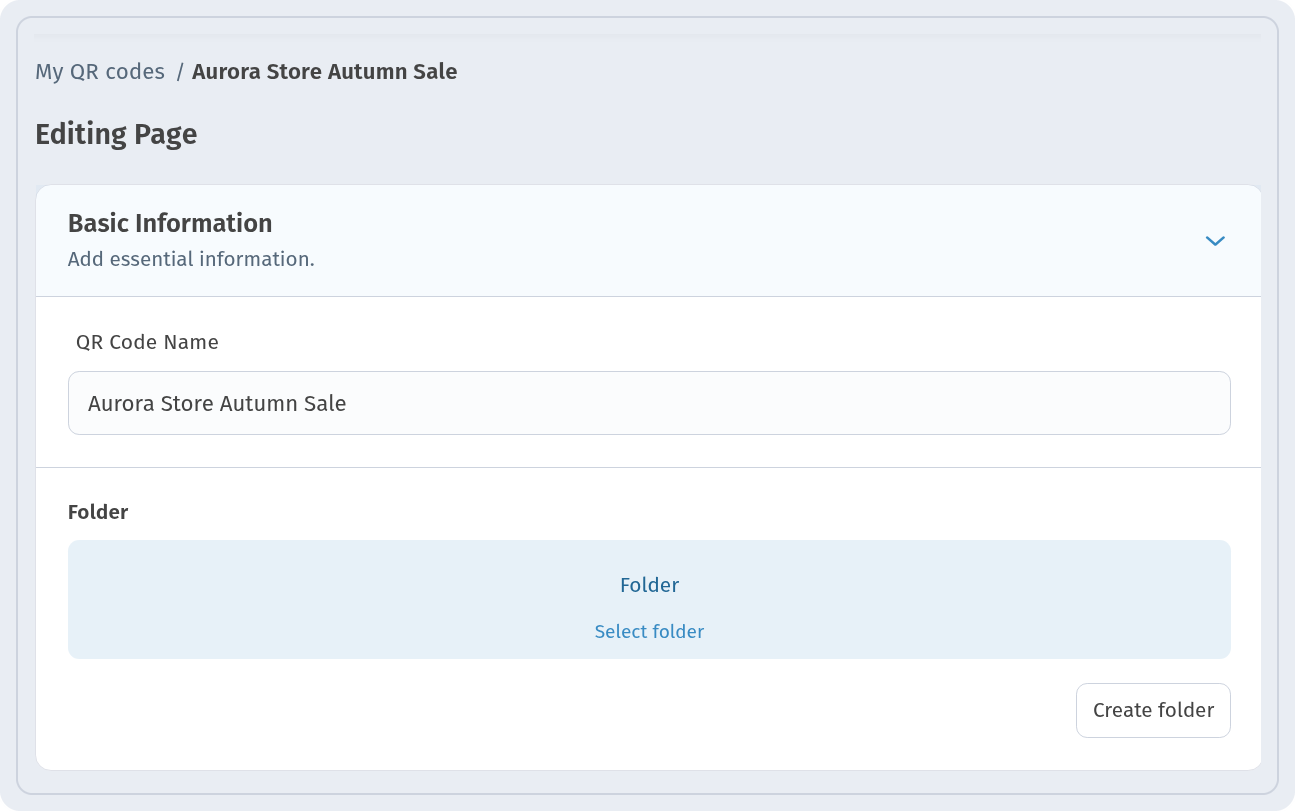
Near the end of the wizard, on the Settings step, the Basic Information block lets you give the code a QR Code Name, such as Aurora Store Autumn Sale, and put it in a Folder. Then choose the look on QR design and save. The same fields stay available later: open the code for editing, and on Editing Page you will find the same Basic Information block with QR Code Name and Folder. The screenshot shows it in the editor.
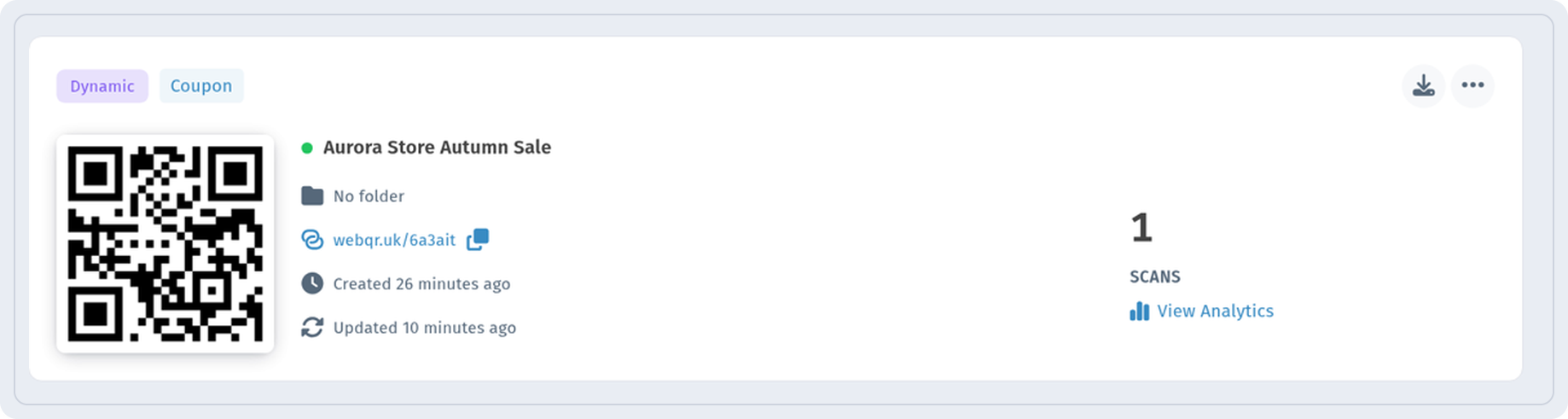
 The new code appears in My QR codes with the Dynamic and Coupon tags, its short link and the scan counter.
What customers see
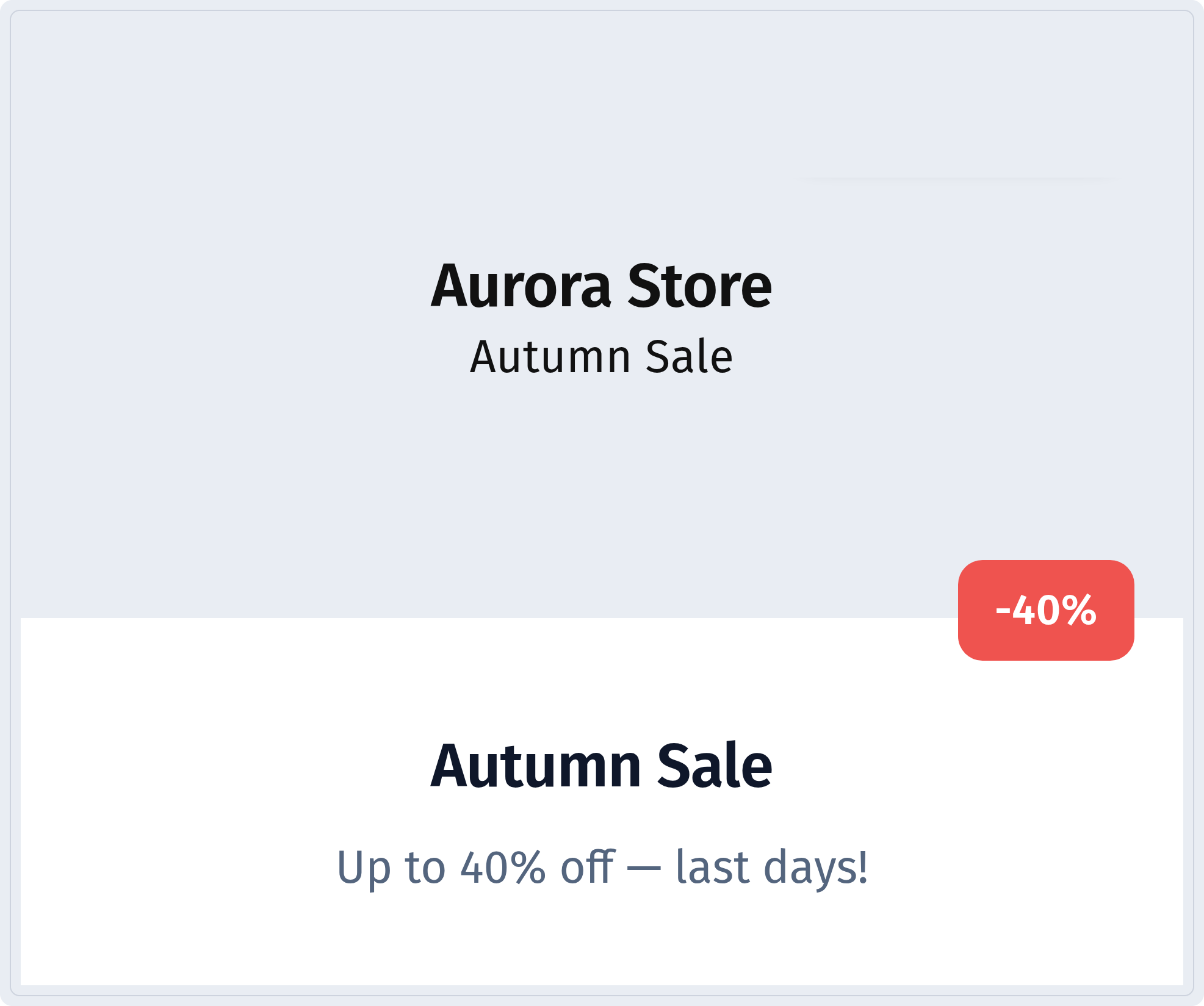
After scanning, customers open a page with the shop name, the discount badge and the offer.
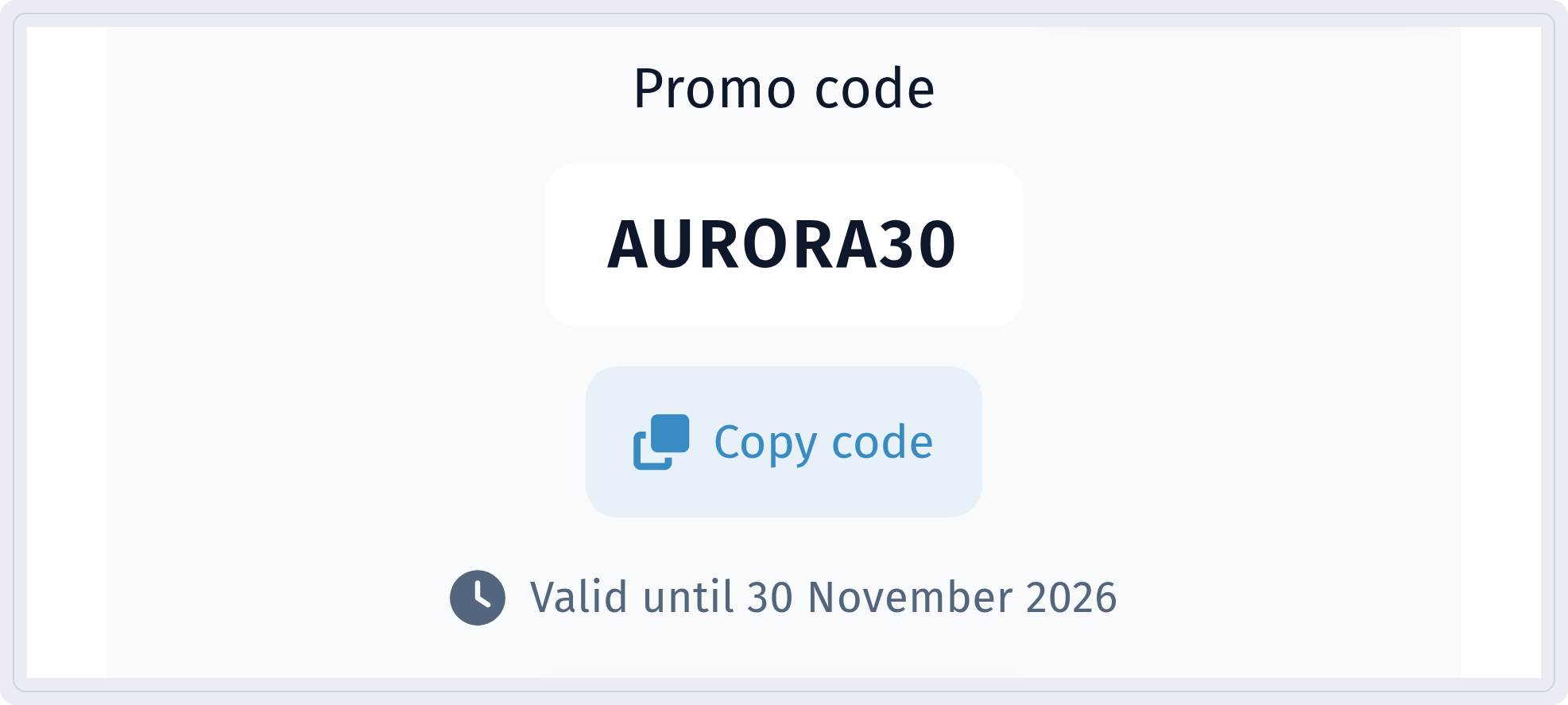
Below is the promo code with the Copy code button and the date until which it is valid.
The Get discount button leads to the shop website, and the Terms & conditions block shows your terms.
Change the offer without reprinting
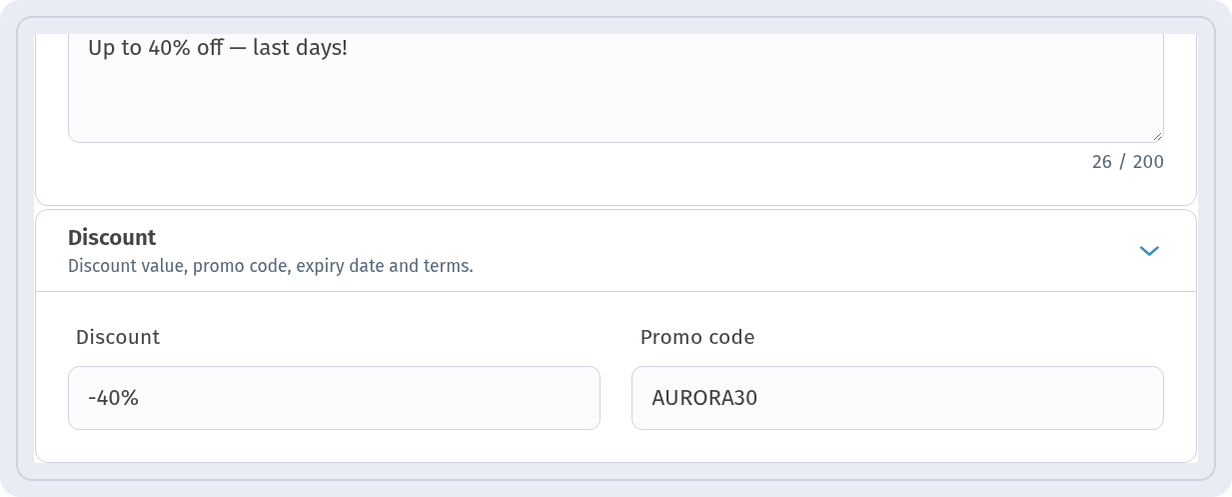
Sales change: the discount grows, the deadline approaches, the wording needs an update. Open the QR code, edit the fields and click Save. In our example we changed the Discount to -40% and the description to “Up to 40% off — last days!”.
 The short link and the printed QR code stay the same, and everyone who scans now sees the updated offer.
Tips
- Put the QR code on posters, price tags, receipts and shop windows with a short call to action such as “Scan for your discount”.
- Check the page on your own phone before printing: discount, promo code, expiry date and the button link.
- Use View Analytics to see how many people scanned the code.