

UTM Tracking for QR Codes: See Which Placement Brings Visitors
How to add UTM tags to the destination URL of a dynamic QR code in WebQR, use one code per placement, read the results in Google Analytics 4 and change tags later without reprinting.
WebQR shows how many times each code was scanned. UTM tags answer the next question: what visitors did on your website after the scan, and which poster, flyer or package brought them. Here is how to tag QR codes and read the results in Google Analytics 4.
What UTM tags are
UTM tags are parameters at the end of a link. Analytics tools read them and attribute the visit to a source and campaign. The main ones:
| Parameter | What it means | Example |
|---|---|---|
utm_source |
where the visitor came from | qr |
utm_medium |
type of material | poster, flyer, packaging |
utm_campaign |
campaign name | autumn-sale |
utm_content |
the exact placement (optional) | window, checkout |
A tagged link looks like this:
https://example.com/sale?utm_source=qr&utm_medium=poster&utm_campaign=autumn-sale&utm_content=window
Use lowercase letters and hyphens, and keep the same spelling everywhere: for analytics Poster and poster are two different sources.
1. Use a dynamic code
Create a dynamic code with the website type. The printed code holds only a short link, while the full address with UTM tags is stored in WebQR. That keeps the pattern simple and easy to scan even with a long URL, and lets you change the tags later.
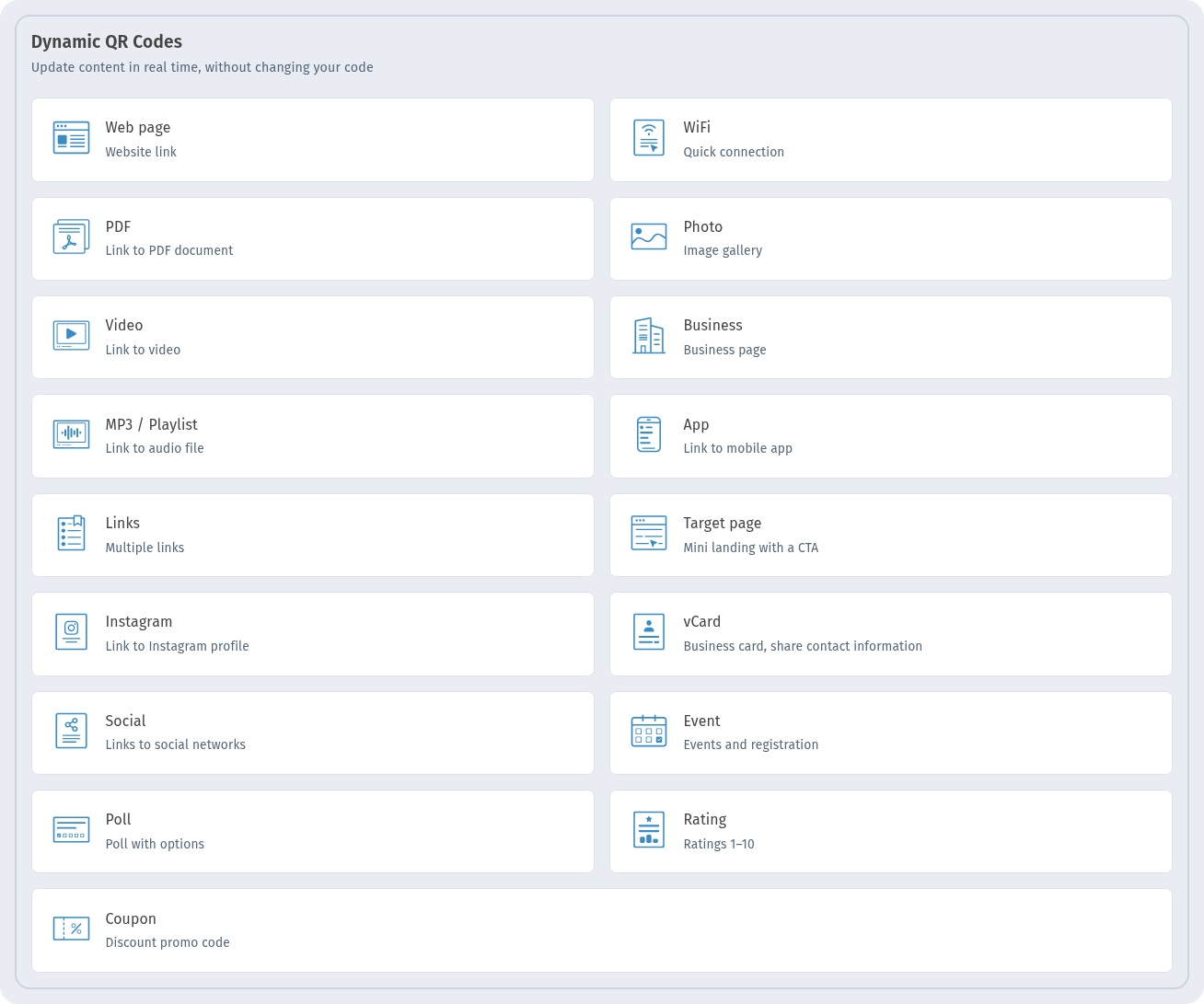
With a static code the whole tagged URL goes into the pattern: it becomes denser and can’t be changed after printing. More in Static vs dynamic QR codes.
2. Add the UTM tags to the Website field
WebQR doesn’t add UTM tags by itself — you add them to the address. Build the tagged link and paste it into the Website field in Basic information, then click Save.
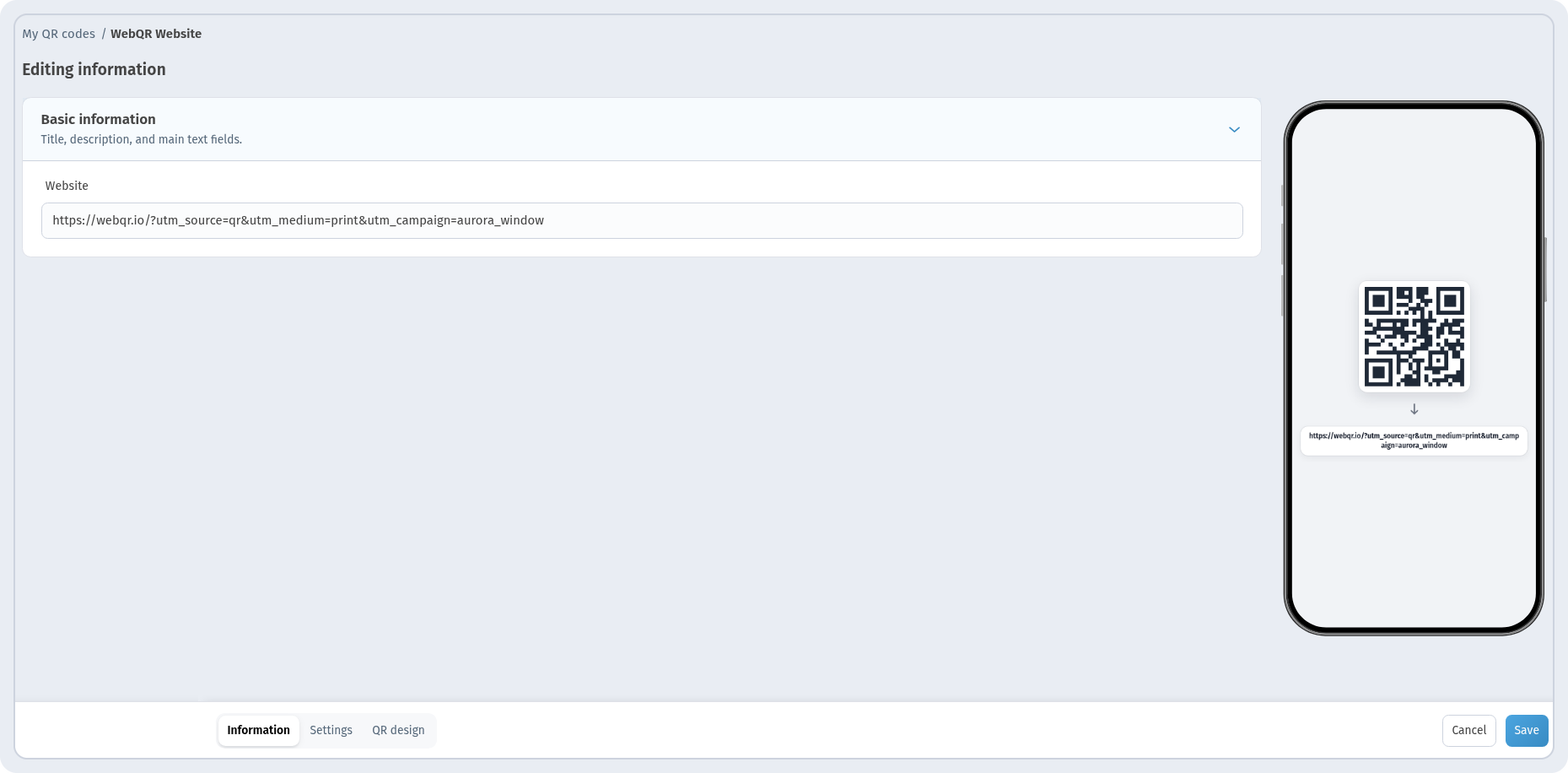
Check the link before printing: open it in a browser and make sure the page opens and the parameters are still in the address bar after any redirects.
3. One code per placement
To compare placements, make a separate code for each one, and change only utm_medium or utm_content in its link. Give the codes clear names too, for example “Aurora Cafe – Window” and “Aurora Cafe – Flyer”.
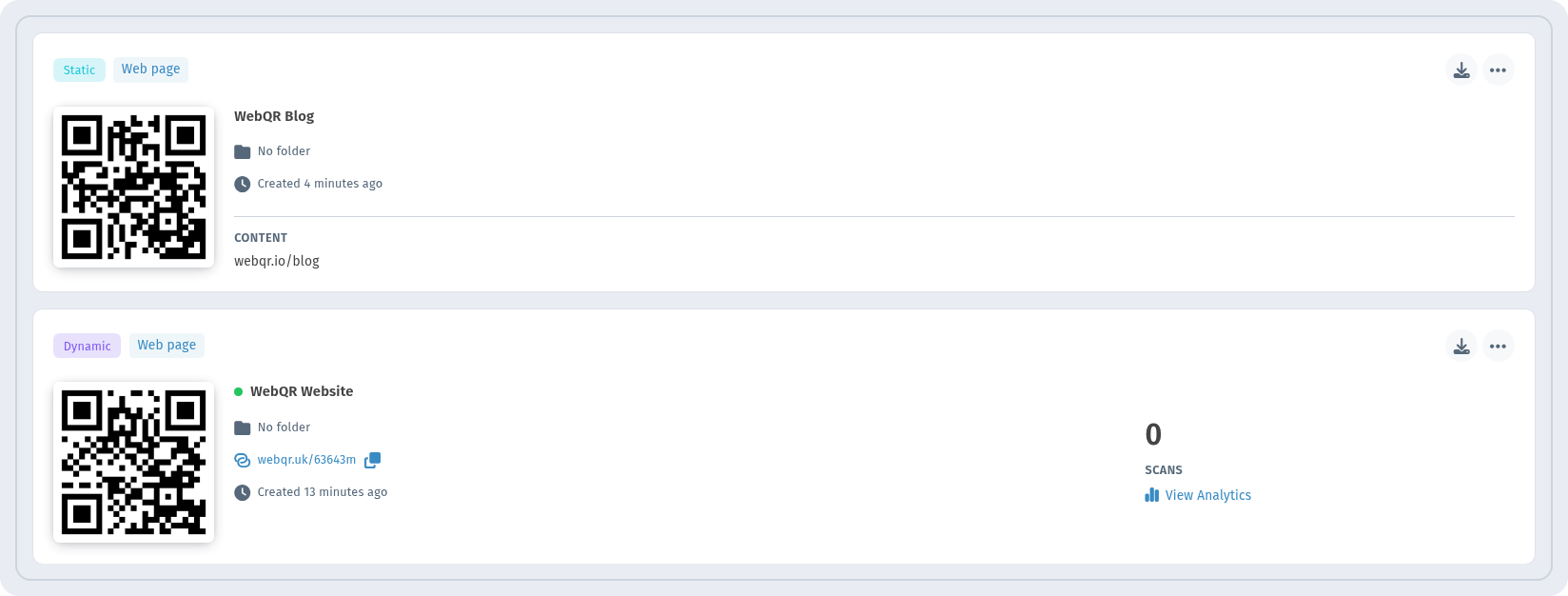
Then the WebQR card shows scans for each placement, and Google Analytics shows what those visitors did on the site. See also QR codes in marketing campaigns.
4. Read the results in Google Analytics 4
UTM tags work with the analytics of the website the code leads to. In GA4, open Reports → Acquisition → Traffic acquisition and switch the dimension to Session source / medium or Session campaign — you’ll see visits, engagement and conversions for each tag.
If the code leads to a WebQR page (coupon, event, links and others) rather than your own website, you can connect your own counters to that page: on the Settings tab, turn on Connect Google Analytics 4, Tag Manager, or Meta Pixel and enter the IDs.
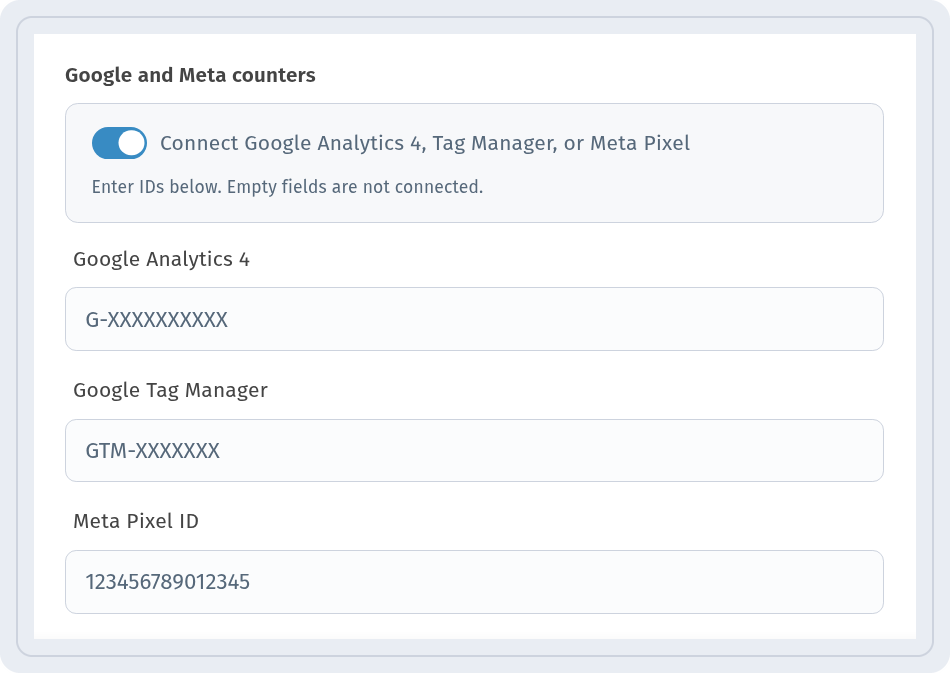
Step by step: Google Analytics 4, Tag Manager and Meta Pixel for QR codes.
5. Compare with WebQR analytics
The Analytics page shows Scans and Unique visitors for your codes with the Section and Date Range filters.

Numbers in WebQR and GA4 won’t match exactly, and that’s normal. WebQR counts scans of the code; GA4 counts sessions on the site, which may be lost if a visitor declines cookies, closes the page before it loads or blocks trackers. Repeated scans from the same IP are not counted in WebQR (anti-fraud). Learn more in QR code analytics.
6. Change tags without reprinting
Started a new wave or made a typo in a tag? Open the code, change the address in Website and click Save. The printed code stays the same, and new visits come with the new tags. Details: How to edit a QR code after printing.
Checklist
- Dynamic code, one per placement, with a clear name.
- Tags in lowercase, same spelling in all links.
- Tagged link tested in a browser before printing.
- Results: scans in WebQR, on-site behavior in GA4.