
How to Make a Wi-Fi QR Code So Guests Connect Without a Password
Create a Wi-Fi QR code in WebQR so guests at your cafe, office or guest house connect without typing a password. Step-by-step guide plus design and print tips.
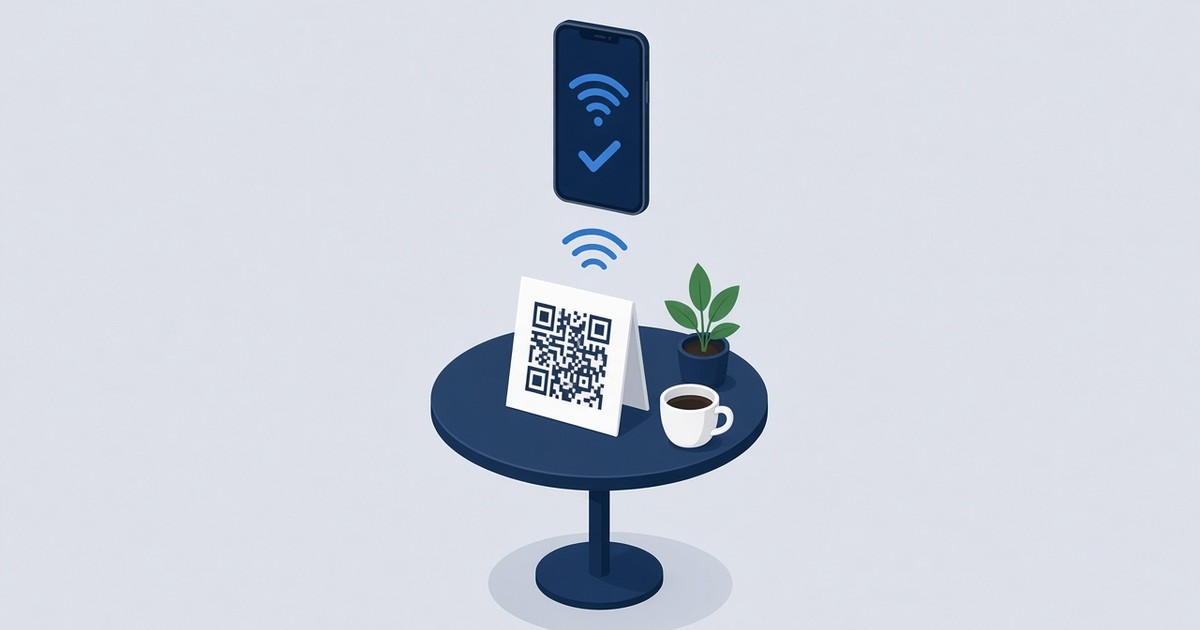
“What’s the Wi-Fi password?” is one of the questions cafe staff, office receptionists and guest house hosts hear most. Spelling out a long password, or watching a guest mistype it three times, wastes time for everyone. A Wi-Fi QR code solves this: the guest points the phone camera at the code and joins the network without typing anything. This guide shows how to create one in WebQR, how to design and print it so it scans reliably, and when a dynamic version is the better choice.
Two ways to share Wi-Fi with a QR code
WebQR offers two Wi-Fi types, and the difference is the same as for any QR code (see our guide Static vs dynamic QR codes):
- Wi-Fi in the Static QR Codes section stores the network name, encryption type and password directly in the code. Scanning connects the phone to the network straight away. If the password changes, you need a new code and a reprint.
- WiFi in the Dynamic QR Codes section opens a guest page with your networks. It can list several networks, and because the code points to a short link, you can update the password later without reprinting.
Most modern iPhone and Android phones recognise Wi-Fi QR codes right in the camera app, so guests don’t need a separate scanner.
How to create a static Wi-Fi QR code step by step
- Click Create, then choose QR code.
- In the Static QR Codes section, select Wi-Fi.
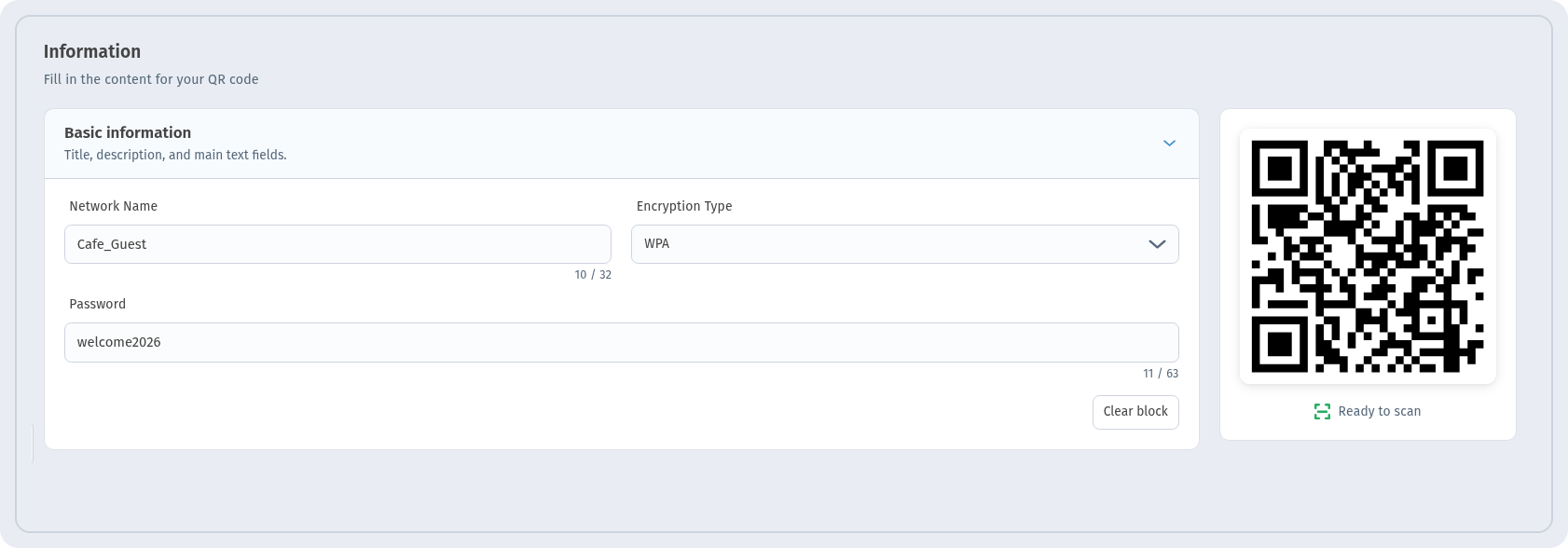
- On the Information step, fill in the Basic information card:
- Network Name — the exact name of your network (up to 32 characters). It is case-sensitive, so copy it as your router shows it.
- Encryption Type — WPA (the default and the right choice for most modern routers), WEP for very old equipment, or No password for an open network.
- Password — the network password (up to 63 characters).
- If you want to start over, Clear block empties the fields.
- On the Settings step, enter a QR Code Name you’ll recognise later (for example, “Cafe guest Wi-Fi”) and, optionally, pick a Folder.
- On the QR design step, style the code (see the tips below).
- Click Create.
Note that the static type has no hidden-network option. If your network’s name is hidden, use the dynamic WiFi type described below.
Design and frame tips
A Wi-Fi code is only useful if people notice it and understand what it does. On the QR design step you have:
- Shape style — Background color, Transparent Background, Dots Color and Gradient.
- Eyes — the style of the three corner squares.
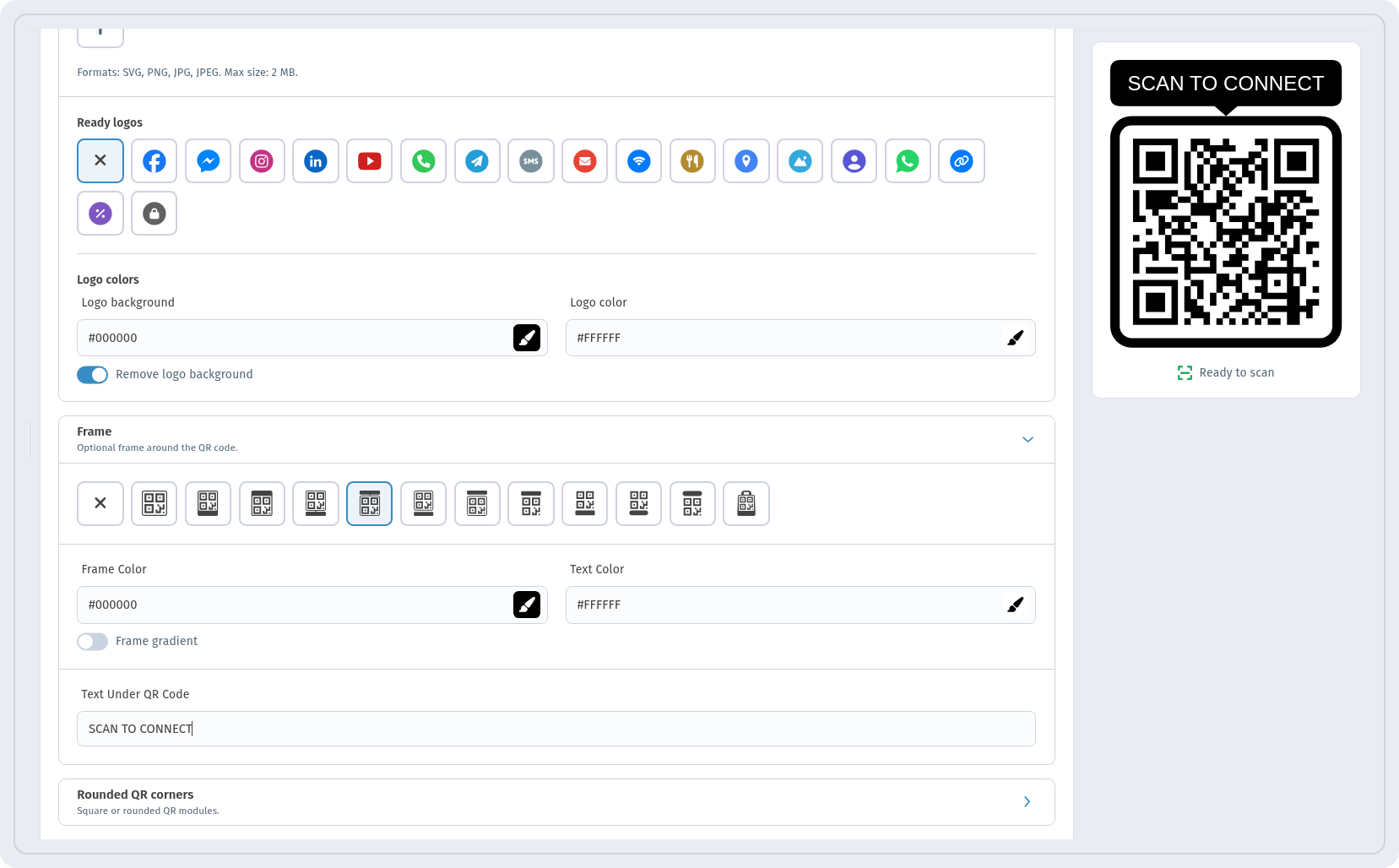
- Logo — upload your own (SVG, PNG, JPG or JPEG up to 2 MB) or pick one of the Ready logos.
- Frame — an optional frame around the QR code. After choosing one, you can set Frame Color, Text Color, Frame gradient and the Text Under QR Code (default “SCAN ME”).
- Rounded QR corners and Saved designs, so every table card in your venue looks the same.
Practical advice:
- Write a clear call to action. Replace “SCAN ME” with something like “SCAN TO CONNECT” or “Free Wi-Fi”. Guests should know what the code does before they scan.
- Keep contrast high. Dark dots on a light background scan best. Avoid light-on-light colours and busy gradients.
- Keep the logo small. A small icon in the centre is fine; a large one can make the code harder to read.
- Test before printing. Scan the code with a couple of different phones and make sure they join the network.
Downloading and printing tips
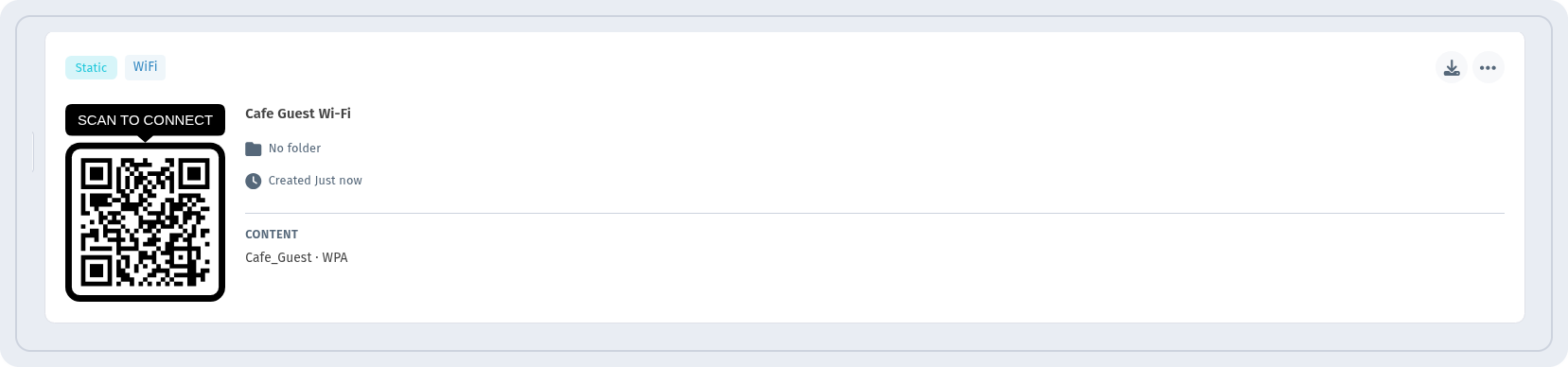
After you click Create, the code appears in My QR Codes, tagged Static and WiFi. The card shows the content, for example Cafe_Guest · WPA, so you can check the network name and encryption at a glance.
Click the download button to open the Download QR Code dialog. Choose a File format — PNG (best for web and social media), JPG, or Print to open your system’s print dialog directly — and a Size, such as 512px (Small) or 1024px (Medium, the default). Then click Download.
Where and how to place the code:
- Size. For a table card read from arm’s length, print the code at least 3–4 cm wide. On a wall sign viewed from a distance, go bigger. For printing, choose the larger image size so the code stays sharp.
- Cafes. Put the code on table tents, menus or a sticker by the counter, so guests can connect while they wait for their order.
- Offices. Place it at reception and in meeting rooms for visitors.
- Guest houses. Add it to the welcome card in each room or frame it near the entrance.
- Placement. Avoid glossy surfaces that reflect light, curved surfaces and spots that are too high or poorly lit. Leave a clear margin around the code.
- Add a fallback. Print the network name (and, if you like, the password) in small text under the code for laptops and older devices.
The dynamic option: several networks and changing passwords
If you change the password regularly, have more than one network, or use a hidden network, choose WiFi in the Dynamic QR Codes section. Instead of connecting directly, it opens a guest page that you set up:
- A cover with a title and description, a block title and description, and your logo.
- Several networks, added with Add network. Each has a Network Name, Encryption Type, Password and a Hidden network checkbox.
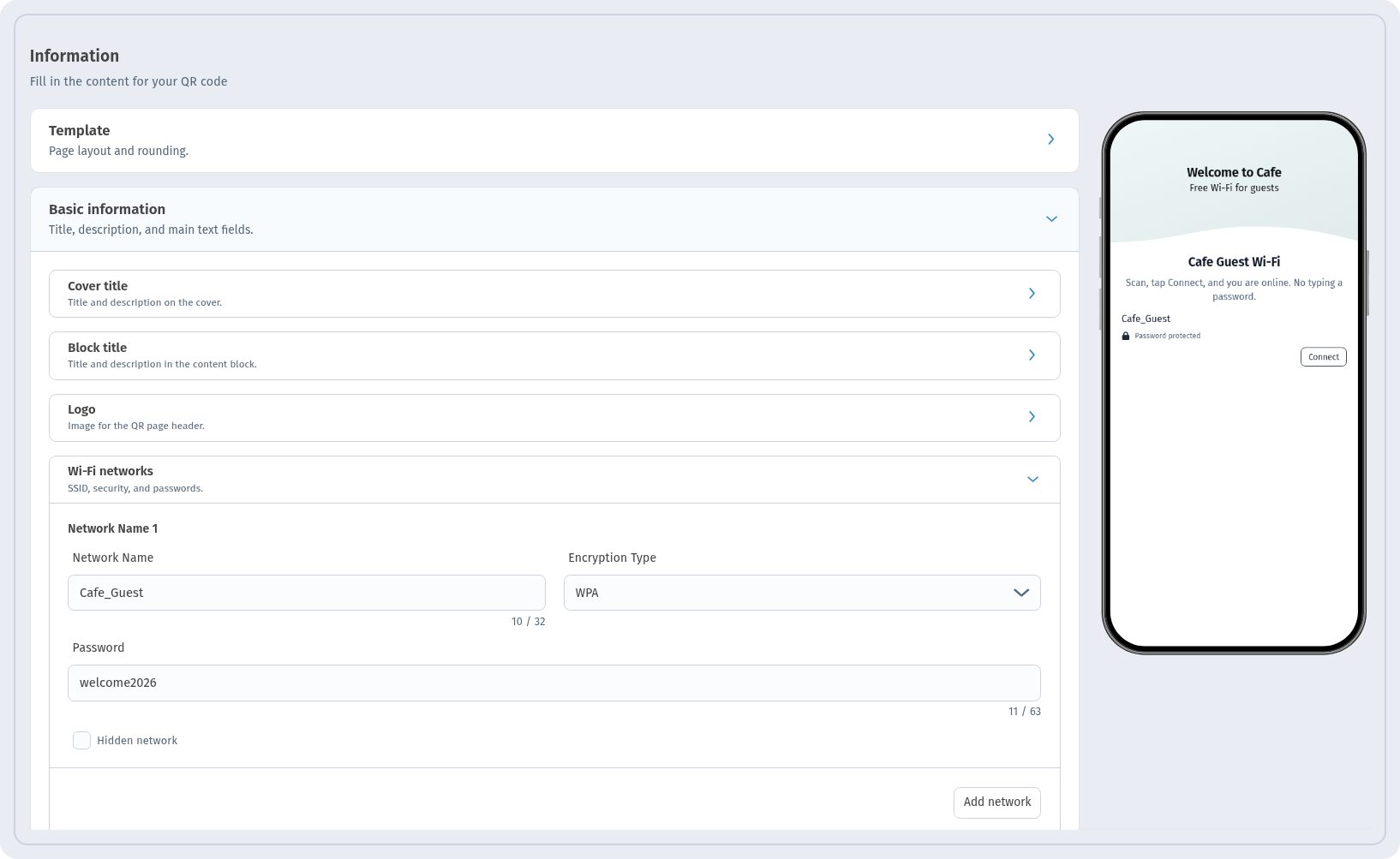
Guests see each network marked Password protected with a Connect button. Tapping it shows Wi-Fi network details with the NETWORK NAME (SSID) and PASSWORD, each with a Copy button.
The dynamic type also has extra settings: Time Scheduling to activate the code for specific dates, Stats to collect WebQR analytics, and Configuration with the short link and a page password. Most importantly, when you change the Wi-Fi password, you just update it in WebQR — the printed code stays the same.
Security tips
- Use a separate guest network. Keep visitors off the network that connects your tills, printers and work computers.
- Use WPA. Avoid open networks and outdated WEP where possible.
- Change the password from time to time, especially in busy public places. With a dynamic code, you won’t have to reprint anything.
- Place codes inside the venue, not on windows or doors facing the street, if the network is meant for customers only.
FAQ
Do guests need a special app to scan a Wi-Fi QR code?
Usually not. Modern iPhone and Android phones read Wi-Fi QR codes with the built-in camera.
What happens if I change my Wi-Fi password?
A static code stops working, because the old password is stored in it — you’ll need a new code and a reprint. With a dynamic WiFi code, you update the password in WebQR and the printed code keeps working.
Can one QR code cover several networks?
Yes, with the dynamic WiFi type: add each one with Add network.
My network is hidden. Will it work?
The static type has no hidden-network option. Use the dynamic type and tick Hidden network.
Which encryption type should I choose?
Choose WPA for almost all modern routers. Use WEP only for very old equipment and No password only for open networks.
Which file format is best for printing?
Download a larger PNG or JPG for your print layout, or choose Print to send the code straight to your printer.
Conclusion
A Wi-Fi QR code takes a few minutes to create and saves you from answering the same question all day. For a single network with a password that rarely changes, the static Wi-Fi type is quick and connects guests directly. For several networks, hidden networks or passwords that change, the dynamic WiFi type keeps your printed signs working. Add a clear frame, test it with a couple of phones, and put it where guests look first.