
How to Create a Rating QR Code for Feedback
Collect quick ratings with a dynamic QR code in WebQR: ask one question, set a scale up to 10, allow optional comments, add a thank-you message and track scans.
The best moment to ask for feedback is right after a visit, a purchase or an event, while the impression is fresh. A Rating QR code opens a short form: visitors pick a score, can add a comment and send it in seconds, without installing anything. In this guide we create a dynamic Rating code called WebQR Feedback that asks How would you rate WebQR?
Where a Rating QR code helps
- Cafes and restaurants – on tables, menus or the receipt.
- Shops and service desks – next to the checkout or the exit.
- Events and classes – on the last slide or a handout.
- Products and deliveries – on the packaging or an insert.
Step 1: choose Rating
Click Create QR code. In step 1, Content type, pick the Rating card (Ratings 1–10) and click Continue.
Step 2: write the question
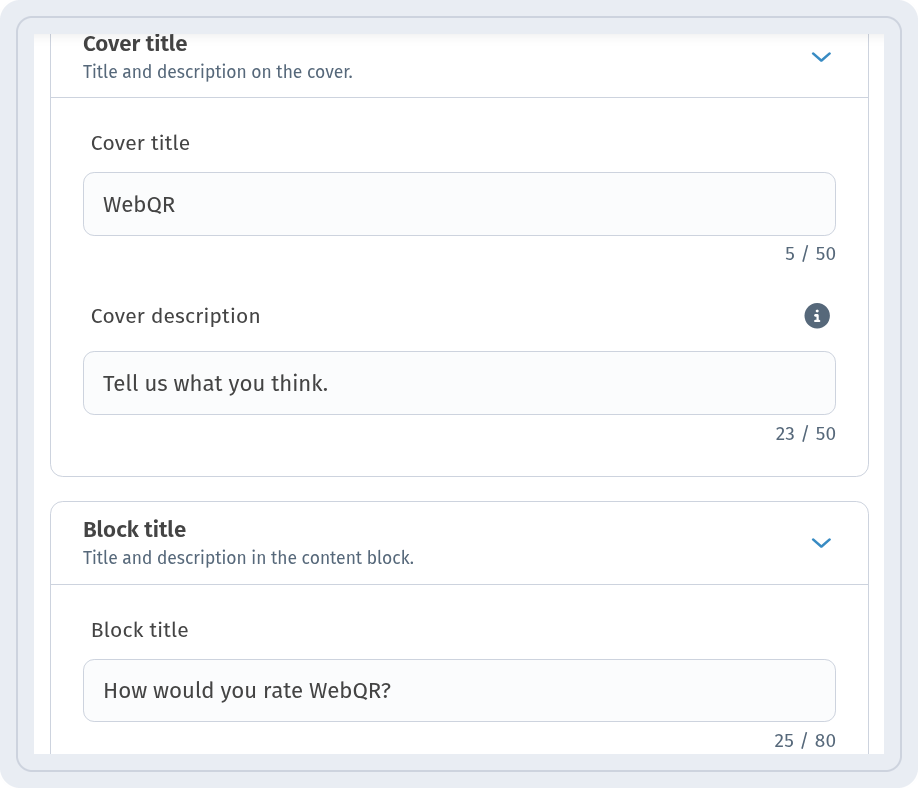
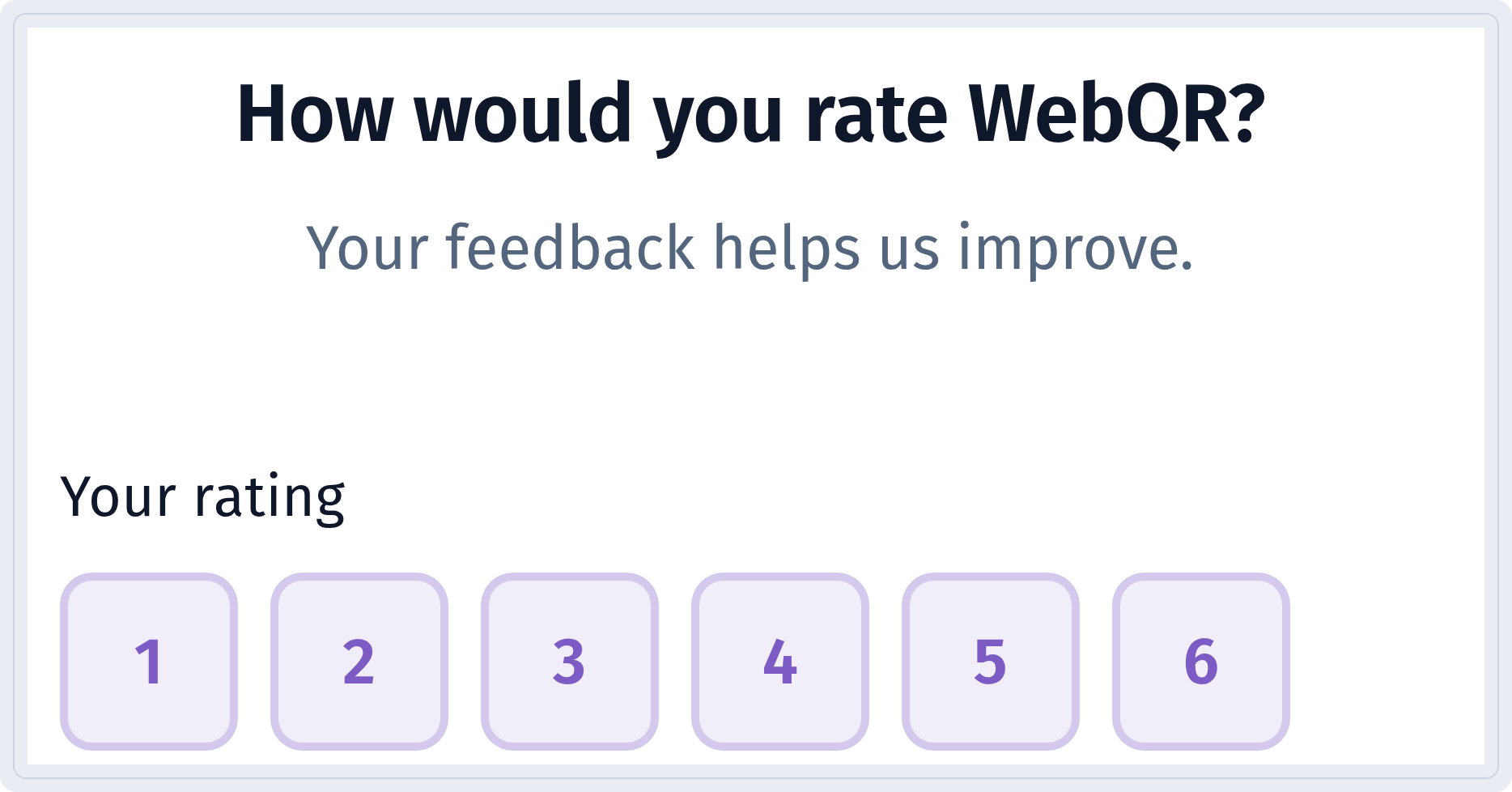
In step 2, Information, fill in the cover and the question. In Cover title we entered WebQR and in Cover description – Tell us what you think. The question itself goes into Block title: How would you rate WebQR? Under it, Block description adds a short line – ours is Your feedback helps us improve.
Step 3: set up the form
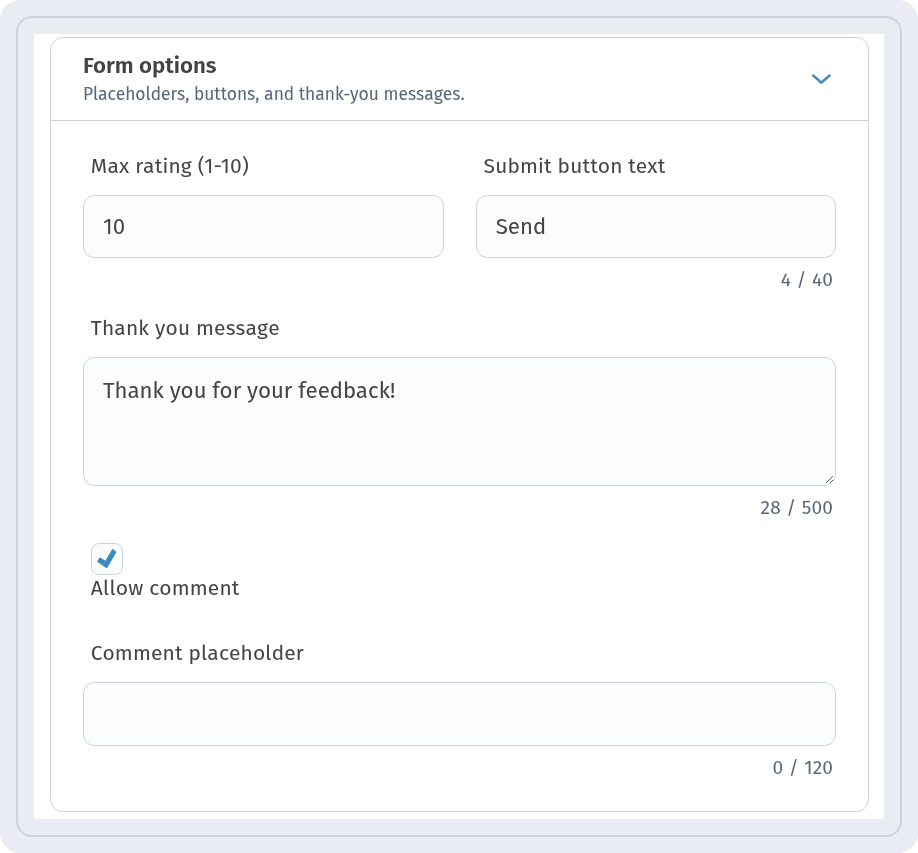
The Form options block controls the form itself:
- Max rating (1-10) – the top of the scale. The default is 5; you can set it up to 10. We used 10.
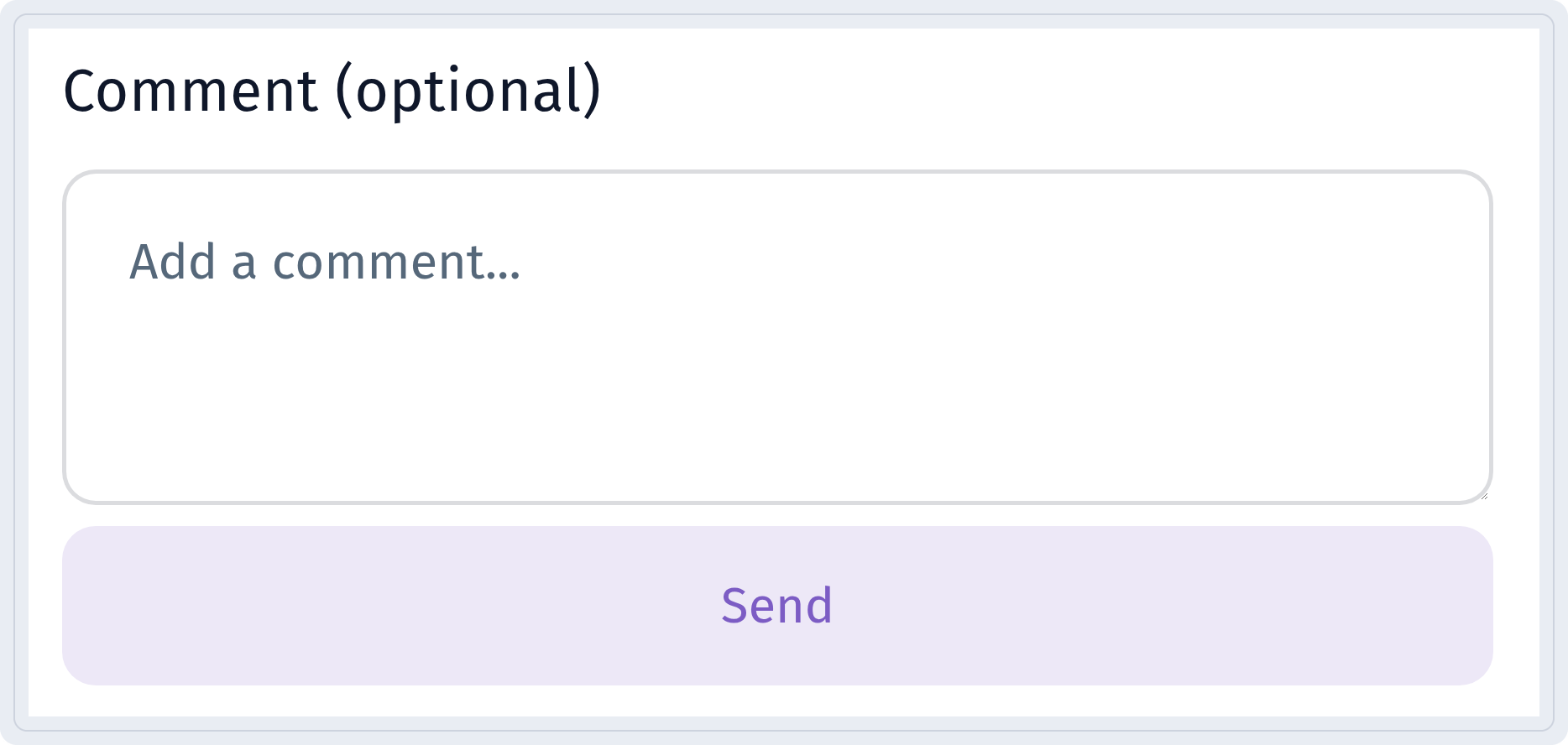
- Submit button text – the button label, ours is Send.
- Thank you message – shown after sending: Thank you for your feedback!
- Allow comment – adds an optional comment field. Comment placeholder sets the hint text inside it.
 The visitor page has its own language, set for each code under Page language, regardless of the dashboard language. Then go through Settings and QR design and save the code.
What visitors see
After scanning, visitors see the question and the rating buttons from 1 to 10:
Below are an optional comment field and the Send button:
After sending, the thank-you message appears:

Track scans
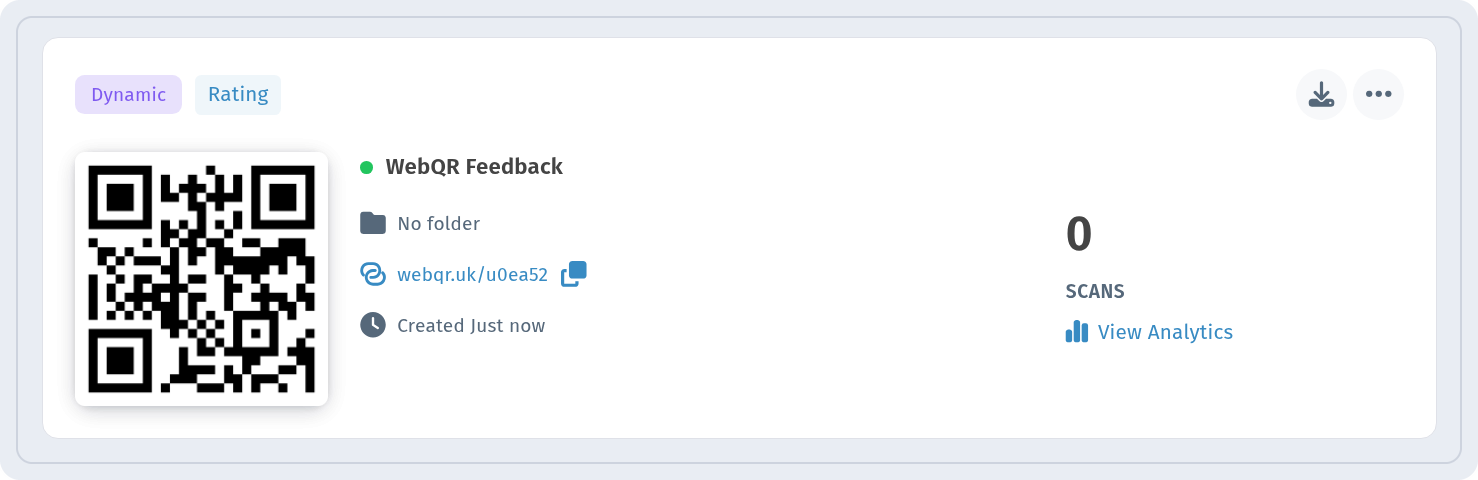
The code appears in My QR codes marked Dynamic and Rating. Every scan is counted – click View Analytics to see the numbers; more in QR code analytics. Because the code is dynamic, you can change the question, the scale or the messages later without reprinting it. To also share your hours, address and website on one page, see how to create a Business QR code.
Tips
- Ask one clear question – the shorter, the more answers you get.
- Keep comments optional so a quick score is never blocked.
- Place the code where people have a free moment: on the table, at the exit, on the last slide.