
How to Create a Social Media QR Code
Put all your social profiles behind one dynamic QR code in WebQR: add Facebook, Instagram, LinkedIn and more by username, order them and change them anytime.
Printed materials have room for one link at most, but most businesses are on several networks. A Social QR code leads to one page with all your profiles: visitors scan once and choose where to follow you. In this guide we create a dynamic Social code called WebQR Social with Facebook, Instagram and LinkedIn.
Where a Social QR code helps
- Shop windows and counters – customers follow you while they wait.
- Business cards and flyers – one code instead of a row of handles.
- Events and stands – visitors connect on the network they prefer.
- Packaging and menus – a scan leads to your latest posts.
Step 1: choose Social
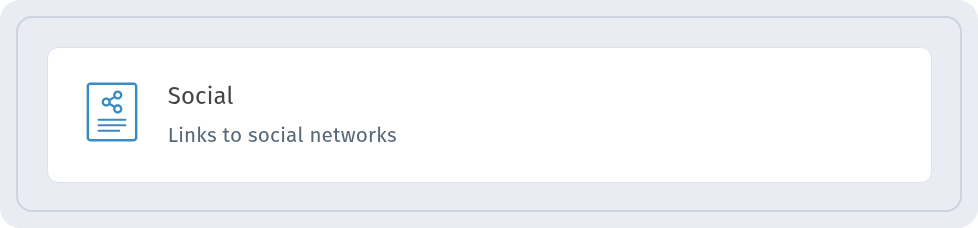
Click Create QR code. In step 1, Content type, pick the Social card (Links to social networks) under Dynamic QR Codes and click Continue.
Step 2: add the cover text
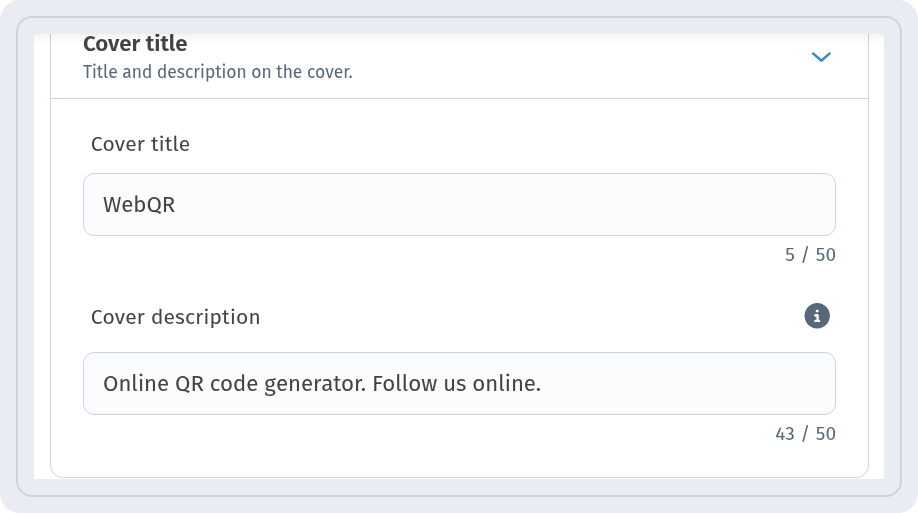
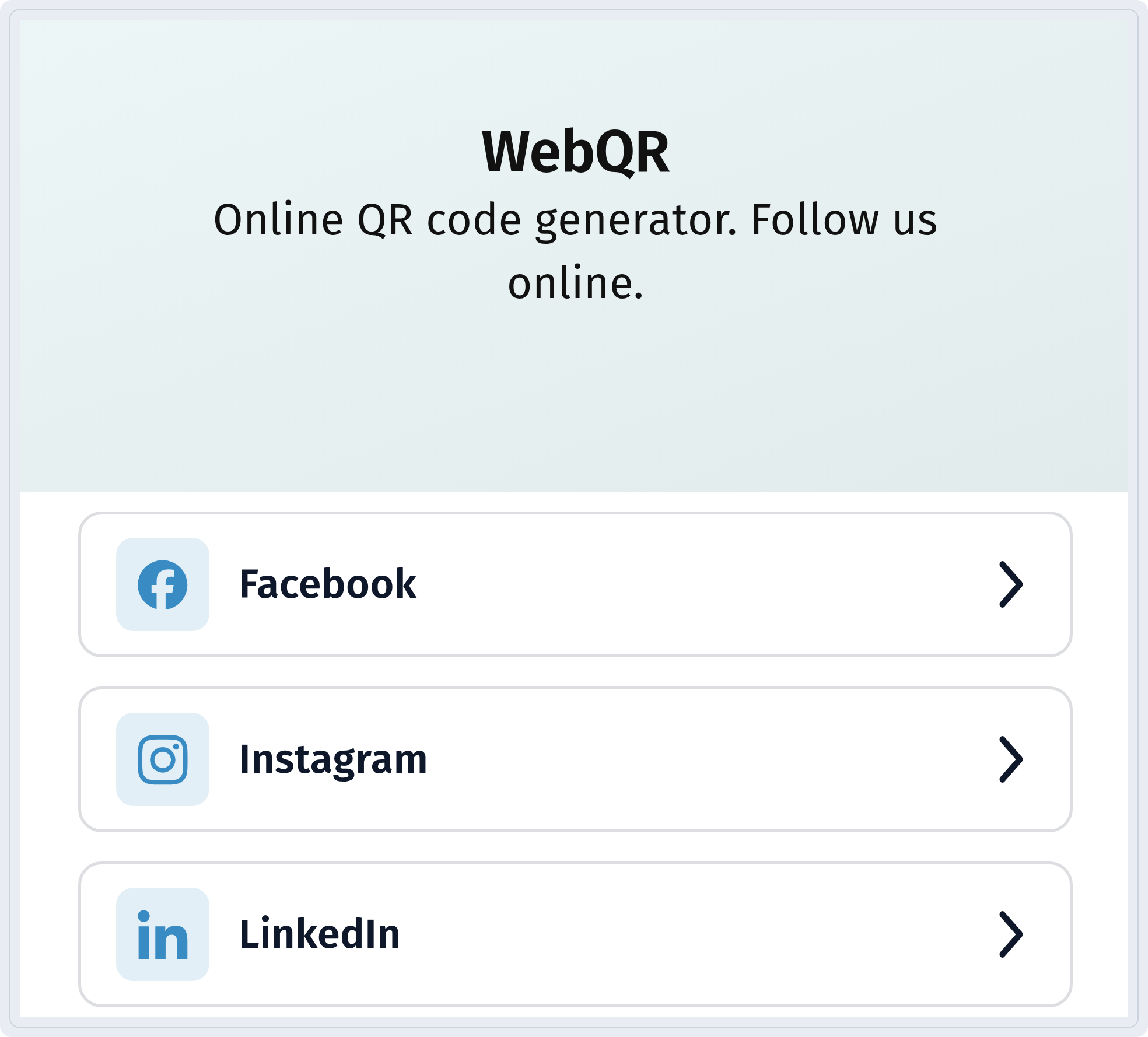
In step 2, Information, open Basic information. In Cover title we entered WebQR, and in Cover description – Online QR code generator. Follow us online. This text appears at the top of the page.
Step 3: add your networks
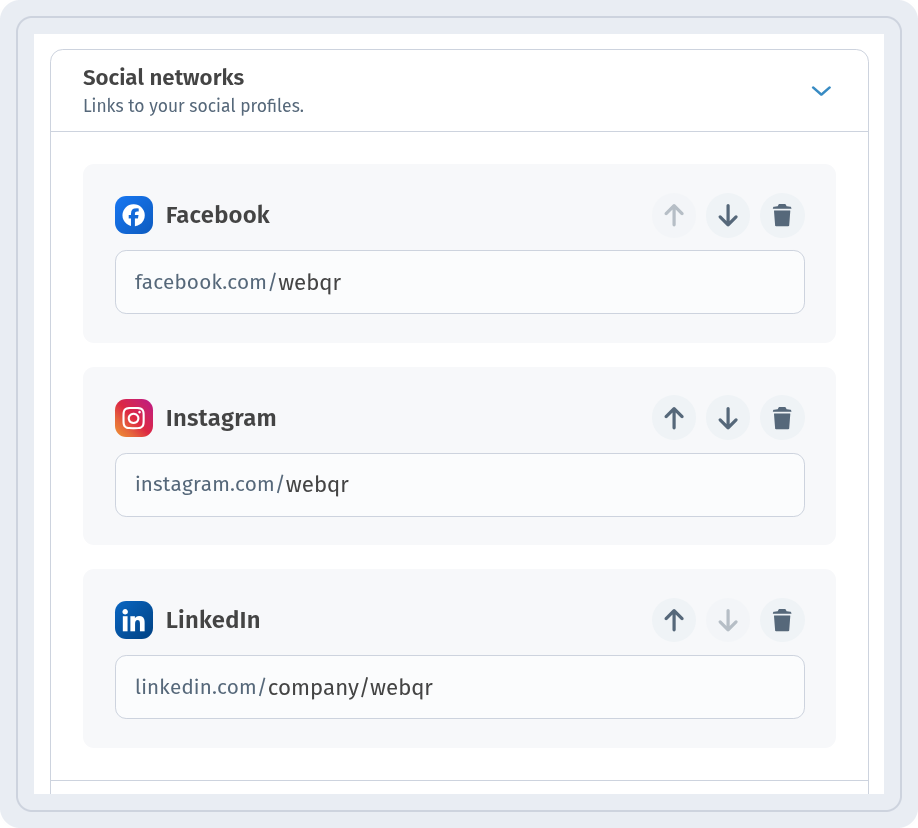
In the Social networks block, click Add network and choose a network. Each field already contains the site address, so you only type your username or the path after it – not the full URL. We entered webqr for Facebook and Instagram and company/webqr for LinkedIn. The arrows change the order of the networks on the page, and the bin icon removes one.
Step 4: layout and language
In Page layout we kept Flow. The visitor page has its own language, set for each code under Page language, regardless of the dashboard language. Then go through Settings and QR design and save the code.
What visitors see
After scanning, visitors see the cover text and a button for each network. A tap opens the profile:
Change links anytime
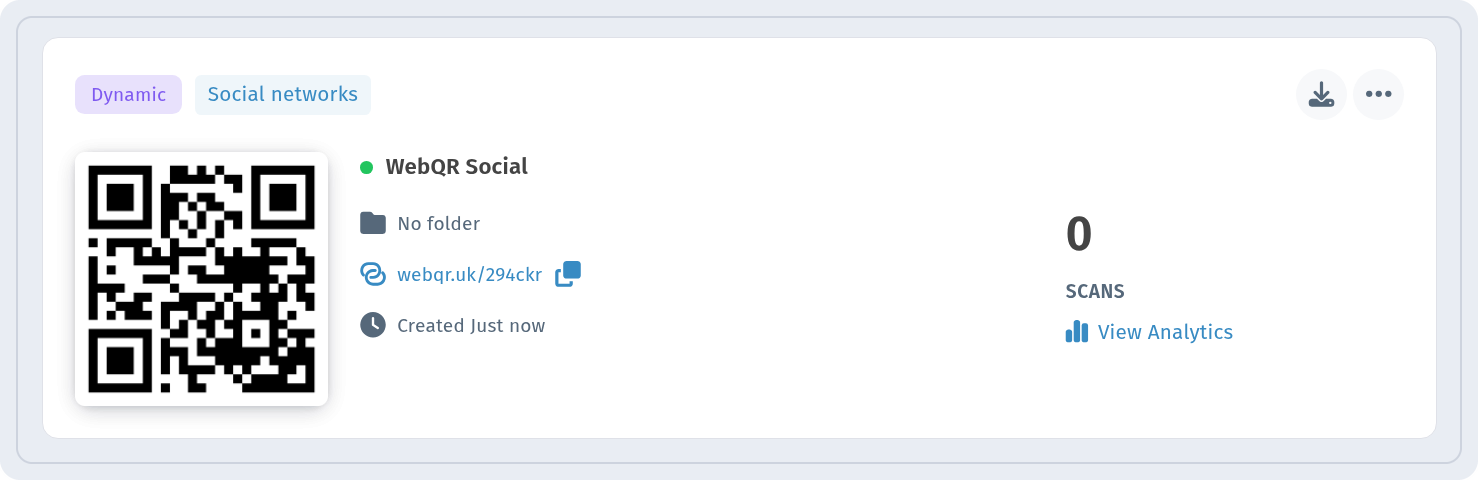
The code appears in My QR codes marked Dynamic and Social networks. Because it is dynamic, you can add a network, remove one or change a username later without reprinting the code. To see how often it is scanned, click View Analytics – more in QR code analytics. If you also want hours, an address and a website button on one page, see how to create a Business QR code.
Tips
- Put the network you care about most first.
- Check each username once on your phone after saving.
- Add a short line next to the printed code, such as "Follow us", so people know what they will get.