
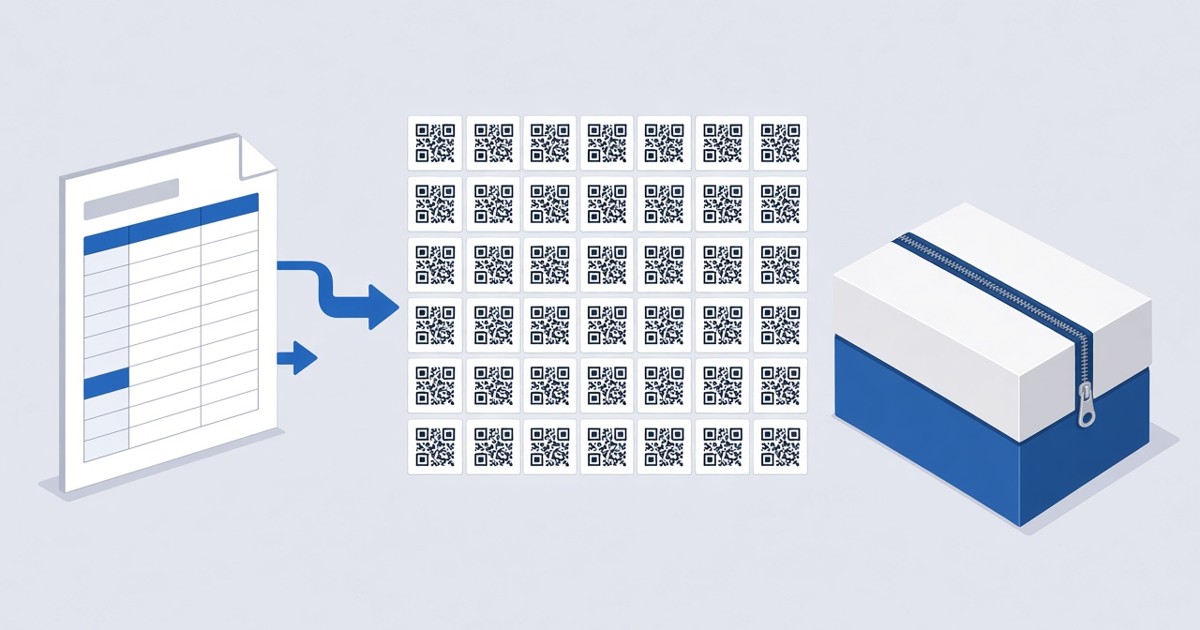
How to Create QR Codes in Bulk from a CSV File
Create dozens of QR codes at once in WebQR: prepare a CSV file, upload it, pick colors and formats, download the batch as a ZIP and manage the codes in your dashboard.
When you need dozens of QR codes – one per product, table, room or landing page – creating them one by one takes too long. With bulk creation you describe all codes in a single CSV file, upload it once and get the whole batch as a ZIP archive. In this guide we create three dynamic codes for WebQR Home, WebQR Blog and WebQR FAQ from one file.
Step 1: prepare the CSV file
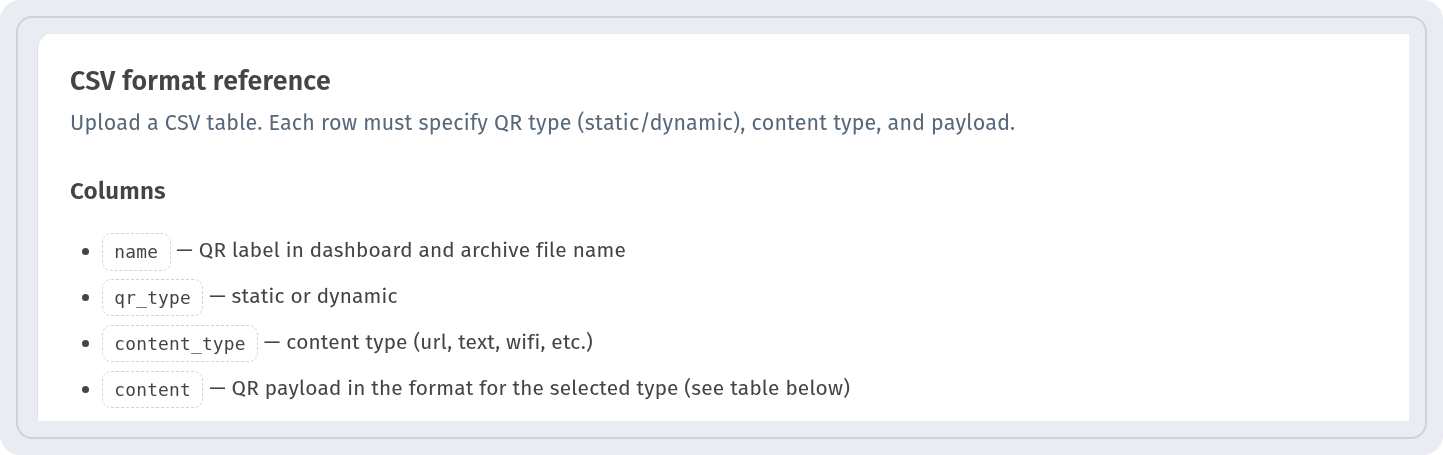
Each row of the file is one QR code. The file has four columns separated by semicolons:
- name – the code name in the dashboard and the file name in the archive;
- qr_type – dynamic or static;
- content_type – what the code contains (url, text, wifi and so on);
- content – the data itself, in the format of the chosen type.
Our file with three dynamic links looks like this:
name;qr_type;content_type;content
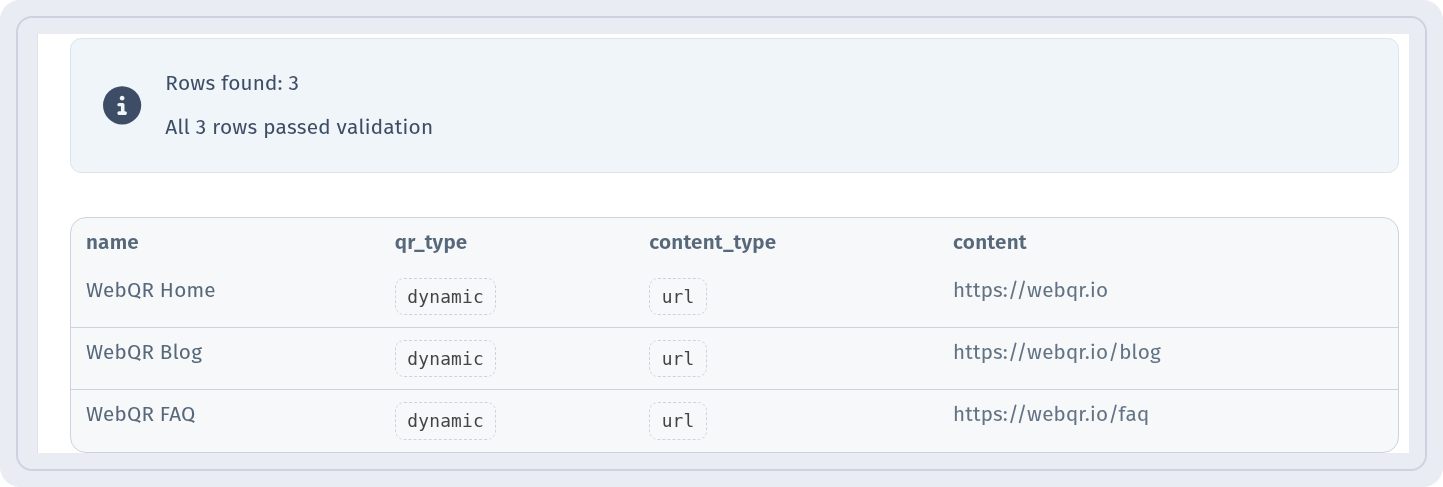
WebQR Home;dynamic;url;https://webqr.io
WebQR Blog;dynamic;url;https://webqr.io/blog
WebQR FAQ;dynamic;url;https://webqr.io/faq
The CSV format reference block on the Bulk QR creation page lists the same columns:
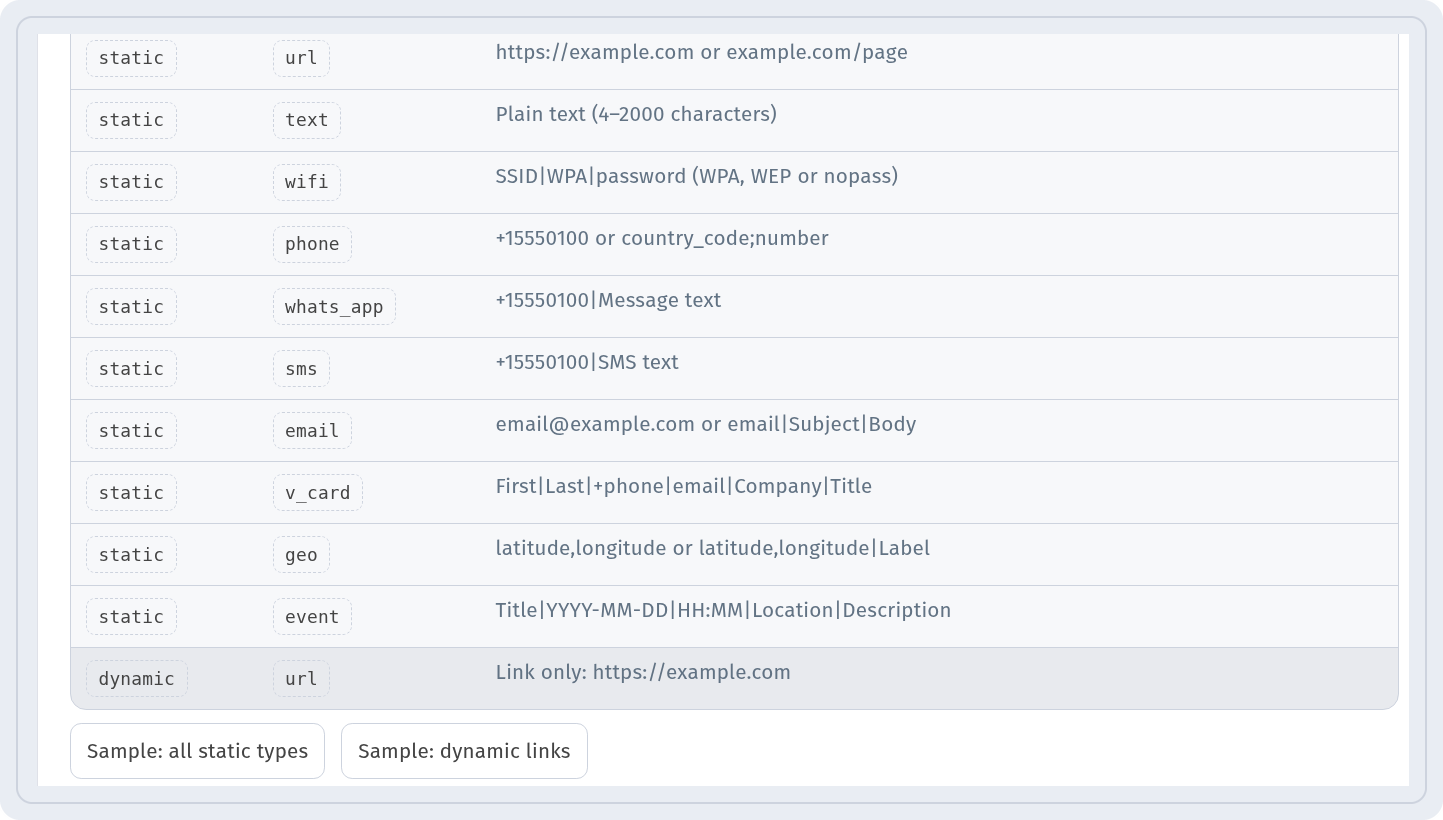
Below it, the Content types and payload format table shows what to write in content for each type: url, text, wifi, phone, whats_app, sms, email, v_card, geo and event. Dynamic codes support only url; static codes support every type from the table. If you don't want to start from scratch, download a ready template with Sample: all static types or Sample: dynamic links.
Step 2: upload the file
Drop the file into the Drop CSV here or click to browse area or click it to pick the file. A UTF-8 CSV or TXT file up to 2 MB is accepted, and the first row must contain the column headers.
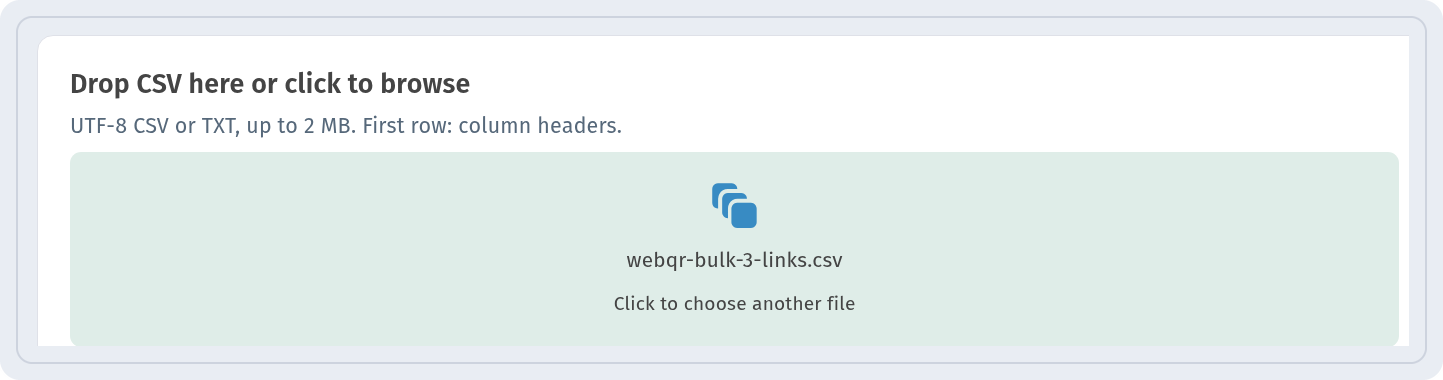
WebQR checks every row right away and shows a preview of the batch. In our case all three rows passed validation:
Click Next.
Step 3: design and formats
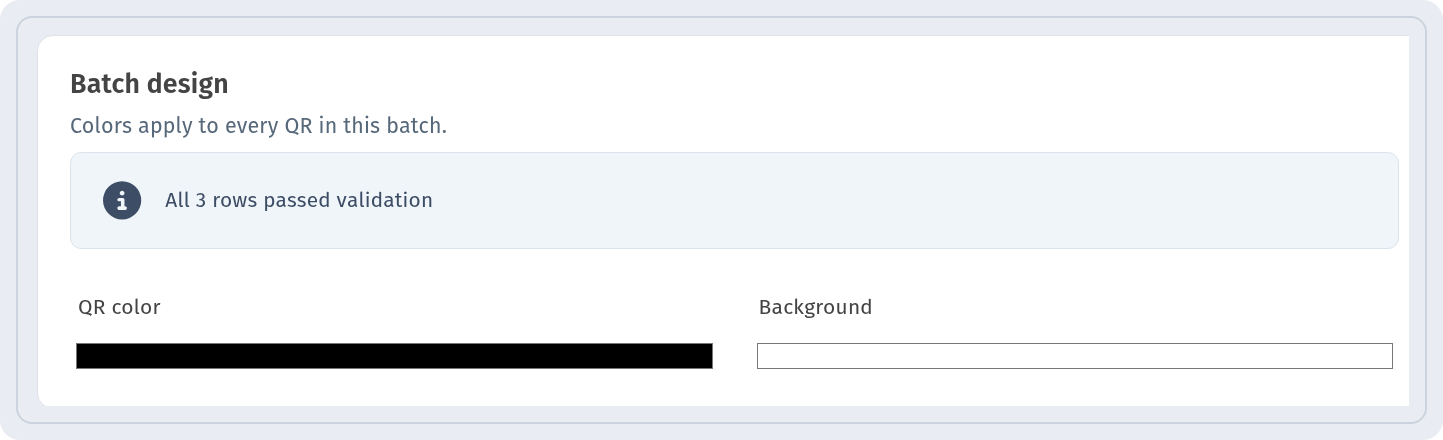
On the Batch design step pick the QR color and the Background – the colors apply to every code in the batch.
On the next step, Formats in archive, choose which file formats go into the ZIP. Turn on Save QR codes to My QR codes to keep the codes in your dashboard, then click Generate ZIP.
Step 4: download the archive
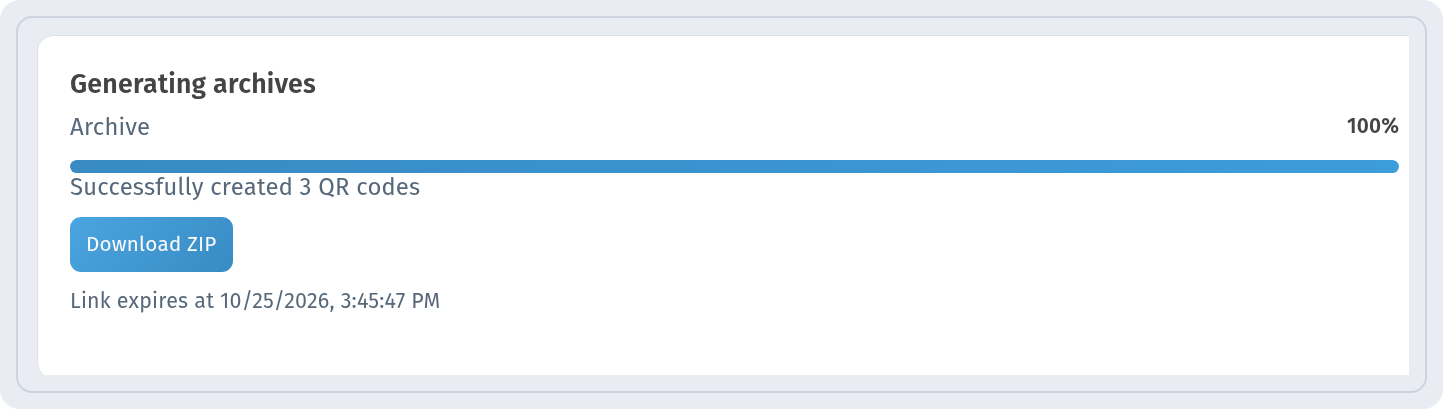
When the archive is ready, you see Successfully created 3 QR codes. Click Download ZIP. The download link is temporary – the exact time is shown under the button – so save the archive right away. New batch starts the next upload.
The codes in My QR codes
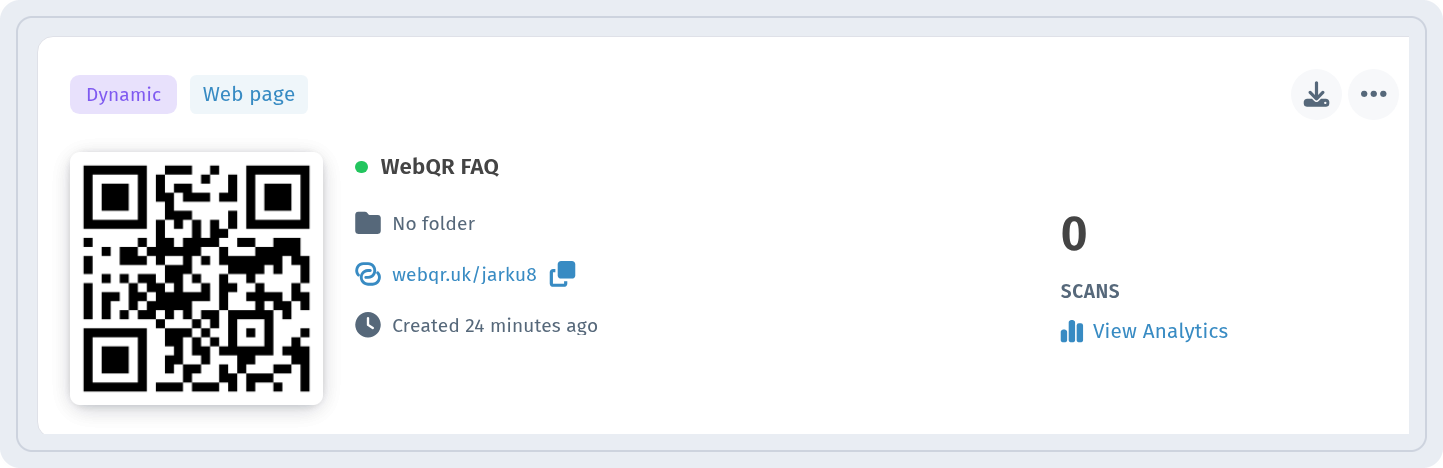
If you saved the batch, the codes appear in My QR codes like any other code. Each dynamic code has its own short link and scan counter, and View Analytics opens its statistics – more in QR code analytics. You can also change the link of any dynamic code later without reprinting it – see how to edit a QR code after printing.
Tips
- Save the file in UTF-8 so that non-Latin names are displayed correctly.
- Keep the header row name;qr_type;content_type;content as the first line.
- Give every code a clear, unique name – it becomes the file name in the archive.
- Choose dynamic codes when the links may change; read about the difference in static vs dynamic QR codes.