
QR Code Time Scheduling: Open a Page Only on Set Dates
How to set a display schedule for a dynamic QR code in WebQR: start and end date, time zone, what visitors see outside the window and how to turn it off.
Some QR codes should only work for a while: a seasonal menu, a one-day event, a promo with an end date. With Time Scheduling in WebQR you set the dates and times when the page behind a dynamic QR code is open. Outside that window visitors see a short notice instead of the page, and the printed code stays the same.
When a schedule helps
- Seasonal menu. A summer or holiday menu opens on the first day of the season and closes on the last.
- Event. The programme or registration page opens shortly before the event and closes after it — see Event QR code.
- Promo with dates. A discount page works only during the sale, so nobody scans an expired offer from an old flyer — see Sale and promo QR code.
Step 1. Open the code's settings
In My QR codes open the code and click Edit. In the bottom bar switch to Settings and expand Time Scheduling (Set when your page is available.).
Step 2. Set the window
- Turn on Activate the schedule for specific dates. While it is off, the page is always available.
- Pick the time format: AM / PM or 24-hour.
- Fill in Since and Until. A click opens a picker with Date and Time tabs; confirm with Accept. Both fields are required.
- Check Time zone. The schedule uses this time zone; by default it comes from your cabinet settings, for example GMT+4 (Tbilisi, Dubai, Baku).
- Click Save.
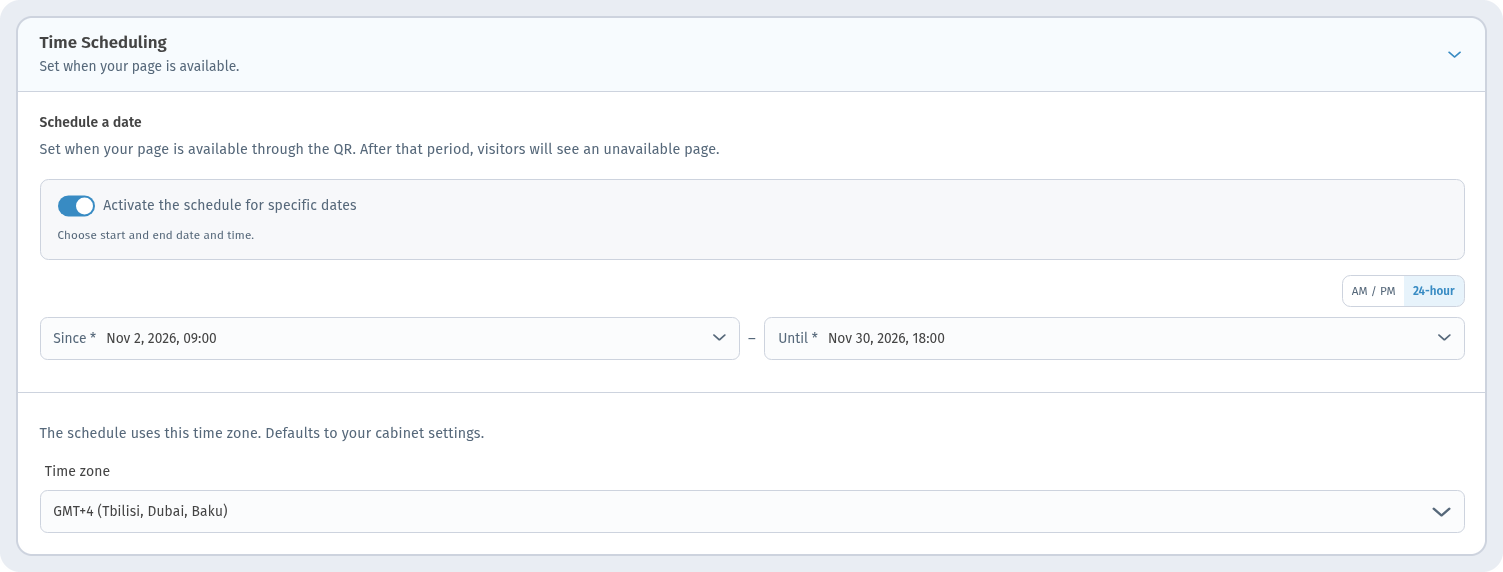
In this example the page is open from Nov 2, 2026, 09:00 to Nov 30, 2026, 18:00 Tbilisi time.
What visitors see
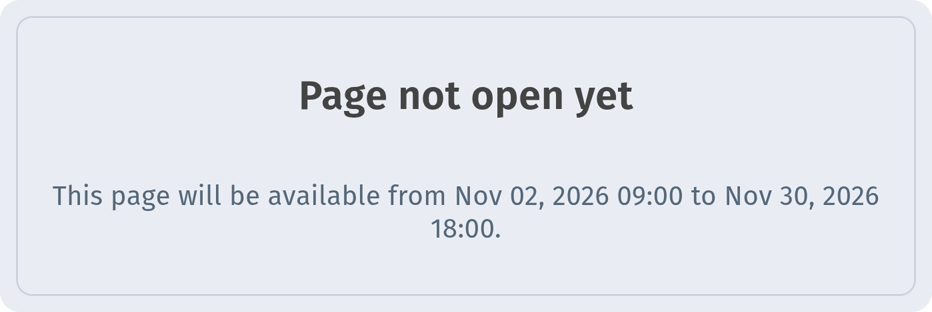
The QR code and short link do not change. Before the start, a scan shows Page not open yet with the dates when the page will be available.
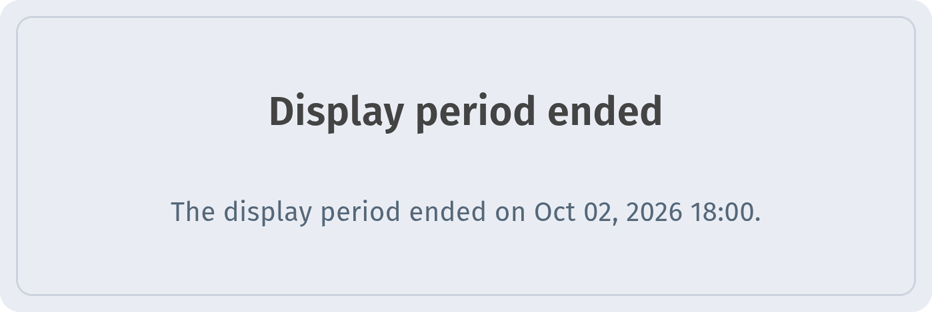
After the end, visitors see Display period ended with the date and time it ended.
Inside the window the code works as usual and opens your page.
How to turn the schedule off
Open Edit → Settings → Time Scheduling again, turn off Activate the schedule for specific dates and click Save. The code works again right away and opens the page as before. To change the dates, just edit Since and Until — no need to reprint anything. More on that in How to edit a QR code after printing.
Tips
- Set the time zone of the place where the code is printed, not where you are.
- Leave a small margin: open the page a little before the event and close it a little after.
- To limit who can open the page rather than when, use a password — see Password-protected QR code.