
How to Create a PDF QR Code for Menus, Brochures and Manuals
Share a PDF with a dynamic QR code in WebQR: upload up to 10 files, add a title and description, let visitors view or download them and replace the file without reprinting.
Menus, brochures and manuals change often, and printing a new batch every time is expensive. A PDF QR code opens your document right on the phone: visitors scan it and see a page with your file ready to view or download. In this guide we create a dynamic PDF code called WebQR Product Guide.
Where a PDF QR code helps
- Restaurant menus – on tables, at the entrance or on the takeaway bag.
- Brochures and catalogs – on flyers, posters and stands.
- Manuals and instructions – on the product or its packaging.
- Event programs and handouts – on a badge or the first slide.
Step 1: add a title and description
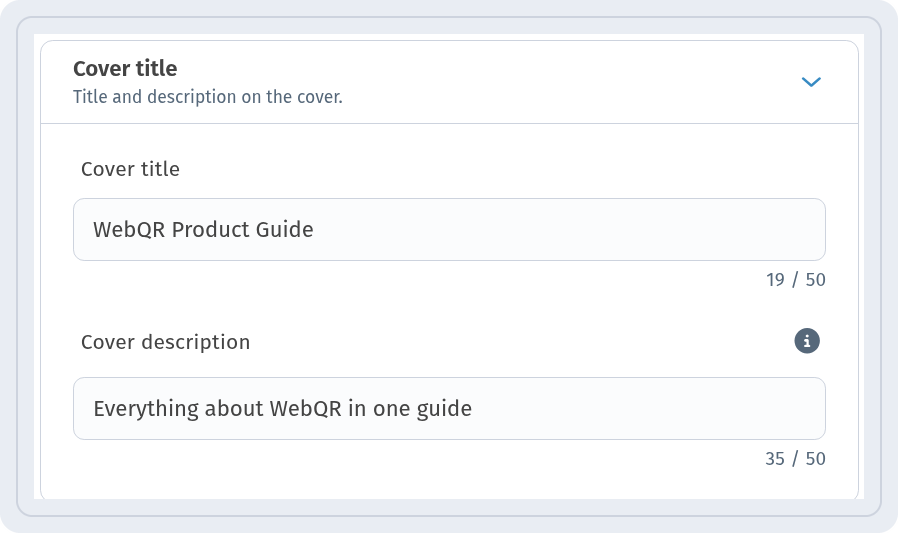
Click Create QR code and choose the PDF content type. In the Editing information step, open Basic information. In Cover title we entered WebQR Product Guide, and in Cover description – Everything about WebQR in one guide. Both are shown at the top of the visitor page.
Step 2: upload the document
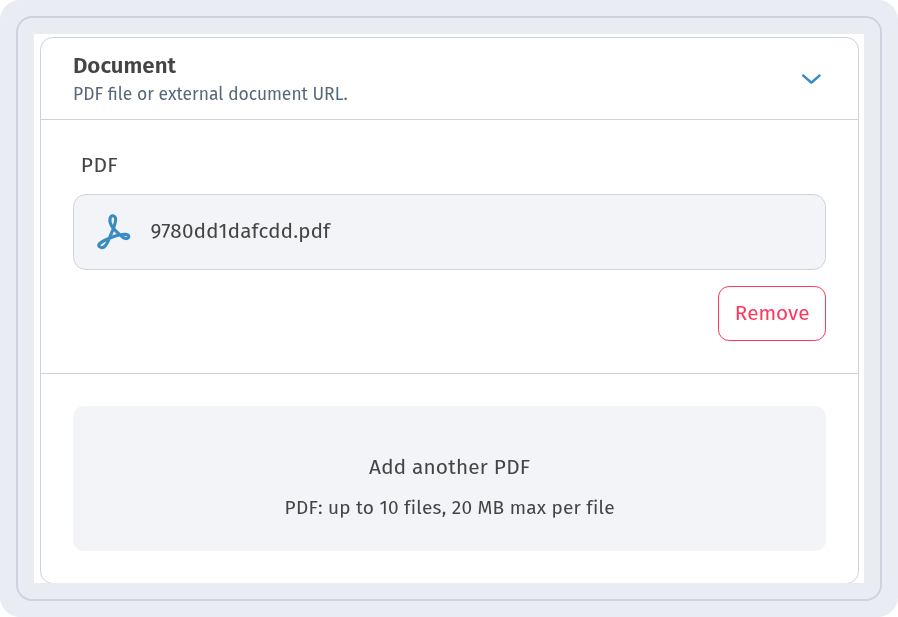
Open the Document block – it takes a PDF file or an external document URL. Upload your PDF; to attach more files, click Add another PDF. You can add up to 10 files, 20 MB max per file. Remove deletes a file from the list.
Then go through the remaining steps and save the code. The visitor page has its own language, set separately for each code, regardless of the dashboard language.
What visitors see
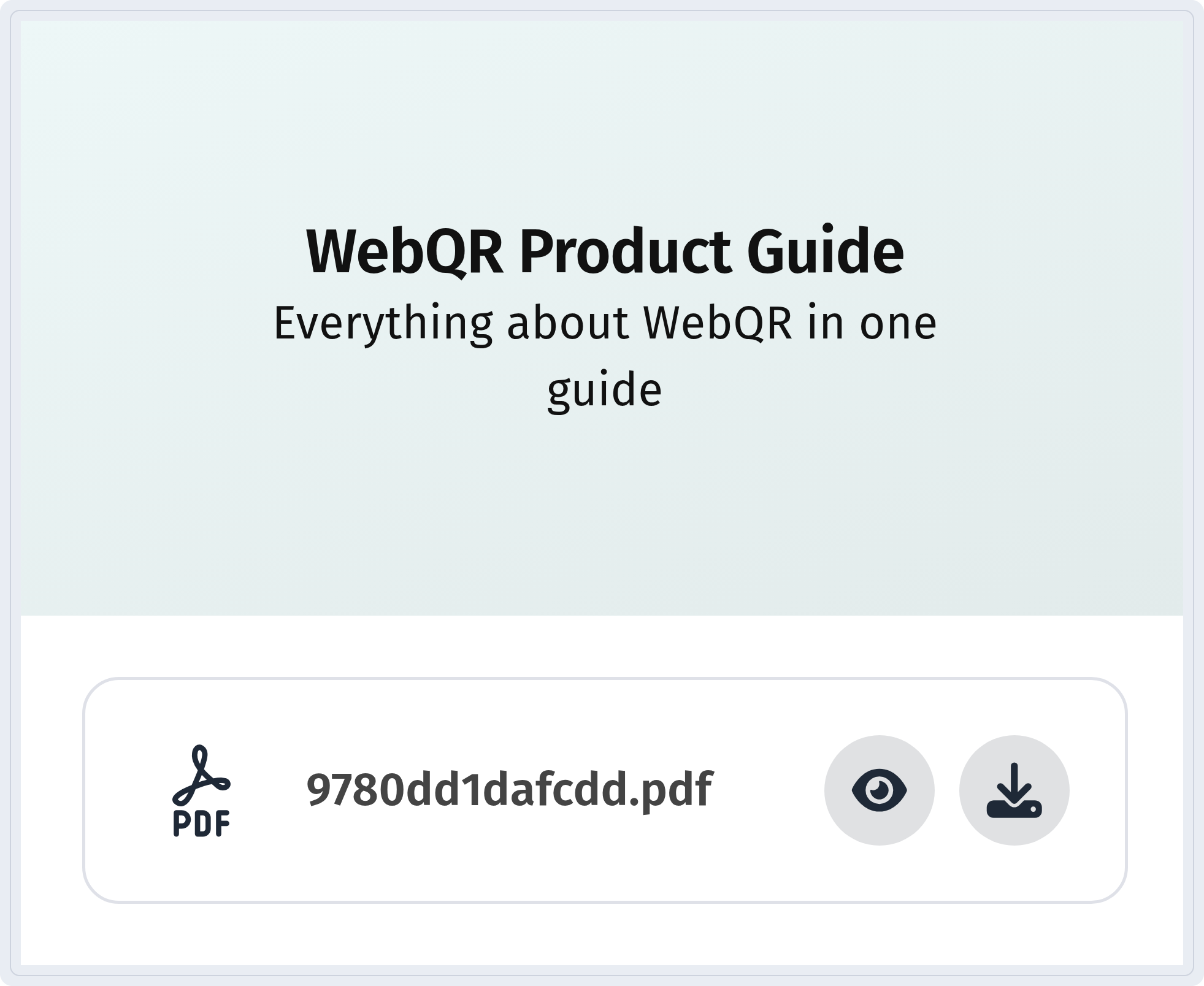
After scanning, visitors see the title and description, followed by the list of files. Each file has two buttons: one opens it in the browser, the other downloads it to the phone.
Replace the file without reprinting
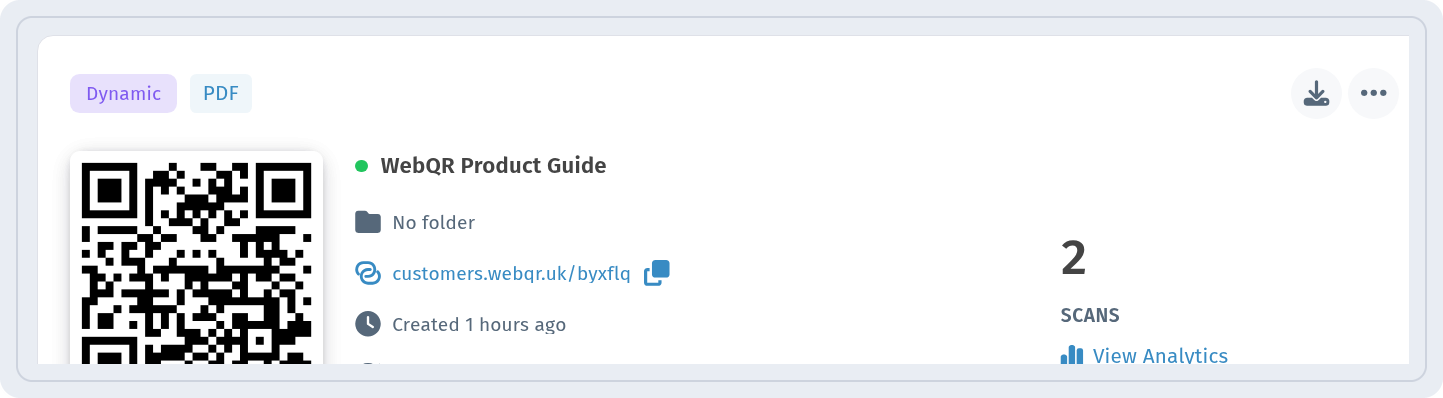
The code appears in My QR codes marked Dynamic and PDF, with a scan counter and a View Analytics link – more in QR code analytics. Because the code is dynamic, you can upload a new version of the menu or brochure at any time, and the printed code will open it – see how to edit a QR code after printing.
If the document is meant only for some people, such as internal manuals or partner catalogs, protect it with a password – see how to create a password-protected QR code.
Tips
- Compress large PDFs – smaller files open faster on mobile data.
- Use a clear cover title so visitors know what they are opening.
- Keep one code per document and update the file instead of printing a new code.