
Accessible QR Codes: How to Make Them Readable for Everyone
Practical tips for accessible QR codes: strong contrast, the right size for the distance, a clear call to action, a text alternative next to the code, a mobile-friendly page and the right page language in WebQR.
A QR code only works if people can find it, scan it and understand where it leads. That includes people with low vision, older phones, a shaky hand, or no camera at all. Here are simple practices that make your codes readable for everyone, with the settings to check in WebQR.
1. Strong contrast: dark dots on a light background
Scanners and human eyes both need a clear difference between the dots and the background. The safest choice is dark dots on a light background. In the QR design step, the Shape style section has Background color and Dots Color. When the code is easy to read, the preview shows Ready to scan.
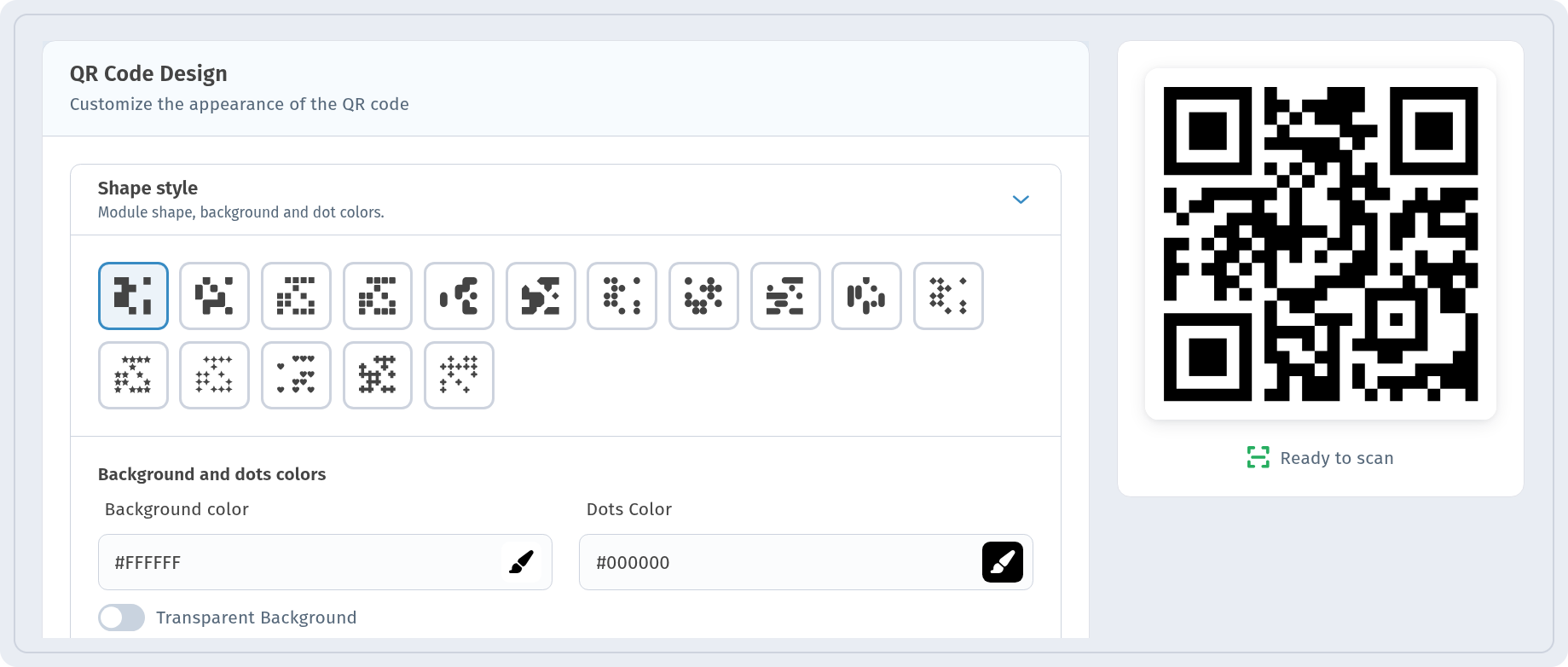
Light dots on a dark background, pale colors and gradients that fade to light grey make the code harder to read. In these cases the preview shows May not scan:
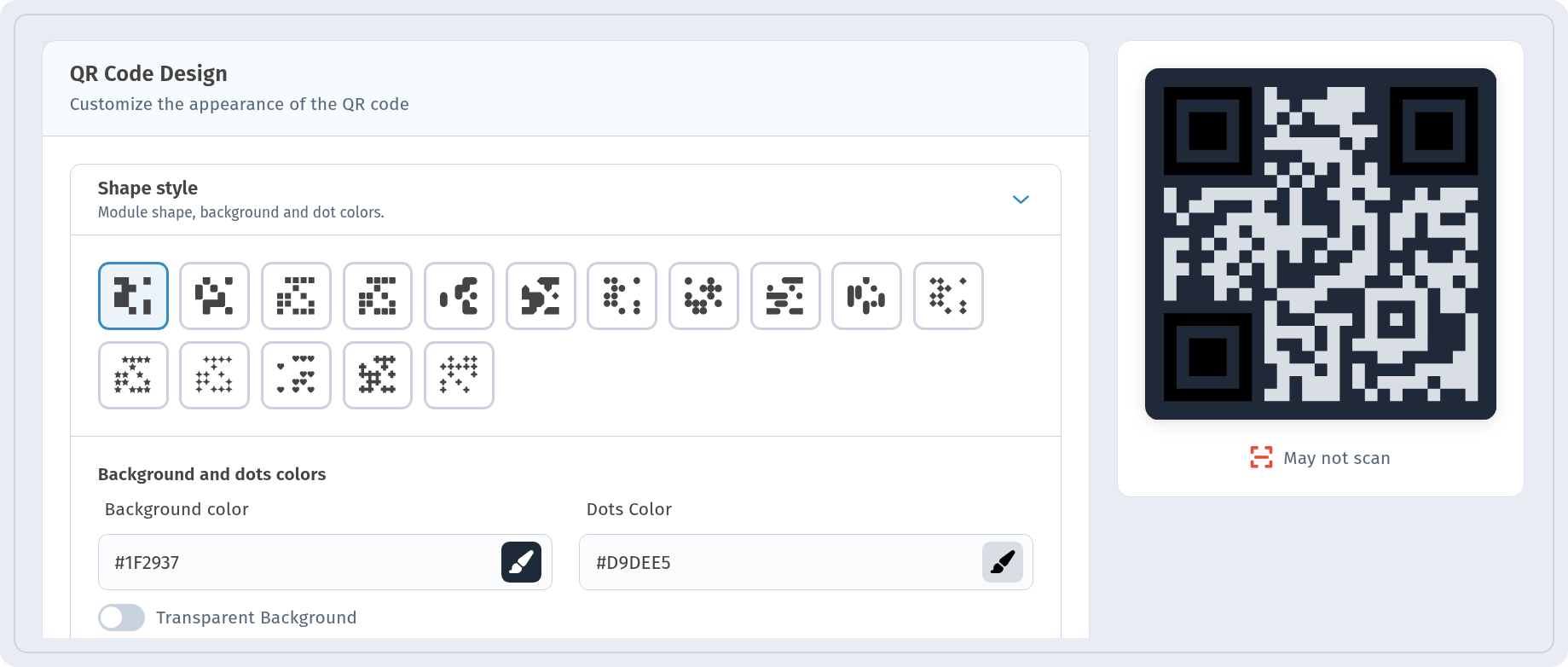
If you see this warning, go back to darker dots or a lighter background. More reasons a code fails: Why a QR code is not scanning.
2. Size and distance
A code that is too small forces people to come very close and hold the phone still — hard for many users. A common rule of thumb: the code's side should be at least one tenth of the scanning distance. For a menu on a table, 2–3 cm is enough; for a poster read from 2 meters, aim for about 20 cm. Leave a clean margin around the code and don't place it on folds, corners or glossy curved surfaces.
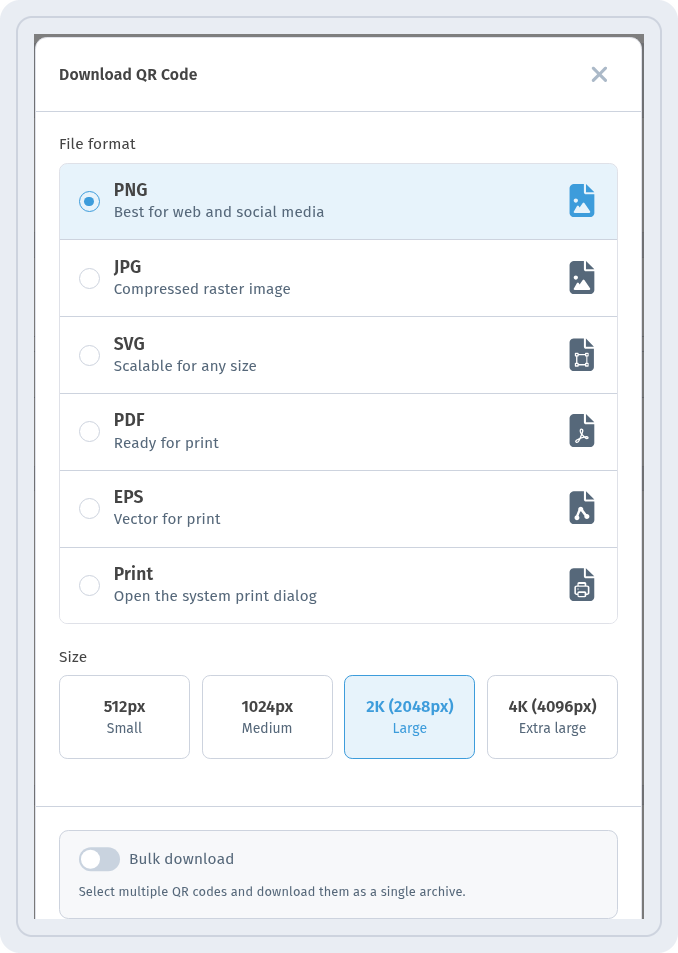
For print, download a large file so the code stays sharp. In the Download QR Code dialog, choose a format and a Size — in the screenshot, PNG and 2K (2048px) Large are selected. For any size without quality loss, use SVG, PDF or EPS.
Details: QR code download formats and How to print QR codes.
3. A clear call to action under the code
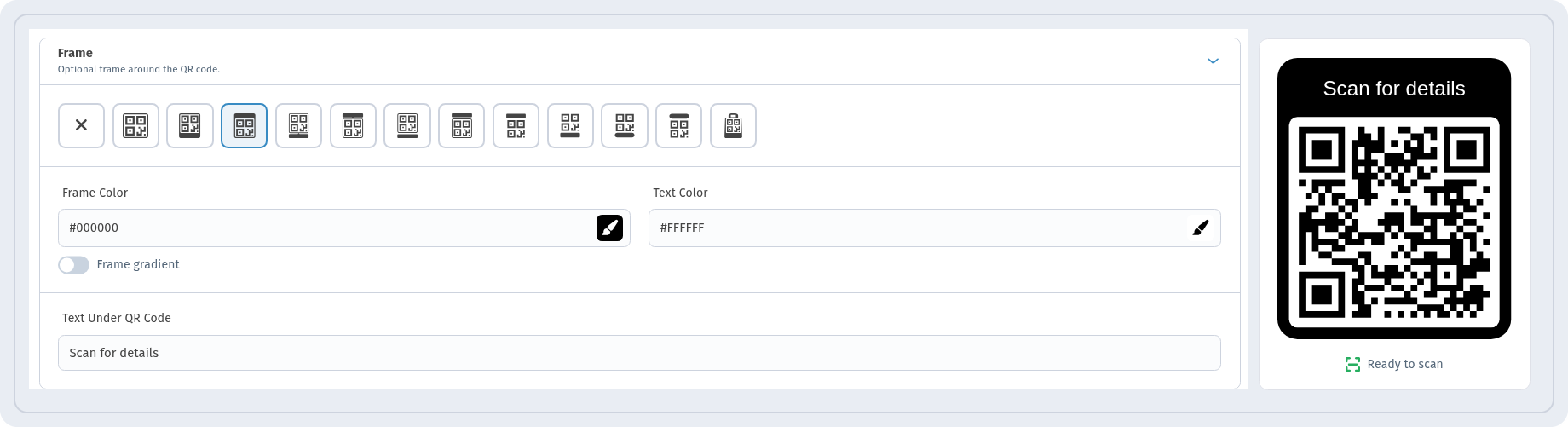
A bare square doesn't tell people why they should scan it. Add a short call to action: in the Frame section, pick a frame and write the text in Text Under QR Code, for example "Scan for details". Keep the text short, high-contrast and in the language of your audience. Check that the preview still shows Ready to scan.
4. Say where the code leads
People hesitate to scan an unknown code, and screen reader users can't see the picture at all. Next to the code, write in plain words what opens: "Menu", "Order tracking", "Wi-Fi password", "Booking form". In digital materials (emails, websites, PDFs), give the QR image an alt text that says the same, and add a normal clickable link next to it — on a screen, a link is easier than a code.
5. A text alternative for people who can't scan
Not everyone can use a camera. Print a short, readable address next to the code, so it can be typed by hand or read out by staff. A dynamic code has a short link that is ideal for this. Avoid long URLs with parameters in print, and choose an address without easily confused characters.
6. Mobile-friendly destination
Accessibility doesn't end with the scan. The page the code opens should load quickly on a phone, have readable text, large buttons and enough contrast. Prefer a mobile page over a heavy multi-page PDF, and test the result on a real phone before printing.
7. The right language on the page
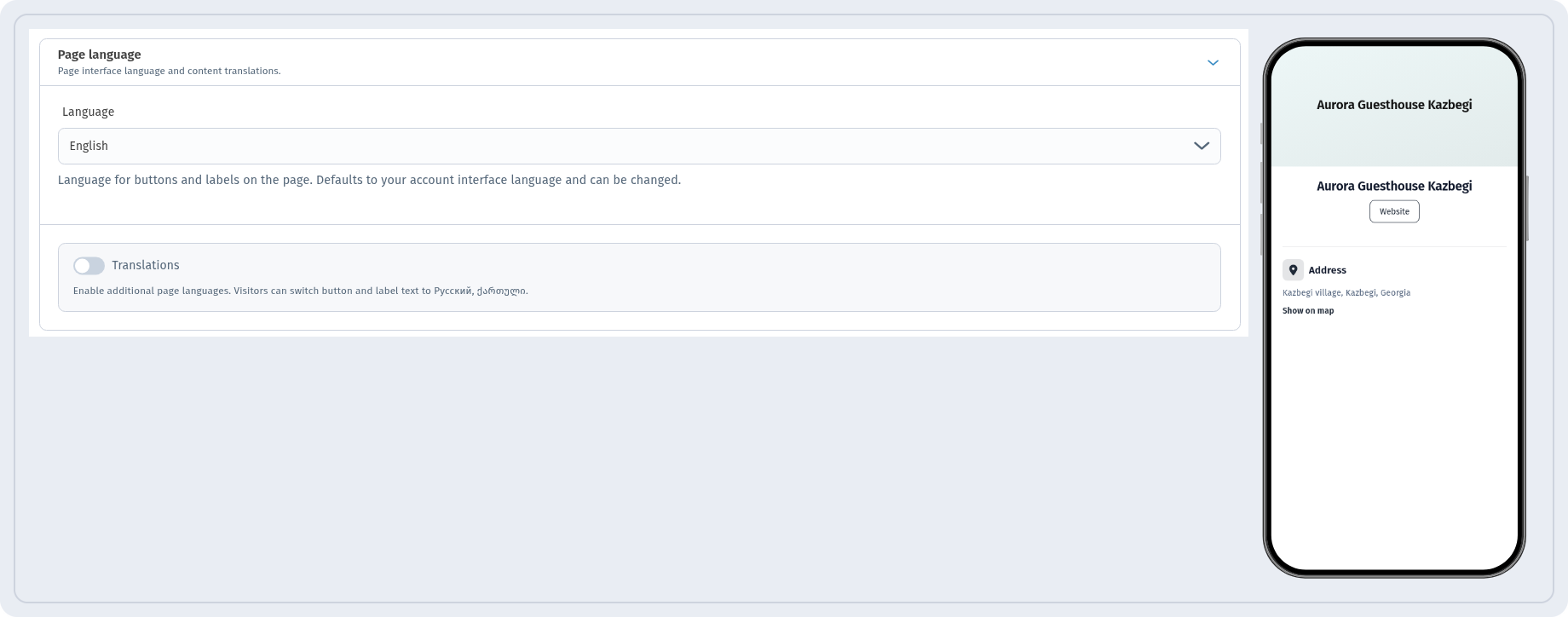
For WebQR pages, the Page language block sets the Language for buttons and labels on the page. Choose the language your visitors read, write the main texts in it, and check the page in the phone preview.
An example for a multilingual audience: QR codes for real estate and tourism in Georgia.
8. Keep the printed code working
If the destination changes, people with a printed code shouldn't hit a dead page. With a dynamic code you can change the content without reprinting: How to edit a QR code after printing. The difference is explained in Static vs dynamic QR codes.
Checklist
- Dark dots on a light background, preview shows Ready to scan.
- Size matches the scanning distance, clean margin around the code.
- Short call to action under the code.
- Plain words about where the code leads; alt text and a link in digital materials.
- Short address printed next to the code.
- Mobile-friendly page in the right language, tested on a phone.