
QR Code Not Scanning? Causes and How to Fix Them
Why a QR code won’t scan and how to fix it: low contrast, inverted colors, small size, no quiet zone, glare, damaged print, dense static codes, broken links, a changed URI, a paused code or a password page.
A QR code that won’t scan is almost always fixable. First figure out which of two situations you’re in: the phone camera doesn’t react to the code at all, or the code opens but shows the wrong thing (an error, an old page, a pause message). Below are the common causes for each case and how to fix them in WebQR.
The camera doesn’t detect the code
Low contrast, inverted colors or a light gradient
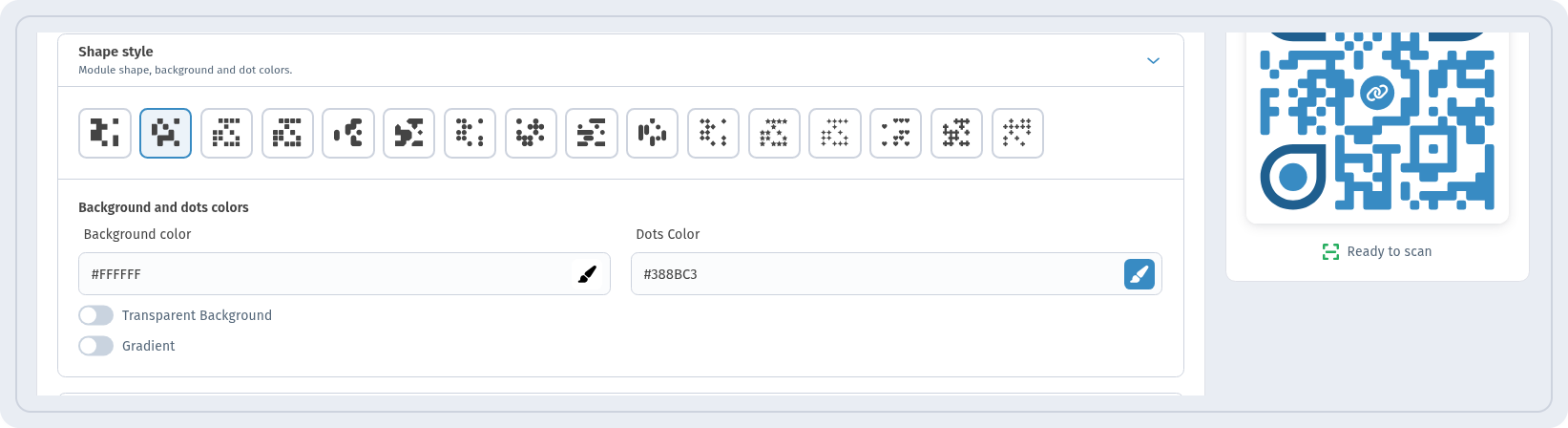
Scanners look for a clear difference between dark dots and a light background. In the QR design step, the preview helps: under the code it shows Ready to scan when the code is easy to read.
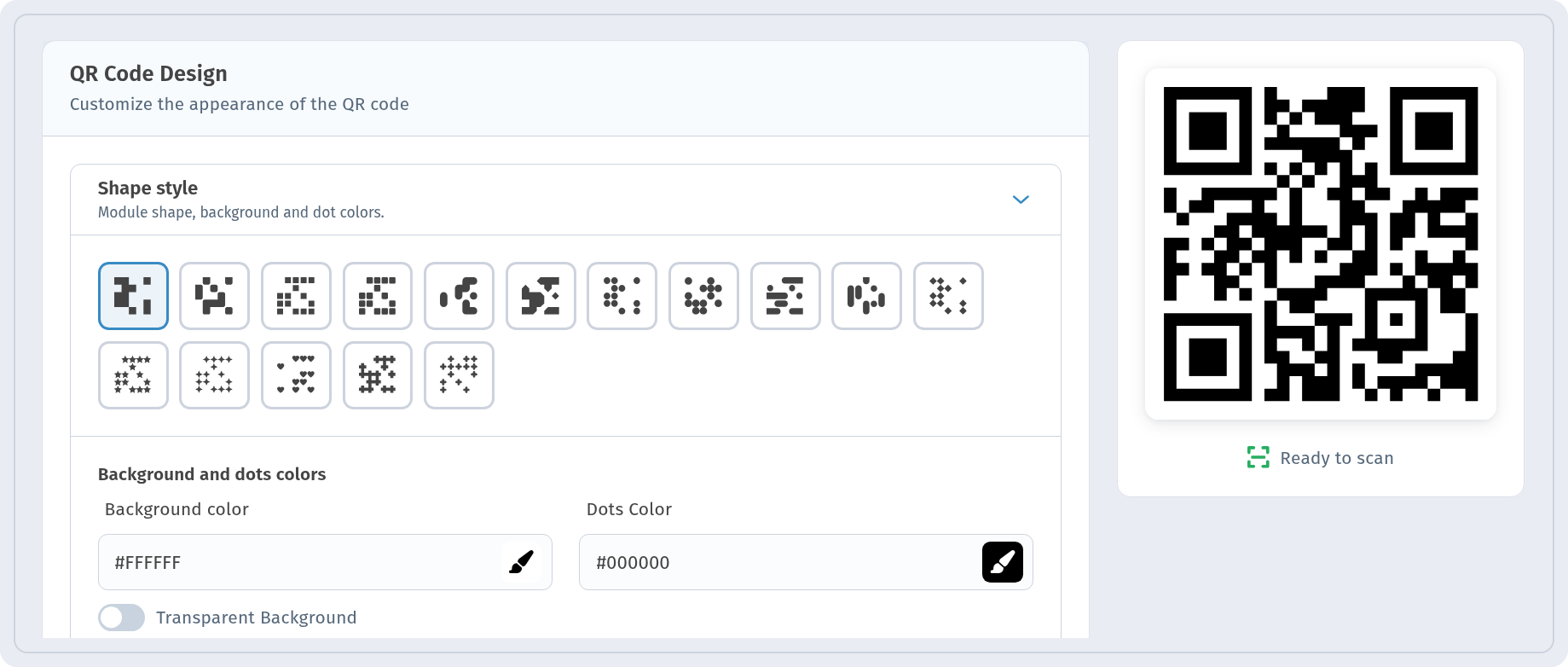
If the colors are too close — for example, light grey dots on white — the indicator switches to May not scan.
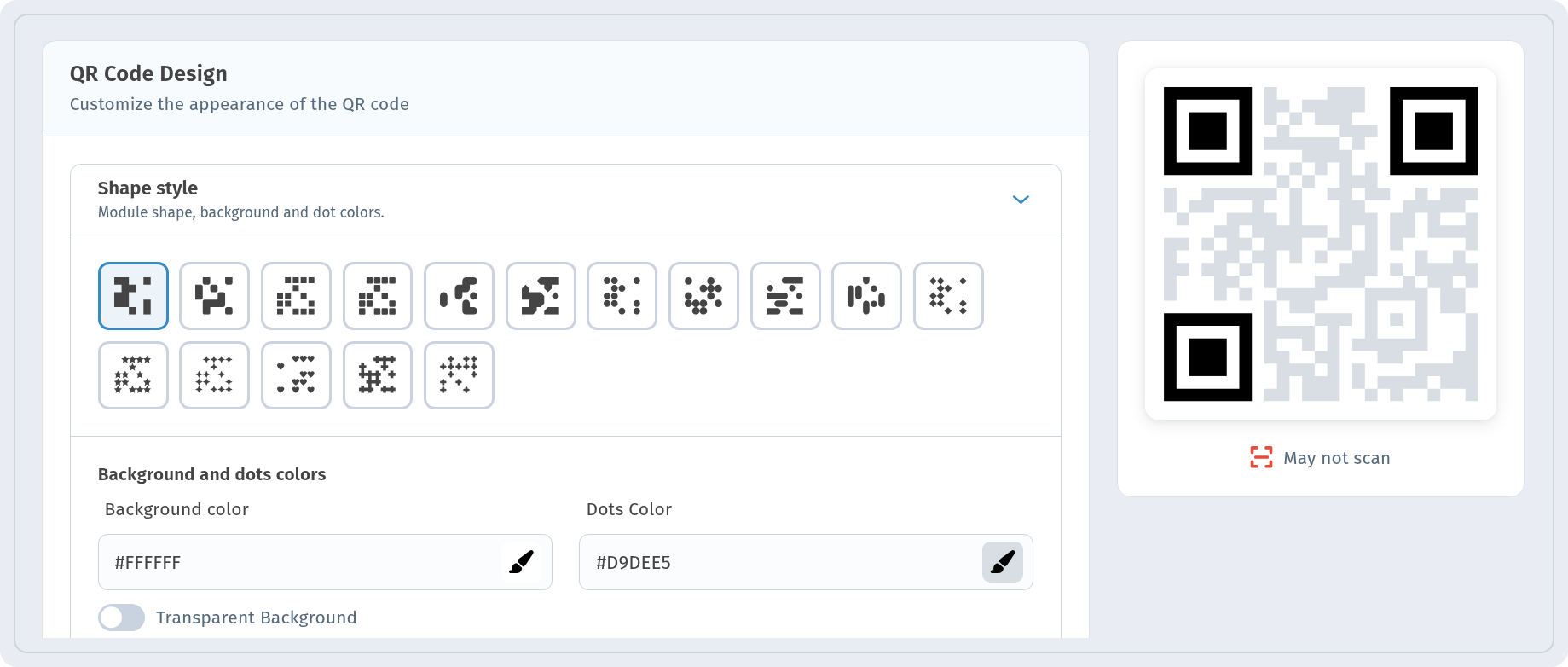
The same warning appears for inverted colors: light dots on a dark background. Some scanners read such codes, many don’t.
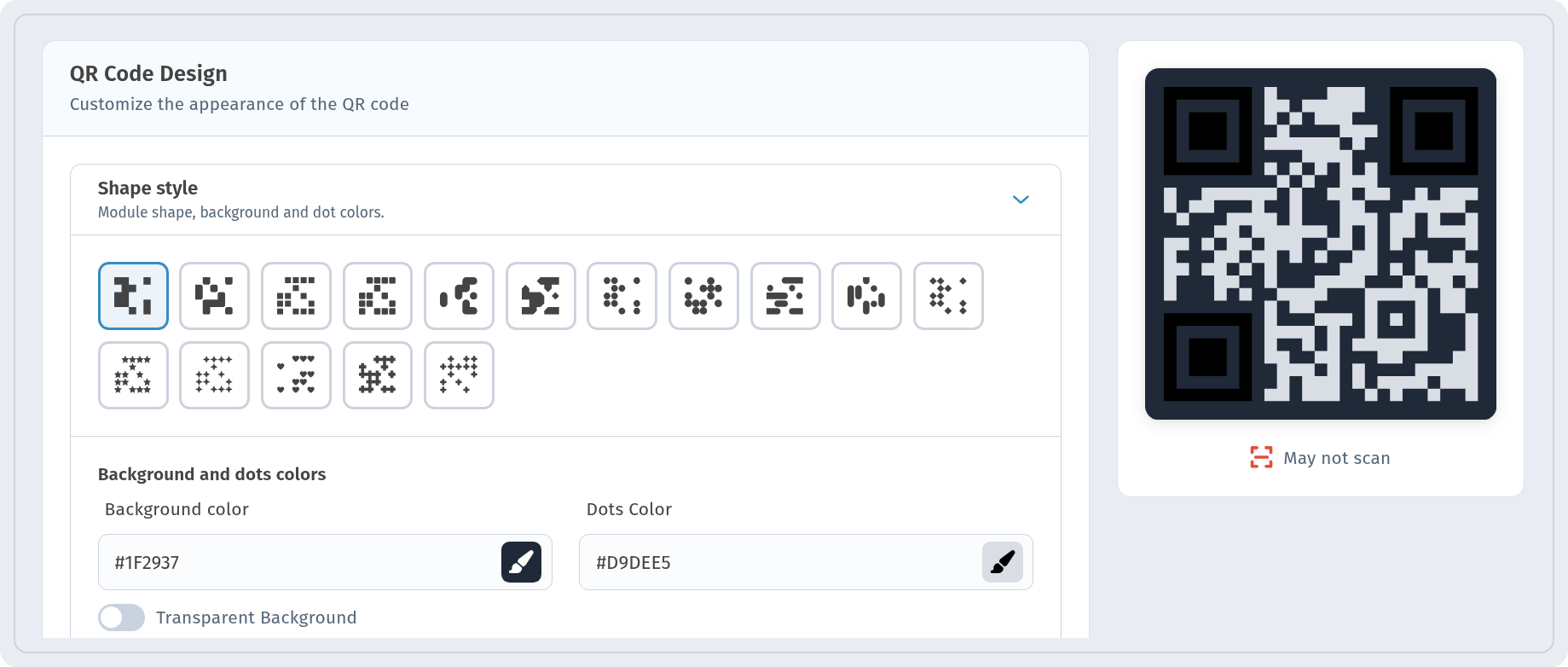
A Gradient that fades into a light color also lowers contrast in part of the code.
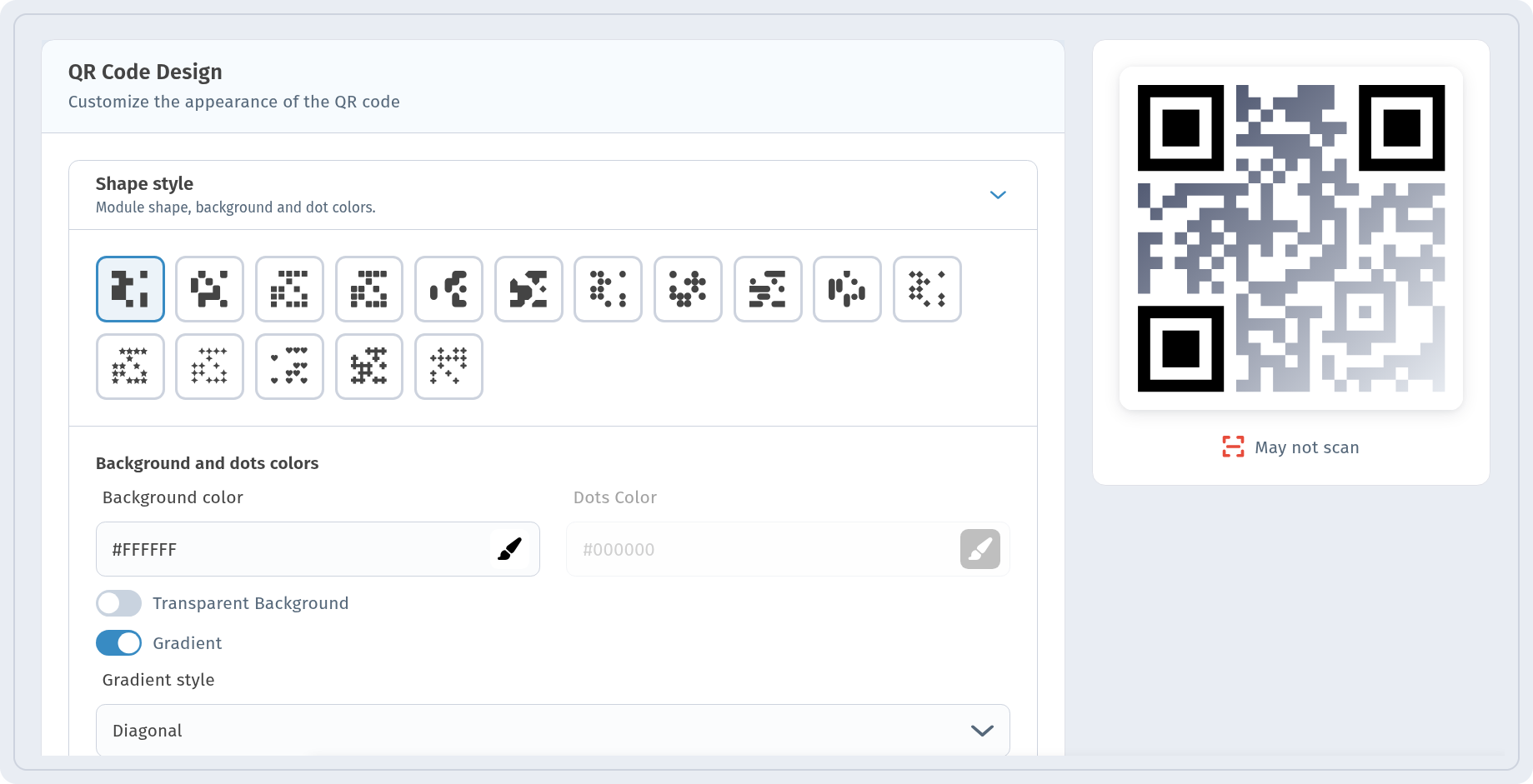
Fix: in the Shape style section, set a light Background color and clearly darker Dots Color, turn the gradient off or keep both of its colors dark, and wait a couple of seconds for the preview to refresh. You can keep your brand colors — just keep the dots much darker than the background. More in How to print QR codes and QR code with a logo.
The code is too small or blurry
A small code, or a low-resolution image stretched to a large size, turns into a blurry spot. A general rule of thumb: the code should be about one tenth of the scanning distance (about 10 cm for 1 m) and at least 2 × 2 cm on anything held in the hand.
Fix: download the code in a larger size. For PNG and JPG, pick 2K (2048px) Large or 4K (4096px) Extra large in the Size row.
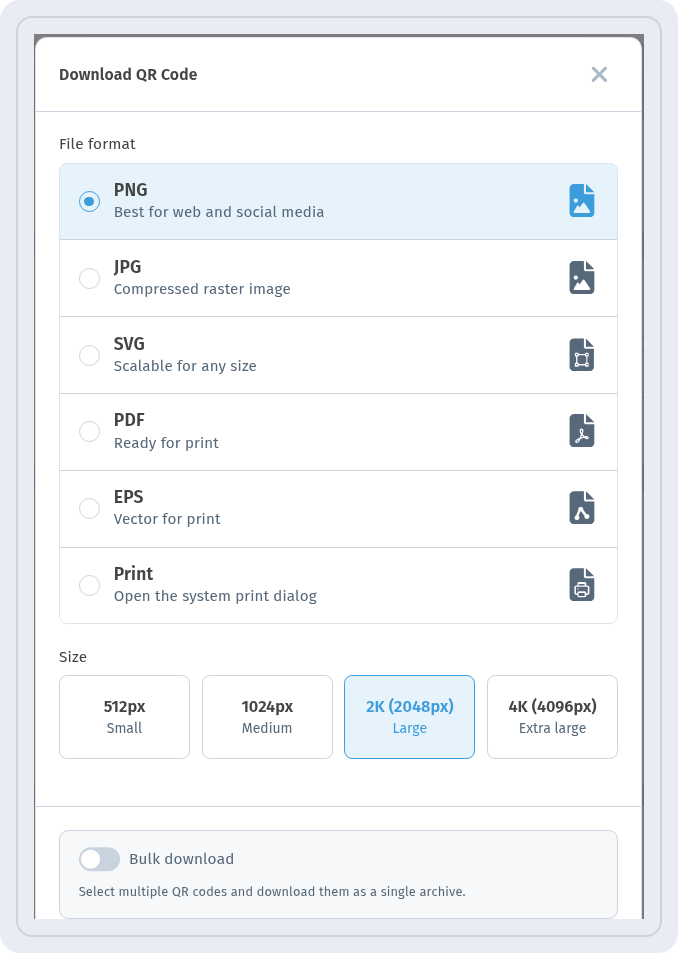
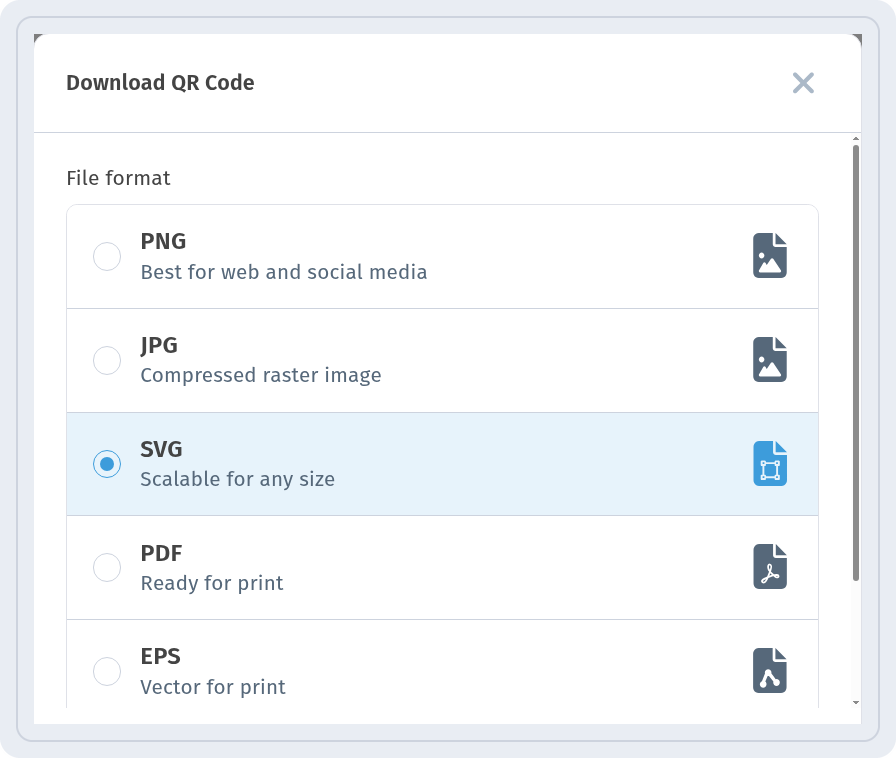
For print, a vector format is even better: SVG, PDF or EPS stay sharp at any size. See QR code download formats.
No empty margin around the code
A QR code needs an empty margin around it — the “quiet zone”. When text, a photo, a frame edge or the trim line touches the code, scanners can’t find its borders. As a general recommendation, leave at least four small modules of free space on each side and put the code on a plain light area.
Glare, curves and folds
Glossy paper and laminate reflect lamps; a code on a bottle or a cup wraps around the curve; a code on a fold breaks in two. Fix: use matte material, put the code on a flat part, make it smaller relative to the curve, and keep it away from folds and seams. For labels and boxes, see QR codes on packaging and labels.
Damaged or worn print
Scratches, stains, faded ink or a sticker peeling off can make a code unreadable. Fix: reprint the code. If it was dynamic, the new copy uses the same short link, so all the settings and statistics stay with it.
Too much data in a static code
A static code stores all the content in the pattern itself. A long URL, a long text or a full contact card makes the pattern dense, with tiny modules that are hard to read when printed small.
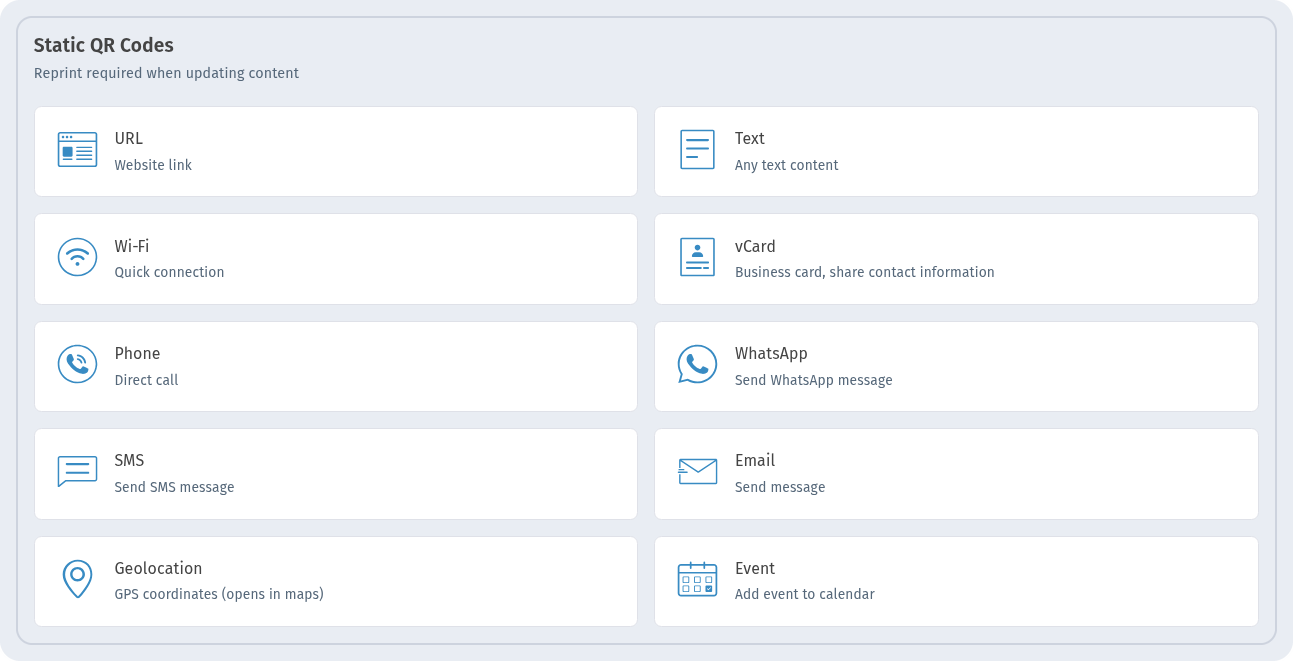
Fix: use a dynamic code instead. It holds only a short link, so the pattern stays simple, and the content lives on the page. The difference is explained in Static vs dynamic QR codes.
The code scans but opens the wrong thing
The destination is broken or out of date
The page the code points to was moved, deleted, or the promotion has ended. With a static code, the only way out is a new code. With a dynamic code, open Edit and put the new address in the Website field (or update the content) — the printed code will open the new destination.
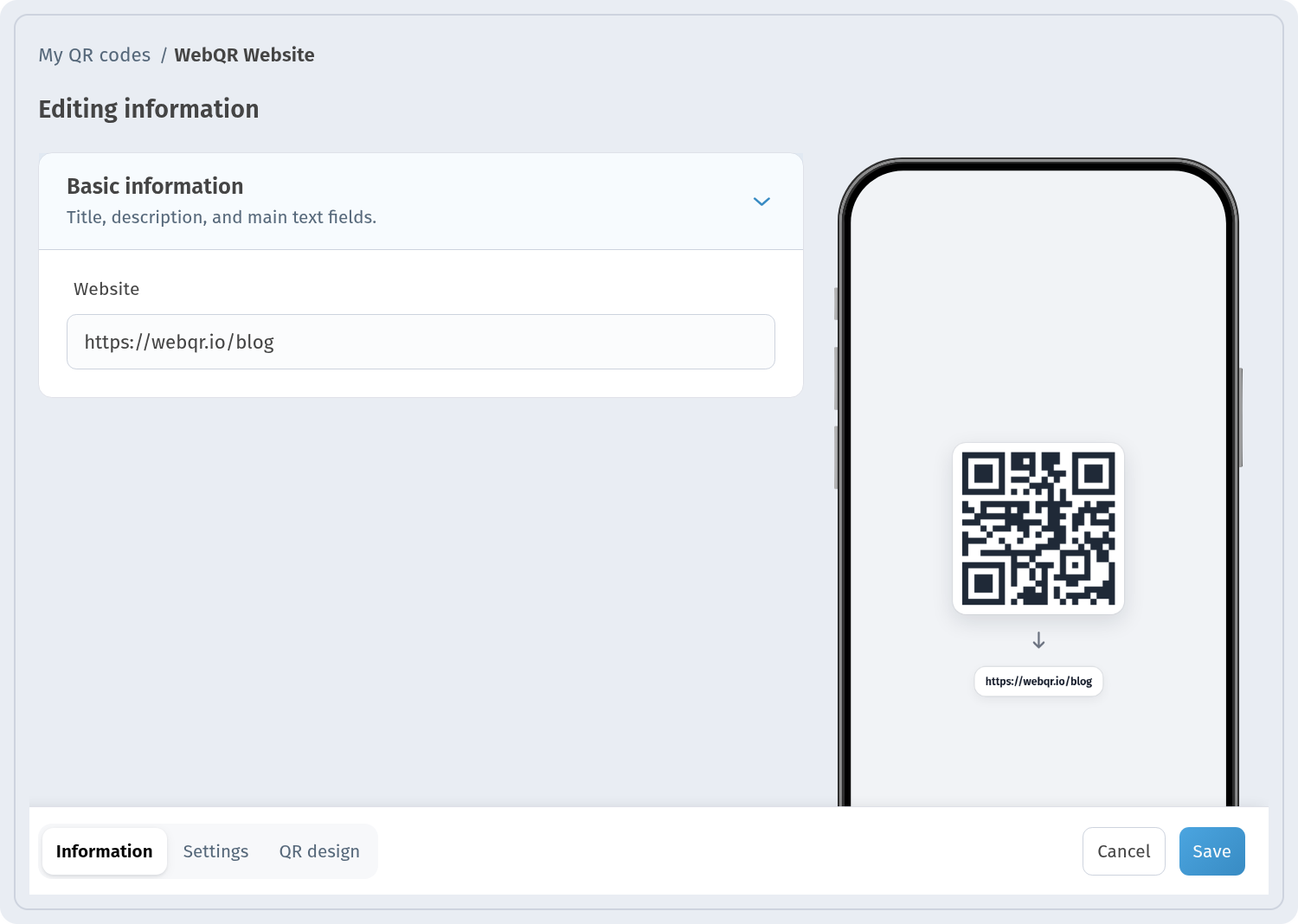
How it works: Edit a QR code after printing.
The short link (URI) was changed
Every dynamic code has a short link with a Domain and a URI. The printed image encodes exactly this link. If someone changed the URI after printing, the old codes stop working — WebQR warns about this right next to the field.
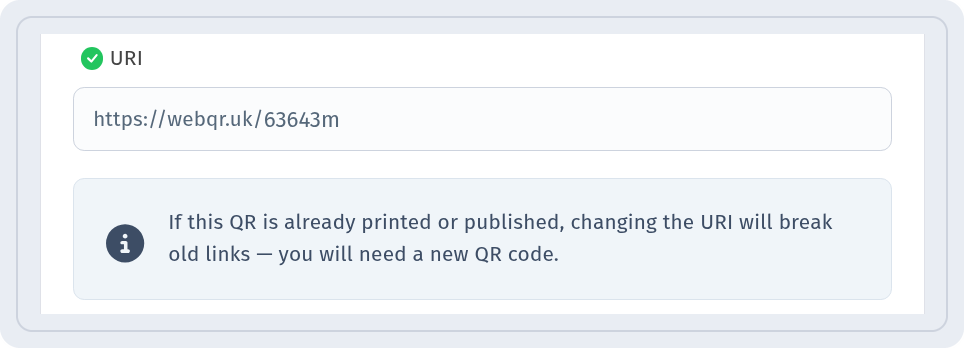
Fix: set the URI back to the value that was printed. Change the destination in Website, never the URI.
The code is paused
A dynamic code can be paused, for example between campaigns. The pause icon is in the header of the code’s analytics page, with the tooltip Pause; when the code is paused, the tooltip reads Resume.
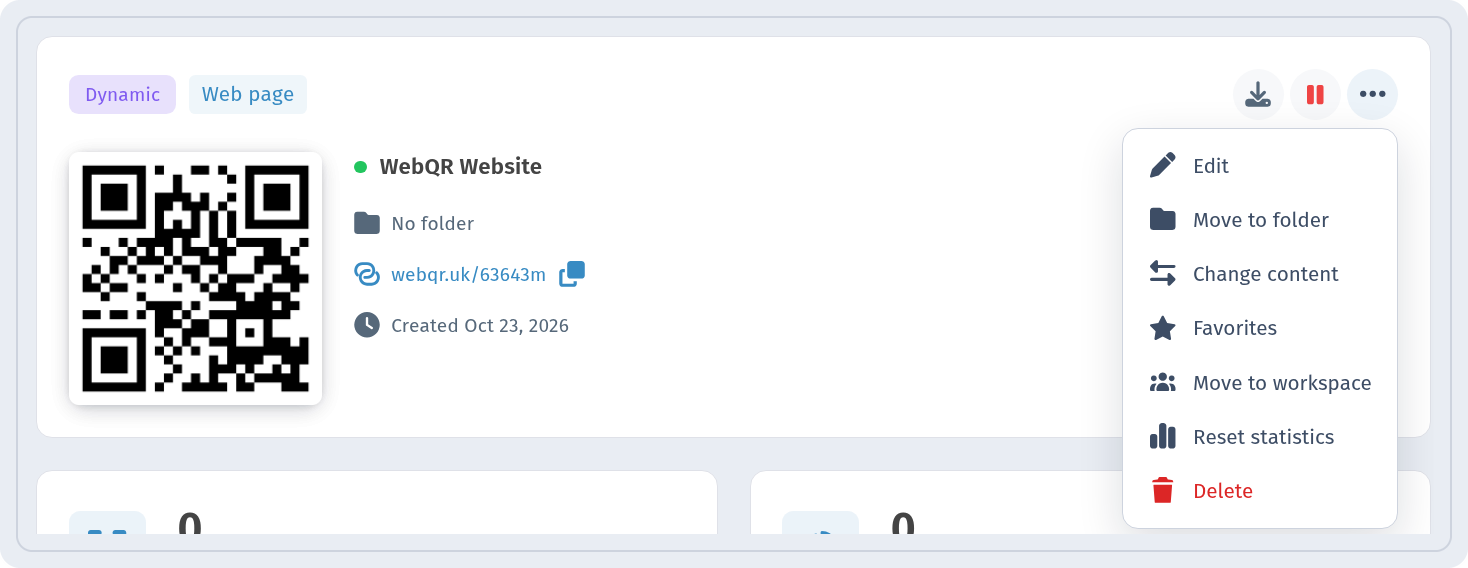
In My QR codes, a paused code is easy to miss: the only sign is the red status dot next to its name (an active code has a green dot).

Anyone who scans a paused code sees the message “Page temporarily paused — The QR code owner has temporarily paused this page. Please try again later.”
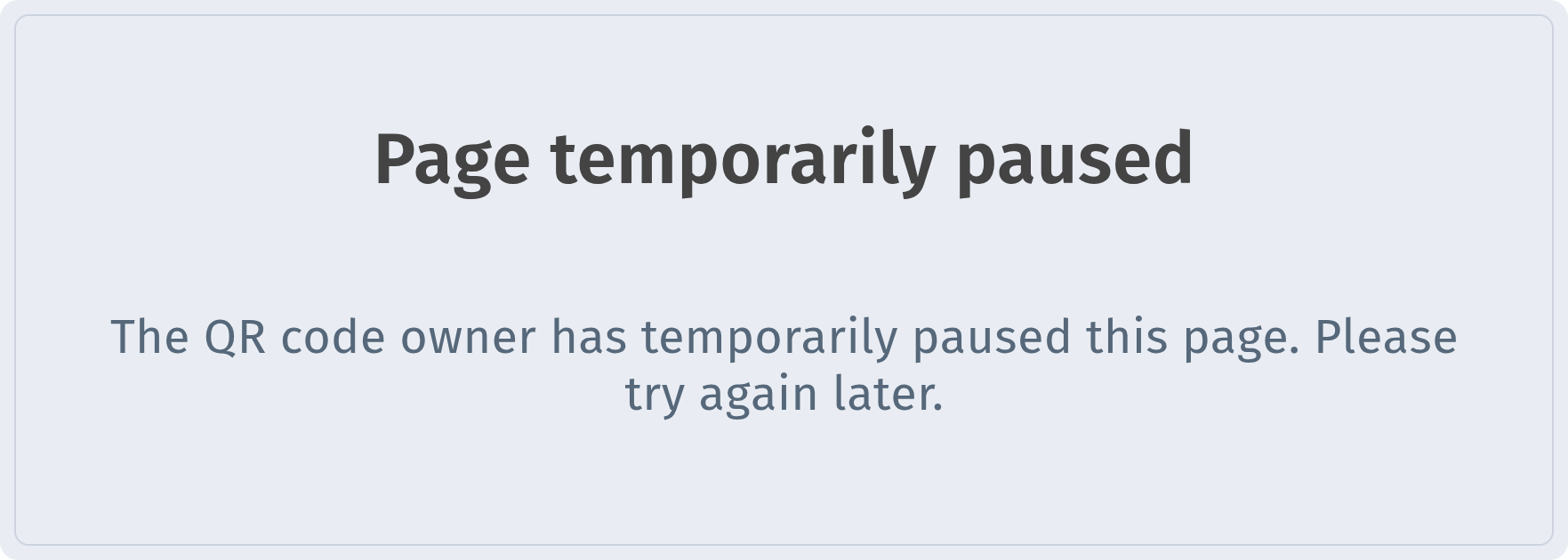
Fix: open the code’s analytics page, click the icon with the tooltip Resume and confirm. The code works again right away.
The page asks for a password
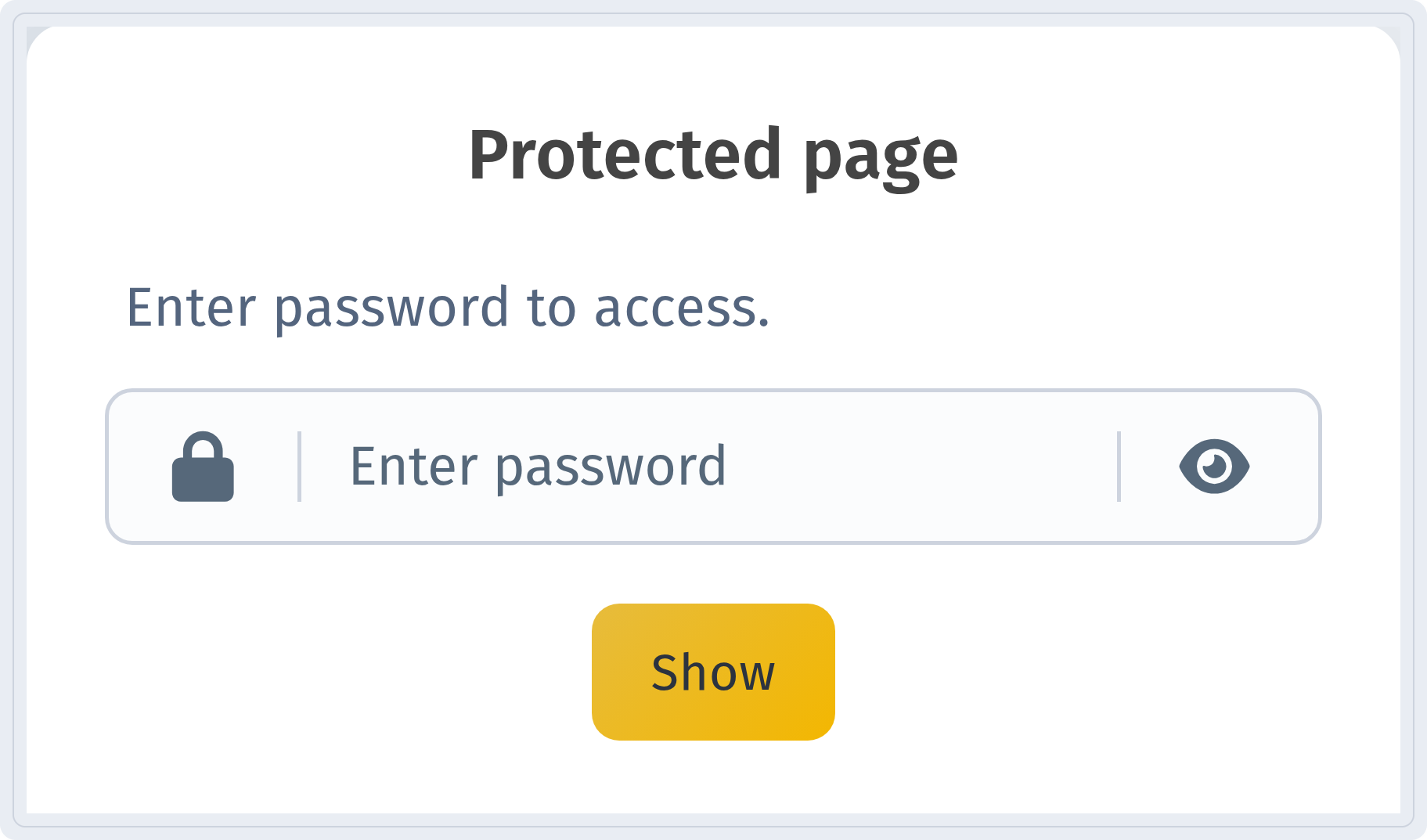
If Page password is turned on in the code settings, scanning opens the Protected page screen with a password field. This is not an error: the code works as intended. Give the password to the people who need it, or turn protection off. More in Password-protected QR codes.
A custom domain stopped working
If the code uses your own domain and its DNS records were changed or removed, the short link may not open. Check the domain settings: Custom domain for QR codes.
Problems on the phone side
Sometimes the code is fine and the problem is the phone:
- clean the camera lens and add light;
- hold the phone steady, move a little closer or farther;
- check that QR code detection is turned on in the camera settings, or try another scanner app;
- dynamic codes open a web page, so the phone needs an internet connection.
Checklist before printing
- The preview shows Ready to scan.
- Dark dots on a light background, no light gradient.
- The size fits the scanning distance; the file is SVG, PDF, EPS or a large PNG.
- Empty margin around the code; no text or trim line touching it.
- Matte, flat placement without folds.
- A dynamic code for anything that may change; the URI is final.
- Tested on several phones, at the real size and distance, on the final material.
FAQ
Do QR codes expire? A static code doesn’t expire by itself — it works as long as its content (for example, the website) is available. A dynamic code works as long as it is active and not paused.
Can I fix a code that is already printed? If it’s dynamic — yes: change the destination, resume a paused code or restore the URI. A static code can’t be changed; you’ll need a new one.
How do I find out whether people are scanning it? For dynamic codes, scans are counted on the code’s analytics page — see QR code analytics.