
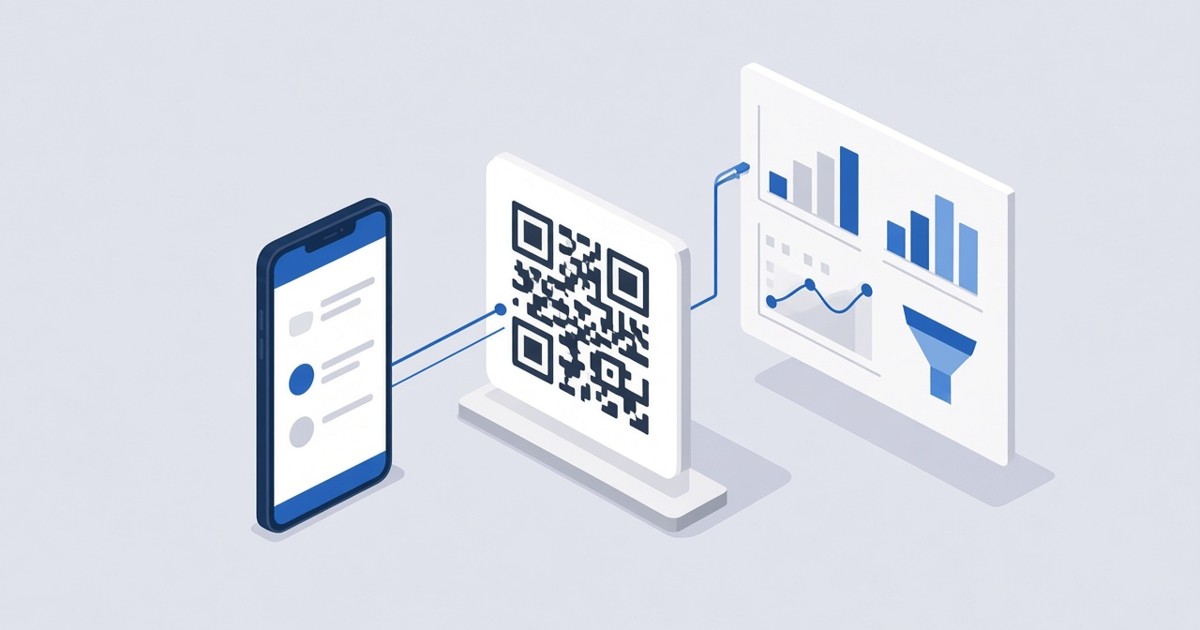
How to Connect Google Analytics 4, Tag Manager and Meta Pixel to a QR Code
Add your GA4 Measurement ID, GTM container ID or Meta Pixel ID to a dynamic QR code in WebQR and see visitor activity on its landing page in your own analytics tools.
WebQR already counts scans of your dynamic QR codes. If your team works in Google Analytics 4, Google Tag Manager or Meta Events Manager, you can also connect those tools to the landing page of a dynamic QR code. Their scripts then load on the page for visitors, and the data lands in the same reports as the rest of your marketing.
Why connect your own counters
- See what visitors do – which links or sections of the page they use after scanning.
- Keep everything in one place – QR traffic next to your website and ad data.
- Build audiences – use Meta Pixel data for your Meta ads.
Counters work for the landing pages of dynamic QR codes.
Step 1: open the counters setting
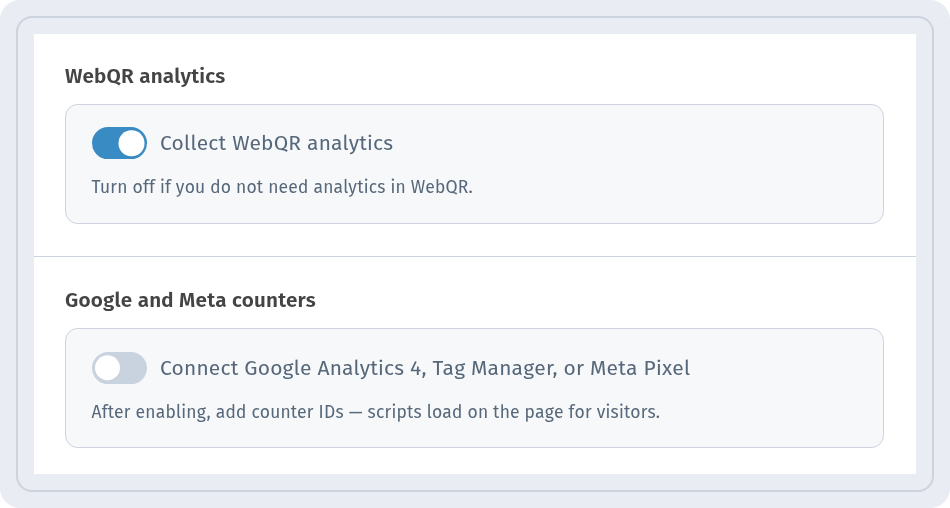
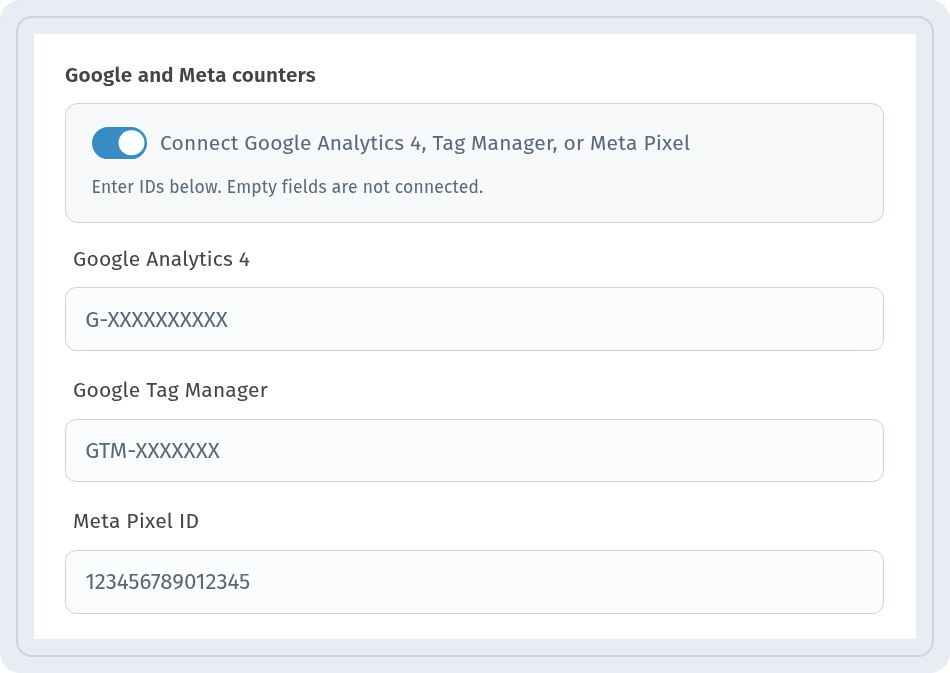
Open a dynamic QR code with Edit (or go to the Settings step when you create a new code) and expand Stats. In the Google and Meta counters section, you will find the toggle Connect Google Analytics 4, Tag Manager, or Meta Pixel. While it is off, the hint reads: After enabling, add counter IDs — scripts load on the page for visitors.
Step 2: turn it on and enter your IDs
Turn the toggle on. The hint changes to Enter IDs below. Empty fields are not connected. Three fields appear:
- Google Analytics 4 – format G-XXXXXXXXXX.
- Google Tag Manager – format GTM-XXXXXXX.
- Meta Pixel ID – a number like 123456789012345.
Fill in only the tools you use, then click Save.
Where to find each ID
- Google Analytics 4 – in GA4 open Admin → Data streams, select your web stream and copy the Measurement ID that starts with G-.
- Google Tag Manager – the container ID starting with GTM- is shown at the top of your workspace in Tag Manager.
- Meta Pixel – in Meta Events Manager open Data sources, select your pixel and copy its Pixel ID.
If you already manage GA4 or the Meta Pixel through Tag Manager, use only the GTM field, so the same tag does not load twice.
WebQR analytics works separately
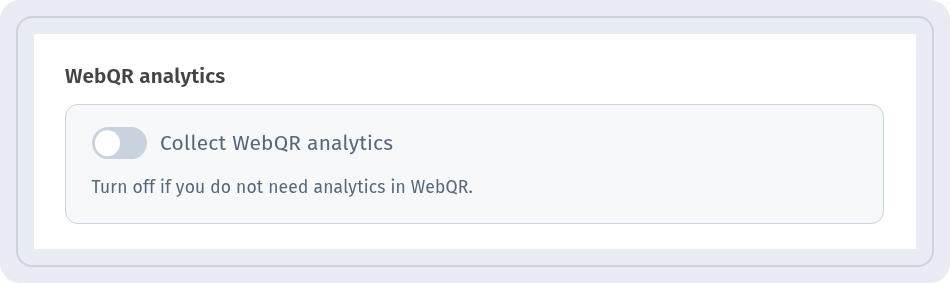
In the WebQR analytics section, the Collect WebQR analytics toggle is on by default. Its hint reads: Turn off if you do not need analytics in WebQR. The two settings are independent: you can use WebQR analytics, your own counters, or both. Learn more about the built-in stats in our guide to QR code analytics.
Check that it works
Scan the code with your phone and open the page. In GA4, check the Realtime report; for Meta, check the pixel's activity in Events Manager. For example, with a social media QR code you can see which profile links visitors open.
Privacy
Google and Meta scripts load for every visitor of the page. Make sure this matches your privacy policy and the consent rules that apply to your audience.
Tips
- Copy IDs without spaces and double-check the prefix: G- for GA4, GTM- for Tag Manager.
- Leave unused fields empty – they are not connected.
- Give your codes clear names so their traffic is easy to find in reports.