
How to Create a vCard QR Code for Your Business Card
Create a dynamic vCard QR code in WebQR: add your name, job title, company, phone, email and website, let people save your contact in one tap and update it any time.
A paper business card is easy to lose, and typing a phone number from it is tedious. A vCard QR code opens your contact page on the phone: name, job title, company, phone, email and website, plus a button that saves everything to the address book in one tap. In this guide we create a dynamic vCard code called WebQR Team Card for the WebQR support team.
Where a vCard QR code helps
- Business cards – on the back of a printed card.
- Events and trade shows – on a badge or a stand.
- Email signatures and presentations – on the last slide.
- Reception and service desks – so customers can save your contacts.
Step 1: create a vCard code
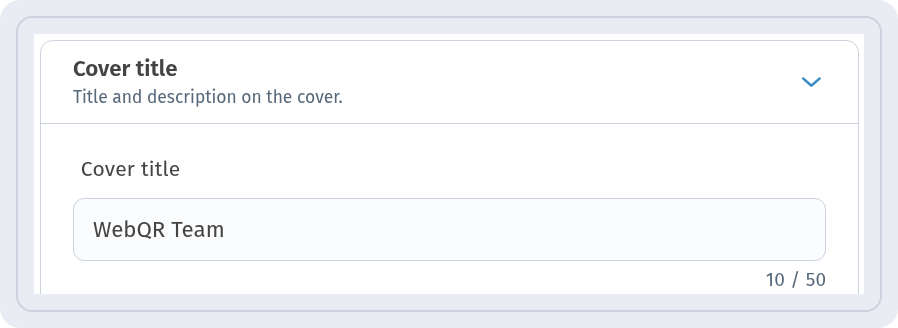
Click Create QR code and choose the vCard content type. In the Editing information step, open Basic information. In Cover title we entered WebQR Team – it appears at the top of the page.
Step 2: name and description
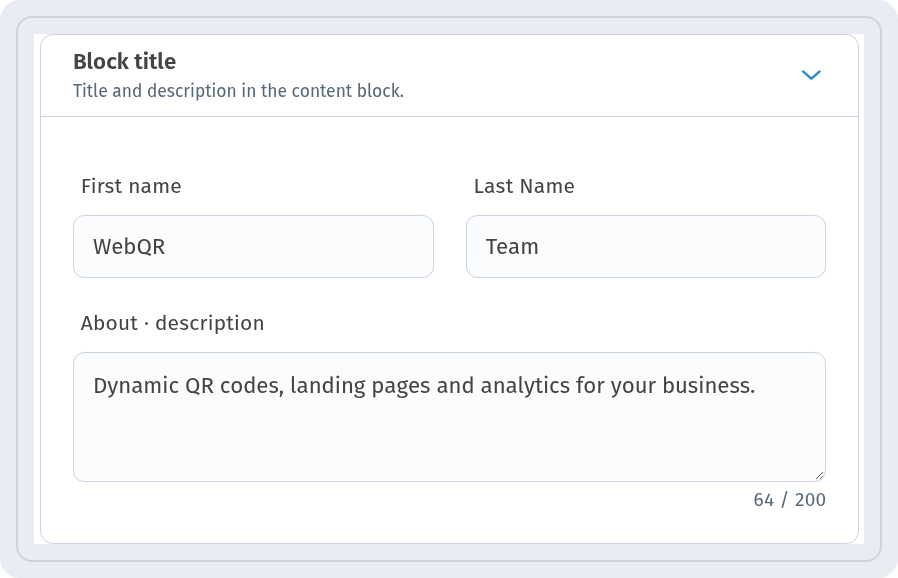
In Block title, fill in First name and Last Name – ours are WebQR and Team. About · description adds a short line about you or your team.
Step 3: contacts and company
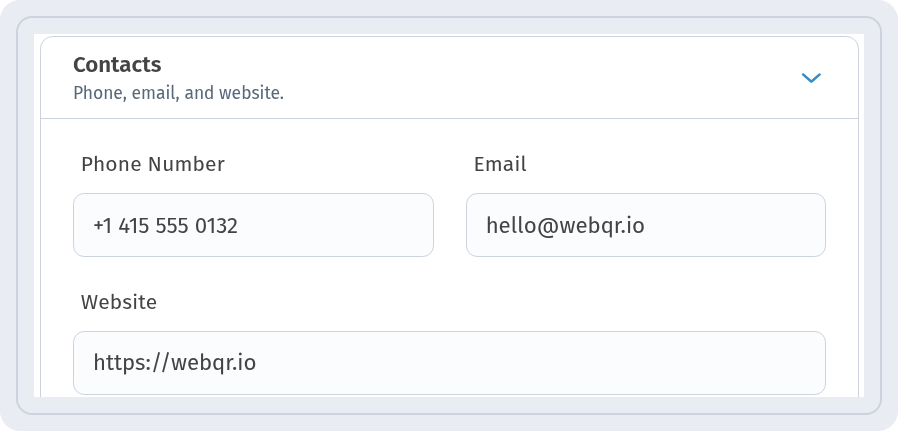
In Contacts, add the Phone Number, Email ([email protected]) and Website (https://webqr.io).
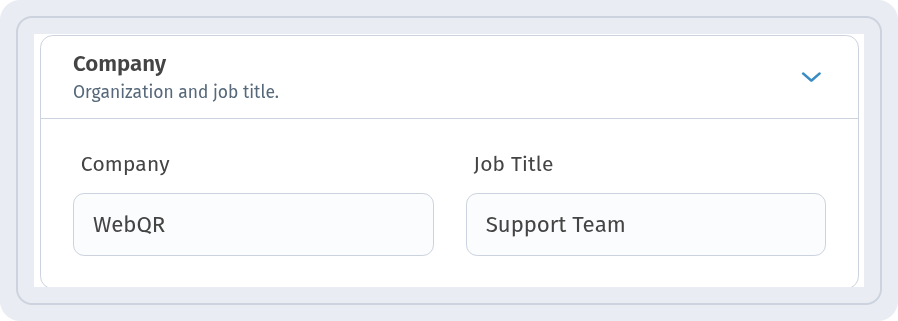
In Company, enter the Company name and your Job Title – ours are WebQR and Support Team.
Step 4: address and social networks
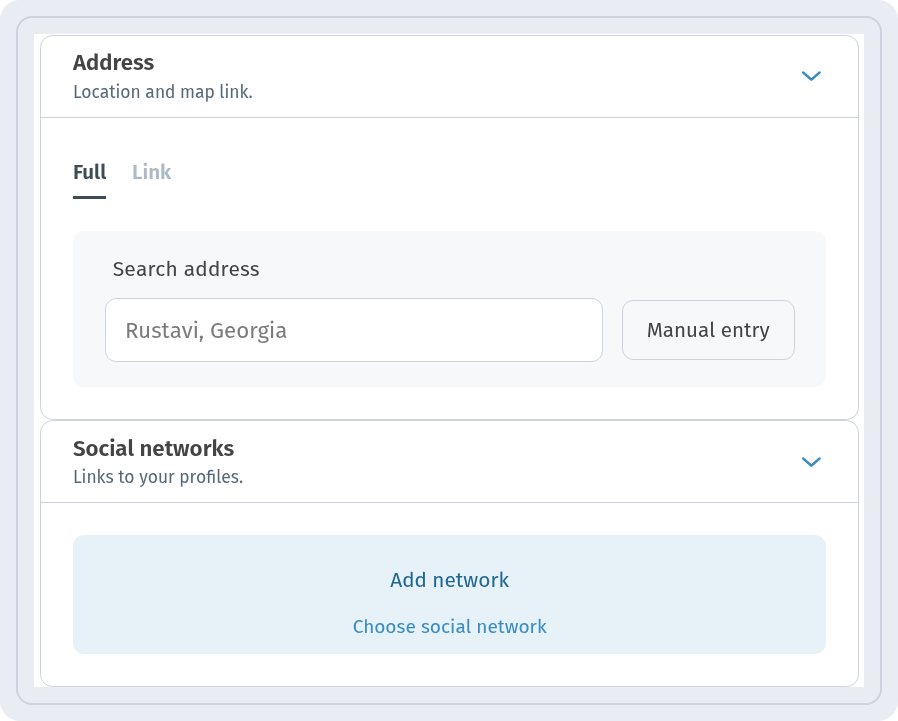
The Address block lets you search for an address or enter it with Manual entry; the Link tab takes a map link instead. In Social networks, click Add network to link your profiles. Both blocks are optional – we left them empty. You can also add a picture in the Logo block. Then go through the remaining steps and save the code.
The visitor page has its own language, set separately for each code, regardless of the dashboard language.
What visitors see
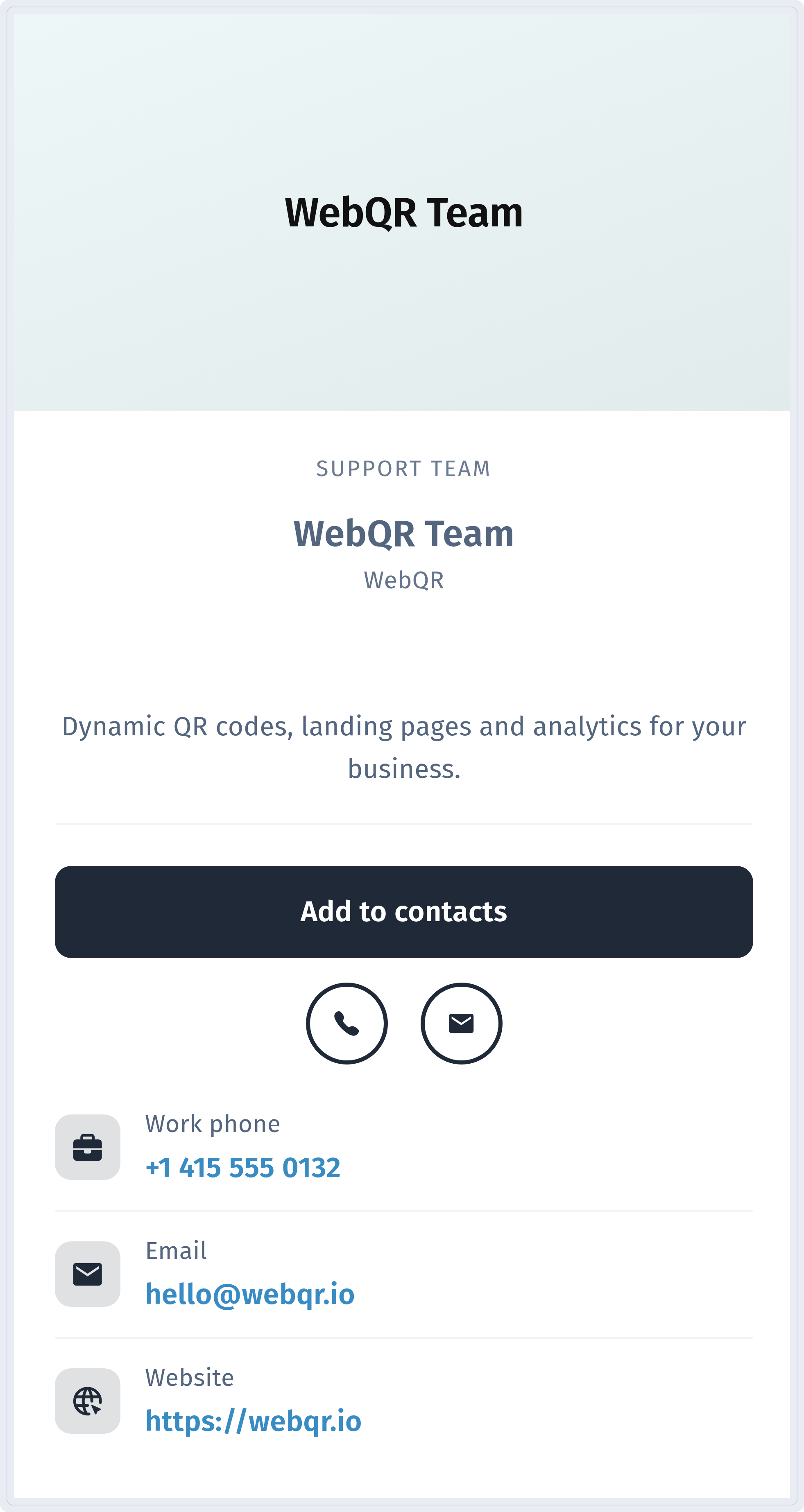
After scanning, visitors see your name, job title, company and description, followed by the contacts. Add to contacts saves the whole card to the phone's address book, and the phone and email icons start a call or a new message right away.
Update the card at any time
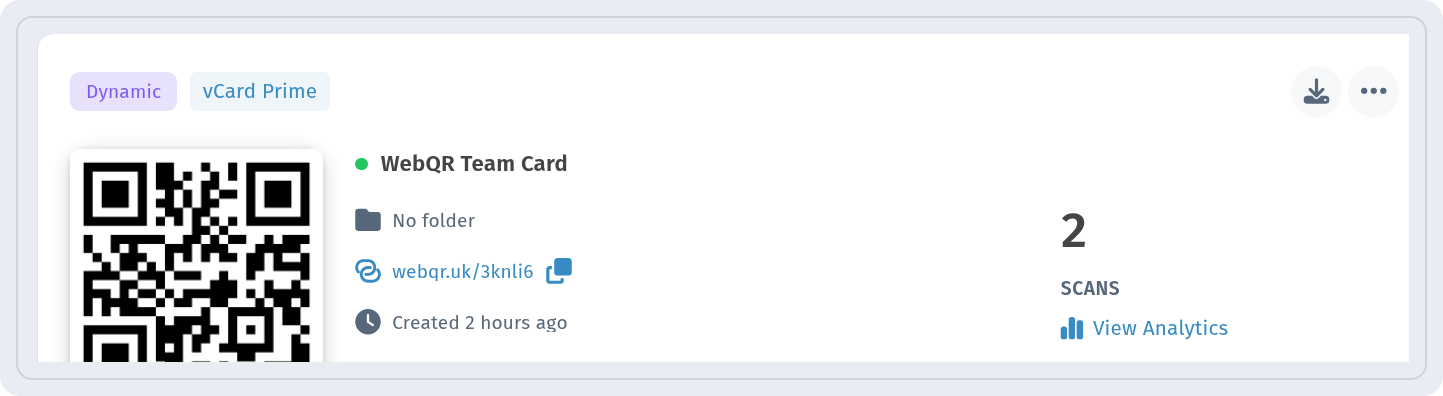
The code appears in My QR codes marked Dynamic and vCard Prime, with a scan counter and a View Analytics link – more in QR code analytics. Because the code is dynamic, you can change the phone, job title or email after the cards are printed – see how to edit a QR code after printing.
WebQR also has a static vCard: the contact is written directly into the code, so it works without a page but cannot be changed after printing. Read about the difference in static vs dynamic QR codes.
Tips
- Use the phone number in international format, for example +1 415 555 0132.
- Keep the description to one short line – it is the first thing people read.
- Print the code at least 2 cm wide so it scans easily from a business card.