
Phone, SMS, Email and WhatsApp QR Codes: One Scan to Contact You
How to create static Phone, SMS, Email and WhatsApp QR codes in WebQR: what each one opens on the phone, which fields to fill in, and when a vCard or Business code is the better choice.
Sometimes the best thing a QR code can do is let people reach you right away: call, send a text, write an email or start a WhatsApp chat. WebQR has four static codes for exactly that — Phone, SMS, Email and WhatsApp. In this guide we use a demo café, Aurora Café, to show what each one does and how to create it.
Which code to choose
| Goal | Type |
|---|---|
| A guest should call you with one tap | Phone (Direct call) |
| A ready text message to your number | SMS (Send SMS message) |
| An email with your address, subject and text filled in | Email (Send message) |
| A WhatsApp chat with a prepared message | WhatsApp (Send WhatsApp message) |
| Several contacts at once, saved to the phone | vCard |
| A full business page with address, map and links | Business (dynamic) |
All four are static codes: the number, address or message is stored in the pattern itself. To change it you need a new code and a reprint — see Static vs dynamic QR codes.
Step 1. Choose the type
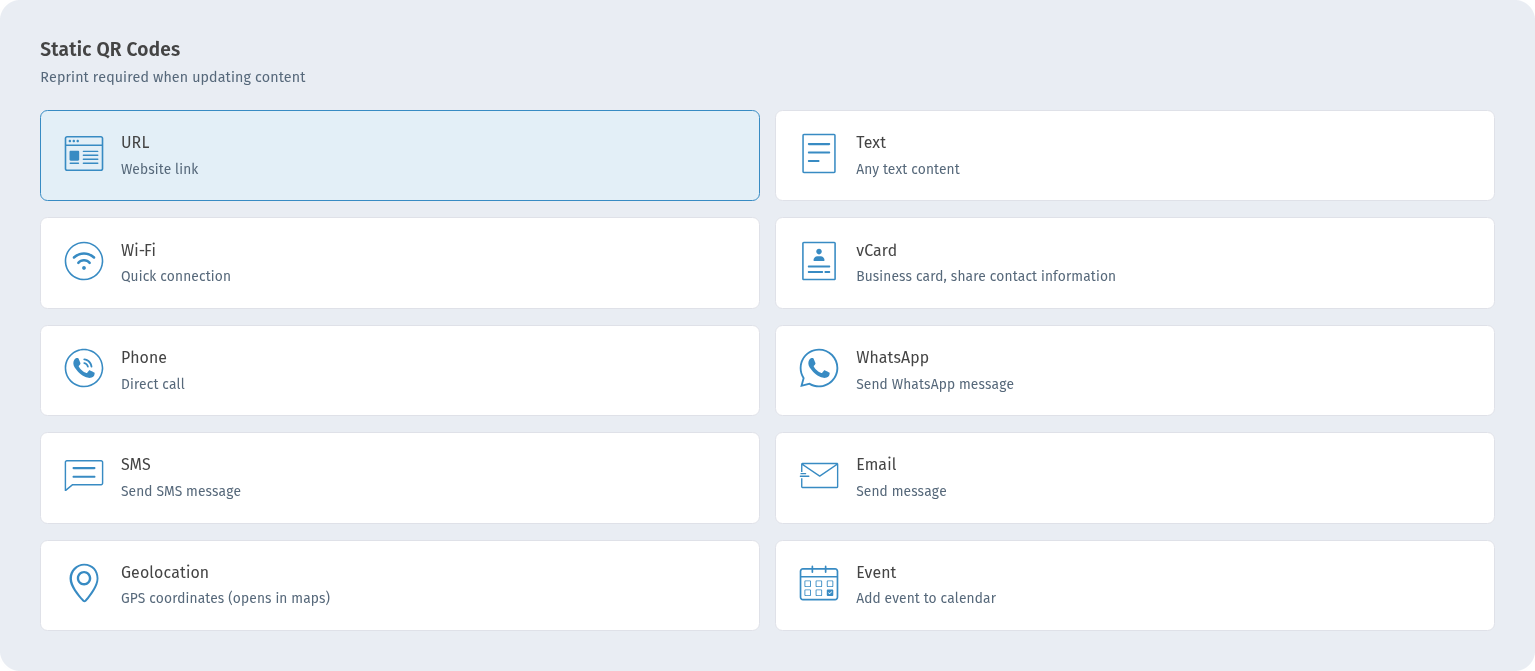
In My QR codes click Create at the top right. In the Static QR Codes section choose Phone, SMS, Email or WhatsApp and click Continue.
On the Information step all fields are in the Basic information block. Clear block empties the fields, and the preview on the right shows the code and Ready to scan.
Phone: a direct call
Pick the country in Country code (the default is Georgia +995) and enter the rest of the number in Phone. Type the digits without spaces, dashes or brackets: the code stores the number exactly as you type it.
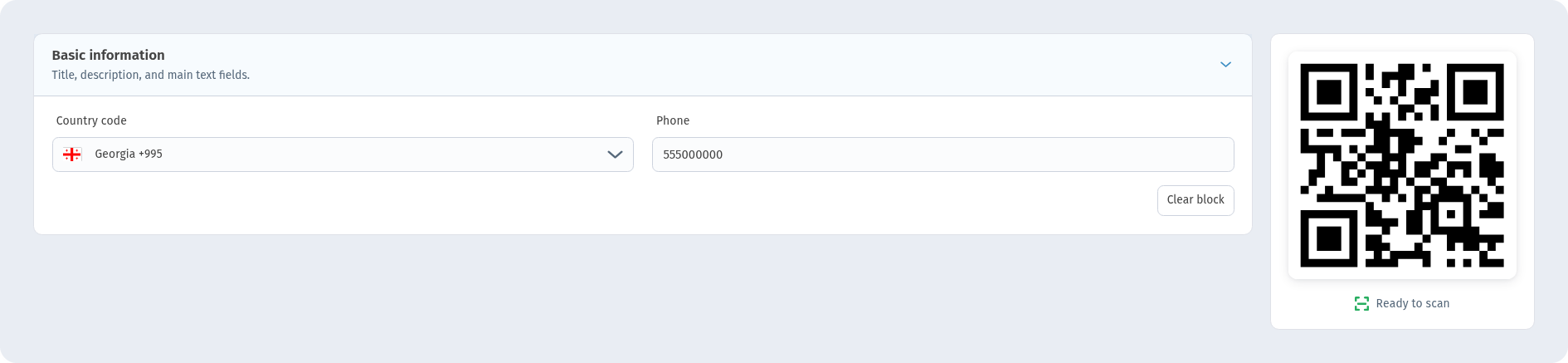
After scanning, the phone opens its dialer with your number already filled in. The guest only taps the call button — nothing to type.
SMS: a ready text message
Choose Country Code, enter the number in Phone (again without spaces) and write the text in Message. Demo: "Hi Aurora Café! I'd like to book a table for 2 tonight."
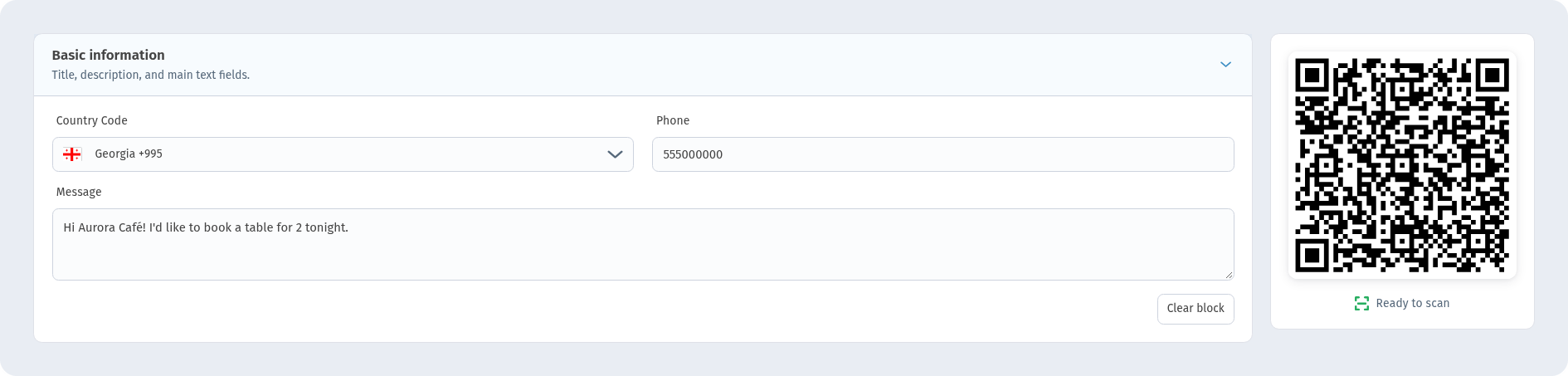
After scanning, the messaging app opens a new SMS to your number with the text already in place. The guest can edit it and taps send.
Email: address, subject and text
Fill in Email, Subject and Message. Demo: [email protected], "Table booking", "Hi Aurora Café! I'd like to book a table for 2."
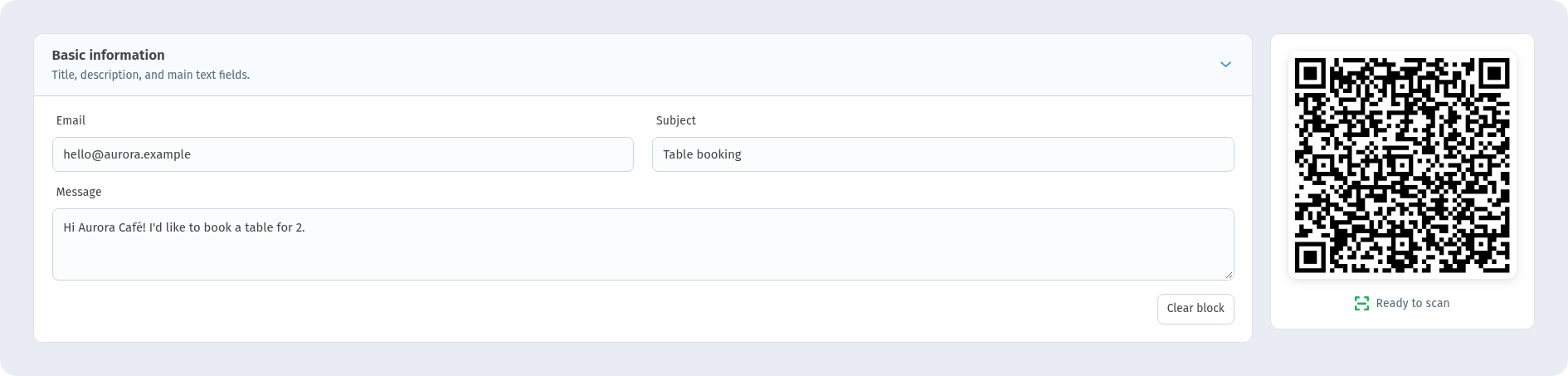
After scanning, the phone's mail app opens a new email with the recipient, subject and text filled in.
WhatsApp: start a chat
Choose Country Code, enter the WhatsApp number in Phone and add a prepared text in Message. Demo: "Hi Aurora Café! Is there a free table tonight?"
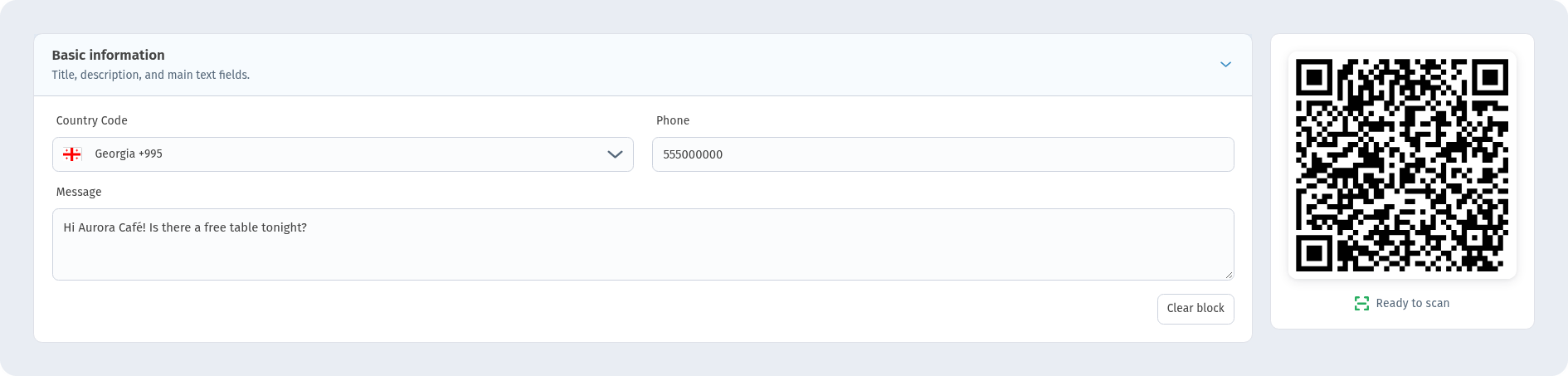
Important: enter the number without spaces. WhatsApp links only work with digits, and a number with spaces can break the chat link. After scanning, WhatsApp opens a chat with your number and the prepared message in the input field.
Name, design and saving
On the Settings step give the code a name in QR Code Name (for example "Aurora WhatsApp Demo") and pick a Folder if you like. On the QR design step keep dark dots on a light background and check that the preview shows Ready to scan. Click Create — the code is saved in My QR codes, where you can download it.
What people see after scanning
The camera recognizes the code and offers the action: call, send an SMS, write an email or open WhatsApp. Nothing is sent or dialled automatically — the person always confirms the last step in their own app.
When vCard or Business is better
These codes do one thing. If people should save your contacts — several phones, email, website — use a vCard QR code: the page has an Add to contacts button.
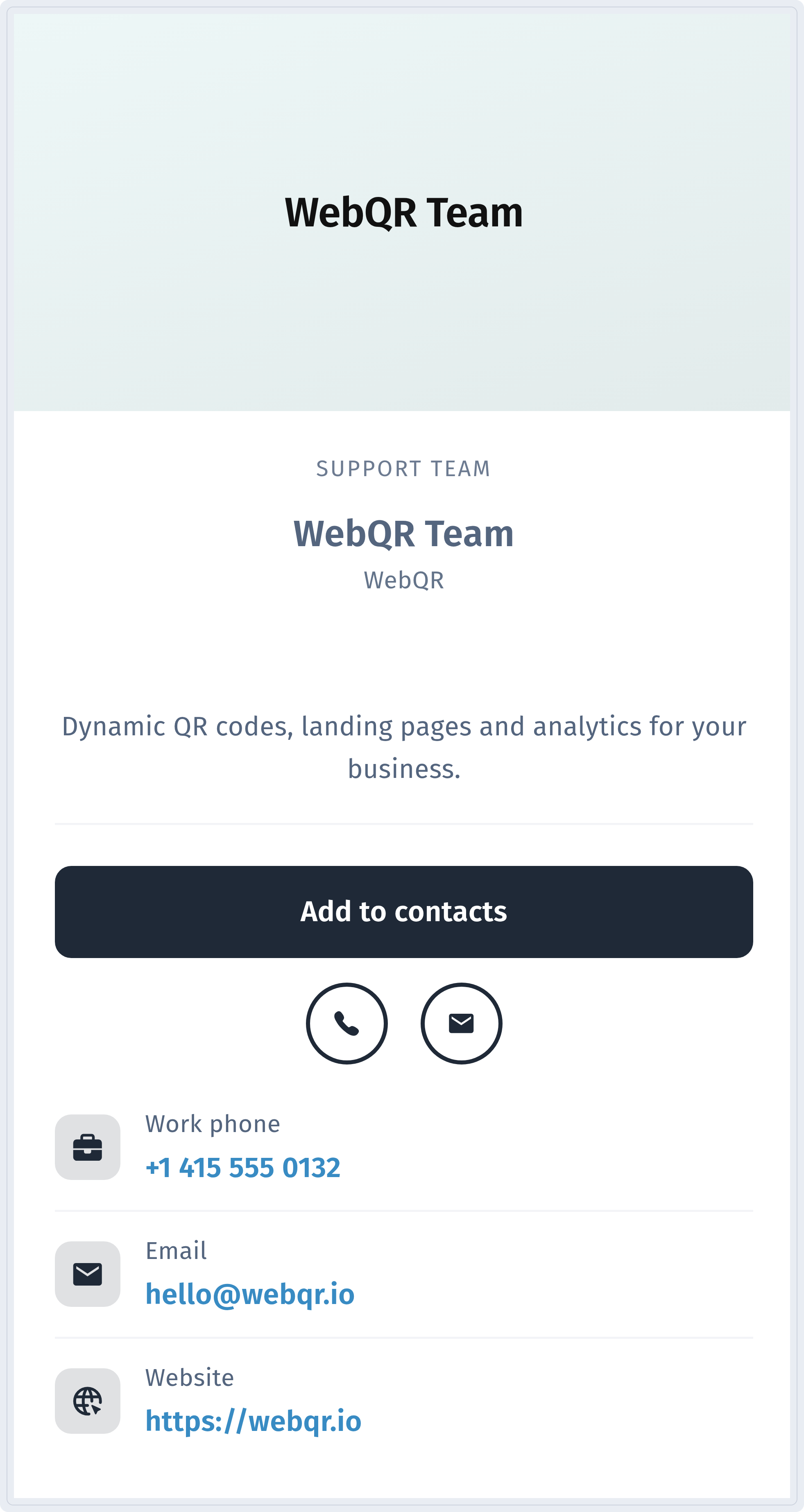
If you want a whole business page with address, map and links that you can update later without reprinting, choose a Business QR code.
Download and print
Download the code in the format you need — QR code download formats — and follow the tips in How to print QR codes. If a code does not scan, see QR code not scanning.
Checklist
- Country selected in the country code field, the rest of the number typed without spaces.
- Message short and polite — the person can still edit it before sending.
- Scan the printed code with two different phones and check that the right app opens with the right number.
- Add a call to action next to the code: "Call us", "Message us on WhatsApp".
- Changing the number means a new code — think ahead or use Business.
FAQ
Will scanning send a message or start a call by itself? No. The phone opens the dialer, messaging app, mail app or WhatsApp with everything filled in; the person decides whether to call or send.
Why should I type the number without spaces? The code keeps the number exactly as entered. Spaces can break the WhatsApp link, so digits only is the safe choice for every type.
Can I change the number after printing? Not in a static code. Create a new one, or use a dynamic Business code.
Phone or WhatsApp? Phone for quick calls; WhatsApp when guests prefer to write and you want a prepared message.