

Photo Gallery QR Code: Show Your Photos with One Scan
How to create a dynamic Photo QR code in WebQR for a portfolio, products, events or property, see what guests get on a phone and add new photos without reprinting.
A portfolio, the dishes on your menu, photos from last night's event, the rooms of a guesthouse — sometimes people just need to see pictures. The dynamic Photo type in WebQR turns one QR code into a photo gallery page that you can update at any time. We'll use a demo café, Aurora Café, with four photos: the interior, the terrace, the coffee bar and pastries.
Where a photo gallery code helps
- A portfolio on a business card or at a fair stand.
- Product photos on a shelf tag or packaging — see QR codes for retail stores.
- Event photos on a poster: add them after the event, the code stays the same.
- Property or guesthouse photos on a sign or flyer — see QR codes for real estate and tourism.
Step 1. Choose Photo
In My QR codes click Create. In Dynamic QR Codes choose Photo (Image gallery) and click Continue.
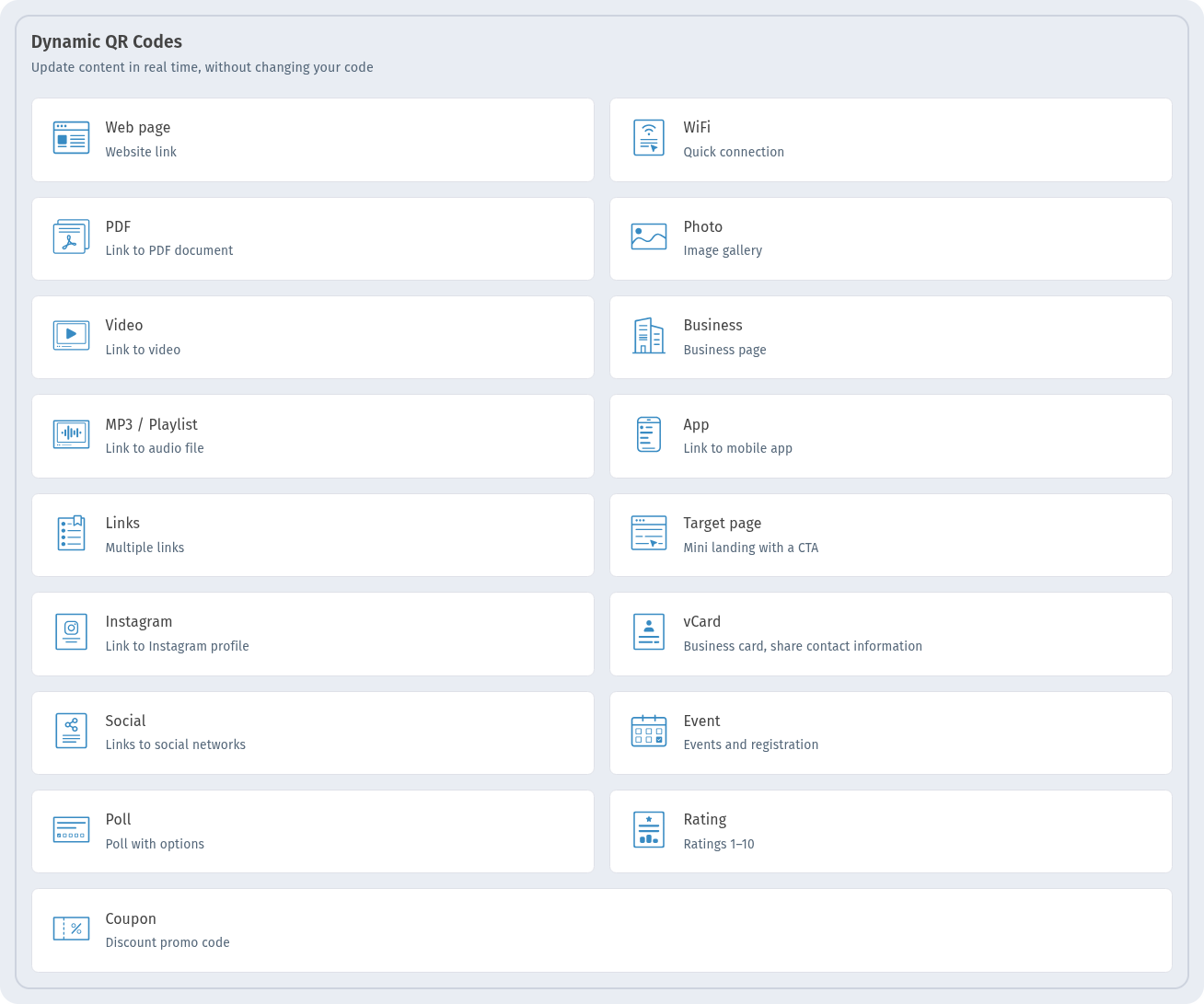
Step 2. Add a title and upload photos
On the Information step open Basic information:
- In Title fill in the Title and Description fields. They appear at the top of the gallery page, for example "Aurora Café — Our space" and "Interior, terrace and coffee bar".
- In Gallery click Upload image and select your photos. You can select several files at once.
- The photos appear in the Uploaded images list. The up and down arrows change their order on the page, the bin icon deletes one photo, and Delete all images clears the list.
Logo and Button in the same block are optional: a header image and a call-to-action button with a link. The page look (layout, colours, cover) is set in the Template block. The phone preview on the right updates as you go.
Use bright photos without small text: guests look at them on a phone.
Step 3. Name and design
On Settings fill in QR Code Name, for example "Aurora Gallery Demo". On QR design open Frame, choose a frame with a label and write a call to action in Text Under QR Code, for example "See our photos". Check that the preview shows Ready to scan and click Create.
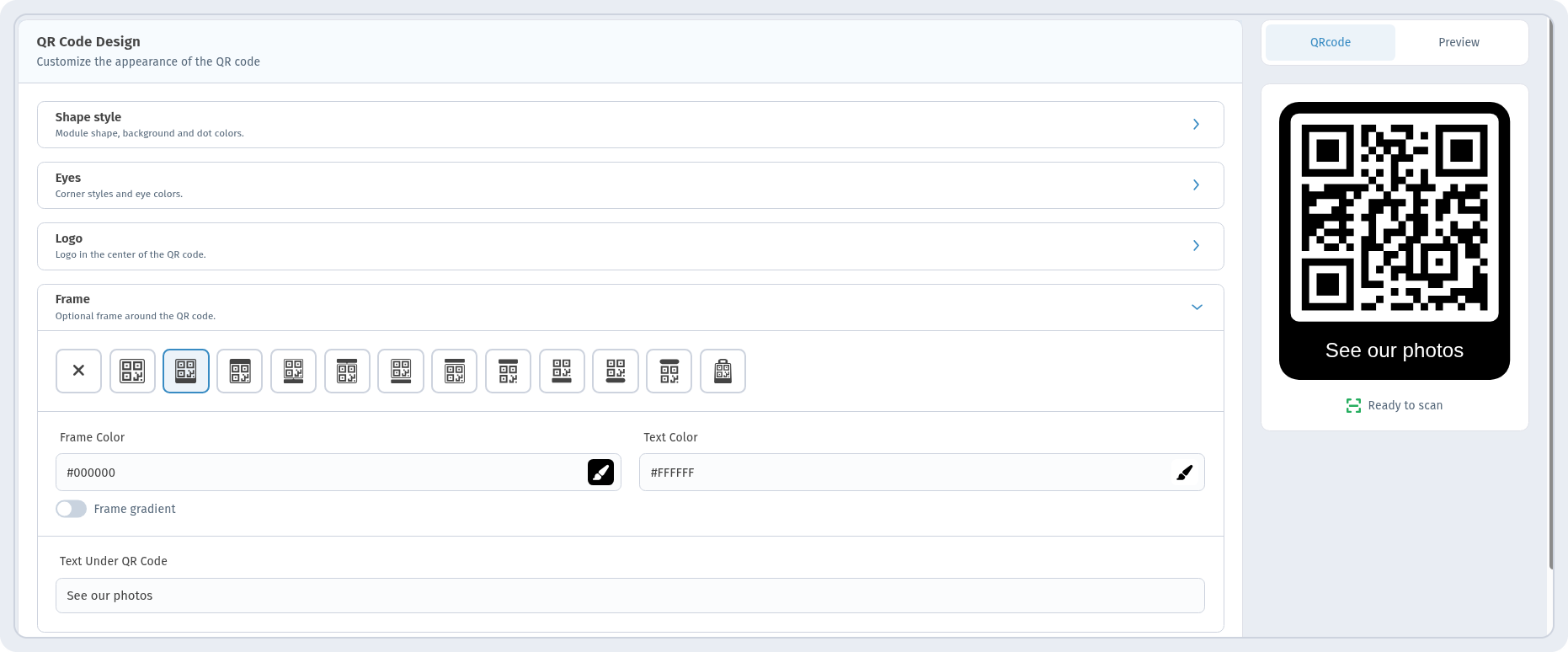
The code appears in My QR codes with the Dynamic and Images tags and its short link.

What guests see
After scanning, the gallery opens in the phone's browser. At the top are the title and description, followed by the photos in the order you set: two small tiles side by side, then larger photos one below another. The EN | RU | KA switch in the corner changes the page interface language; your title and description stay as you wrote them.
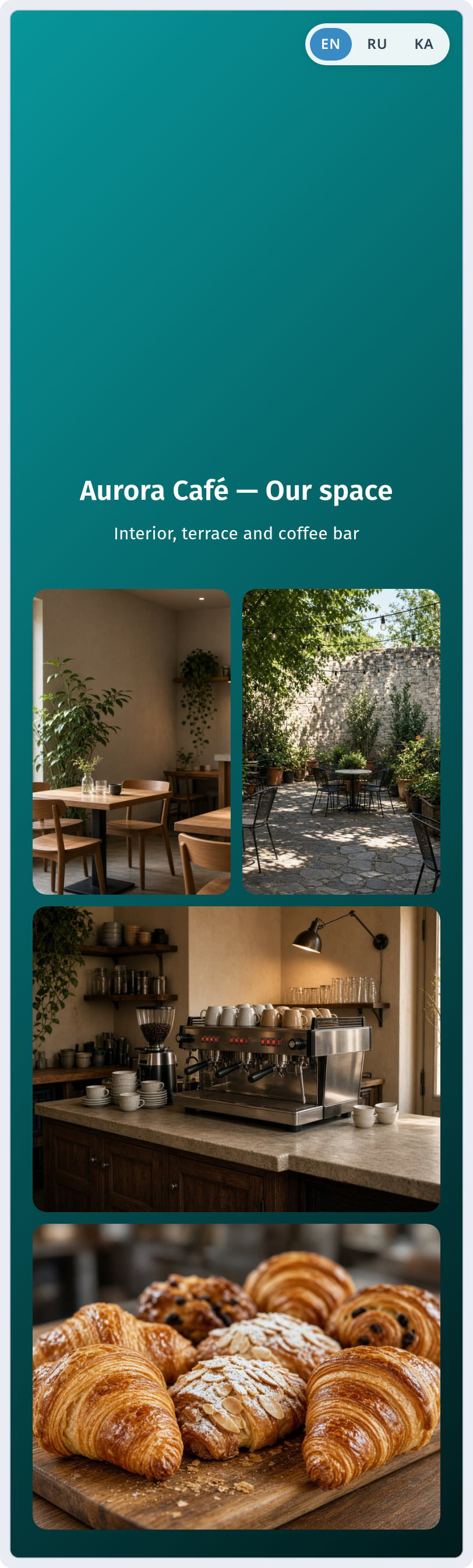
Add new photos without reprinting
The code is dynamic, so you can add, remove or reorder photos in the code's editor, and the printed code stays the same. See Edit a QR code after printing and Static vs dynamic QR codes.
Scans
View Analytics on the code card shows scans by date. See QR code analytics.
Photo, PDF, Video or Links?
- Photos to scroll through → Photo.
- A catalogue or price list as a document → PDF.
- A clip or a tour → Video.
- Several destinations → Links.
Checklist
- Choose a few strong photos rather than everything you have.
- Put the best photo first with the arrows in Uploaded images.
- A short call to action next to the code ("See our photos").
- Test the code with your phone before printing — see How to print QR codes.
FAQ
Can I change the photos after printing? Yes, it is a dynamic code: edit the gallery, the printed code stays the same.
Can I add a caption to each photo? No, the gallery has one title and one description for the whole page.
Does the guest need an app? No, the gallery opens in the phone's browser.