
Links Page QR Code: One Code for Your Menu, Booking, Delivery and More
How to create a Links QR code in WebQR: one printed code opens a mobile page with several buttons. Add and reorder links, design the code, change links after printing and see link clicks.
A printed QR code can open only one address. But a café, a shop or an event usually has more to show: the menu, table booking, delivery, reviews, the website. A Links QR code solves this: one code opens a small mobile page with several buttons, and you can change those buttons at any time without reprinting. This guide uses a demo café, Aurora Café, to walk through the whole process in WebQR.
When to choose Links
| Goal | Best type |
|---|---|
| Several buttons on one page: menu, booking, delivery, reviews, website | Links |
| Icons of your social network profiles | Social — see Social media QR code |
| A company page with address, hours and contacts | Business — see Business QR code |
| One single address | Web page |
All of these are dynamic codes: the printed pattern holds a short link, and the content lives on the page. The difference is explained in Static vs dynamic QR codes.
Step 1. Choose the type
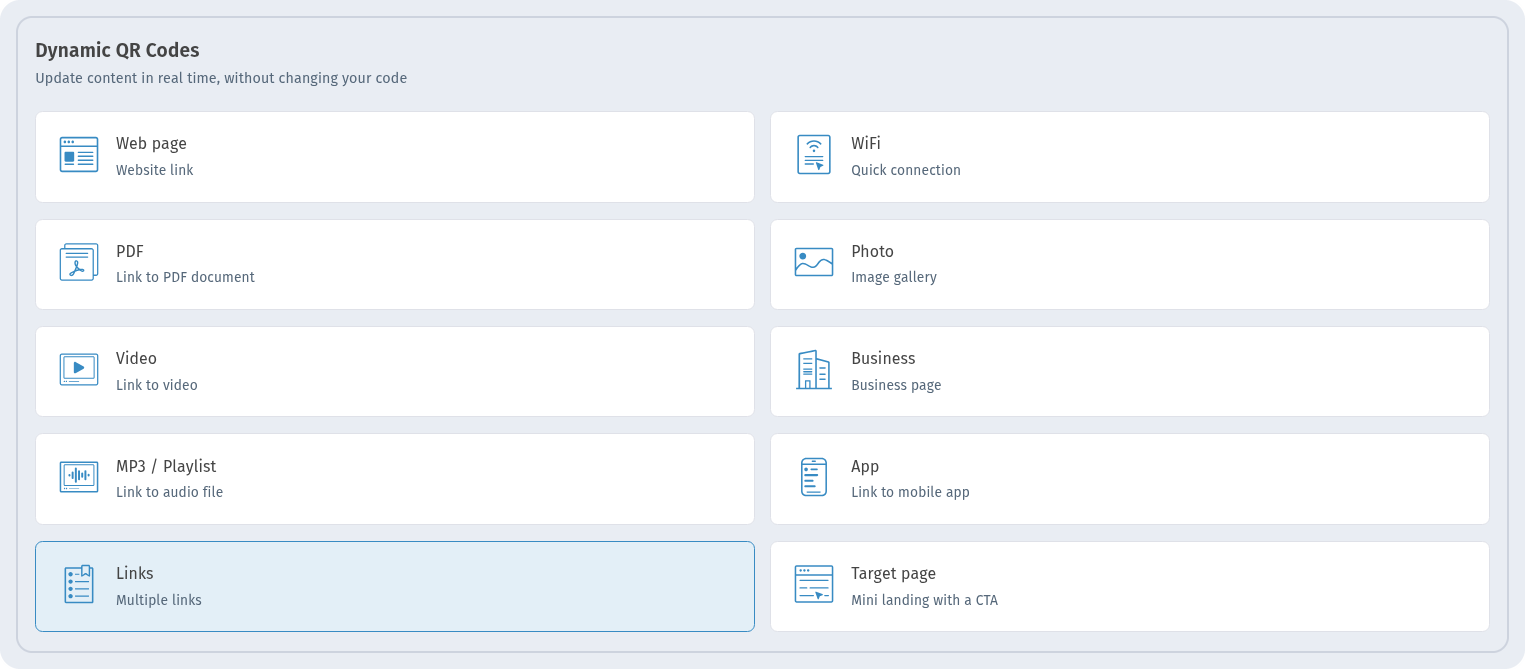
Click Create QR code and, in the Dynamic QR Codes section, choose the Links card (Multiple links).
Step 2. Add the links
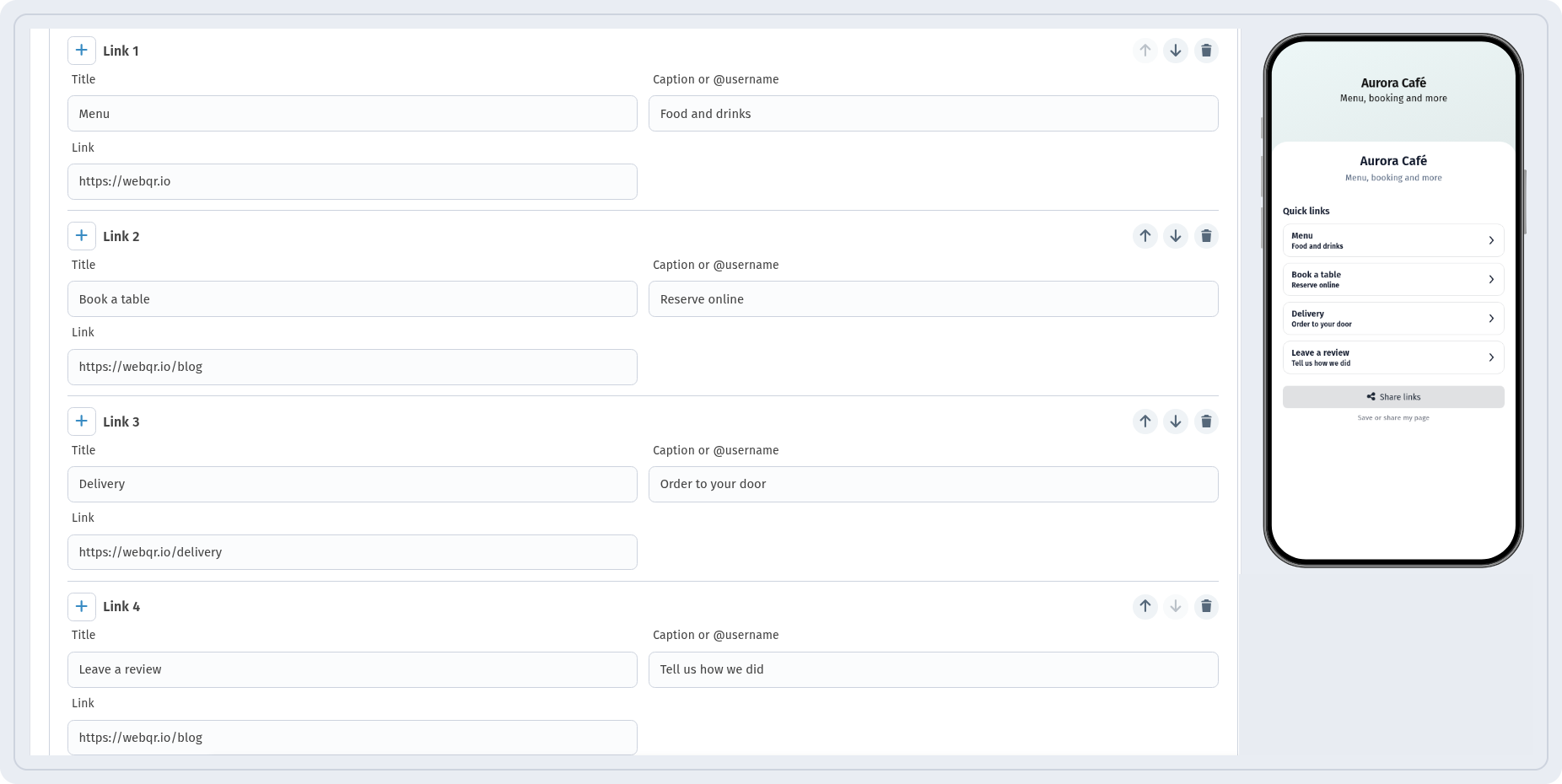
In the Information step, fill in the page title and a short description (for our café: "Aurora Café" and "Menu, booking and more"). Then open the Links block ("List of links on the page.").
Links are grouped into a Section — here it is called "Quick links". Each link has three fields:
- Title — the text on the button, for example "Menu";
- Caption or @username — a short line under the title, for example "Food and drinks";
- Link — the address the button opens.
Use Add link for the next button and Add section if you want another group. The arrows next to each link move it up or down, and the bin icon removes it. The phone preview on the right updates as you type.
Tip: keep button titles short and clear, like "Menu", "Book a table", "Delivery", "Leave a review". Put the most popular action first.
Step 3. Design the code
In the QR design step you can add a Frame ("Optional frame around the QR code."), choose Frame Color and Text Color, and write a call to action in Text Under QR Code. For Aurora Café we used a dark green frame with the white text "Scan for links". The preview shows Ready to scan when the code is easy to read. More design tips: QR code with a logo.
What visitors see
After scanning, the visitor gets a clean mobile page: the title, the description, the section and a button for each link. Below them there is a Share links button ("Save or share my page"), so people can send the page to friends.
<img src="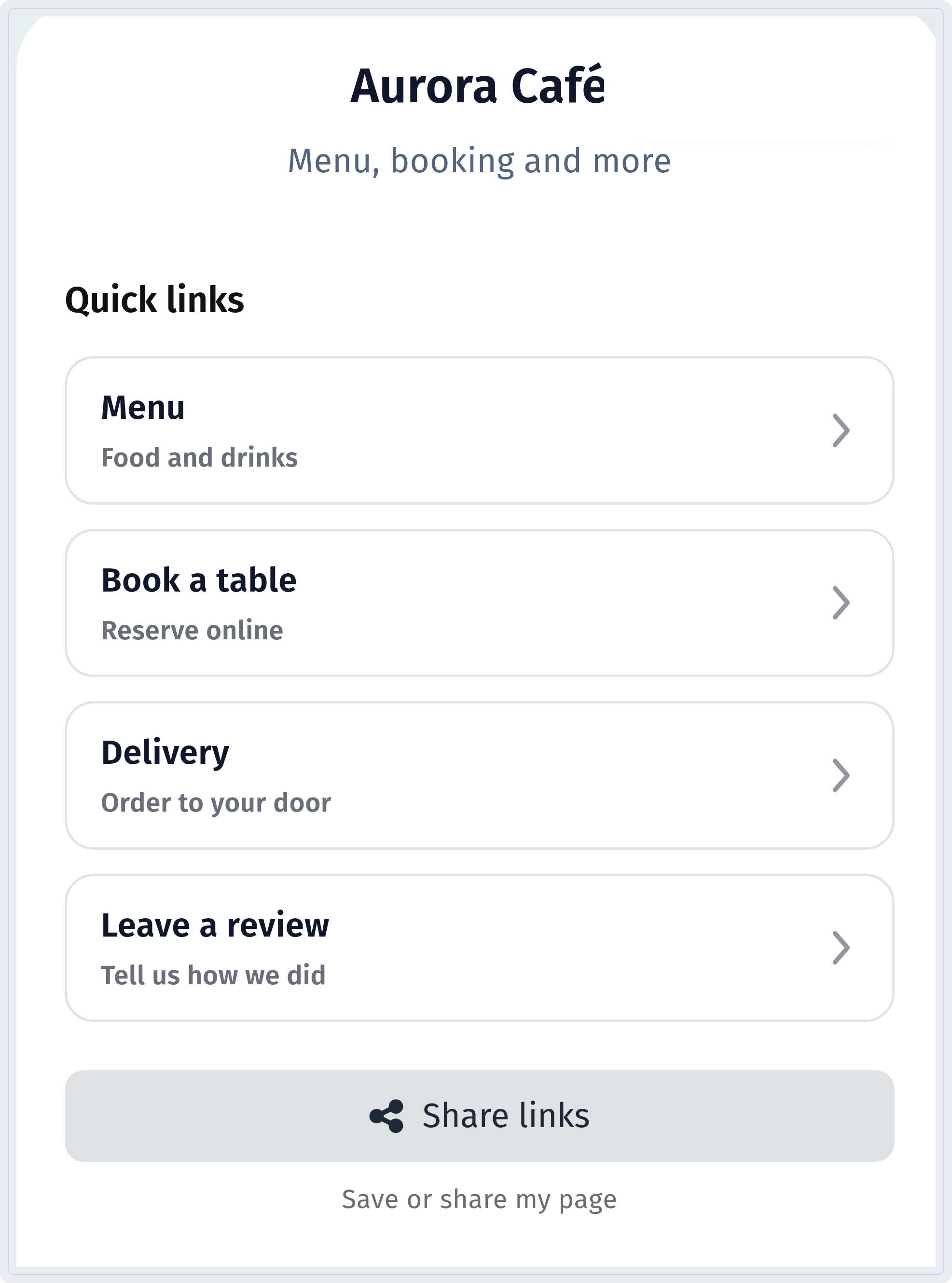 " alt="Aurora Café links page on a phone with the Quick links section, the Menu, Book a table, Delivery and Leave a review buttons and the Share links button" width="360" style="width:360px;max-width:100%;height:auto;display:block;margin:0 auto">
The page text — titles, captions, section name — is shown exactly as you typed it. If your guests speak different languages, write the button titles in the language that suits them best.
Find, download and print the code
After saving, the code appears in My QR codes with the Dynamic and Links tags, its short link, the scan counter and a View Analytics link.

To print it, click the download icon and choose a format in the Download QR Code window. For print, vector formats (SVG, PDF, EPS) stay sharp at any size.
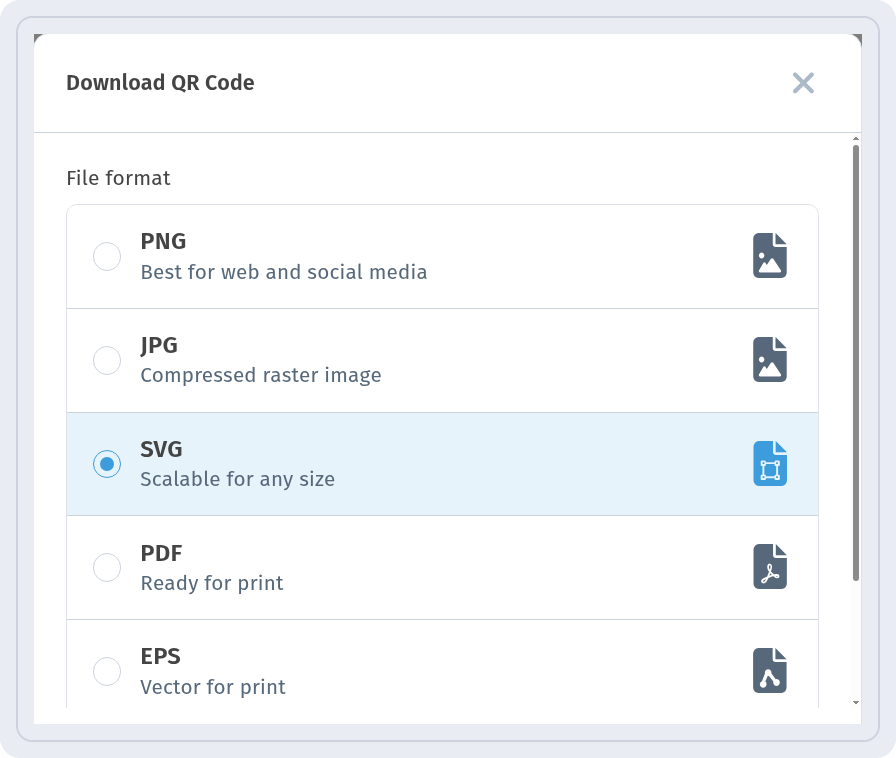
More: QR code download formats and How to print QR codes.
Change links after printing
This is the main advantage of the Links type. New delivery service? Moved booking to another site? Open the code, go to Edit, change the Link field of the right button (or add, reorder and remove buttons) and click Save. The printed code stays the same, and visitors immediately see the updated page.
One thing not to change is the short link (URI) itself: WebQR warns that if the code is already printed or published, changing the URI will break old links.
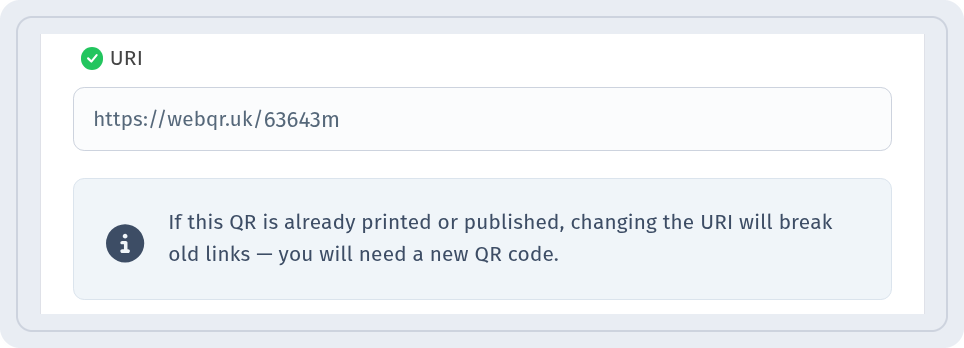
Details: How to edit a QR code after printing.
See which links get clicked
Open View Analytics for the code. Besides scans, it has a Link clicks section: it shows how many times visitors tapped the buttons on your page, in total and for each link. Repeat clicks on the same link from the same visitor are not counted again, so the numbers reflect real interest.
Scans and clicks measure different things: a scan means someone opened the page, a click means they chose a specific button. Comparing them shows which actions matter most to your visitors — for example, whether people come for the menu or for booking. More: QR code analytics.
Optional: protect the page with a password
If a links page is meant only for staff, partners or VIP guests, turn on Page password in the code settings. Visitors will need to enter the password before they see the buttons.
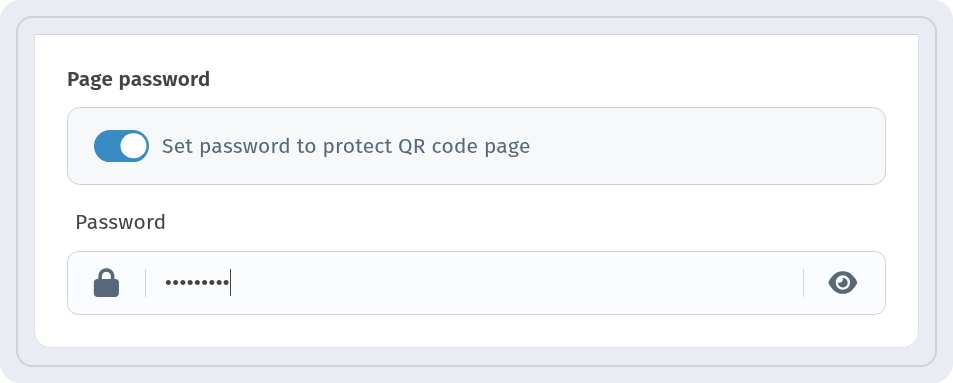
See Password-protected QR code.
Ideas for using a Links code
- Café or restaurant: menu, table booking, delivery, reviews and Wi‑Fi instructions on one table tent.
- Shop: catalog, current promotions, delivery terms and contacts.
- Event: program, registration, venue map and photos afterwards. For a single event page, see Event QR code.
- Creator or freelancer: portfolio, booking, messengers and payment page — a "link in bio" for print.
- Real estate or tourism: listing photos, a virtual tour, a booking link and the agent's contacts. See QR codes in real estate and tourism.
- Business cards and flyers: one code instead of a row of addresses. See QR codes on business cards and flyers.
Checklist
- Type: Links in Dynamic QR Codes.
- Short, clear button titles; the most important action first.
- Every Link opens the right page — check each one on your phone.
- A frame with a call to action, Ready to scan in the preview.
- A vector format for print, a test scan before the print run.
- Update links via Edit → Save, don't change the URI after printing.
FAQ
Can I change the links after the code is printed? Yes. The code is dynamic: edit the links and save — the printed code keeps working and opens the updated page.
Can I change the order of the buttons? Yes, use the arrows next to each link in the Links block.
Does WebQR count clicks on the links? Yes. Clicks on each link appear in the code's analytics in the Link clicks section. Repeat clicks from the same visitor aren't counted again.
What is the difference from the Social type? Social is built for profile icons of social networks. Links is for any set of buttons: menu, booking, delivery, reviews, website.