

QR Codes for Education: Handouts, Video Lessons, Class Polls and Open Days
How schools, courses and trainers use QR codes: PDF handouts, video lessons, a quick poll in class, open day registration, password-protected materials, a course links page and codes for many groups at once in WebQR.
A QR code on a worksheet, a classroom door or a course flyer takes students straight to what they need: a handout, a video lesson, a quick poll or a registration page. In this article we use a demo school, Aurora Academy, to show which codes work in education, where to put them and how to keep them up to date.
Where QR codes help in education
- Handouts and textbooks: a PDF with the full material, answers or extra exercises.
- Homework sheets: a video explanation of a topic.
- During a lesson: a poll to check understanding or collect opinions.
- Posters and flyers: registration for an open day, a workshop or a parent meeting.
- Course materials for one group: a page protected with a password.
- Course syllabus or classroom door: a links page with the schedule, chat, materials and contacts.
For almost all of these, choose a dynamic code. The printed image holds only a short link, and the content is stored in WebQR, so you can replace a file or a link during the term without reprinting the sheets. The difference is explained in Static vs dynamic QR codes.
Choose the content type
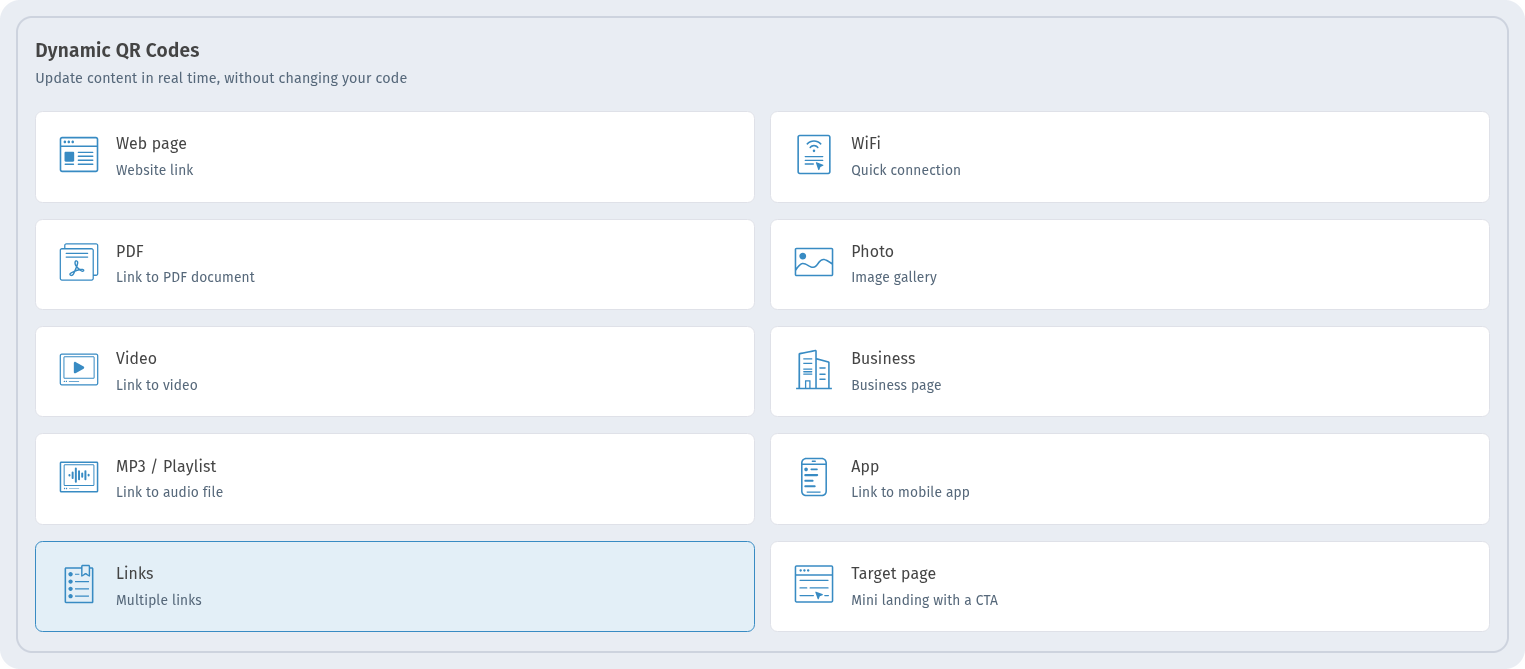
All the types used in this article are in the Dynamic QR Codes section: PDF for handouts, Video for lessons, Links (Multiple links) for a course page, plus Poll and Event.
PDF handouts
Upload a worksheet, a lecture summary or a reading list as a PDF code and print the code on the paper version or on a slide. When you update the file, the same printed code opens the new version. The steps are described in PDF QR code.
Video lessons
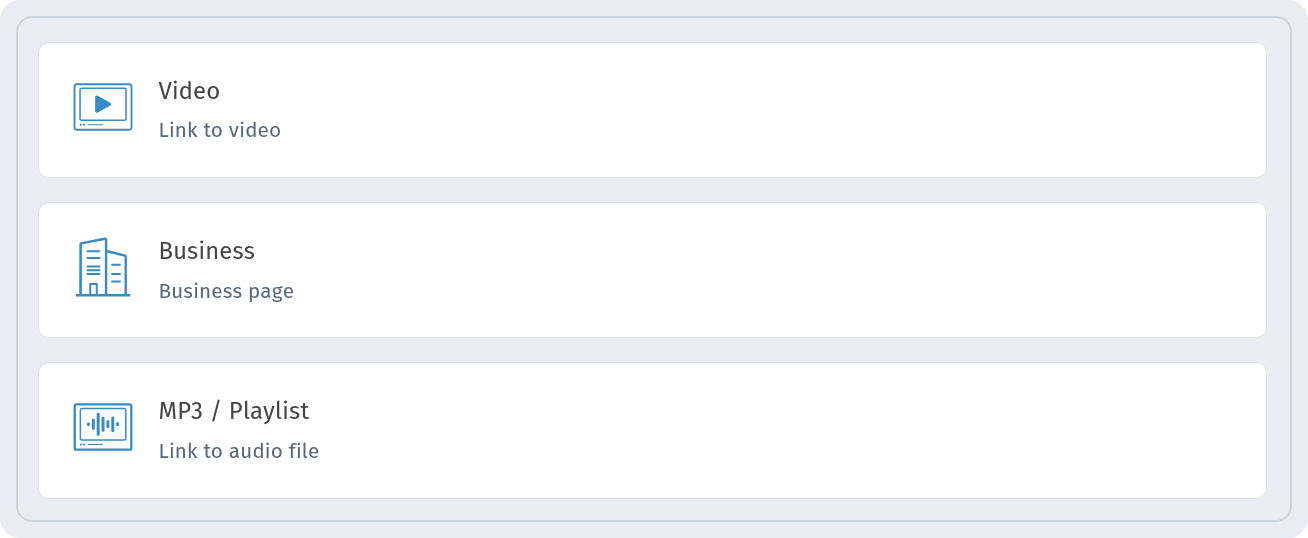
On the Content type step, pick Video. It sits next to Business and MP3 / Playlist, which is handy for audio lessons and language listening tasks.
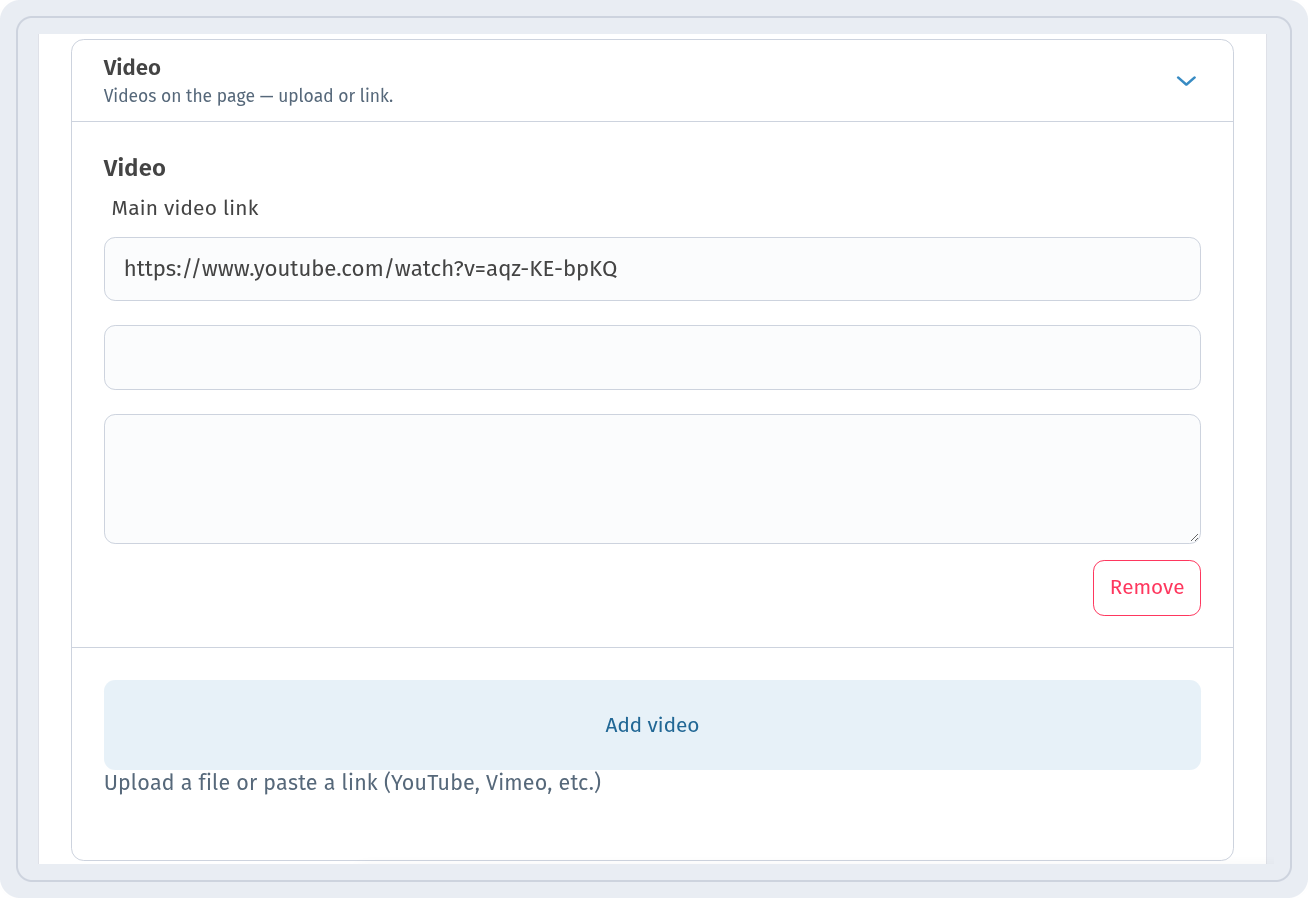
Paste a YouTube link into Main video link. To add more than one video, for example a series of short lessons, use Add video.
Print the code on homework or in the corner of a slide so students can rewatch the explanation at home. More in Video and MP3 QR codes.
A quick poll in class
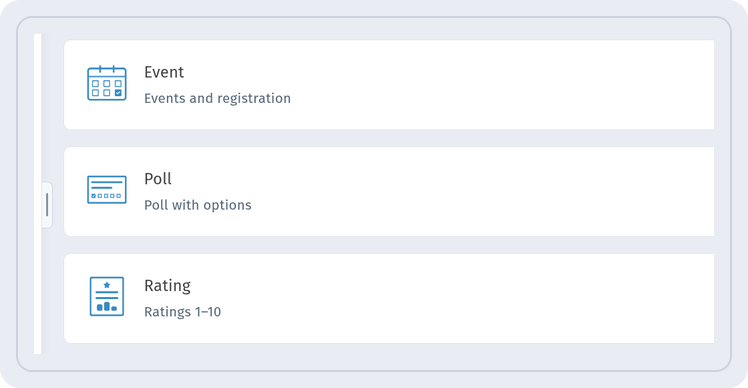
The Poll type (Poll with options) lets you ask the class a question and see the answers in one place: "Which topic should we repeat?", "How clear was today's lesson?" or "Which day suits you for the extra class?".
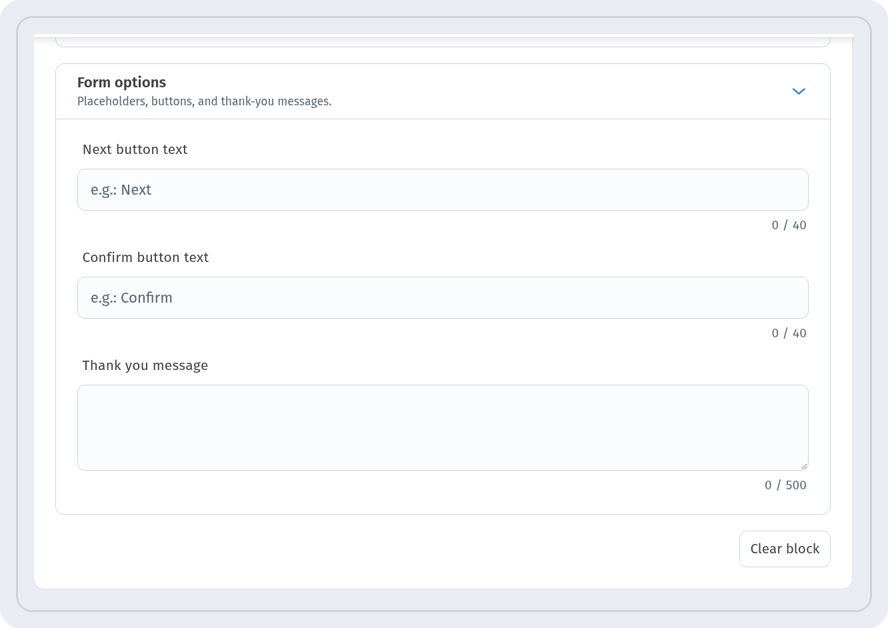
In Form options, set Next button text, Confirm button text and the Thank you message students see after answering.
Show the code on the screen at the end of the lesson and discuss the results together. See Poll QR code.
Open days and workshops
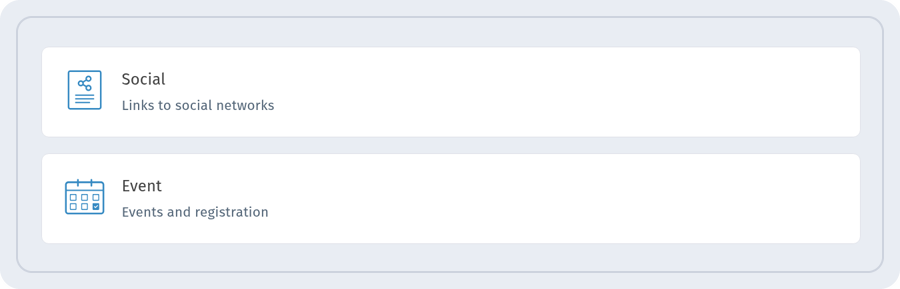
For an open day, a parent meeting or a workshop, use the Event type (Events and registration). The event page shows the date, time and place, and you can add a Registration URL for your sign-up form.
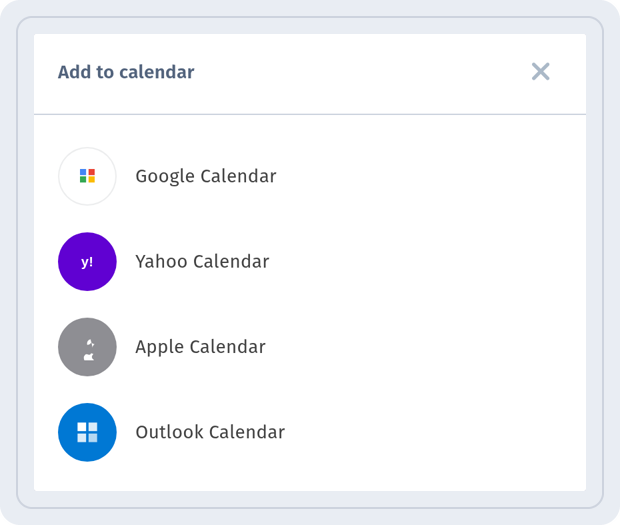
Visitors can save the event with Add to calendar and choose their calendar.
Place the code on posters, flyers and the school website. Details in Event QR code.
Materials for one group only
If a page is meant only for your students, for example answers to a test or recorded lessons, turn on Page password in the code settings and enter a Password.
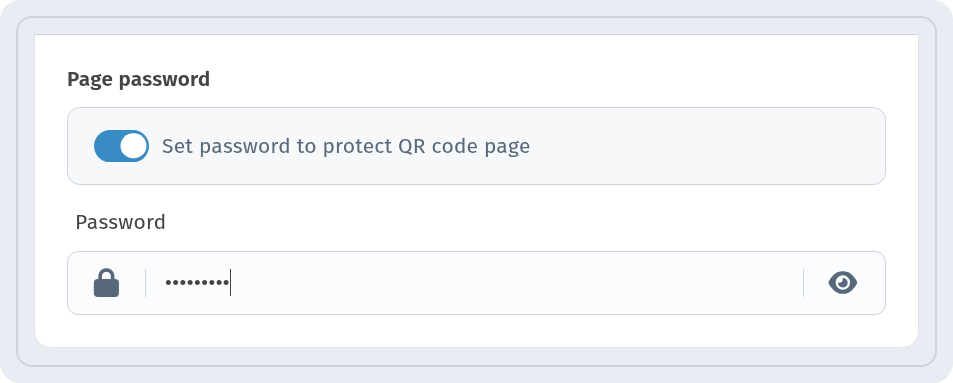
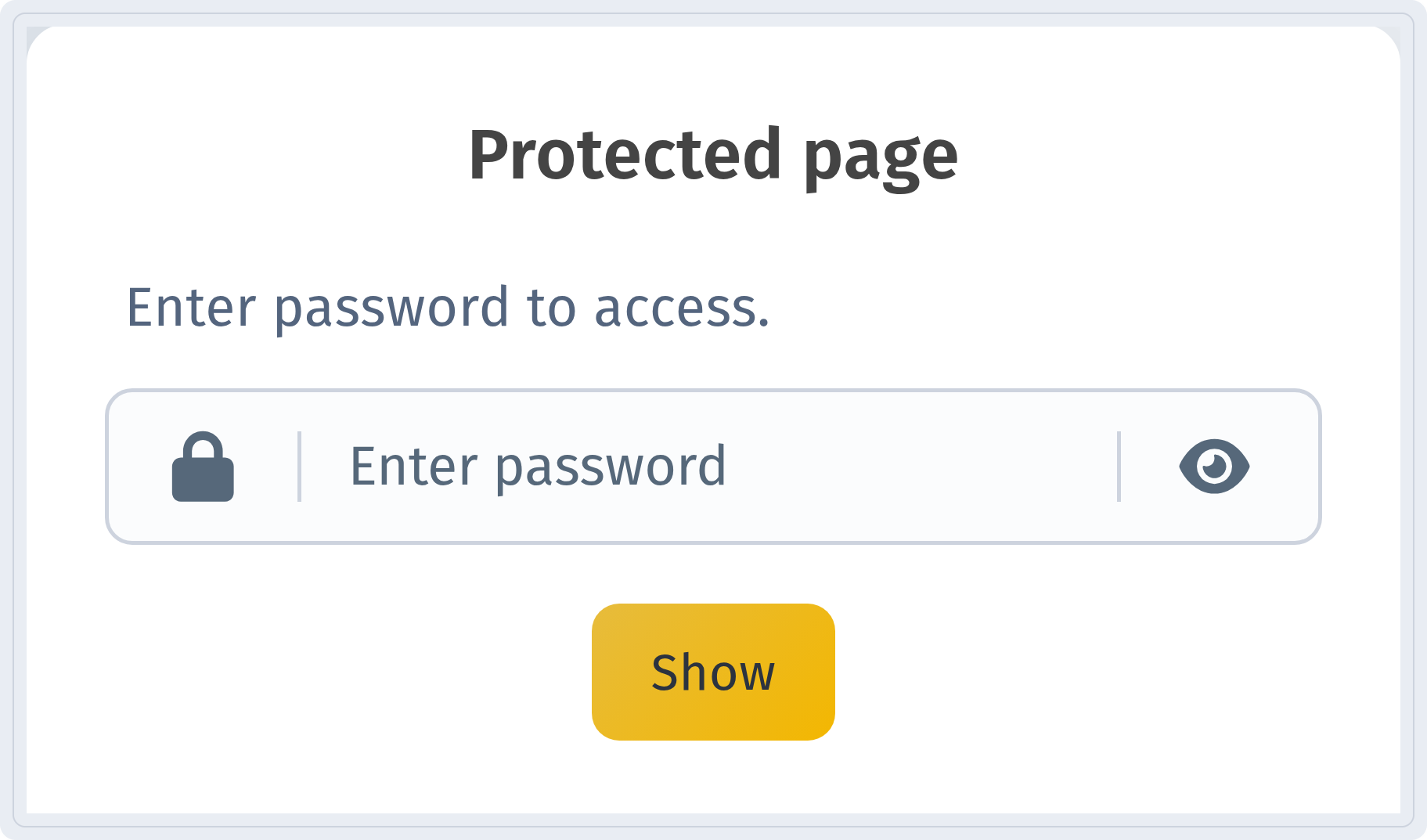
When a student scans the code, the Protected page opens first. The content appears after they type the password and tap Show.
Share the password in class or in the group chat, and change it for the next term. More in Password-protected QR code.
One code for the whole course
Instead of several codes on the syllabus, print one Links code: the timetable, the group chat, the PDF materials, the video playlist and the teacher's contacts on one page. When something changes, edit the link in WebQR and the printed code stays the same. See Links page QR code.
Codes for many groups at once
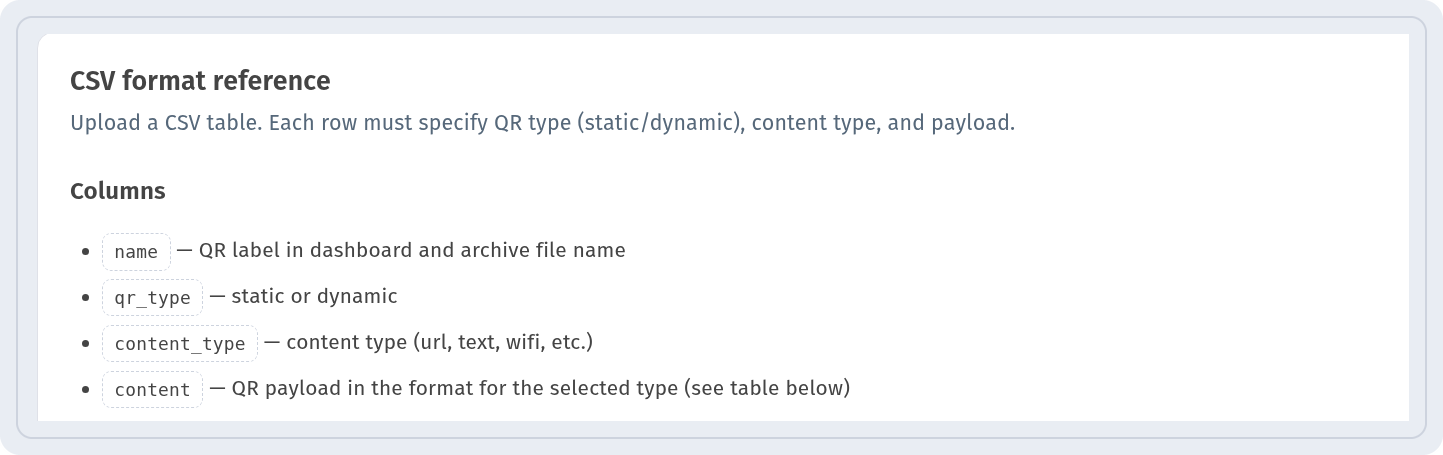
When every group or class needs its own code, create them from a CSV file. The CSV format reference block lists the Columns to fill in for each row.
Separate codes per group also make it easy to see in QR code analytics which group scans the materials. To keep codes tidy, put them into folders, for example one per course or term: Organizing QR codes into folders. The CSV steps are in Bulk QR codes from CSV.
Printing tips for school materials
- Print the code at least 2 × 2 cm on handouts and larger on posters that are read from a distance.
- Add a short line under the code: "Video explanation", "Answers", "Register for the open day".
- Test the printed code with a few phones before copying the whole set.
- On a projector screen, keep the code large and the background light.
Frequently asked questions
Can I change the PDF or video after the sheets are printed? Yes, if the code is dynamic. Replace the file or link in WebQR, and the printed code opens the new content.
Can one code be used by several groups? Yes. If you want to compare groups, create a separate code for each of them.
How do I restrict access to course materials? Turn on Page password for the code and share the password only with your students.