

Text QR Code: Show a Note or Instructions Without a Website
How to create a static Text QR code in WebQR: type a short note, design the code, download and print it. What the phone shows after scanning and what to keep in mind about long text.
Sometimes a QR code doesn't need to open a website at all. You just want a phone to show a few lines of text: instructions next to a machine, a note on a workshop table, the answer to a quiz question. A Text QR code does exactly that: the text itself is stored inside the pattern, so the phone shows it right after scanning, even without a website. This guide uses a demo, Aurora Studio, to walk through the process in WebQR.
When to choose a Text code
| Goal | Best type |
|---|---|
| A short note, instruction or code that should work offline | Text (static) |
| A long text, images or a document | PDF or Web page (dynamic) |
| Content you will want to change after printing | Any dynamic type |
Text is a static code. It has no short link and no page behind it: what you type is what the code contains. That also means you cannot change it after printing — the difference is explained in Static vs dynamic QR codes.
Good uses:
- instructions on equipment, tool boxes or storage shelves;
- table, room or locker numbers with a short note;
- serial or inventory numbers on labels;
- answers or hints in quizzes and treasure hunts;
- a short thank-you message inside a package.
Step 1. Choose the type
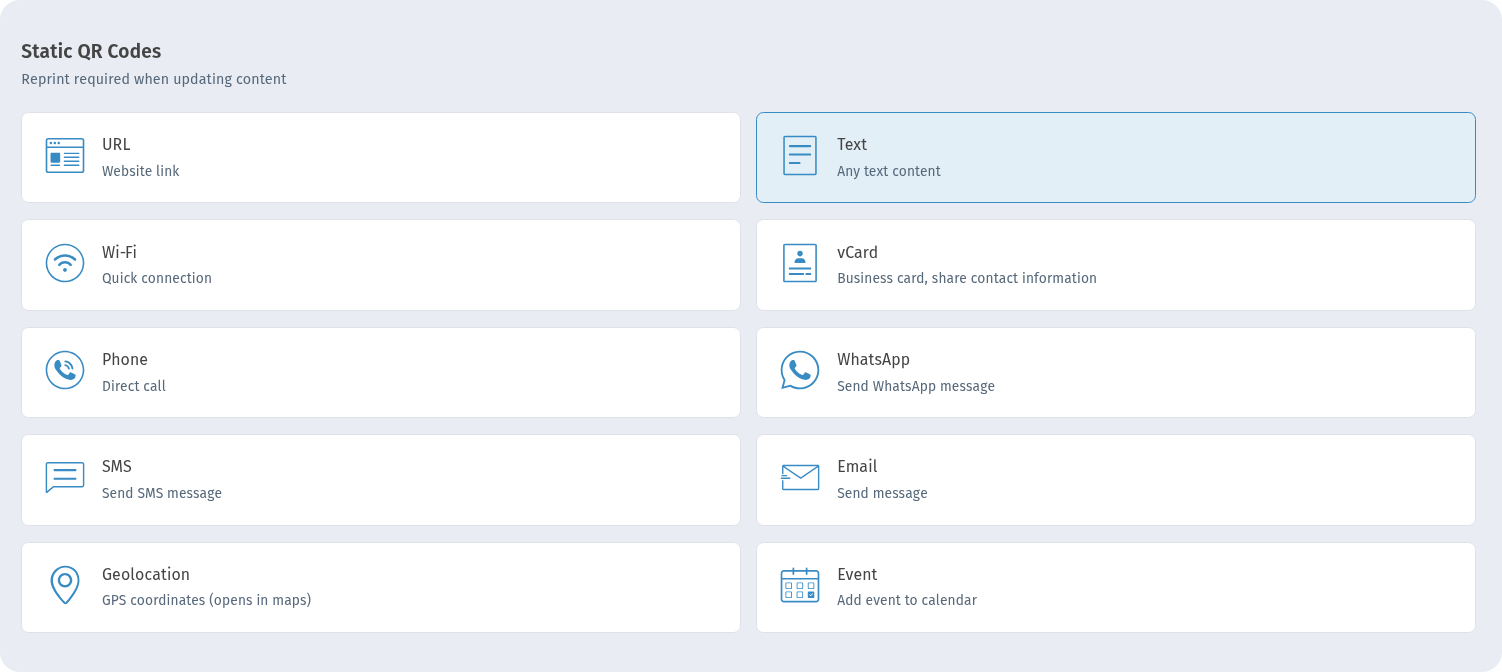
In My QR codes click Create at the top right. In the Static QR Codes section choose the Text card (Any text content) and click Continue.
Step 2. Type your text
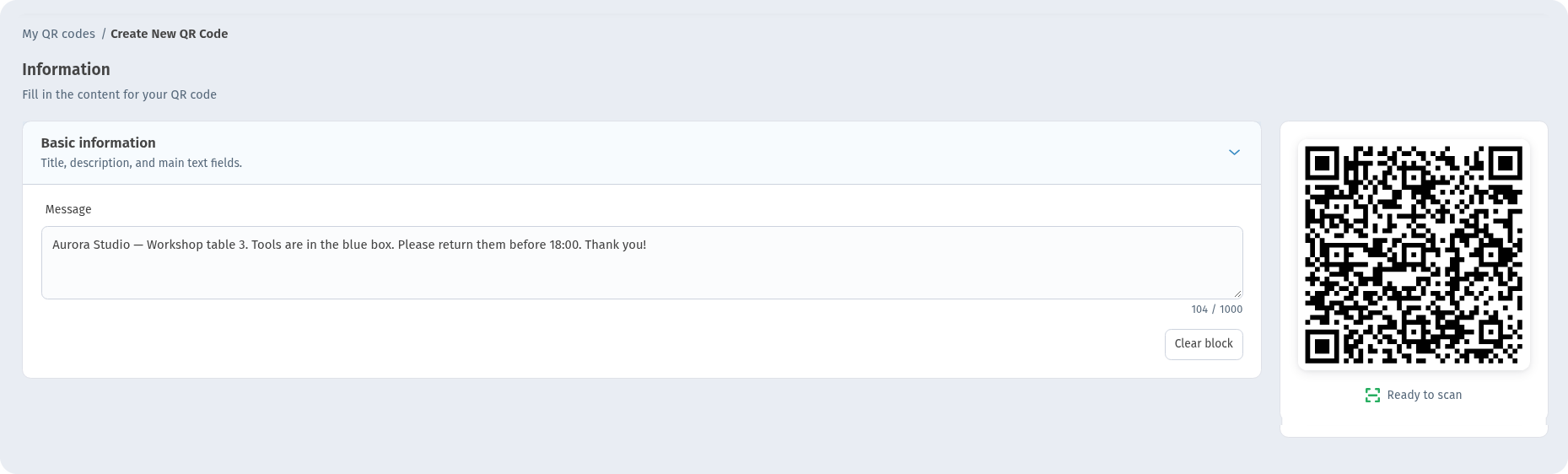
On the Information step, open Basic information and type your text into the Message field. For our demo we used: "Aurora Studio — Workshop table 3. Tools are in the blue box. Please return them before 18:00. Thank you!"
The counter under the field shows how many characters you have typed out of the field's maximum length of 1000 characters (104 / 1000 in our example). Clear block empties the field. The preview on the right shows the code and Ready to scan.
Tip: keep it short. Every character goes into the pattern, so the longer the text, the denser the code.
On the Settings step you can give the code a name in QR Code Name (we used "Aurora Text Demo") and pick a Folder.
Step 3. Design the code
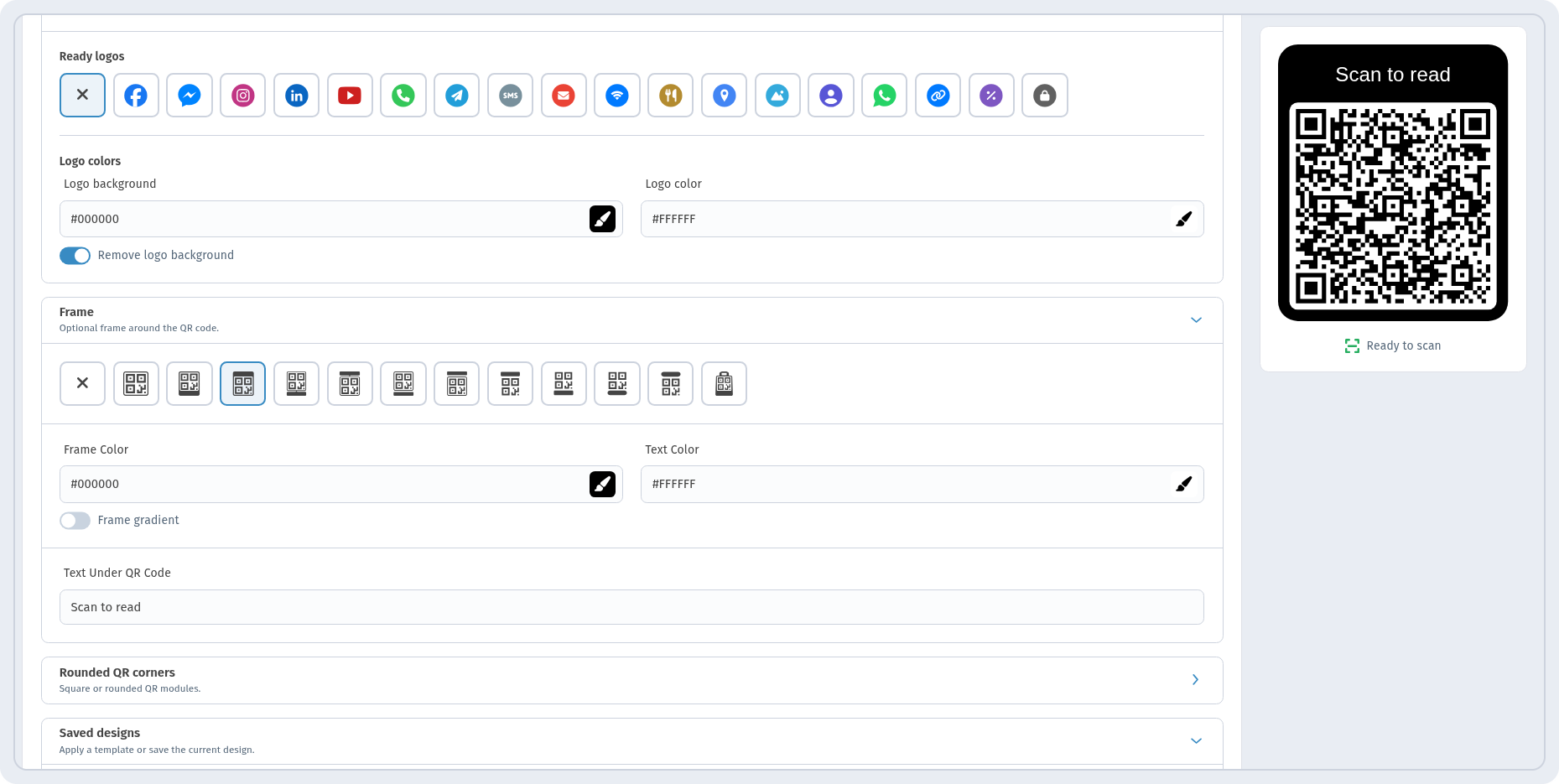
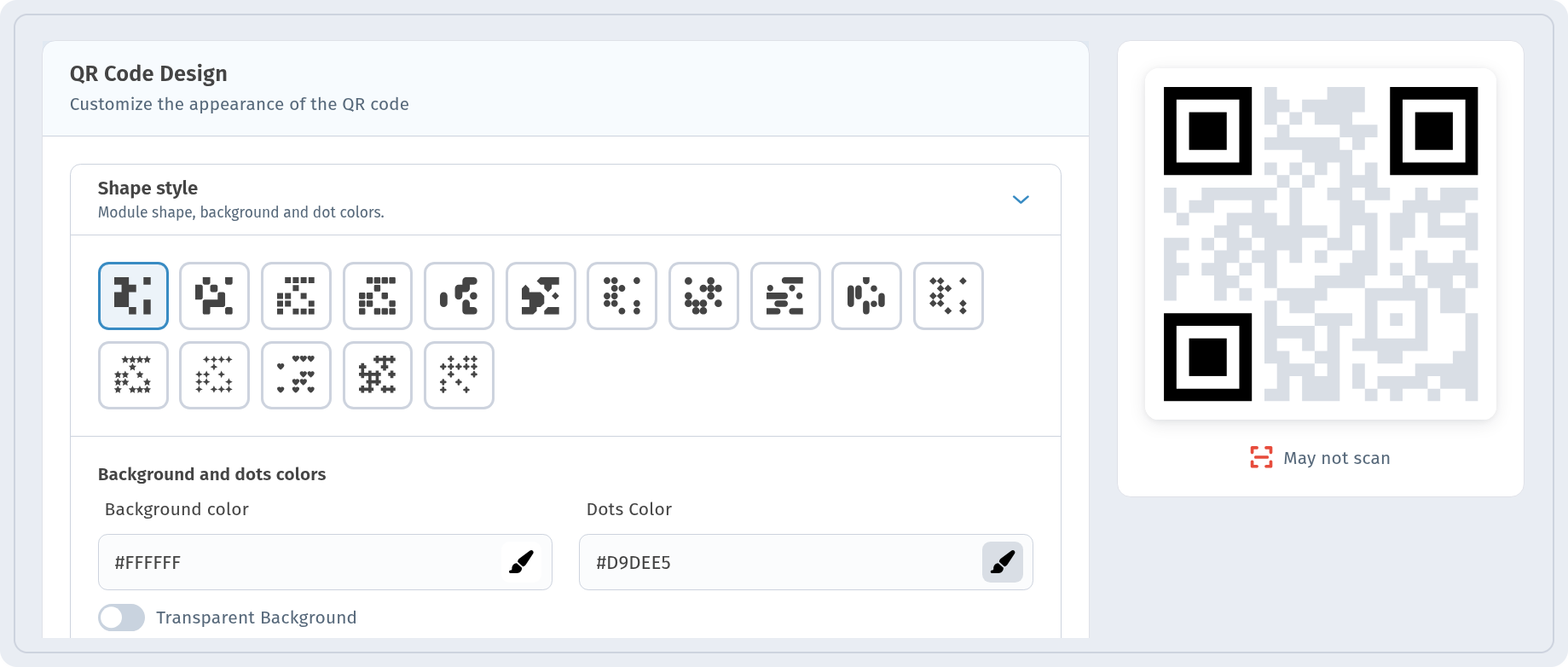
On the QR design step choose the colors and, if you like, add a Frame with a short call to action in Text Under QR Code, for example "Scan to read". Keep dark dots on a light background and check that the preview shows Ready to scan. More design tips: QR code with a logo.
Click Create. The code is saved in My QR codes: the card has the Static and Text tags, the name and the full text under CONTENT. There is no short link and no scan counter on the card.

What people see after scanning
The code contains the text itself, not a link. When someone scans it, the phone camera or scanner app shows the text — in our demo, the full Aurora Studio note about workshop table 3. No website opens and no internet is needed to read it.
Step 4. Download and print
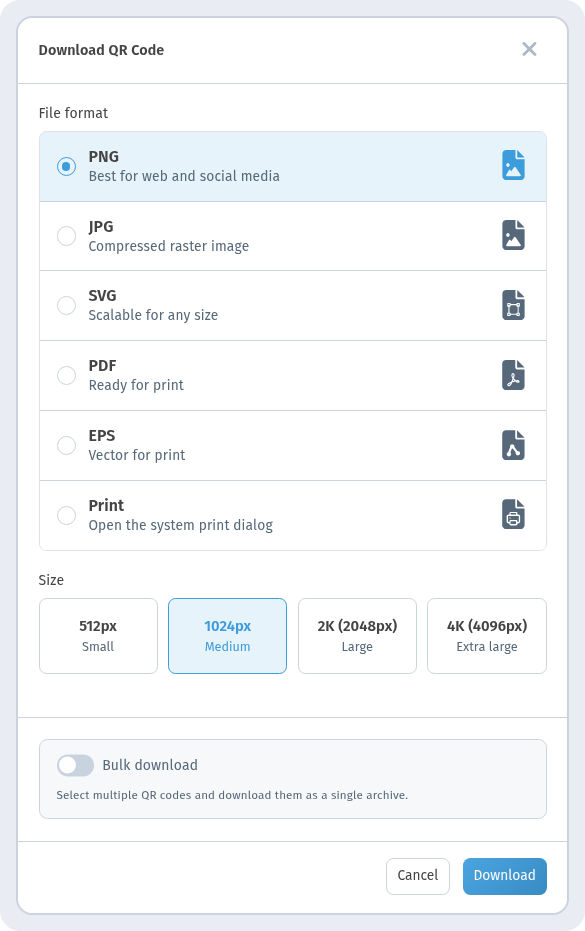
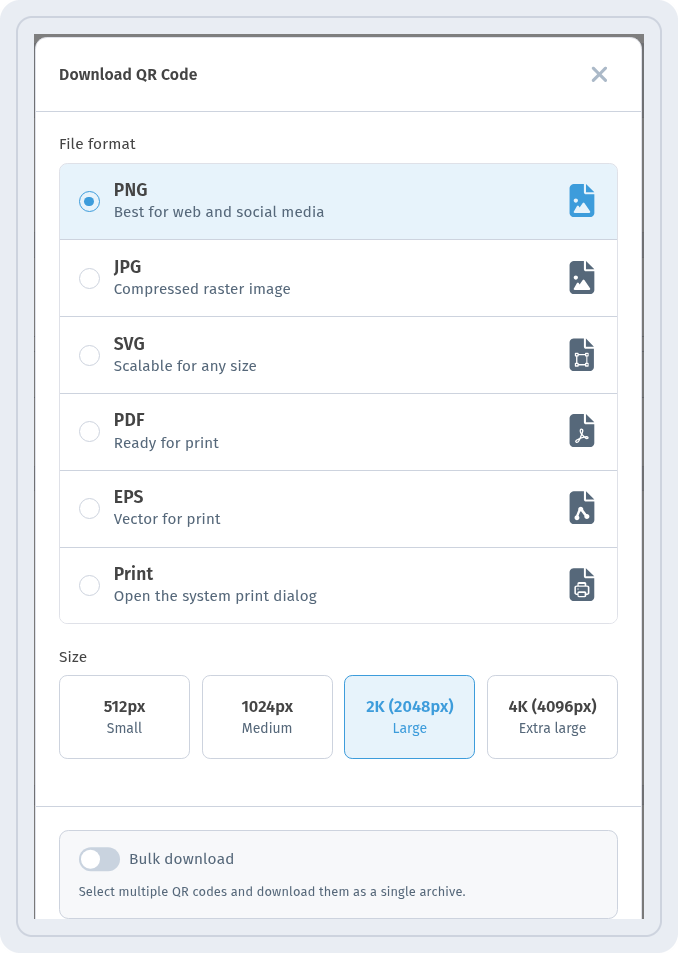
Click the download icon on the code card. In the Download QR Code window choose a File format — PNG or JPG for documents and screens, SVG, PDF or EPS for print, or Print to open the system print dialog — pick a Size for PNG and click Download. Details: QR code download formats and How to print QR codes.
What to keep in mind
You can't edit it later. A static code contains the text itself. To change the text, create a new code and reprint it. If the content may change, use a dynamic type instead.
Long text makes a dense code. A long text turns into many small modules, which are harder to scan, especially when printed small or in low contrast. If the preview shows May not scan, shorten the text or improve the contrast.
Print it large enough. For a dense code choose a bigger size when downloading, for example 2K (2048px) Large for PNG.
If a code still won't scan, see QR code not scanning: causes and fixes.
Checklist
- The text is short and clear.
- The content won't need changes after printing.
- Dark dots on a light background, preview shows Ready to scan.
- Printed large enough and tested with a couple of phones.
FAQ
Does a Text QR code need the internet? No. The text is inside the code, so the phone shows it without opening a website.
Can I change the text after printing? No. Text is a static code — create a new code and reprint it. For changeable content use a dynamic type.
Can I see how many times it was scanned? No. Static codes have no short link, so scans aren't counted — the card in My QR codes shows no scan count. Use a dynamic code if you need statistics.