
QR Codes for Retail Stores: Price Tags, Shelves, Checkout and Packaging
How shops use QR codes: a coupon in the window and at the checkout, a rating after the purchase, Wi-Fi, a links page, product videos on shelves, codes on packaging, one code per place and analytics in WebQR.
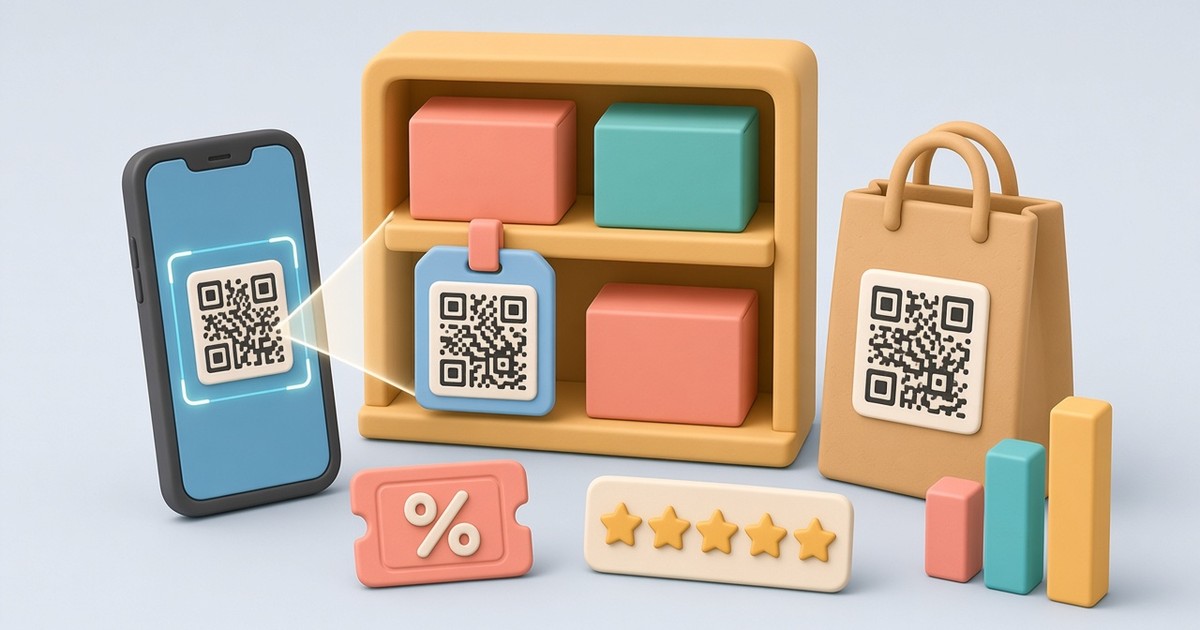
A shop has plenty of places for a QR code: price tags, shelves, the shop window, the checkout, receipts, bags and packaging. Each one can give a customer something the label has no room for: a discount, a product video, a review form or the Wi-Fi password. In this guide we use a demo shop, Aurora Store, to show which codes work in retail, where to put them and how to keep them up to date.
Where QR codes work in a shop
- Shop window and entrance: the current sale or a links page with your website, delivery and social media.
- Shelves and price tags: a product video, a size chart, instructions or a product page.
- Checkout and receipt: a coupon for the next visit and a short rating form.
- Seating area or café corner: the guest Wi-Fi.
- Bags and packaging: usage tips, a reorder page, reviews.
For almost all of these, choose a dynamic code. The printed image holds a short link, and the content lives in WebQR, so you can change the offer or the link without reprinting price tags and stickers. The difference is explained in Static vs dynamic QR codes.
A coupon in the window and at the checkout
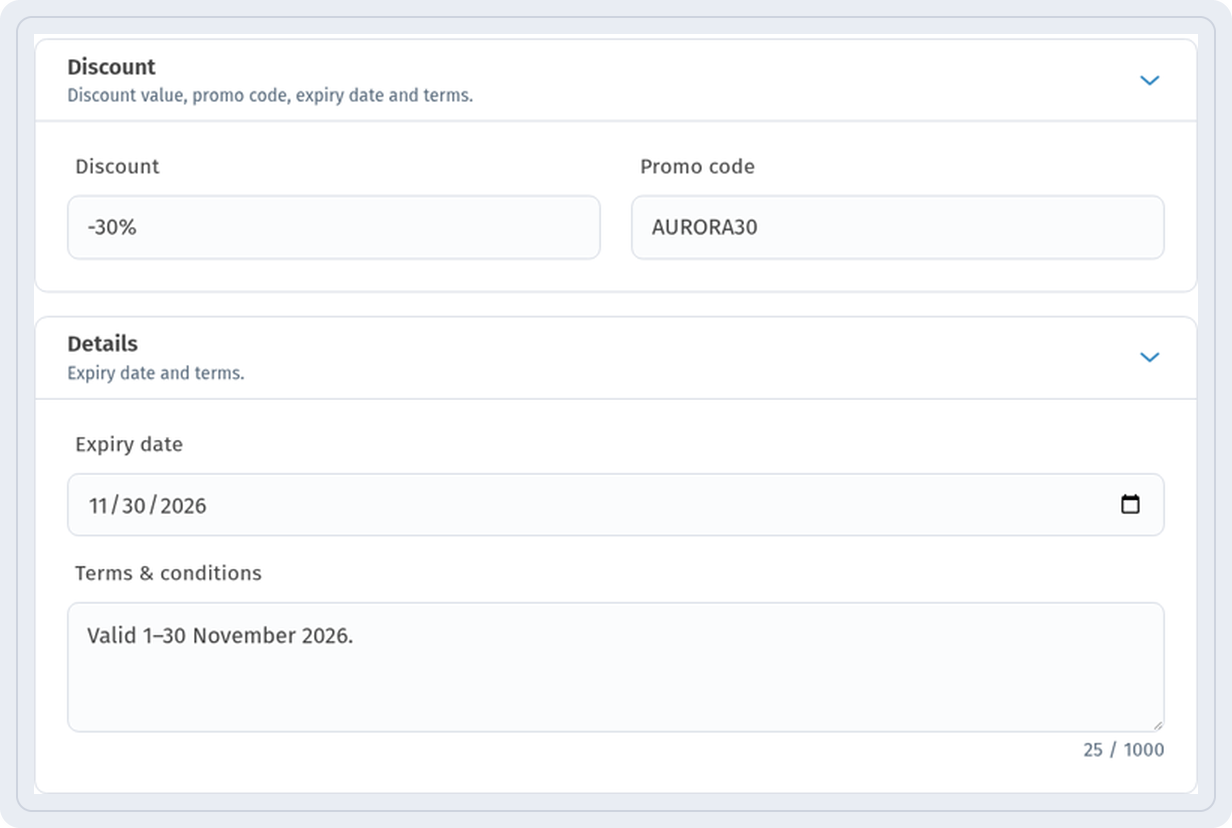
The Coupon type turns a sticker or poster into a small promo page. On the Information step, open Discount and enter the Discount and Promo code, then set the Expiry date and Terms & conditions in Details.
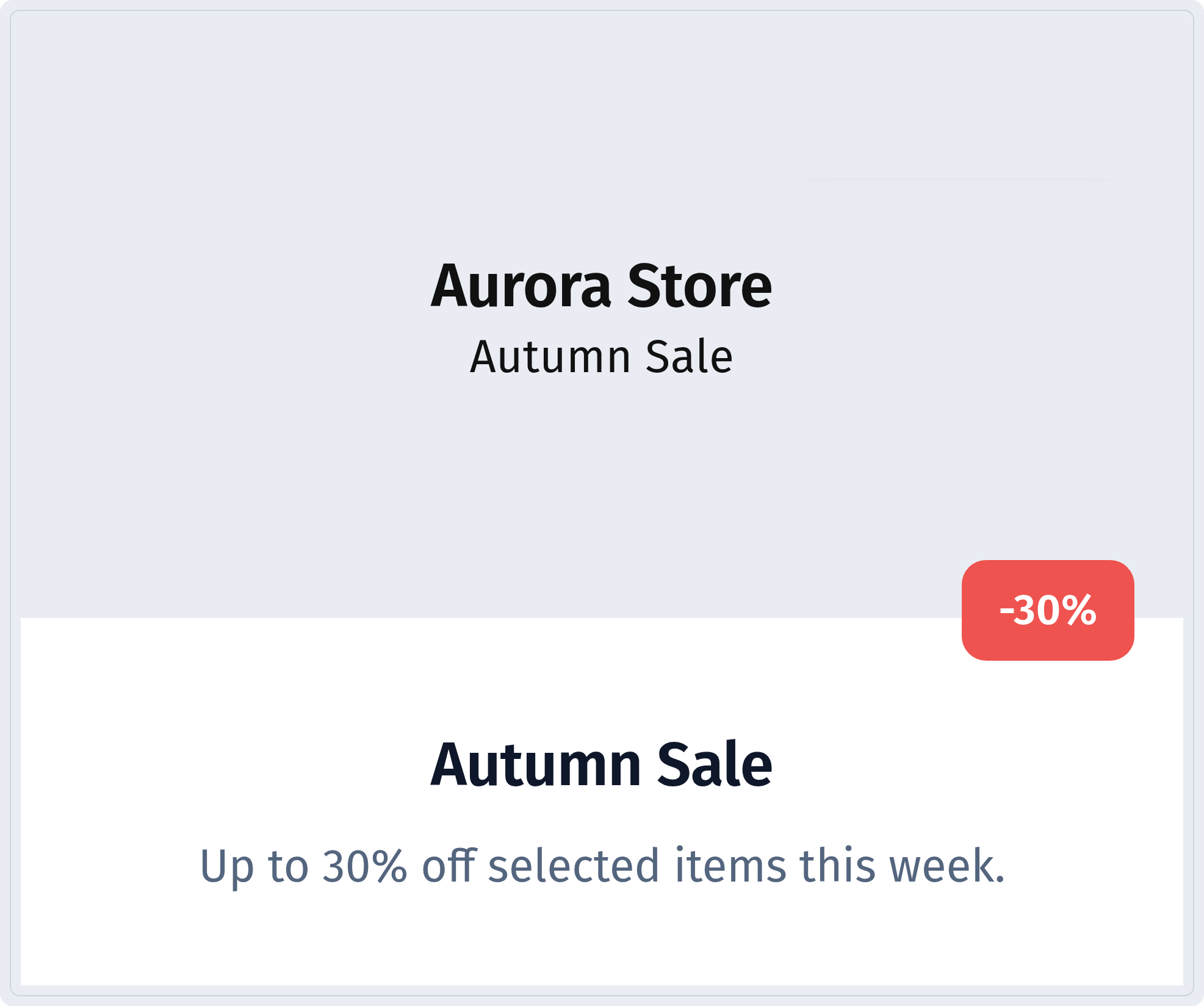
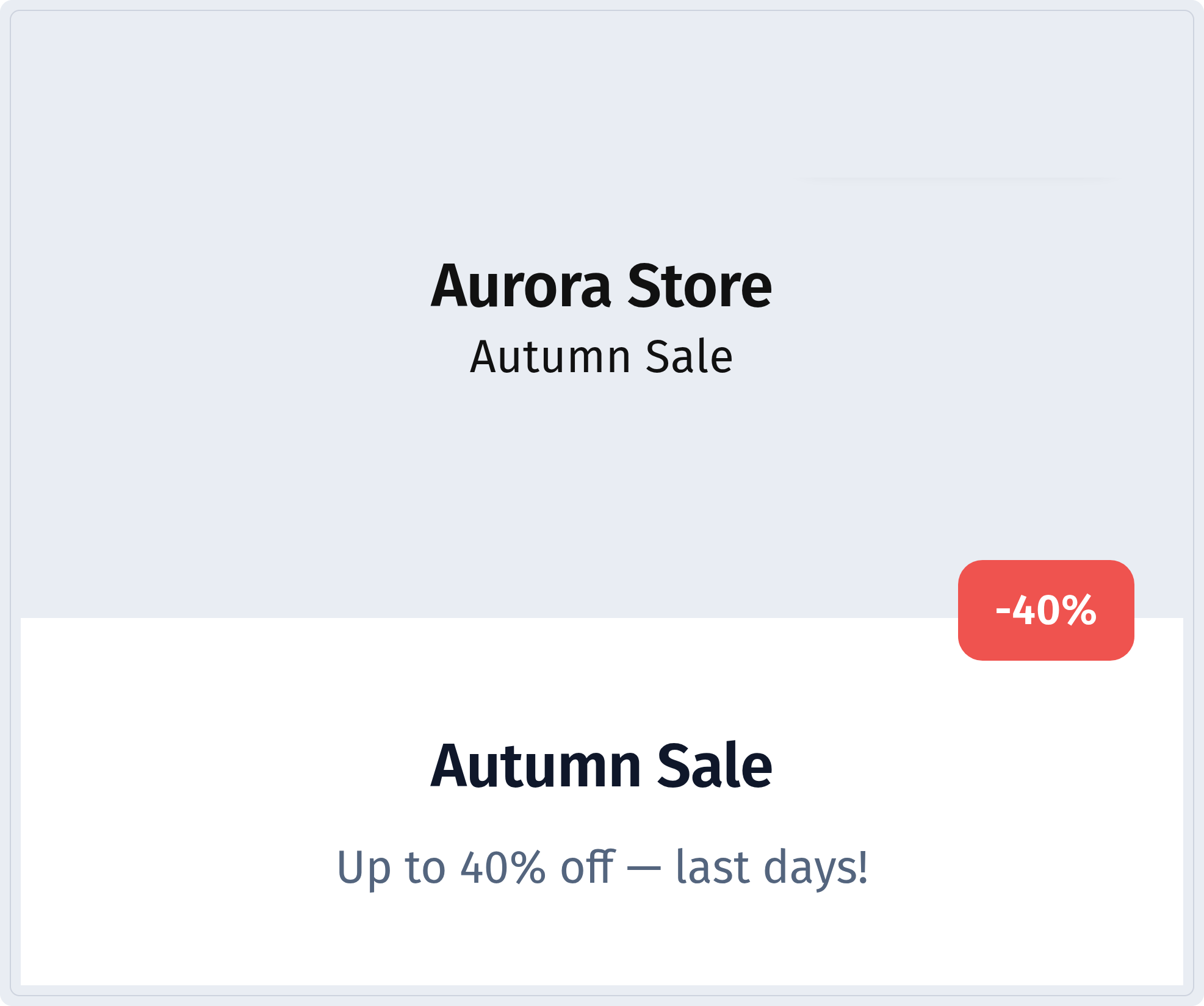
After scanning, the customer sees the shop name, the discount badge and the offer:
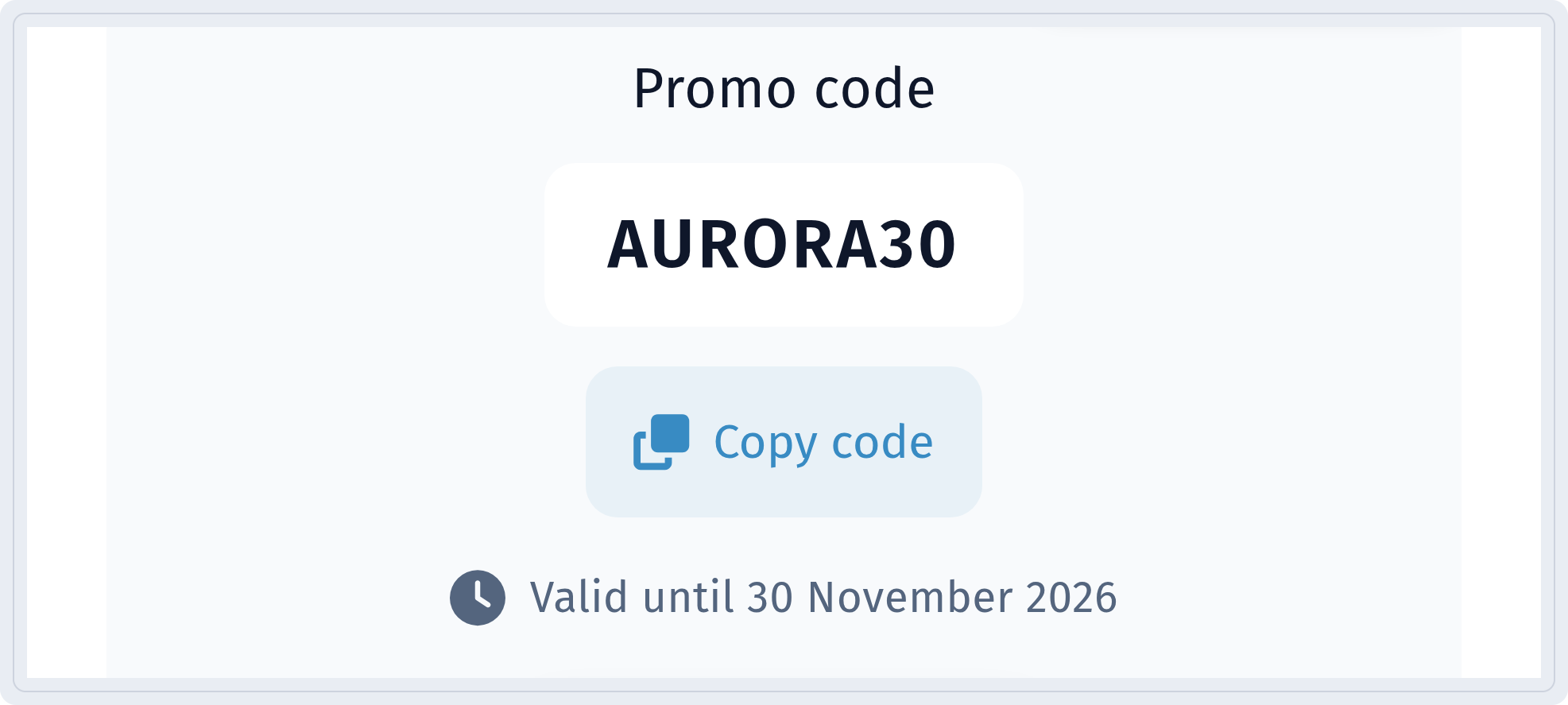
Below is the promo code with the Copy code button and the date until which it is valid. At the checkout, the customer simply shows the code or pastes it in your online shop.
Step-by-step guide: Sale and promo QR code.
A rating after the purchase
A code on the receipt or next to the checkout invites customers to rate their visit while it is fresh. Choose the Rating type:
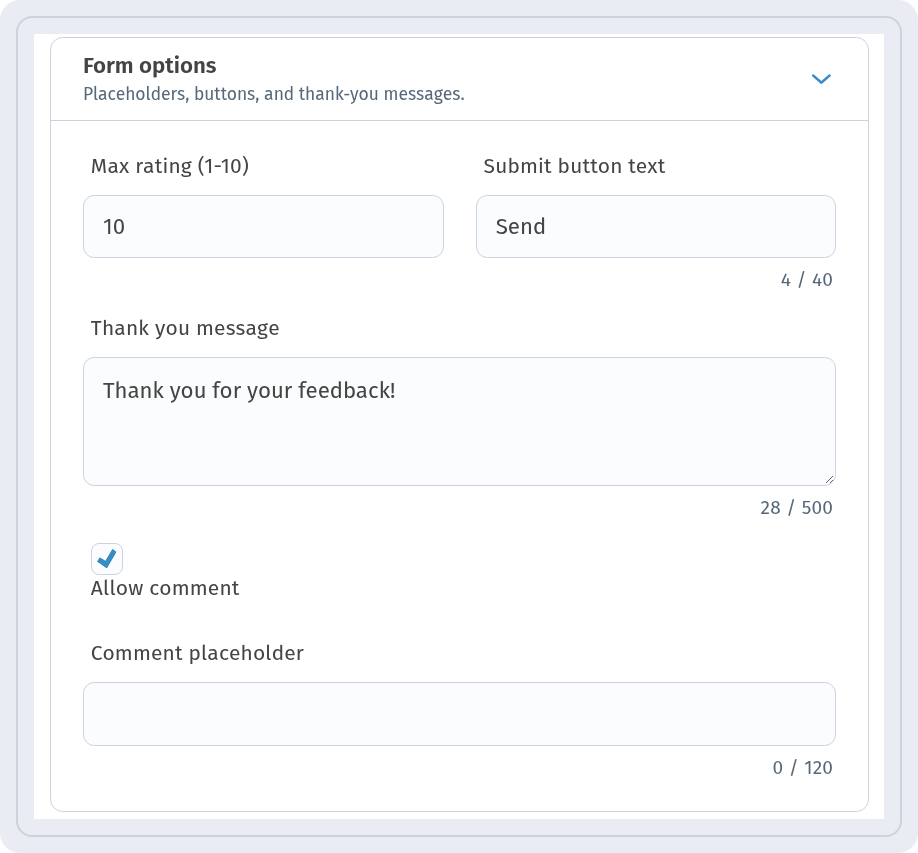
In Form options, set Max rating (1-10), the Submit button text and the Thank you message. Turn on Allow comment if you want customers to add a few words.
After sending, the customer sees your thank-you message:

More details: Rating QR code.
Wi-Fi for customers
If your shop has a seating area, a fitting room queue or a café corner, a Wi-Fi code saves staff from spelling out the password. Under Static QR Codes, choose Wi-Fi and fill in Network Name, Encryption Type and Password. Use a separate guest network.
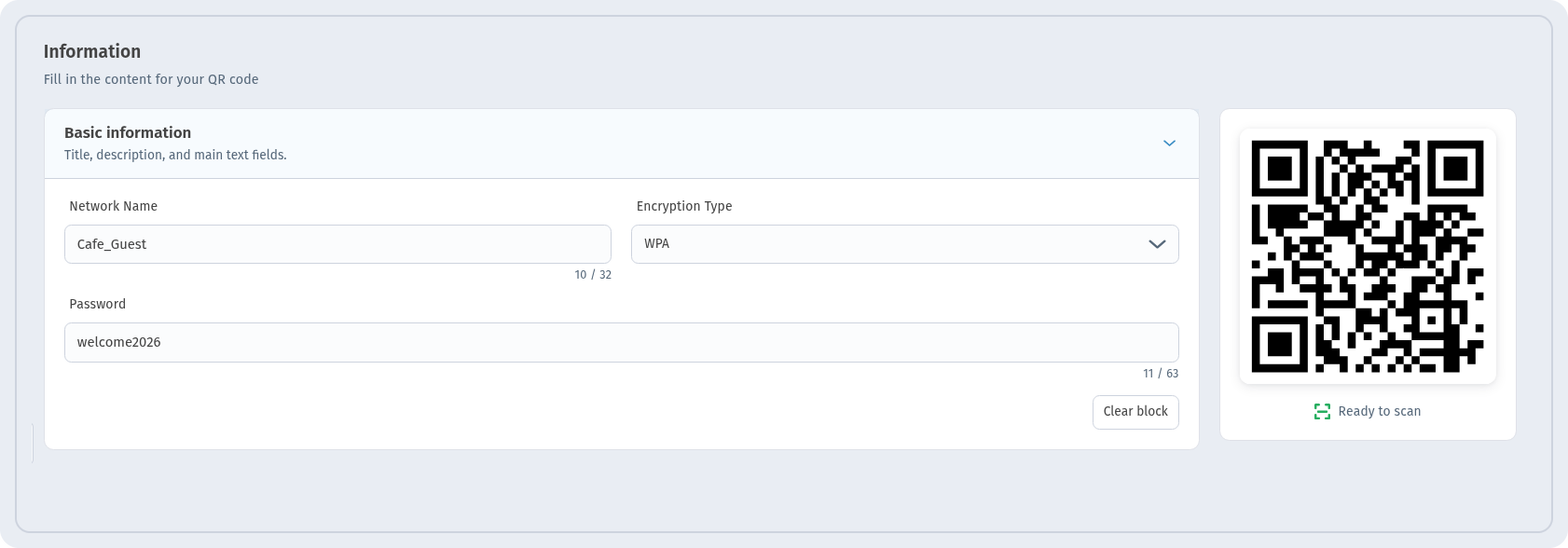
How to set it up: Wi-Fi QR code.
One code for everything: a links page
At the entrance or on a flyer, one code can lead to a page with several buttons: website, delivery, a map, reviews and social media. In the Links type, every button has a Title, a Caption or @username and a Link, and the phone preview shows the result right away. The screenshot shows a demo page of Aurora Café; for a shop, the buttons might be "Online store", "Delivery", "Store locations" and "Leave a review".
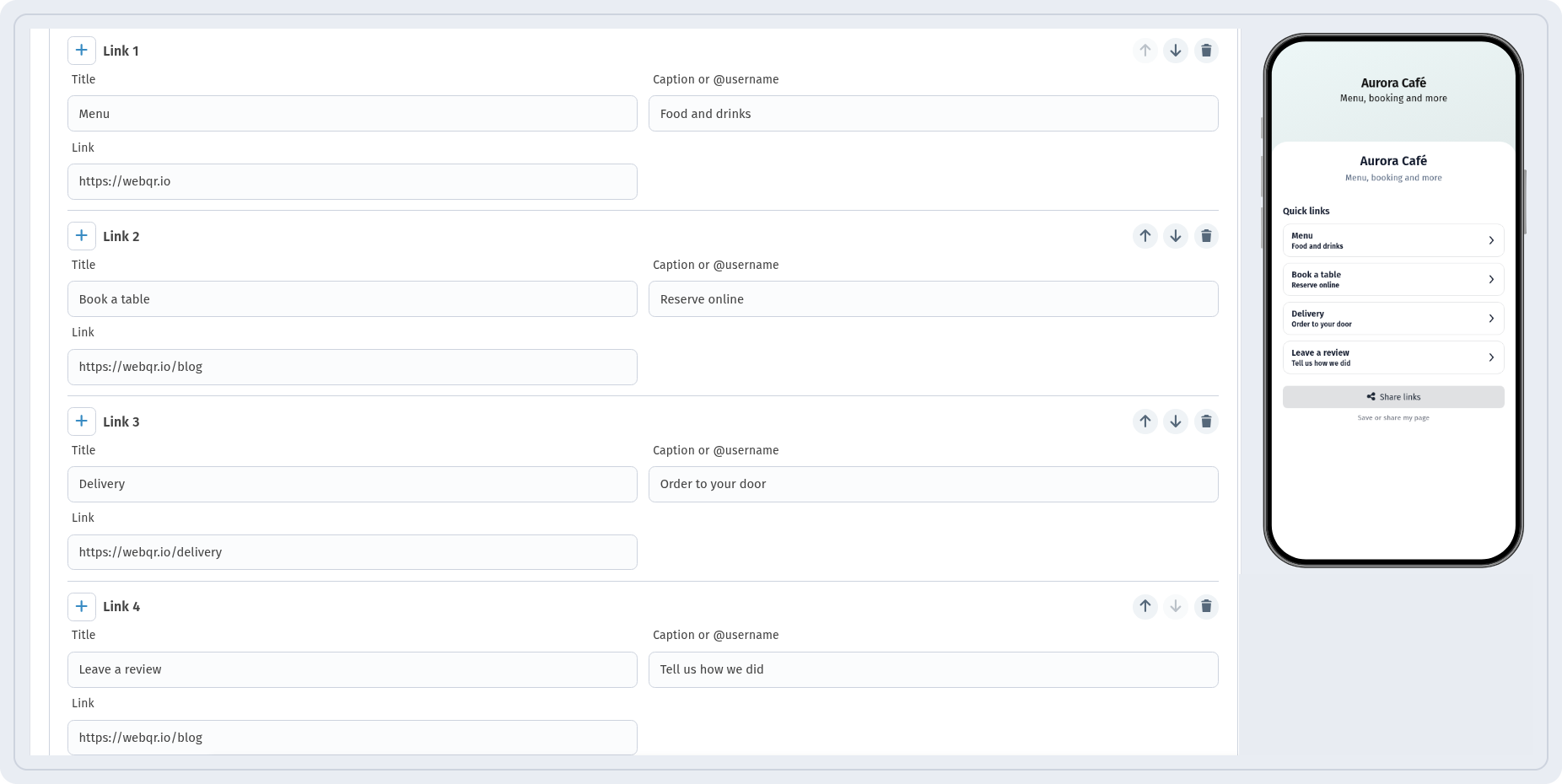
Guide: Links page QR code.
Product video on the shelf
A short video sells better than a long label: how to assemble the product, how a fabric looks in motion, how to use a device. In the Video type, paste a YouTube link into Main video link or upload a file, and put the code on the shelf or price tag. If you have a PDF manual or a size chart, use the PDF type instead.
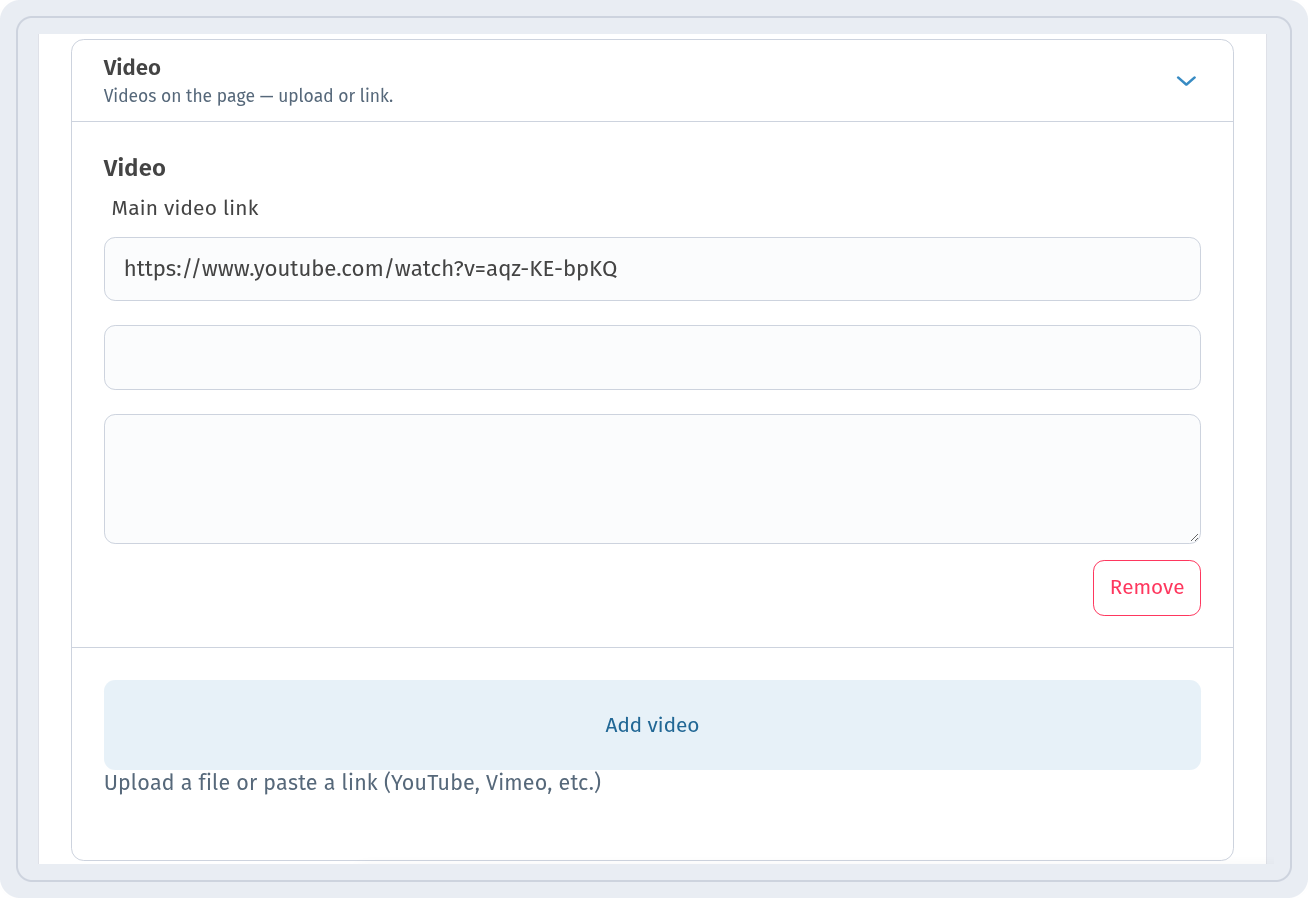
More: Video and MP3 QR code and PDF QR code.
Codes on packaging and bags
A code on a package keeps working at the customer's home: tips, care instructions, a reorder page. Add a short call to action in the Frame section: choose a frame, set Frame Color and Text Color and type the text into Text Under QR Code. The preview shows Ready to scan when the code is easy to read.
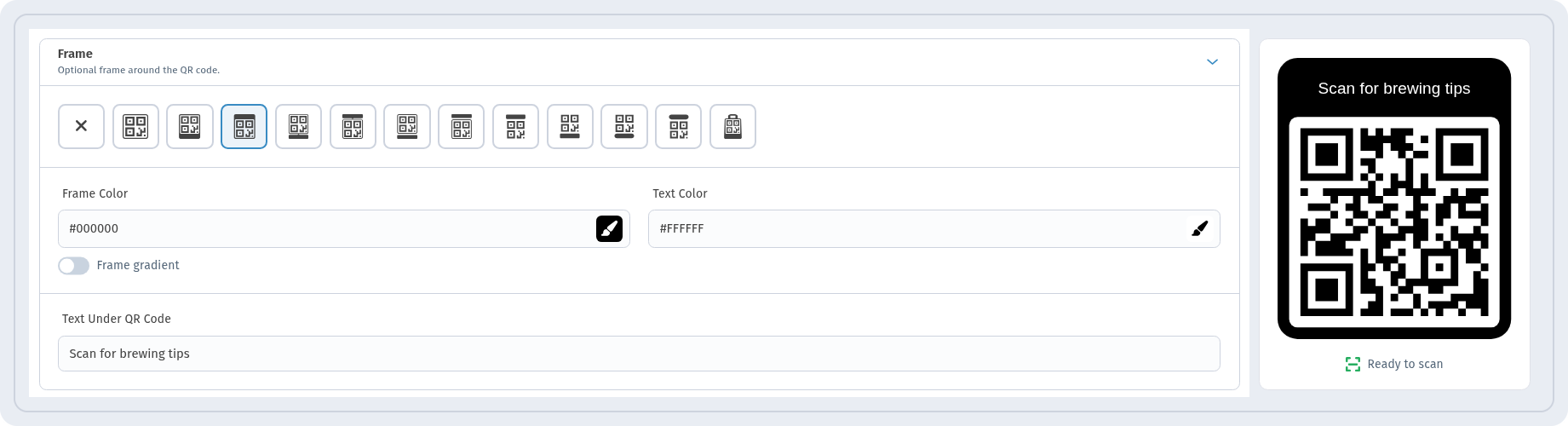
Details: QR codes on packaging and labels.
One code per place
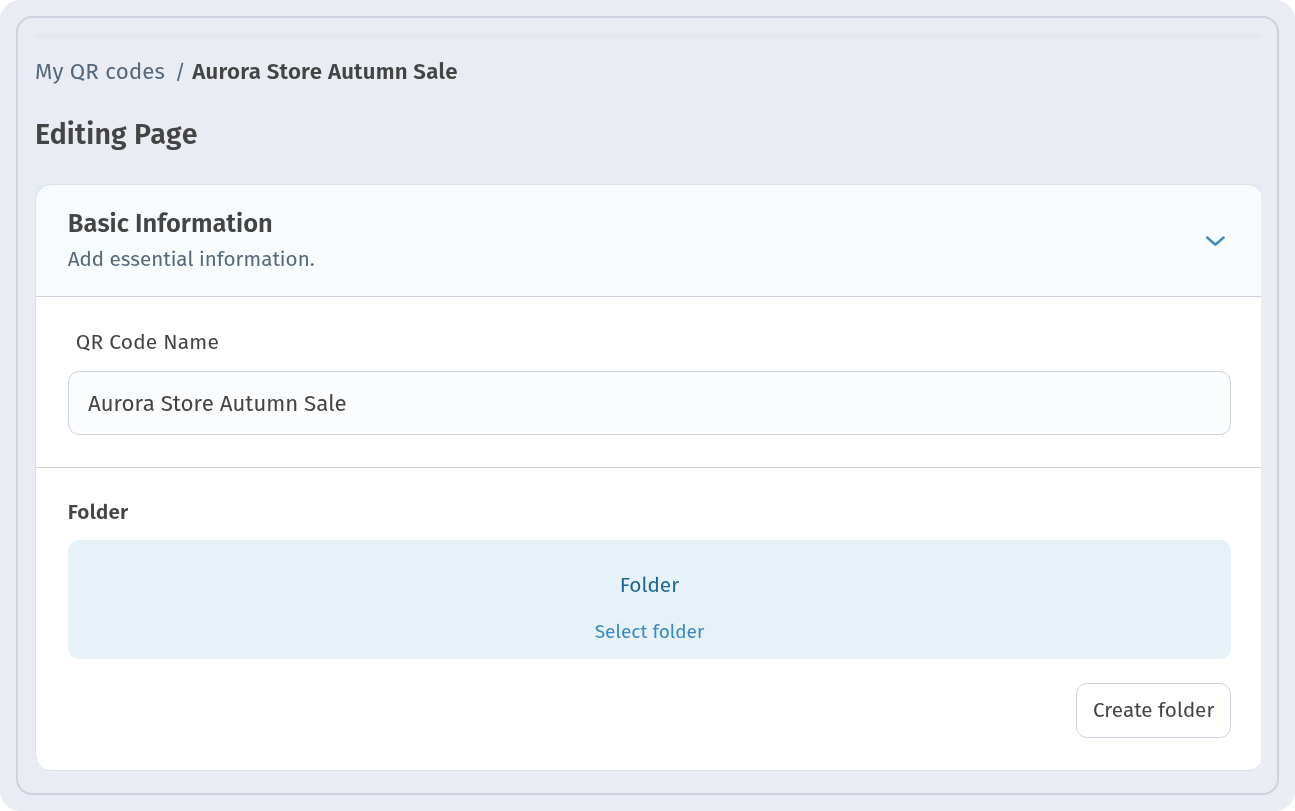
Make a separate code for each place: the window, the checkout, a shelf, each shop if you have several. Give the codes clear names in QR Code Name, for example "Aurora Store Autumn Sale", and keep them in a Folder for the shop or campaign. The same fields are on Editing Page later.
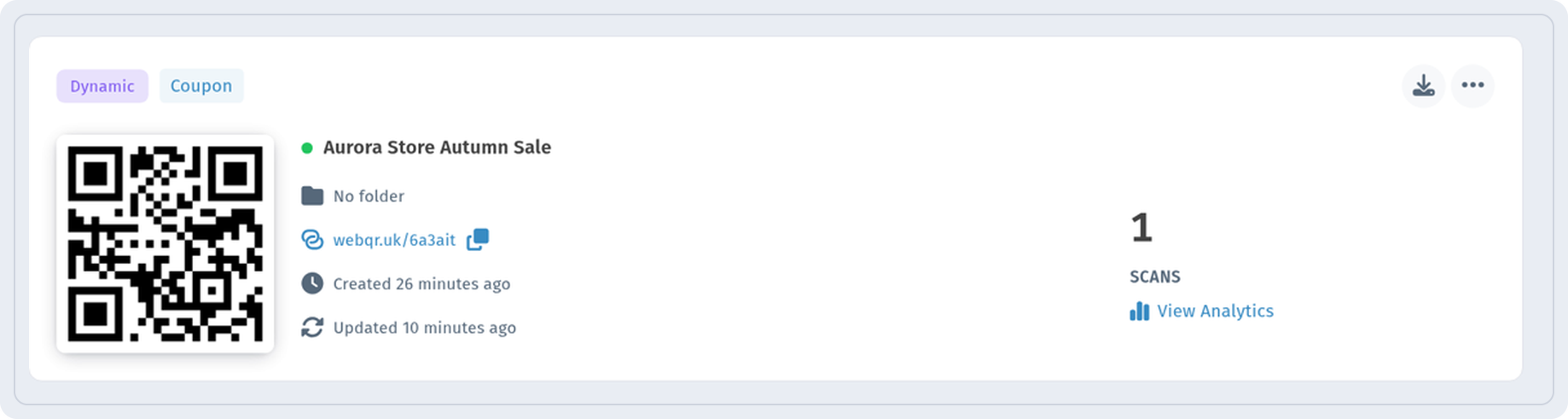
Each code appears as a card in My QR codes with its type, short link, scan count and View Analytics link.
How to sort codes into folders: Organize QR codes with folders and designs.
Change the offer without reprinting
The sale goes from 30% to 40% for the last days? Open the code, change the Discount and the description and click Save.
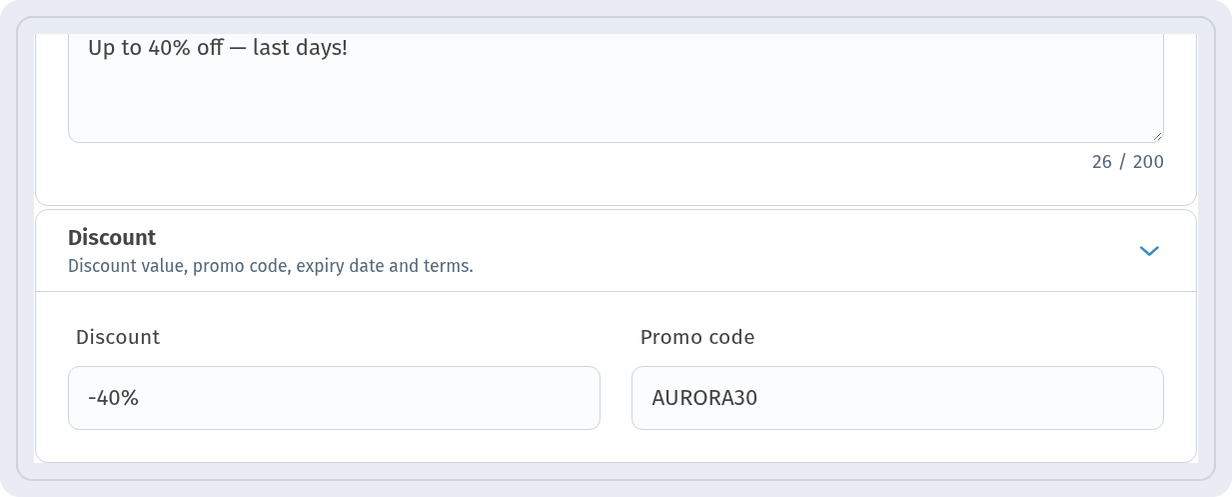
The price tags and stickers in the shop stay the same, and everyone who scans sees the new offer:
More: How to edit a QR code after printing.
See which places work
On the Analytics page you see QR codes, Scans and Unique for the selected Section and Date Range. Because every place has its own code, you can compare the window with the checkout or one shop with another. Repeat scans from the same IP address are not counted, so the numbers are not inflated by one person scanning many times.

Read more in QR code analytics.
Print and placement tips
- Put codes at eye level and where people pause: the checkout queue, the fitting room, the shelf with the product.
- Add a short promise under the code: "Scan for 30% off", "Watch how it works", "Rate your visit".
- Dark dots on a light background, a clean margin around the code, no glossy film over it.
- Price tags are small, so check that the code scans from a normal distance before printing a whole batch.
- Test every code with a few phones in the shop's lighting.
Print settings: How to print QR codes.
Checklist
- Each place has its own dynamic code with a clear name.
- Codes for one shop or campaign are in one folder.
- The window and checkout have a coupon; the receipt has a rating form.
- Shelves link to a video, manual or product page.
- Every code has a short call to action and shows Ready to scan.
- You check analytics to see which places customers actually scan.