
QR Codes on Business Cards and Flyers: Which Type to Choose and How to Design It
How to put a QR code on a business card or flyer: a vCard code for contacts, the right type for each flyer goal, design for small print, updating after printing and testing.
A business card or a flyer has a few seconds to make an impression. A QR code turns that moment into an action: a saved contact, a registration, a discount or a visit to your website. This guide uses a demo brand, Aurora Studio, to show which code type to choose, how to design it for small print and how to keep it useful after printing.
Business cards: use a vCard code
A plain link to your website makes people type your details by hand. A vCard code opens a contact page with everything at once. In WebQR you fill in the Contacts block (Phone Number, Email, Website):
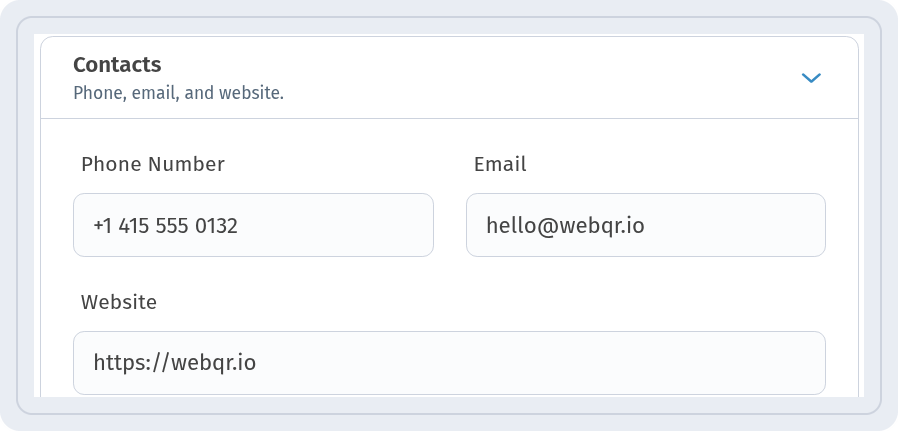
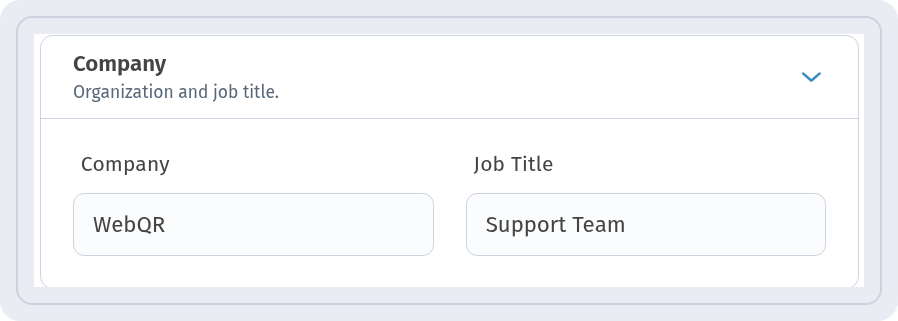
and the Company block with Company and Job Title. Fields you do not need can stay empty.
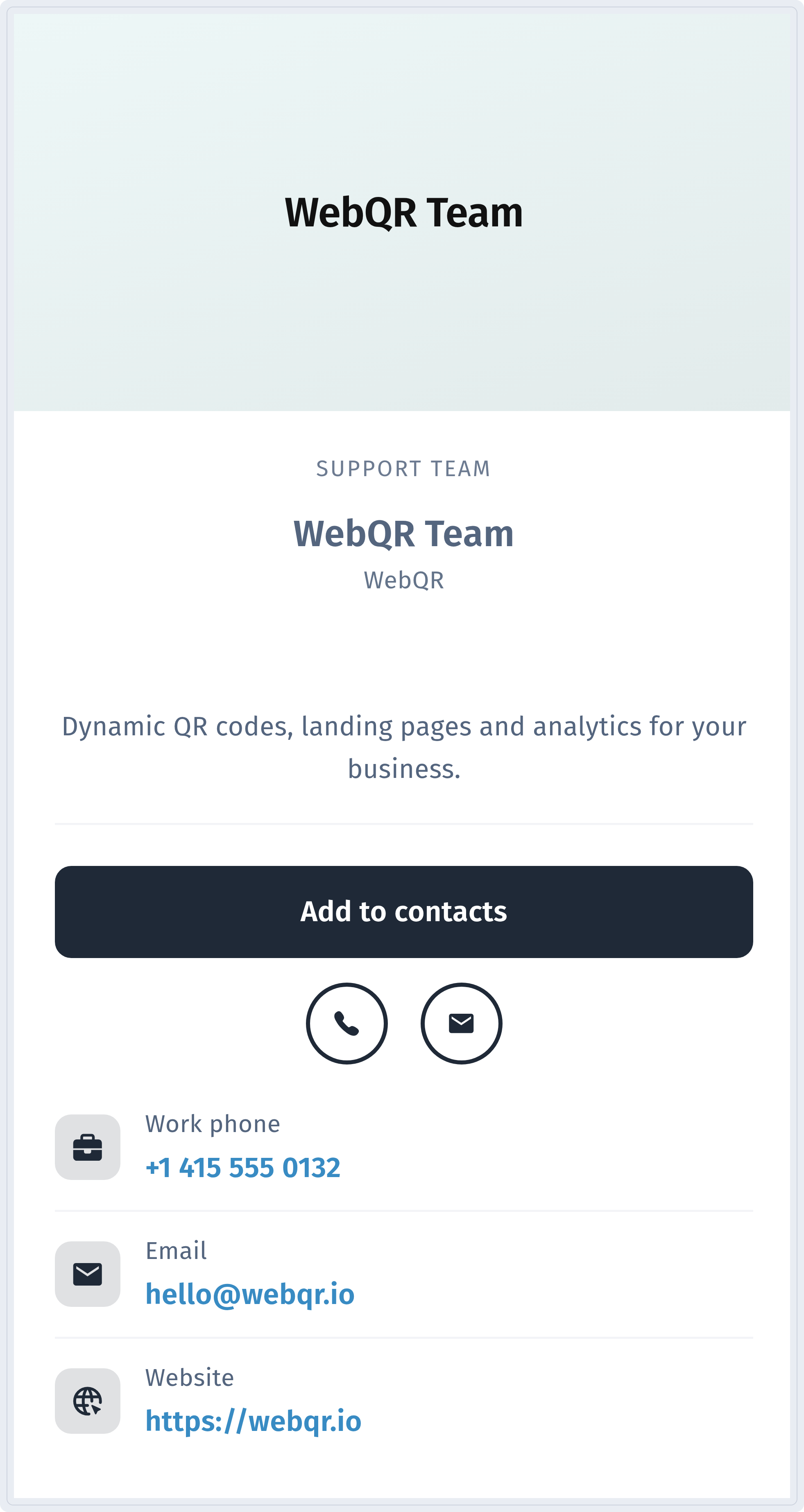
When someone scans the code, the phone opens a contact page with an Add to contacts button, plus quick buttons to call or email.
Step-by-step guide: How to create a vCard QR code.
Design for a small card
A business card is small, so the code must be clean and readable. In the Frame section choose a frame style, set Frame Color and Text Color and add a short call to action in Text Under QR Code, for example "Scan to save contact". The preview shows the result and the Ready to scan indicator.
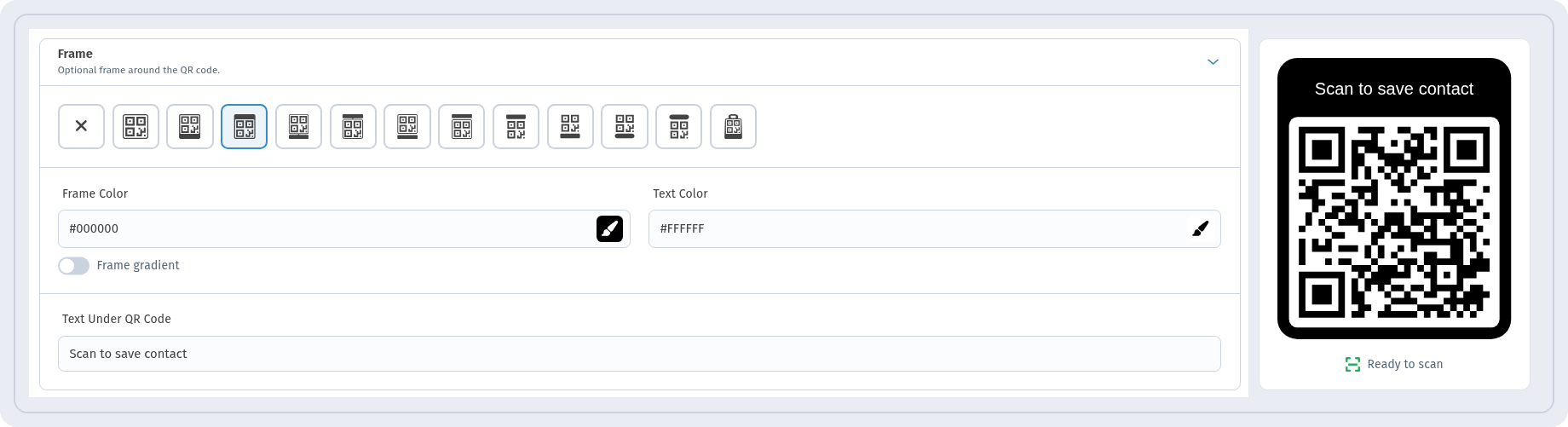
General tips for small print (not WebQR limits):
- keep dark modules on a light background with strong contrast;
- make the code at least about 2 × 2 cm; put it on the back side or in a free corner;
- leave an empty quiet zone around the code;
- keep a logo small, see How to add a logo to a QR code.
For file formats and print settings, see How to print QR codes correctly.
A card that stays up to date
The vCard code in WebQR is dynamic. After saving, it appears in My QR codes with the Dynamic and vCard tags and a View Analytics link.

If your phone number or job title changes, edit the code and the printed cards keep working with the new details. See Static vs dynamic QR codes and How to edit a QR code after printing.
Flyers: choose the type by the goal
A flyer usually has one goal. Pick the dynamic type that matches it:
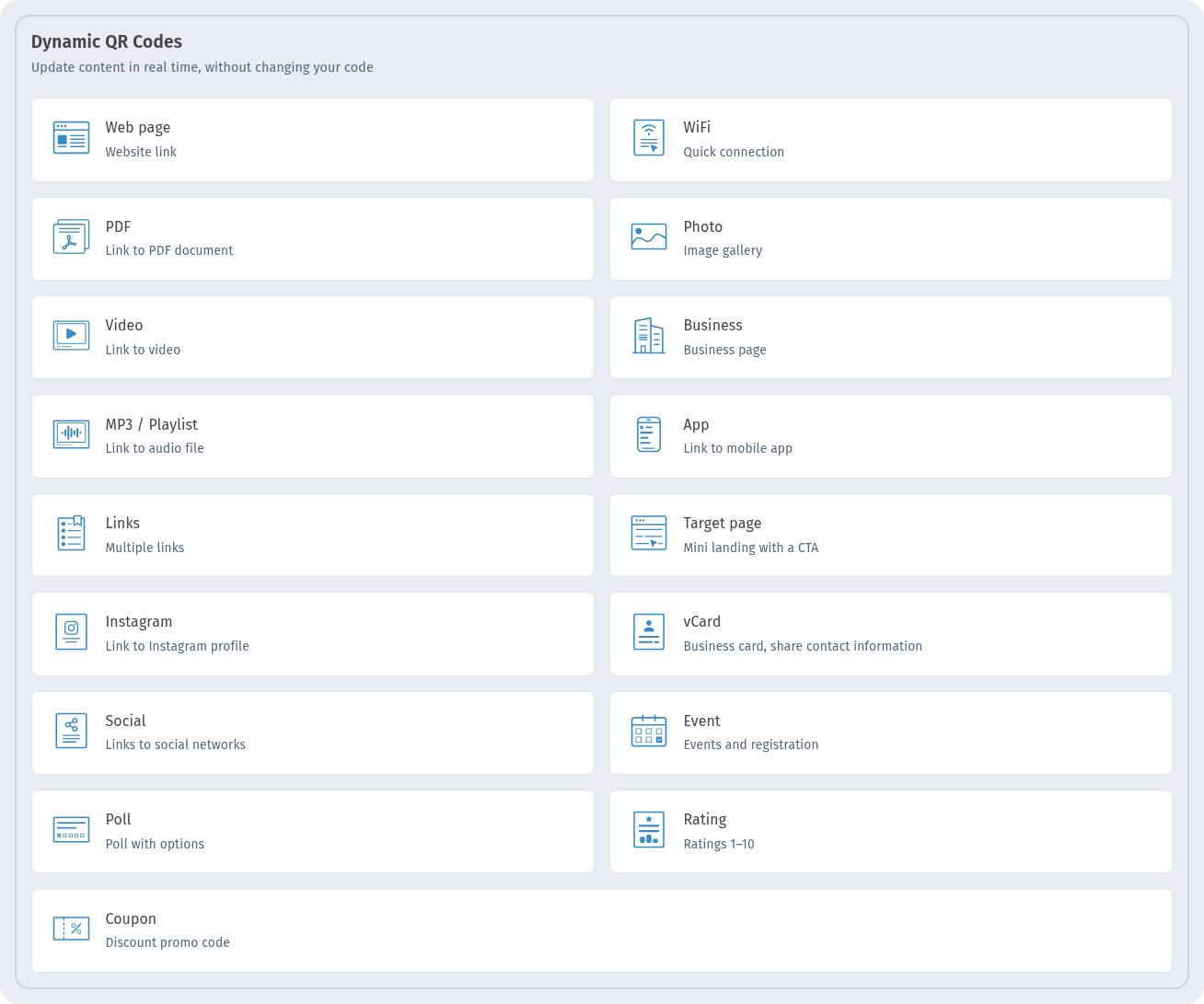
- Web page — a landing page, menu or catalog;
- Links — several links on one page;
- Event — date, time, place and an Add to calendar button for meetups, concerts and openings;
- Coupon — a discount and a promo code for a sale;
- Social — buttons to your social networks;
- Business — opening hours, address and contacts of a shop or office.
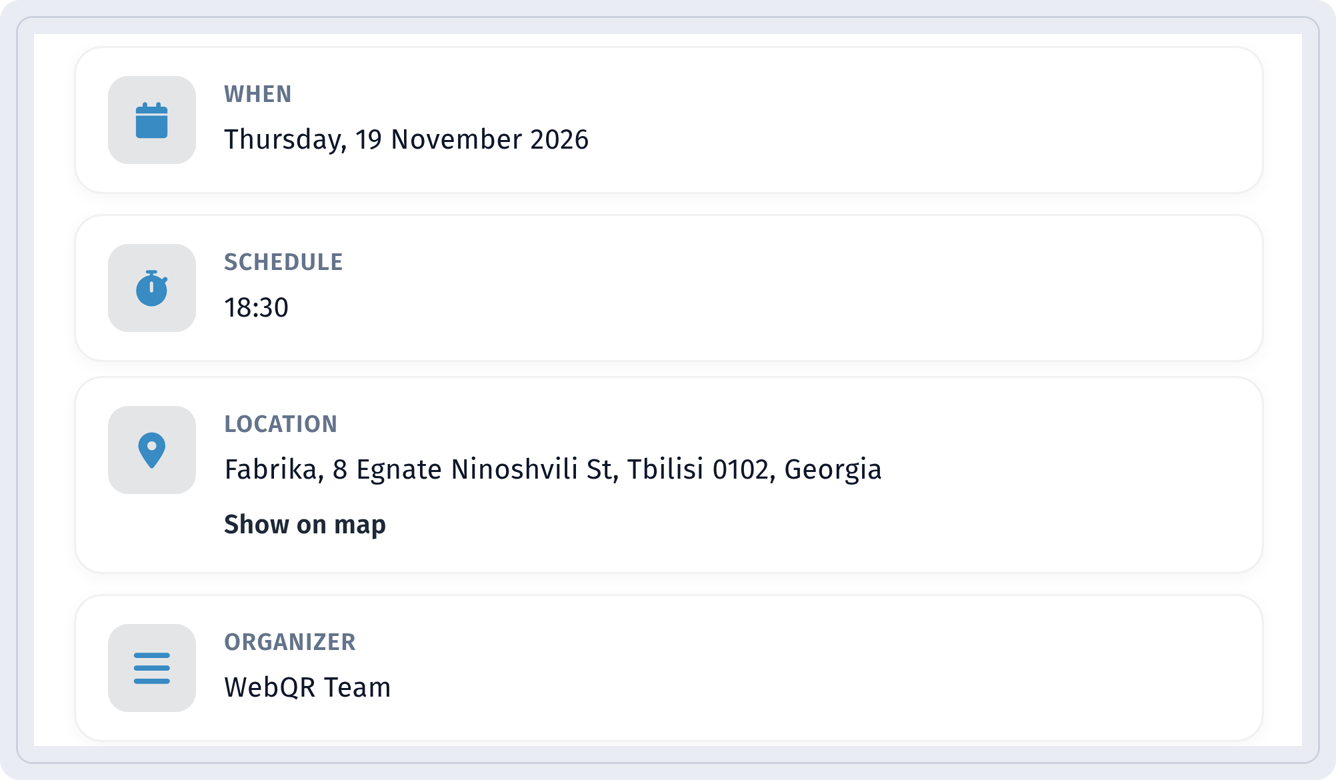
An event flyer opens a page with the date, time, location and organizer:
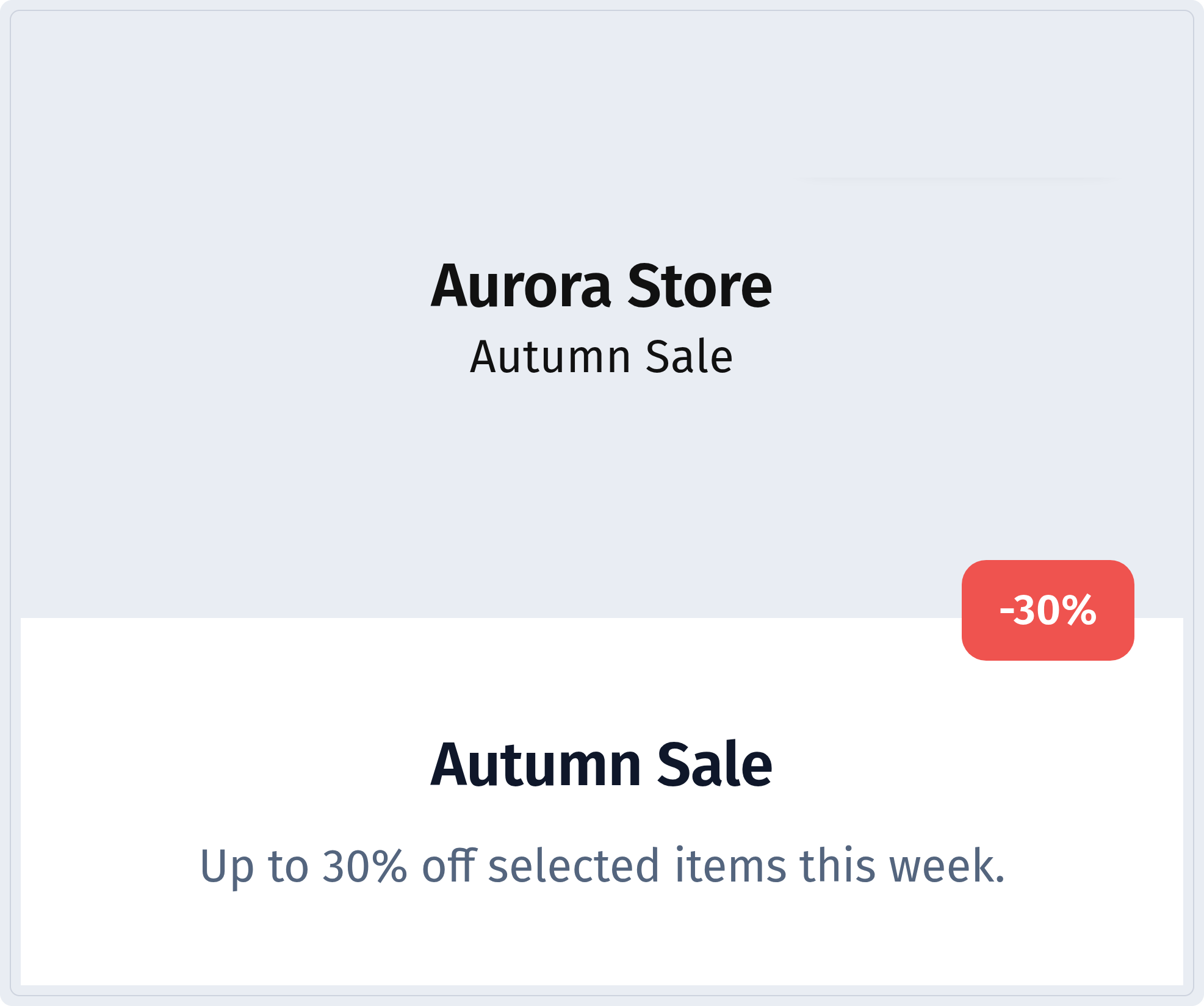
A sale flyer opens a coupon page with the discount:
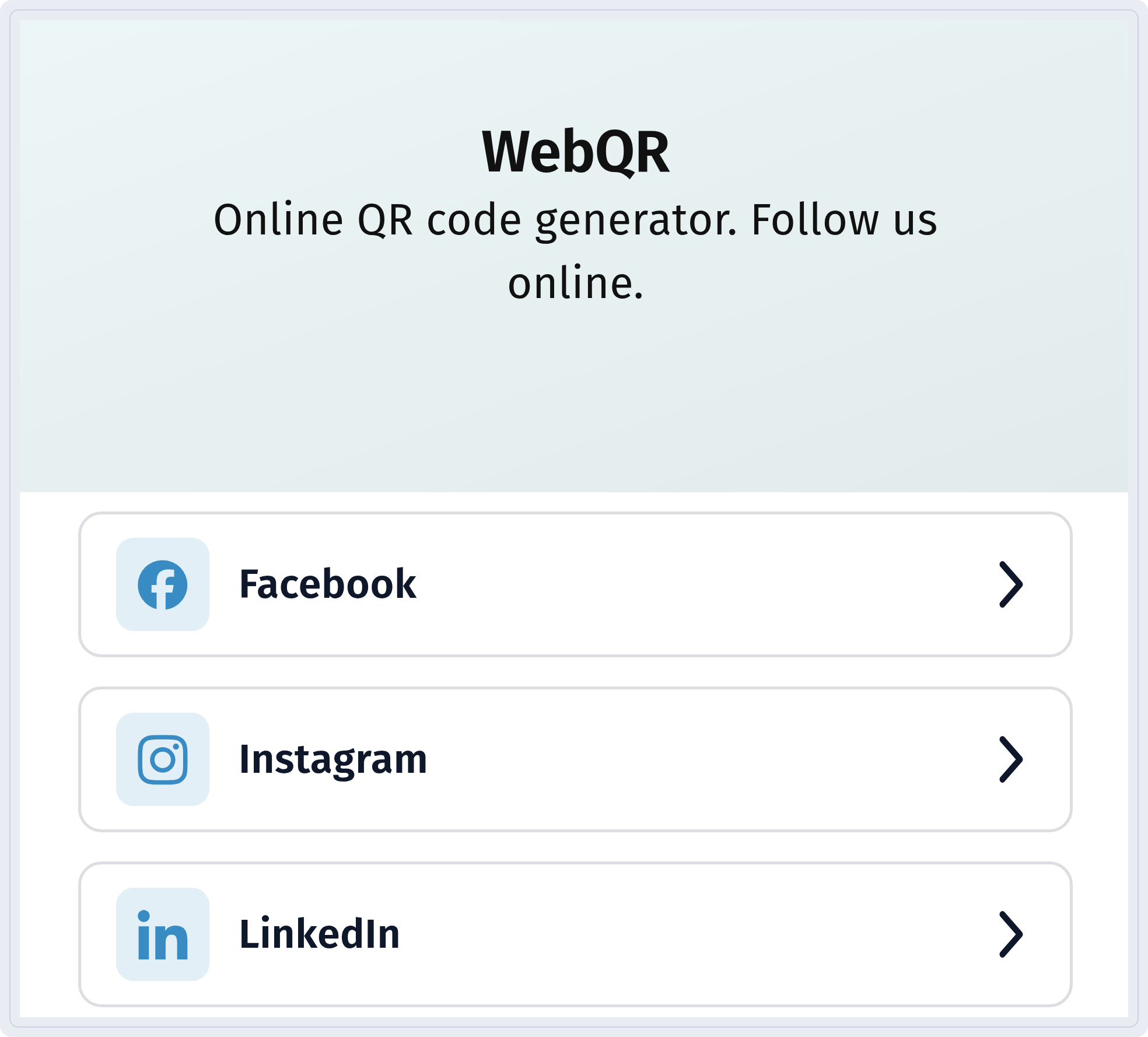
A "follow us" flyer opens a page with buttons for each network:
More on each type: Event QR code, Sale and promo QR code, Social media QR code, Business QR code.
Reuse a printed flyer for the next campaign
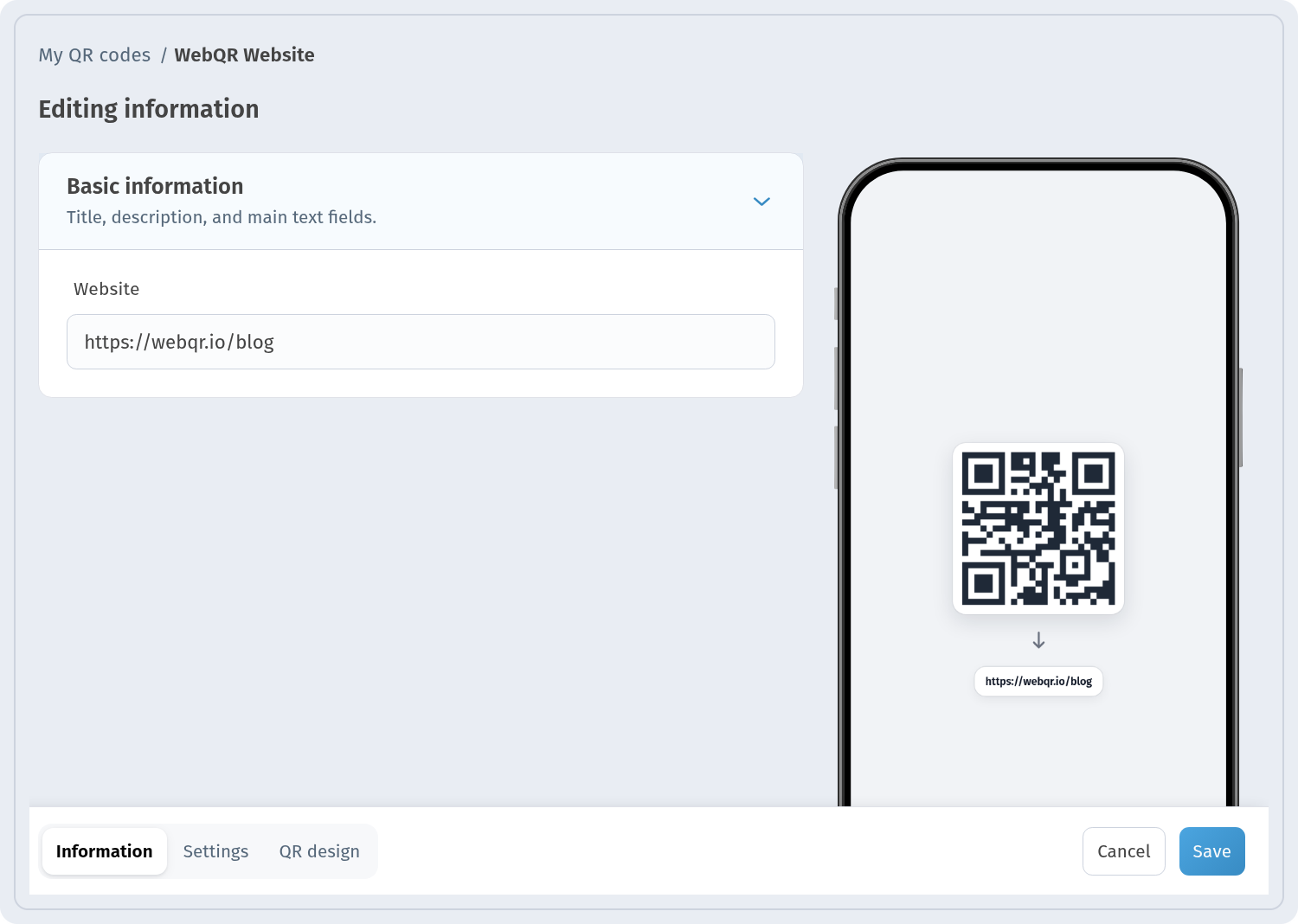
If flyers are still being handed out after a campaign ends, change where the code leads. Open the code, choose Edit and set a new address in the Website field. The printed code stays the same.
One code per flyer run
Use a separate code for each flyer, location or print run. The analytics page then shows scans per code for the period you choose, so you see which flyer works.

Read more in QR code analytics. If you need business cards for a whole team, create the codes in one batch: Bulk QR codes from CSV.
Test before printing
Print one sample on the real paper. Scan it with several phones (iPhone and Android), from a normal distance, at an angle and in different lighting, and check that the page opens quickly on mobile. Glossy or textured paper needs extra care. The same advice applies to labels: QR codes on packaging and labels.
Checklist
- business card: a vCard code with your name, company, phone, email and website;
- flyer: one goal and the matching type (Web page, Links, Event, Coupon, Social, Business);
- dark modules on a light background, the indicator shows Ready to scan;
- a short call to action in the frame or next to the code;
- at least about 2 × 2 cm, with a quiet zone;
- a separate code per flyer run;
- a printed sample tested on several phones.
FAQ
What QR code should go on a business card? A vCard code: the phone offers to save your contact with one tap.
Can I change my details after the cards are printed? Yes. The vCard code in WebQR is dynamic, so you edit the data and the printed code stays the same.
Which type is best for a flyer? It depends on the goal: Event for an event, Coupon for a sale, Social for followers, Web page or Links for everything else.
Where should the code go on a card? On the back side or a free corner, on a plain background, with an empty margin around it.