
QR Codes in Marketing Campaigns: Plan, Launch and Measure
How to run a QR campaign in WebQR: dynamic codes, one folder per campaign, one code per placement, a shared design, changing the offer without reprinting, pausing between waves and comparing scans.
A QR code in a campaign is more than a link on a poster. Planned well, it lets you change the offer without reprinting, compare placements and stop a wave when it ends. Here is how to set up a QR campaign in WebQR step by step.
1. Choose dynamic codes
For campaigns, use dynamic codes. The printed image holds only a short link, and the destination lives in WebQR, so you can change it at any time and see scans for each code. Static codes can’t be changed or measured.
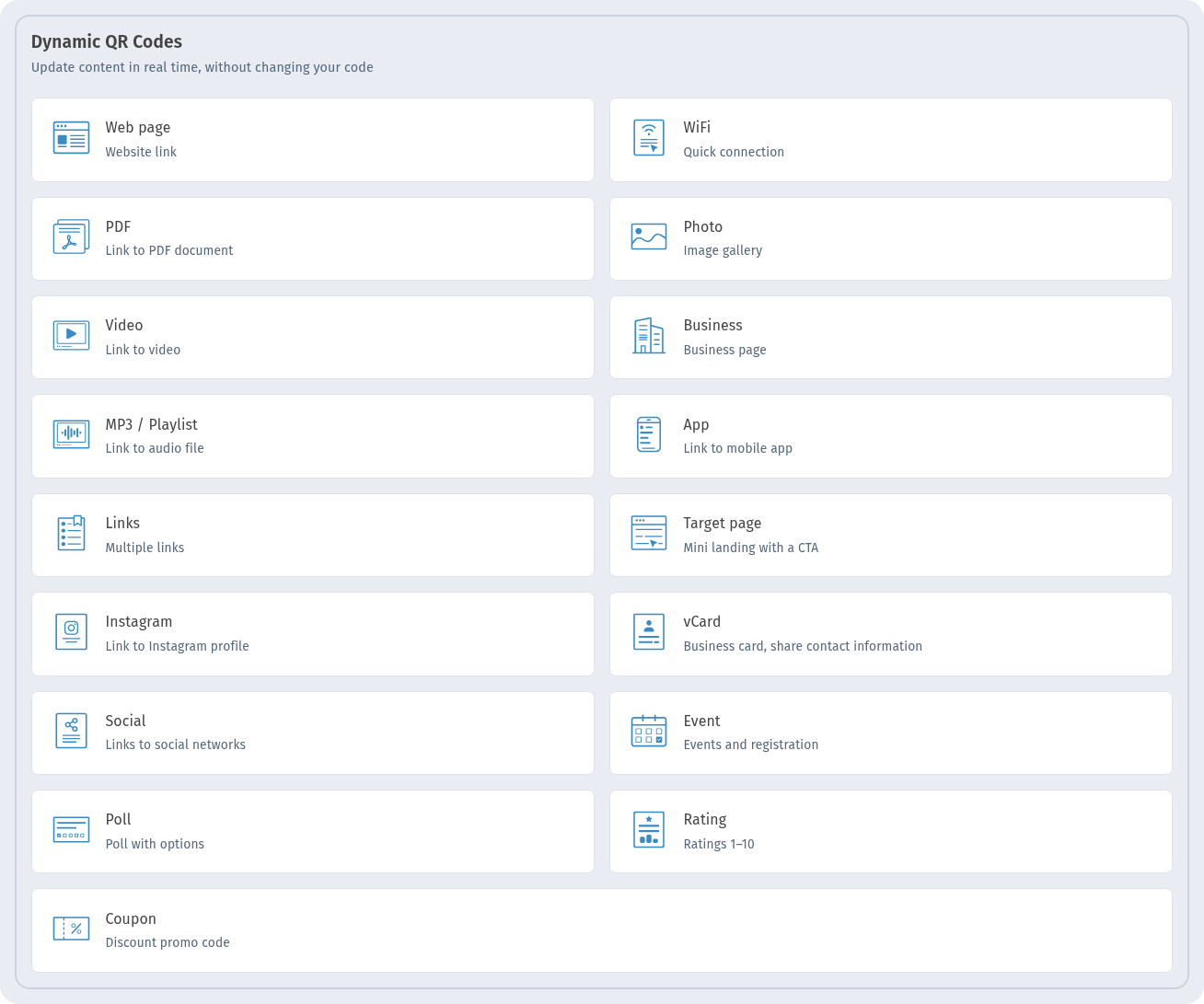
The difference is explained in Static vs dynamic QR codes.
2. Keep the campaign in one folder
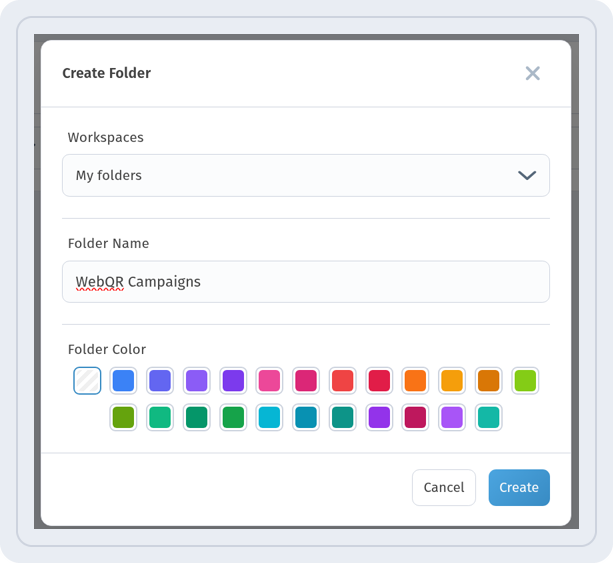
Create a folder for each campaign: in the Create folder dialog, enter the Folder Name and pick a Folder Color.
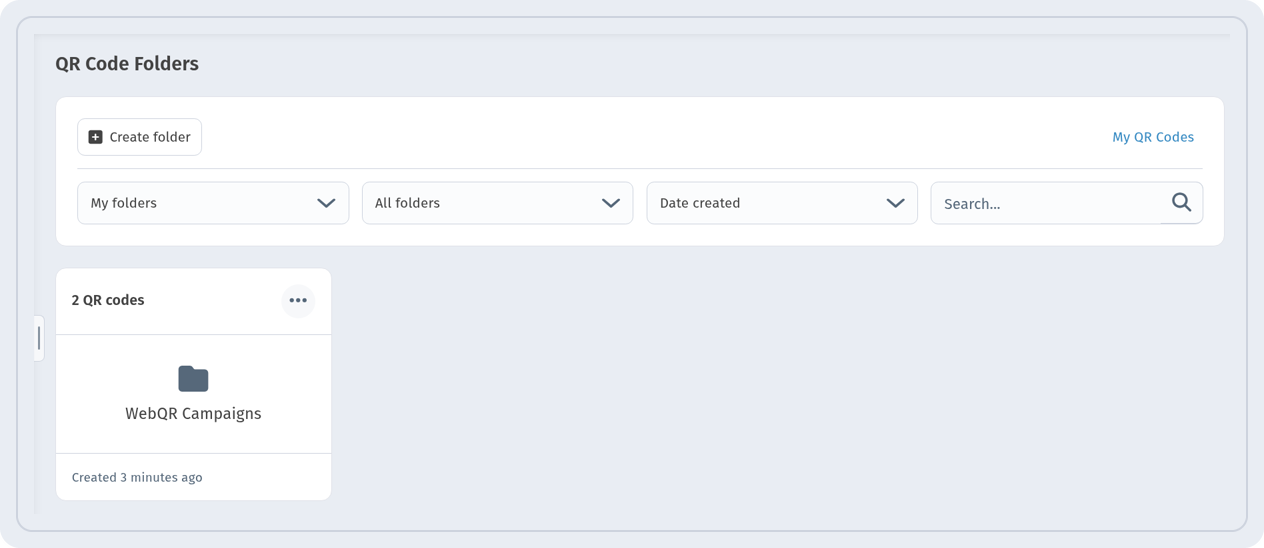
The QR Code Folders page shows how many codes each folder holds.
In My QR codes, open Filters → By folder to see only the codes of one campaign.
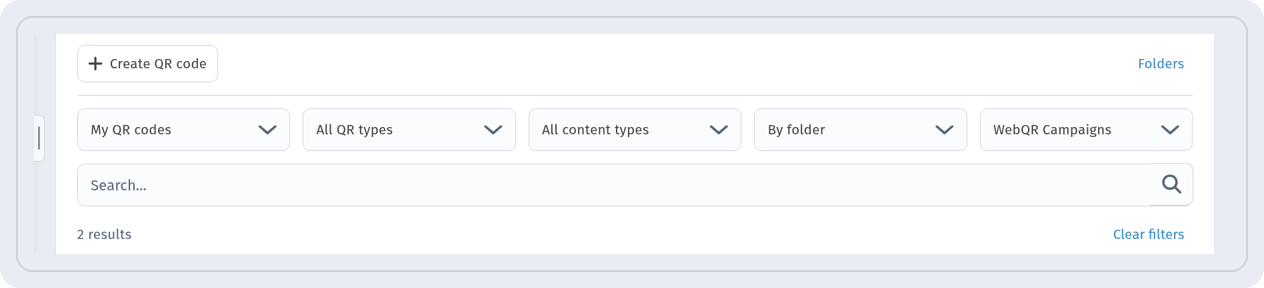
More in Organize QR codes: folders and saved designs.
3. One code per channel and placement
Make a separate code for every place the campaign appears: the window poster, flyers, the receipt, packaging, the event stand. Give codes clear names, for example “Autumn Sale – Window†and “Autumn Sale – Flyerâ€. Then the analytics shows which placement works, not just the campaign total.
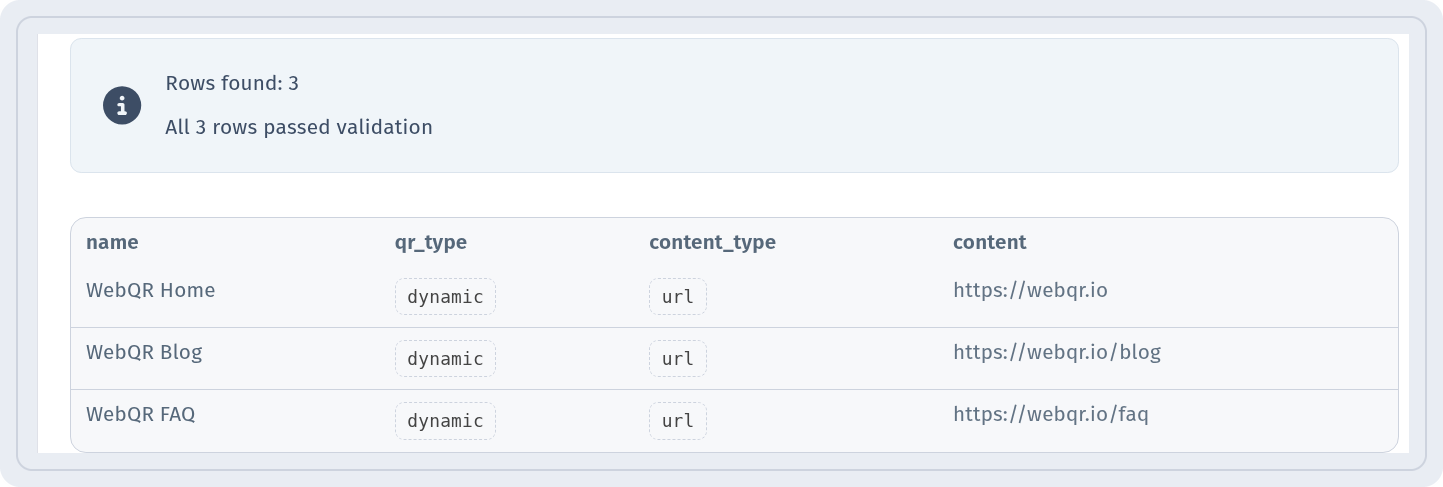
If you need many codes at once, create them from a CSV file: WebQR checks the rows and shows a preview before creating.
4. Keep one look across all materials
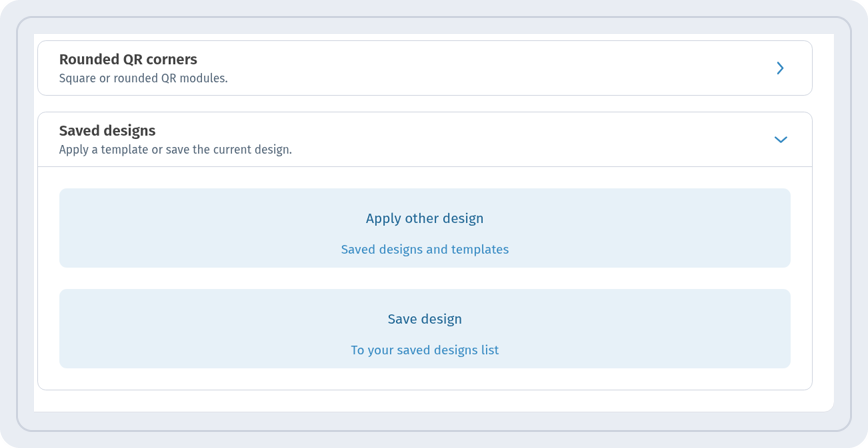
Save the campaign design once and apply it to every code with Apply other design in the Saved designs section. All codes then share colors and style, and stay readable.
For a brand logo in the code, see QR code with a logo.
5. Pick the right page for the offer
The destination depends on the goal: a website or landing page, a Coupon with a promo code, an event with registration, a poll or a rating after purchase. For example, a sale campaign can use a coupon code.
This is what a customer sees after scanning:
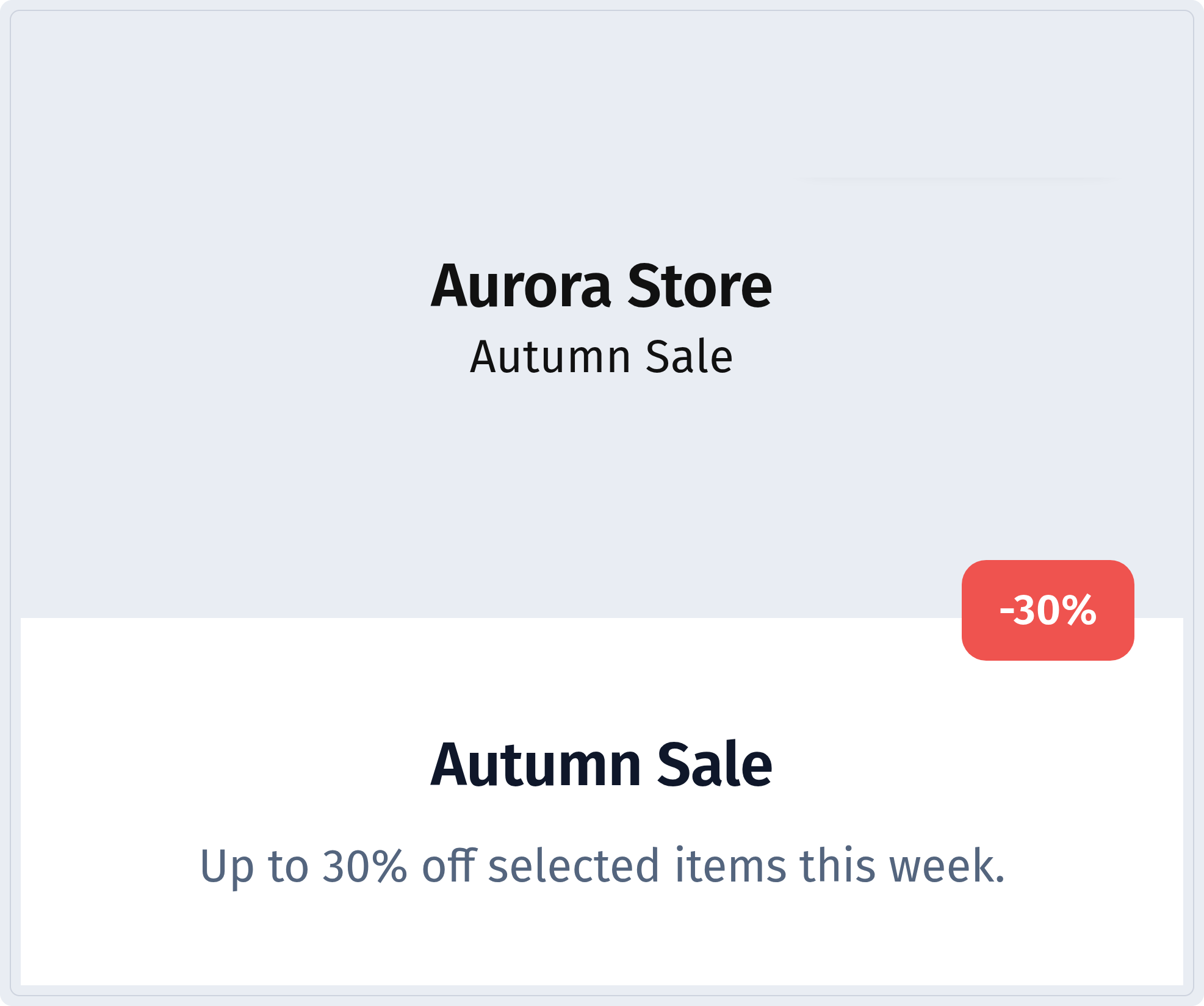
Guides: Coupon QR code, Event QR code, Poll QR code, Rating QR code.
6. Change the offer without reprinting
When the discount grows or the deadline moves, edit the page — the printed code stays the same.
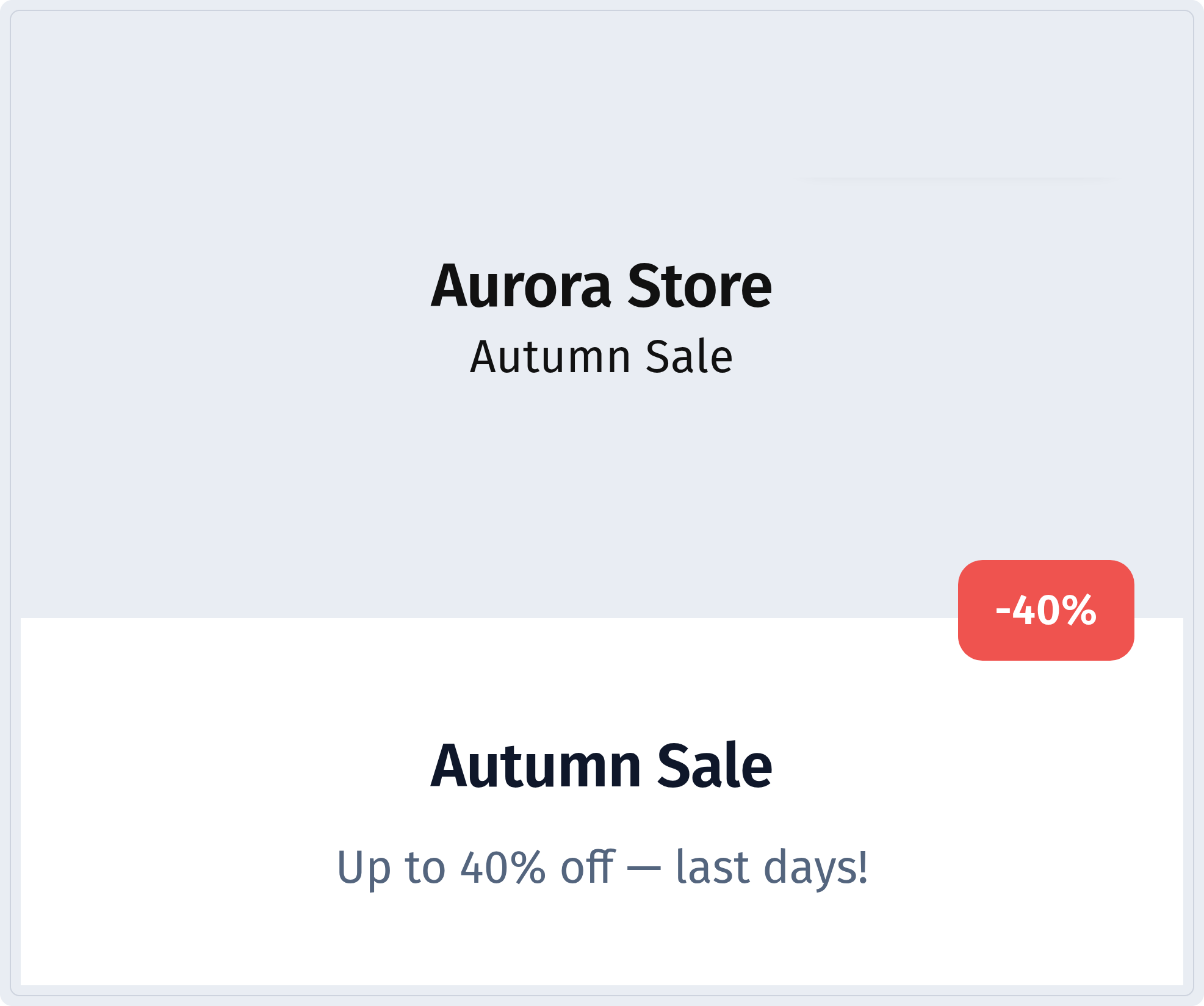
For a Web page code, simply put a new address in Website and save.
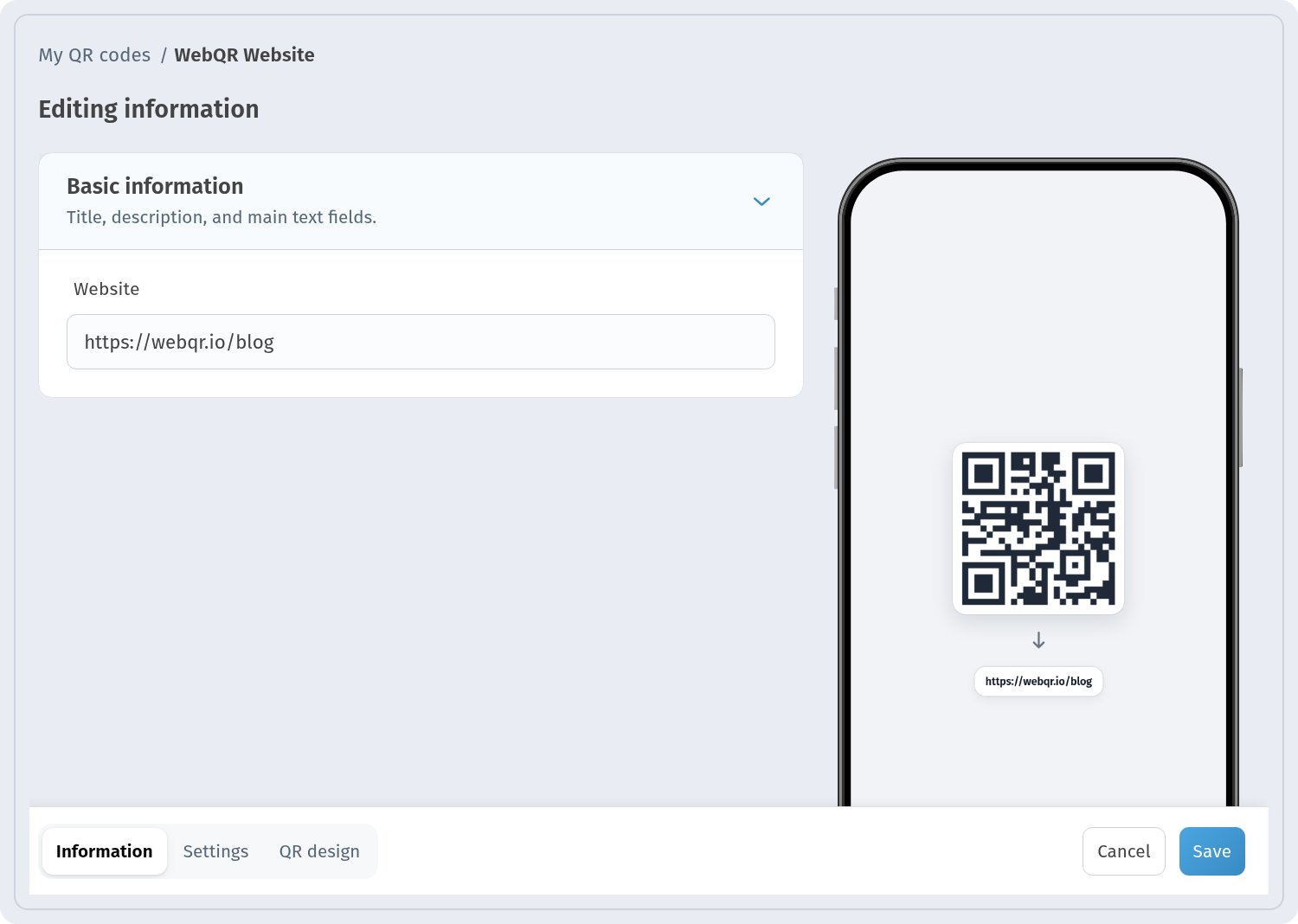
Details: Edit a QR code after printing.
7. Pause between waves
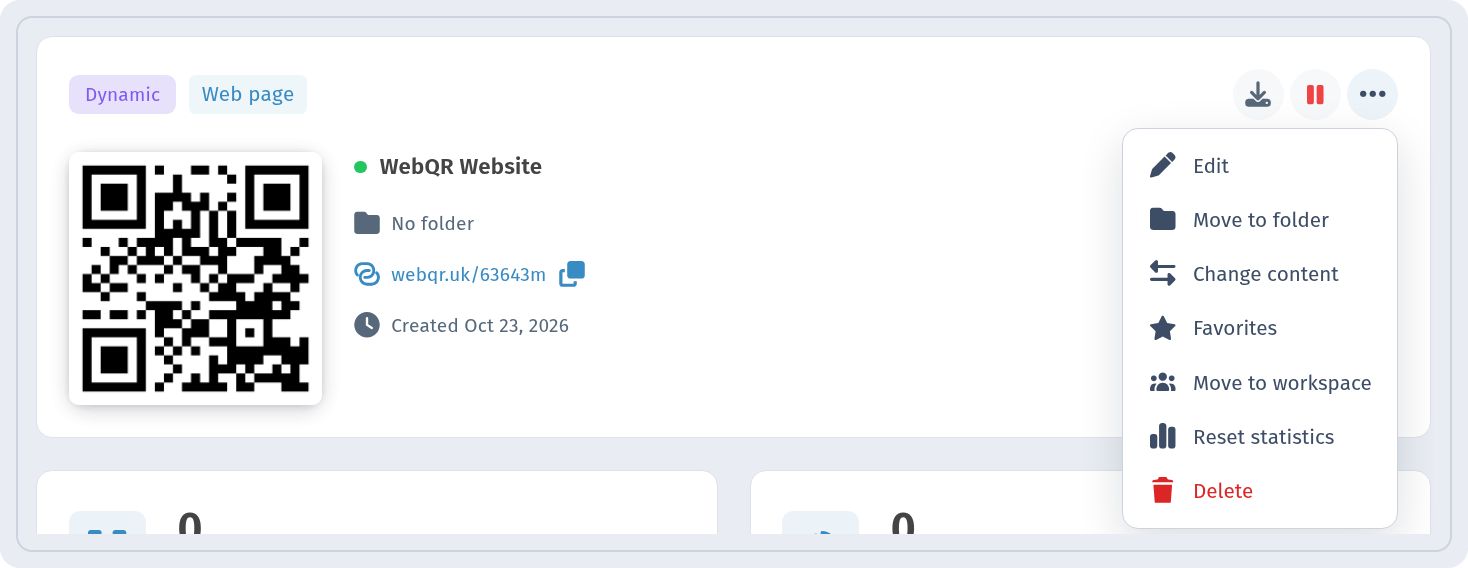
When a wave ends but the materials stay in place, pause the code instead of deleting it. The pause icon is in the header of the code’s analytics page. Visitors then see a notice that the page is temporarily paused; resume the code for the next wave.
8. Measure the results
The Analytics page shows the number of codes, Scans and Unique visitors, with Section and Date Range filters. Unique counts each visitor once, so repeat scans by the same person don’t inflate the results.

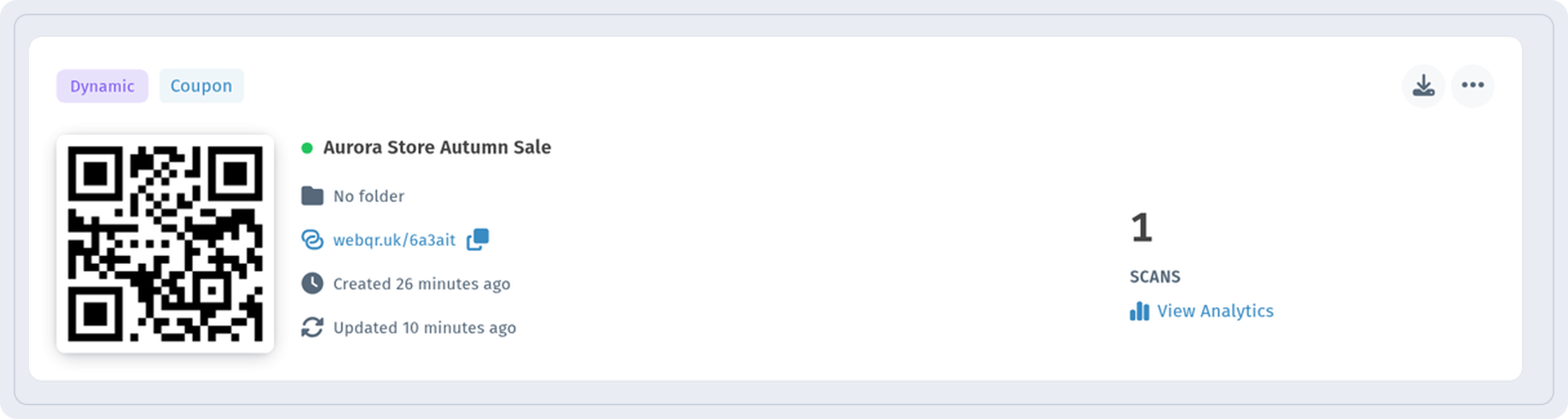
Each code card shows its scan count and a View Analytics link — compare placements side by side.
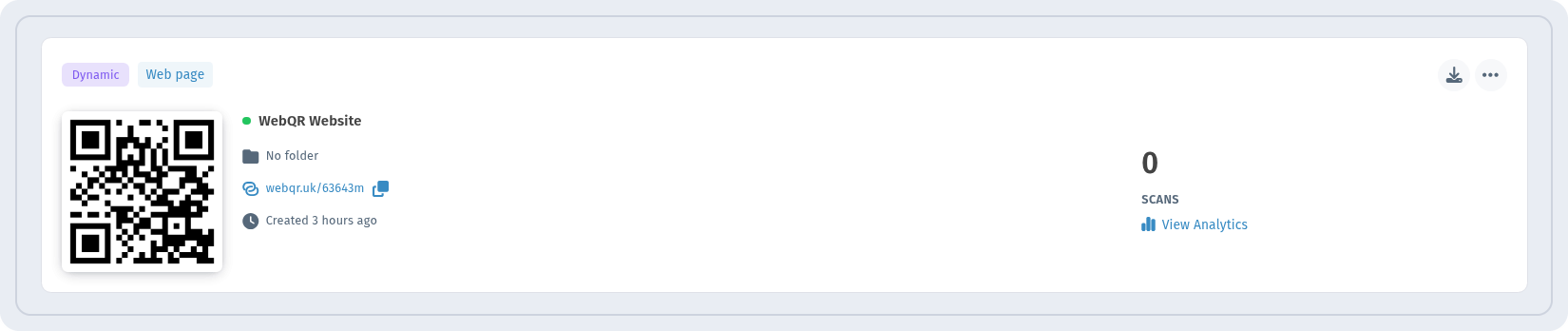
More: QR code analytics. To see what visitors do after the scan, connect your tracking: Google Analytics 4, Tag Manager and Meta Pixel.
9. Print and test
For print, download the codes in a vector format (SVG, PDF or EPS) or a large PNG.
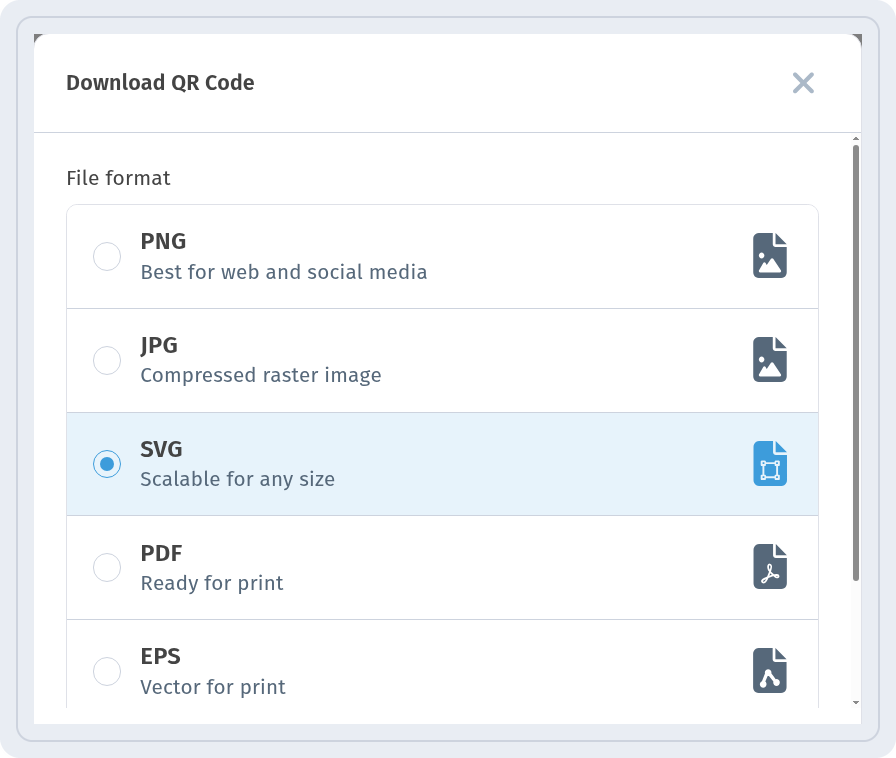
Before the print run, scan a test copy on several phones at the real size and distance. See How to print QR codes and QR code not scanning?.
Campaign checklist
- Dynamic codes only.
- One folder per campaign, one code per placement, clear names.
- One saved design for all codes.
- A short call to action next to each code.
- The destination page is ready for mobile.
- Test scans before printing.
- Plan: what changes mid-campaign, when to pause, when to read the results.
FAQ
Can I reuse codes for the next campaign? Yes. Change the destination of a dynamic code and the same printed materials lead to the new offer. Reset or note the statistics first if you want to compare campaigns.
Should I delete codes after a campaign ends? It’s better to pause them: printed materials may still be out there, and the statistics stay.
How do I compare two placements? Give each placement its own code and compare their scans for the same date range.